
1. Pengenalan
This manual provides detailed instructions for the installation, operation, and maintenance of your RUIZHI WiFi 6 USB Adapter. This device offers enhanced wireless connectivity and Bluetooth capabilities for your desktop or laptop computer. Please read this manual carefully before using the product to ensure optimal performance and safety.

Satu jarak dekat view of the RUIZHI WiFi 6 USB Adapter, highlighting its sleek black casing and the 'Wi-Fi 6' logo, indicating its advanced wireless capabilities.
2. Ciri-ciri Produk
- Prestasi Dipertingkat: Upgraded WiFi 6 adapter, AX900 Mbps (dual band 2.4 + 5.8 GHz) for faster internet speeds when used with a WiFi 6 router.
- Bluetooth 5.3: Connects up to 7 different Bluetooth devices simultaneously. (Note: Bluetooth does not support Apple phones).
- Pasang dan Main: Driver-free installation for Windows 10/11.
- Keselamatan Lanjutan: Supports WEP/WPA/WPA2/WPA3 encryption for robust network protection.
- Sokongan MU-MIMO: Improves network efficiency in multi-device environments.
- Padat dan Mudah Alih: Lightweight, all-in-one USB adapter design.

An illustration comparing the data transfer speeds of WiFi 6 (900Mbps) and WiFi 5 (433Mbps), demonstrating the performance improvement offered by the RUIZHI WiFi 6 adapter.

Visual representation of the adapter's key features: WiFi 6 for high-speed internet, USB for easy connection, Bluetooth 5.3 for device pairing, and Dual Band support for flexible network access.
3. Panduan Persediaan
Follow these steps to install and set up your RUIZHI WiFi 6 USB Adapter:
- Langkah 1: Masukkan Penyesuai
Carefully insert the RUIZHI WiFi 6 USB Adapter into an available USB port on your desktop or laptop computer. Ensure it is fully seated. Avoid using USB ports already occupied by other wireless peripherals like a mouse or keyboard dongle if possible, to prevent potential interference. - Langkah 2: Pemasangan Pemandu Automatik
For Windows 10/11, the system will automatically detect the adapter and initiate the driver installation process. A pop-up window will appear, prompting you to click 'Install'. Follow the on-screen instructions to complete the driver setup. No external CD-ROM or manual driver download is typically required. - Step 3: Connect to Network/Bluetooth
Once the driver installation is complete, you can connect to your desired Wi-Fi network or pair Bluetooth devices. Access your computer's network settings to select a Wi-Fi network or your Bluetooth settings to add new devices.

A visual guide detailing the simple three-step installation process: 1. Insert the network card into the computer's USB port. 2. The driver will automatically pop up for installation. 3. Connect to your desired network or Bluetooth device.
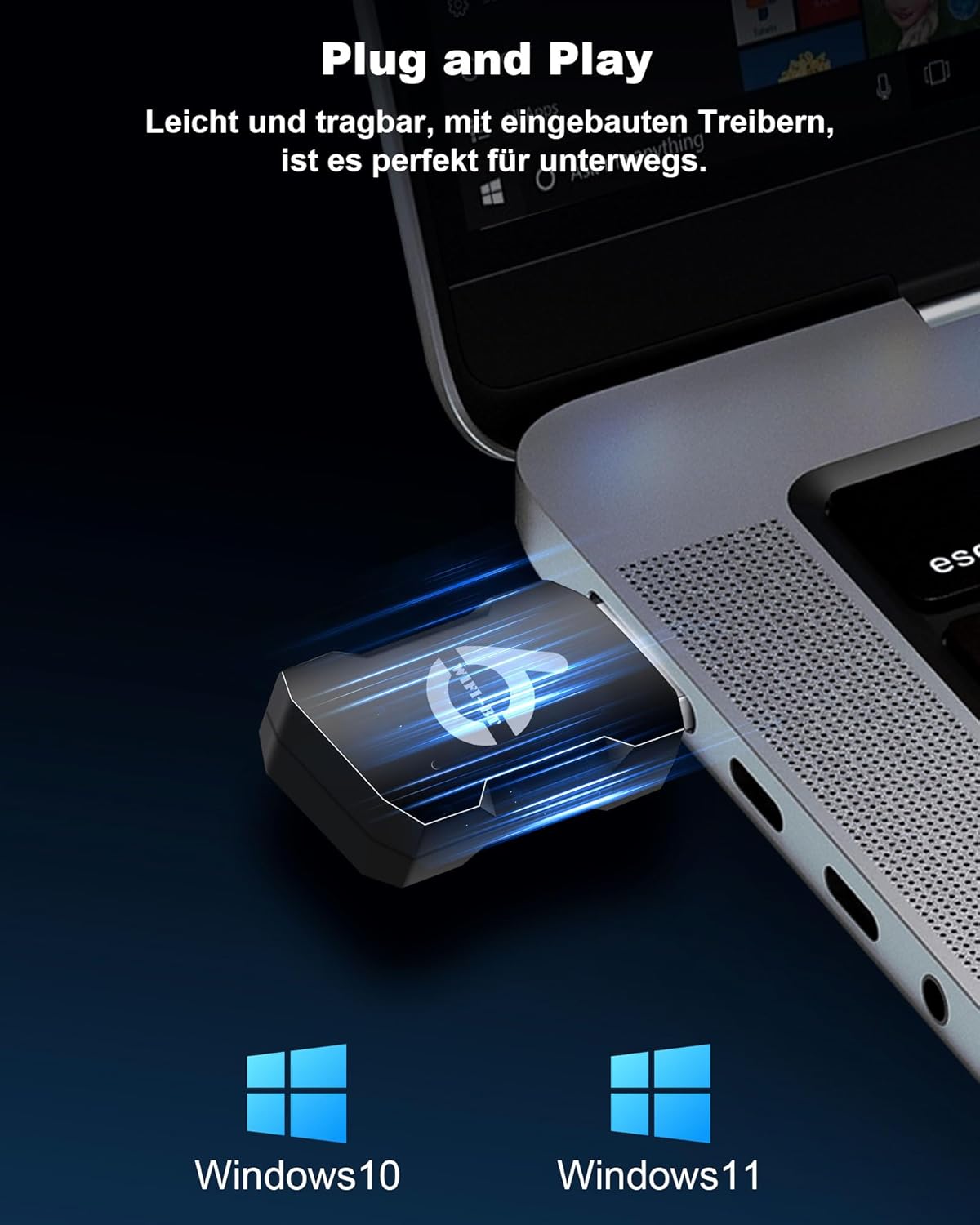
The RUIZHI WiFi 6 USB Adapter inserted into a laptop's USB port, illustrating its plug-and-play nature and compatibility with Windows 10 and Windows 11 operating systems.
4. Arahan Operasi
4.1. Kesambungan Wi-Fi
- After successful driver installation, navigate to your computer's network settings.
- Select the Wi-Fi icon in the system tray (Windows) or network preferences (macOS).
- Choose your desired Wi-Fi network from the list of available networks.
- Masukkan kata laluan rangkaian jika diminta dan klik 'Sambung'.
- The adapter supports dual-band (2.4 GHz and 5.8 GHz) for flexible connection options. The 5.8 GHz band is recommended for faster speeds and less interference, especially when using multiple Bluetooth devices simultaneously.
4.2. Kesambungan Bluetooth
- Pastikan Bluetooth didayakan pada komputer anda.
- Go to your computer's Bluetooth settings (e.g., 'Bluetooth & devices' in Windows Settings).
- Click 'Add device' or 'Pair new device'.
- Letakkan peranti Bluetooth anda (cth., fon kepala, papan kekunci, tetikus) ke dalam mod berpasangan.
- Select your device from the list that appears and follow any on-screen prompts to complete pairing.
- The adapter supports connecting up to 7 Bluetooth devices concurrently.

An infographic demonstrating the Bluetooth 5.3 capability of the adapter, showing it can connect up to 7 devices concurrently, such as printers, keyboards, mice, smartphones, tablets, audio devices, and headphones.
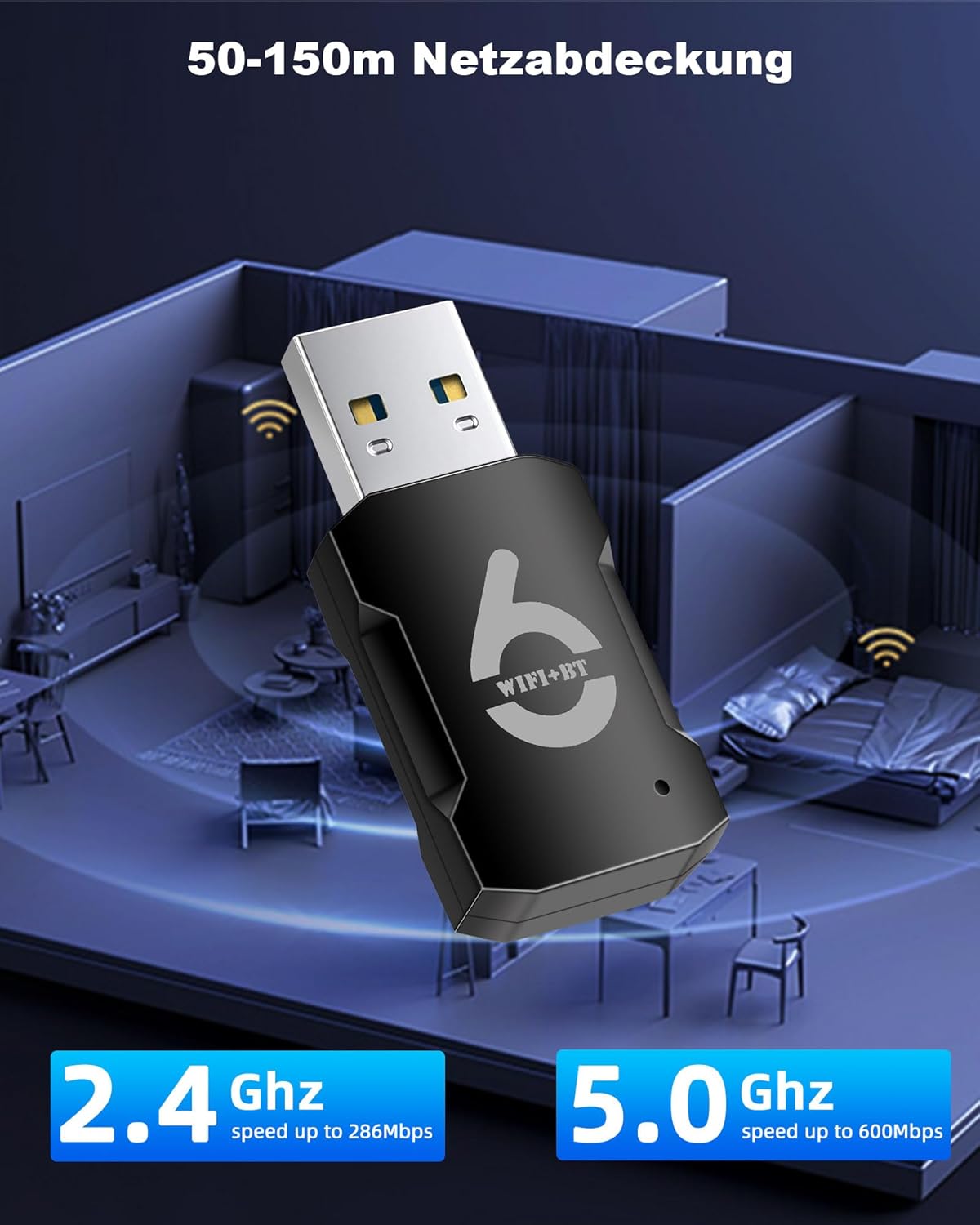
An illustration depicting the network coverage provided by the adapter, showing both 2.4 GHz and 5.0 GHz bands with their respective maximum speeds of 286 Mbps and 600 Mbps, and an effective range of 50-150 meters.
5. Penyelenggaraan
- Pastikan penyesuai bersih dan bebas daripada habuk. Gunakan kain lembut dan kering untuk pembersihan.
- Elakkan mendedahkan penyesuai kepada suhu, kelembapan atau cahaya matahari langsung yang melampau.
- Do not attempt to disassemble or repair the adapter yourself. This may void the warranty and cause damage.
- When not in use for extended periods, it is recommended to remove the adapter from the USB port.
6. Penyelesaian masalah
- Penyesuai Tidak Dikesan: Ensure the adapter is fully inserted into a functional USB port. Try a different USB port. Restart your computer.
- Wi-Fi Tidak Bersambung: Verify your Wi-Fi network is active and you have entered the correct password. Ensure your router is functioning correctly. Check if other devices can connect to the same network.
- Kelajuan Wi-Fi Perlahan: Ensure you are connected to the 5.8 GHz band if available, as it generally offers faster speeds. Reduce physical obstructions between the adapter and your router. Ensure your router supports WiFi 6 for optimal performance.
- Bluetooth Devices Not Pairing: Ensure your Bluetooth device is in pairing mode. Check that Bluetooth is enabled on your computer. Restart both your computer and the Bluetooth device.
- Isu Pemandu: Although the adapter is plug-and-play for Windows 10/11, if issues persist, check your Device Manager for any driver conflicts or outdated drivers. Windows Update may provide necessary updates.
- Gangguan: If experiencing intermittent connectivity, try moving the adapter to a different USB port or away from other electronic devices that might cause interference.
7. Spesifikasi
| Ciri | Perincian |
|---|---|
| Jenama | RUIZHI |
| Model | AX900Mbs |
| warna | Hitam |
| Peranti Serasi | Komputer meja, Komputer riba |
| Antara Muka Perkakasan | USB, Bluetooth |
| Protokol Pautan Data | IEEE 802.11ax (WiFi 6), Bluetooth |
| Kadar Pemindahan Data | 900 Megabit sesaat |
| Keserasian Sistem Pengendalian | Windows (Windows 10 minimum required version) |
| Kekerapan WiFi | 2.4 GHz, 5.8 GHz (Dual Band) |
| Versi Bluetooth | 5.3 |
| Protokol Keselamatan | WEP, WPA, WPA2, WPA3 |
| Dimensi (Anggaran) | 42mm (L) x 18mm (W) x 9mm (T) |

A technical drawing indicating the compact dimensions of the RUIZHI WiFi 6 USB Adapter: 42mm in length, 18mm in width, and 9mm in thickness, highlighting its portable size.
8. Waranti dan Sokongan
Specific warranty information for this product is not available in the provided details. For warranty claims or technical support, please refer to the seller or manufacturer's official webtapak. Simpan resit pembelian anda sebagai bukti pembelian.