
1. Pengenalan
This manual provides essential information for the installation, operation, maintenance, and troubleshooting of your PNY RTX 4000 Ada Generation 20GB DDR6 Quadro Graphics Card. This professional graphics card is designed for demanding applications such as 3D rendering, CAD/CAM, scientific simulations, and AI workflows, leveraging the NVIDIA Ada Lovelace architecture.
Key features include 6,144 CUDA cores, 48 RT Cores, 192 Tensor Cores, and 20GB of GDDR6 ECC memory, all within a single-slot, 130W design. It supports up to four 4K monitors or two 8K monitors via DisplayPort 1.4a.

Figure 1: PNY RTX 4000 Ada Generation Graphics Card overview, showing the single-slot design and an illustrative power connector icon.
2. Maklumat Keselamatan
Please read and follow all safety instructions carefully to prevent damage to the product or personal injury.
- Sentiasa putuskan kuasa dari komputer anda sebelum memasang atau menanggalkan sebarang komponen.
- Wear an anti-static wrist strap or frequently touch a grounded metal object to discharge static electricity before handling the graphics card.
- Pastikan pengudaraan yang betul dalam bekas komputer anda untuk mengelakkan terlalu panas.
- Jangan dedahkan kad grafik kepada kelembapan atau suhu yang melampau.
- Handle the card by its edges; avoid touching the gold-plated connectors or components on the PCB.
3. Kandungan Pakej
Sahkan bahawa semua item terdapat dalam pakej produk anda:
- PNY RTX 4000 Ada Generation Graphics Card (VCNRTX4000ADA-PB)
- Documentation (this manual, quick start guide, etc.)
Note: Additional accessories such as display adapters or power cables may be sold separately or included depending on your region/retailer.
4. Persediaan
4.1. Pemasangan Fizikal
- Sediakan Sistem Anda: Power off your computer and disconnect the power cable from the wall outlet. Open your computer case.
- Locate a PCIe Slot: Identify an available PCI Express x16 slot on your motherboard. The RTX 4000 Ada Generation is a single-slot card.
- Tanggalkan Penutup Slot: Tanggalkan penutup slot logam dari bahagian belakang casing komputer anda yang sepadan dengan slot PCIe yang dipilih.
- Masukkan Kad Grafik: Carefully align the graphics card with the PCIe slot and press down firmly until it is securely seated. Ensure the retention clip on the PCIe slot locks into place.
- Sambungkan Kuasa: The RTX 4000 Ada Generation requires an 8-pin PCIe power connector from your power supply. Connect this cable to the power connector on the top edge of the graphics card. Ensure a secure connection.
- Selamatkan Kad: Use a screw to fasten the graphics card's mounting bracket to the computer case.
- Close Case and Connect Displays: Close your computer case. Connect your display monitor(s) to the DisplayPort outputs on the graphics card.
4.2. Pemasangan Pemandu
- Hidupkan kuasa: Reconnect the power cable to your computer and power it on. Your system may boot with a basic display driver.
- Muat Turun Pemacu: Navigate to the official PNY or NVIDIA website to download the latest drivers for the RTX 4000 Ada Generation. It is recommended to download drivers directly from the manufacturer's website for optimal performance and stability.
- PNY Support: www.pny.com/support
- NVIDIA Drivers: www.nvidia.com/drivers
- Pasang Pemacu: Jalankan pemasang pemacu yang dimuat turun dan ikut arahan pada skrin. Mula semula sistem mungkin diperlukan selepas pemasangan.
- Sahkan Pemasangan: After restarting, open the NVIDIA Control Panel or NVIDIA Settings to confirm that the graphics card is recognized and operating correctly.

Figure 2: Display output section of the PNY RTX 4000 Ada Generation, showing four DisplayPort 1.4a connectors.
5. Mengendalikan Kad Grafik
5.1. Operasi Asas
Once installed and drivers are updated, your PNY RTX 4000 Ada Generation graphics card will automatically handle graphics processing for your system. Applications that benefit from GPU acceleration will utilize the card's capabilities.
- Panel Kawalan NVIDIA: Use the NVIDIA Control Panel (Windows) or NVIDIA Settings (Linux) to adjust display settings, manage 3D application profiles, and monitor GPU status.
- Keserasian Perisian: Ensure your professional applications (e.g., CAD, rendering software) are updated to versions that support NVIDIA Ada Lovelace architecture for optimal performance.
5.2. Multi-Monitor Setup
The RTX 4000 Ada Generation supports up to four DisplayPort 1.4a outputs, allowing for flexible multi-monitor configurations.
- Connect your monitors to the available DisplayPort outputs on the graphics card.
- Access your operating system's display settings (e.g., Windows Display Settings) or the NVIDIA Control Panel to configure display arrangement, resolution, and refresh rates.
- The card supports resolutions up to 4K on four monitors simultaneously, or two 8K monitors.
6. Penyelenggaraan
6.1. Pembersihan
Pembersihan berkala membantu mengekalkan prestasi optimum dan memanjangkan jangka hayat kad grafik anda.
- Matikan: Always power off your computer and disconnect it from the power source before cleaning.
- Penyingkiran habuk: Use compressed air to gently blow dust from the heatsink fins and fan blades. Hold the fan blades in place while blowing to prevent over-spinning and potential damage to the fan bearings.
- Pembersihan Luaran: Wipe the exterior of the card with a soft, dry, lint-free cloth. Do not use liquid cleaners directly on the card.
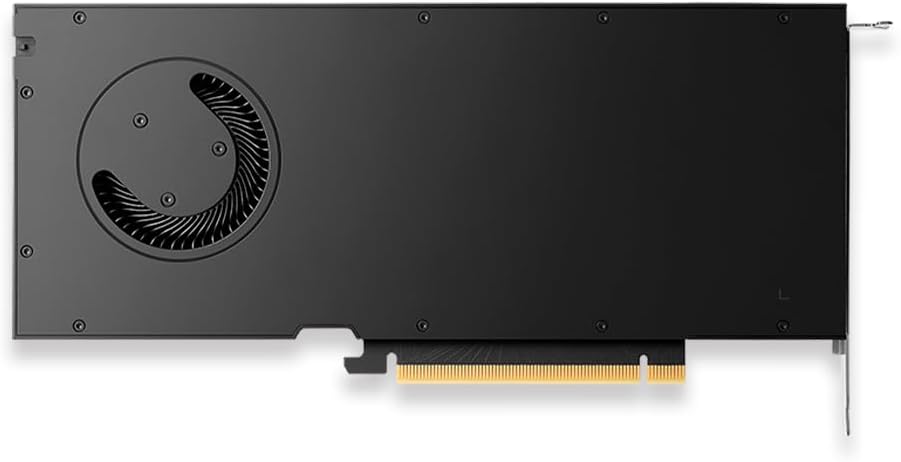
Rajah 3: Belakang view of the PNY RTX 4000 Ada Generation, highlighting the cooling fan for maintenance reference.
6.2. Penyimpanan
If storing the graphics card, place it in an anti-static bag and store it in a cool, dry environment away from direct sunlight and extreme temperatures.
7. Penyelesaian masalah
Bahagian ini menangani isu biasa yang mungkin anda hadapi.
- Tiada Output Paparan:
- Pastikan monitor dihidupkan dan disambungkan ke kad grafik, bukan grafik bersepadu papan induk.
- Verify the graphics card is fully seated in the PCIe slot and the power cable is securely connected.
- Cuba kabel paparan atau monitor yang berbeza.
- Check your BIOS/UEFI settings to ensure the primary display output is set to PCIe graphics.
- Isu Pemasangan Pemacu:
- Uninstall any previous graphics drivers using a utility like Display Driver Uninstaller (DDU) in Safe Mode, then attempt a fresh installation of the latest drivers.
- Ensure you downloaded the correct drivers for your operating system and graphics card model.
- Ketidakstabilan atau Ranap Sistem:
- Pastikan unit bekalan kuasa (PSU) anda memenuhi had kuasa minimumtage requirements for your system, including the graphics card.
- Monitor GPU temperatures using software utilities. Excessive heat can cause instability. Ensure proper case airflow.
- Verify that your operating system and motherboard BIOS are up to date.
8. Spesifikasi
| Ciri | Perincian |
|---|---|
| Jenama | PNY |
| Nombor Model | VCNRTX4000ADA-PB |
| Pemproses bersama Grafik | NVIDIA Quadro RTX 4000 Ada Generation |
| Seni bina | NVIDIA Ada Lovelace |
| Teras CUDA | 6,144 |
| Teras RT | 48 (3rd Generation) |
| Teras Tensor | 192 (4th Generation) |
| Saiz RAM Grafik | 20 GB GDDR6 ECC |
| Antara Muka Memori | 160-bit |
| Lebar Jalur Memori | 360 GB/s |
| Kelajuan Jam GPU | 2220 MHz (Penggalak) |
| Kelajuan Memori | 2250 MHz |
| Prestasi FP32 | Up to 26.7 TFLOPS |
| Ray Tracing Performance | 61.8 TFLOPS |
| AI Performance (FP8) | 327.6 TFLOPS |
| Antara Muka Keluaran Video | 4x DisplayPort 1.4a |
| Resolusi Skrin Maks | 3840x2160 (4K) per display, up to 4 displays; 8K on 2 displays |
| Penggunaan Kuasa | 130W |
| Faktor Bentuk | Slot tunggal |
| Dimensi Produk (LxWxH) | 14.65 x 8.55 x 0.1 inci |
| Berat Barang | 1.85 paun |
9. Maklumat Waranti
PNY products are covered by a manufacturer's warranty. The specific terms and duration of the warranty may vary by region and product type. Please refer to the official PNY website or your product's packaging for detailed warranty information.
For warranty claims or to register your product, visit: www.pny.com/support/warranty
10. Sokongan Teknikal
If you encounter issues that cannot be resolved using the troubleshooting steps in this manual, or require further assistance, please contact PNY Technical Support.
- Sokongan PNY Webtapak: www.pny.com/support
- Sokongan website provides FAQs, driver downloads, and contact information for technical assistance.