
1. Produk Lebihview
The wegear MW1 Bluetooth Ergonomic Wireless Mouse offers versatile connectivity and a comfortable design for extended use across multiple devices. Featuring dual-mode wireless connectivity (Bluetooth 5.0 and 2.4GHz USB), adjustable DPI settings, and an advanced optical tracking laser engine, this mouse is designed to enhance productivity and reduce hand strain.

Figure 1: wegear MW1 Bluetooth Ergonomic Wireless Mouse
2. Kandungan Pakej
- wegear MW1 Bluetooth Ergonomic Wireless Mouse
- 2 x Bateri AA
- Penerima USB Nano
- Manual Pengguna
3. Persediaan
3.1 Pemasangan Bateri
- Gently lift the top cover of the mouse. The cover is held by magnets.
- Insert the two provided AA batteries into the battery compartments, ensuring correct polarity (+/-).
- Replace the top cover, ensuring it snaps securely into place.

Figure 2: Battery Compartment and Button Details
3.2 2.4GHz USB Connection
- Locate the nano USB receiver, typically stored inside the mouse's battery compartment.
- Plug the nano USB receiver into an available USB port on your computer or device.
- Turn the mouse ON using the switch on the bottom. The mouse should automatically connect.
3.3 Bluetooth 5.0 Sambungan
- Turn the mouse ON using the switch on the bottom.
- Press and hold the Bluetooth pairing button (located on the bottom of the mouse) for 3-5 seconds until the indicator light flashes green quickly.
- On your device (laptop, tablet, etc.), go to Bluetooth settings.
- Cari untuk available devices and select "Creator MS" to pair.
- Sebaik sahaja disambungkan, lampu penunjuk akan berhenti berkelip.

Rajah 3: Langkah-langkah Penggandingan Bluetooth
3.4 Switching Between 2.4GHz and Bluetooth Modes
To switch between 2.4GHz and Bluetooth modes, press the Front Side Button and the DPI Key simultaneously for more than 3 seconds. This allows seamless transition between two connected devices.
4. Arahan Operasi
4.1 Fungsi Butang
- Butang Kiri/Kanan: Fungsi klik standard.
- Roda Tatal: Scrolls vertically. Fluctuating left enables Undo function, fluctuating right enables Recovery function.
- Suis DPI: Melaraskan kepekaan tetikus (DPI).
- Front Side Button: Web page forward function.
- Rear Side Button: Web page back function.
4.2 Pelarasan DPI
The mouse features 3 adjustable DPI levels (1600/2400/3200) to suit various tasks and preferences. Press the DPI switch button (located below the scroll wheel) to cycle through the sensitivity settings.

Rajah 4: Tahap DPI Boleh Laras
4.3 Advanced Optical Tracking
Equipped with a laser engine, the mouse provides precise and accurate control on virtually any surface, including challenging surfaces like glass tables.

Figure 5: Precise Optical Tracking on Various Surfaces
4.4 Reka Bentuk Ergonomik
The mouse is designed with naturally shaped contoured grips and an extended thumb rest, promoting a comfortable and natural hand position. This ergonomic design helps reduce muscle strain during prolonged periods of use.
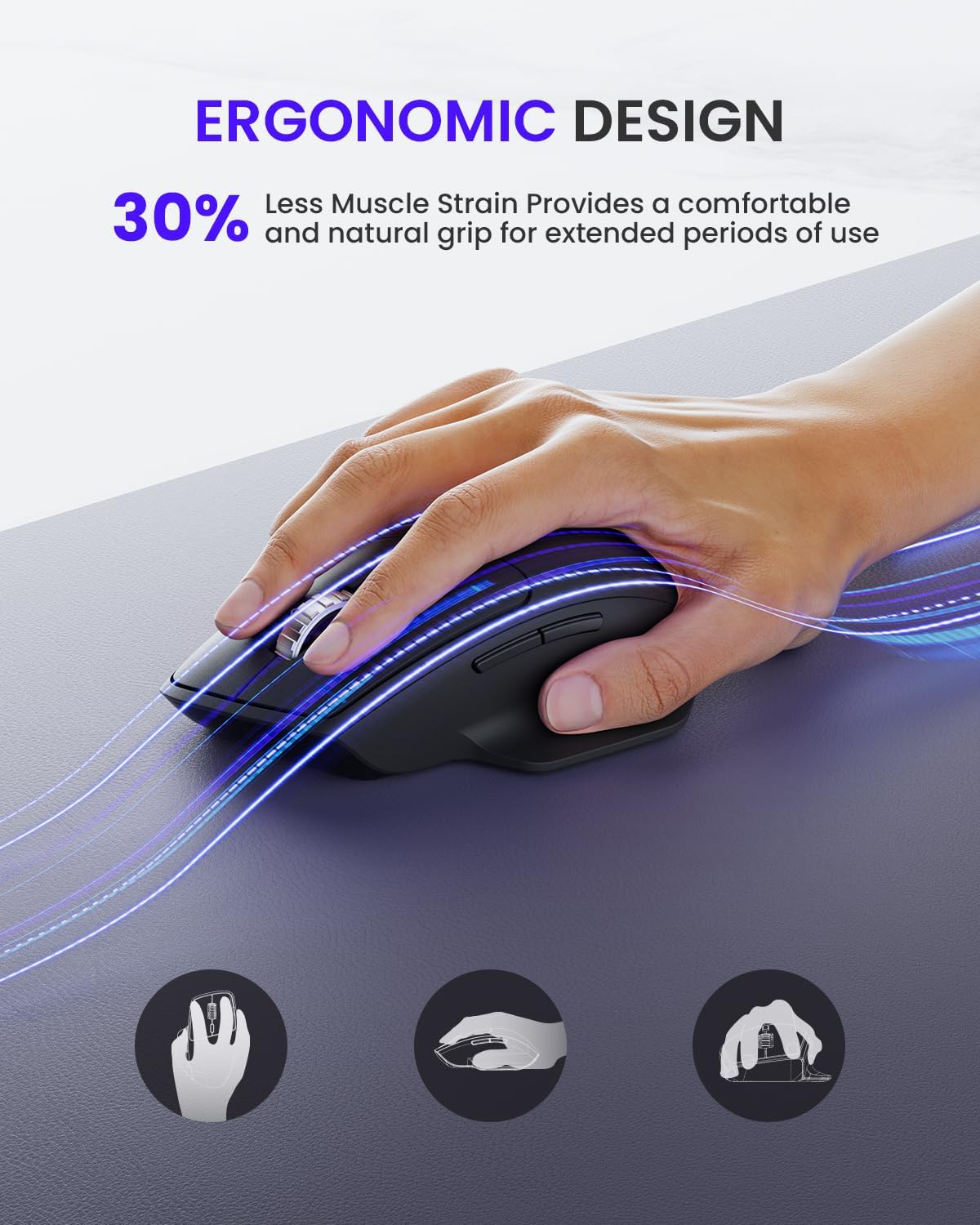
Rajah 6: Reka Bentuk Ergonomik untuk Keselesaan
5. Penyelenggaraan
5.1 Hayat Bateri dan Penggantian
The wegear MW1 mouse boasts an 18-month battery life, thanks to its power-saving auto-sleep mode. When the battery needs replacement, follow the steps in Section 3.1.

Rajah 7: Melanjutkan Hayat Bateri
5.2 Pembersihan
Untuk mengekalkan prestasi optimum, bersihkan tetikus anda secara berkala. Gunakan kain lembut dan kering untuk mengelap bahagian luarnya. Untuk sensor optik, gunakan kapas yang dilap perlahan-lahan.ampdilarutkan dengan alkohol isopropil, memastikan tiada cecair memasuki bahagian dalam tikus.
6. Penyelesaian masalah
6.1 Isu Sambungan
- Mouse not detected: Ensure the mouse is turned ON. Check battery levels and replace if necessary. For 2.4GHz, ensure the USB receiver is securely plugged in. For Bluetooth, ensure the mouse is in pairing mode (flashing green light) and your device's Bluetooth is enabled.
- Sambungan terputus-putus: Ensure the mouse is within the effective range (up to 10 meters). Minimize interference from other wireless devices.
6.2 Isu Penjejakan
- Irregular movement: Clean the optical sensor on the bottom of the mouse. Try using the mouse on a different surface. Adjust the DPI setting to a different level.
6.3 Buttons Unresponsive
- Check battery levels. Re-pair the mouse with your device.
7. Spesifikasi
| Ciri | Perincian |
|---|---|
| Dimensi Produk | 4.9 x 3 x 0.04 inci |
| Berat Barang | 4.8 auns |
| Nombor Model Item | MOBTN5O |
| Bateri | 2 bateri AA diperlukan (termasuk) |
| Jenama | wegear |
| warna | Hitam |
| Teknologi Ketersambungan | Bluetooth 5.0, USB 2.4GHz |
| Ciri Khas | 4-Way Scrolling, Multi-device Connection, Ergonomic Design, Longer Battery Life |
| Teknologi Pengesanan Pergerakan | Laser |
8. Waranti dan Sokongan
For warranty information or technical support, please refer to the contact details provided with your purchase or visit the official wegear webtapak. Simpan resit pembelian anda untuk tuntutan waranti.