
1. Pengenalan
This manual provides essential instructions for the safe and efficient use of your Meizu Note 21 Pro smartphone. Please read this manual thoroughly before operating the device and retain it for future reference.
2. Apa yang ada di dalam Kotak
- Meizu Note 21 Pro Smartphone
- Penyesuai Kuasa
- (Other accessories such as USB cable, SIM ejector tool, and documentation may vary by region.)
3. Reka Letak Peranti
Familiarize yourself with the physical components of your Meizu Note 21 Pro.
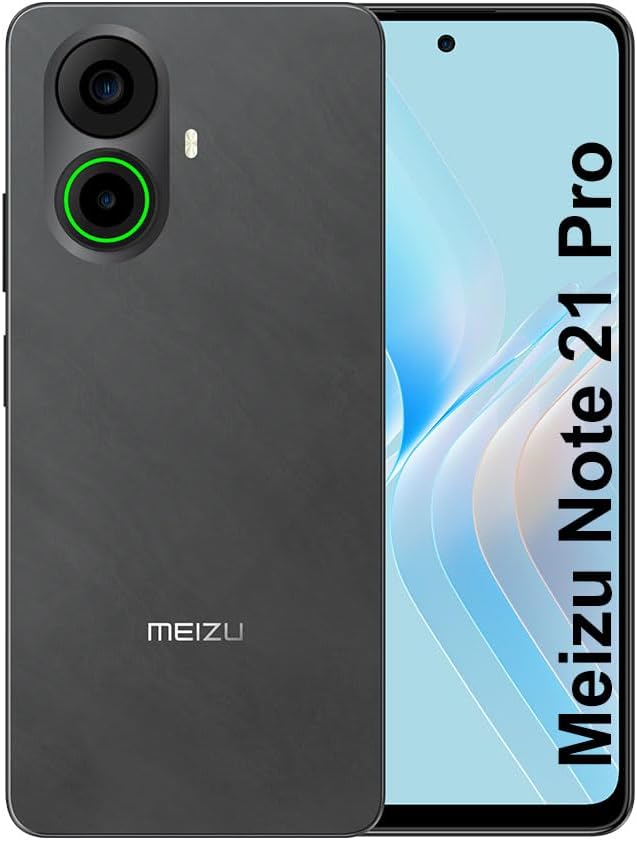
Imej 3.1: Depan dan belakang view of the Meizu Note 21 Pro. The front displays the screen with a punch-hole camera. The rear shows the dual camera module with a green accent ring on one lens, a flash, and the "MEIZU" logo at the bottom.
- Paparan Hadapan: 6.78-inch FHD+ screen with a 120Hz refresh rate.
- Kamera Depan: Terletak di tengah atas paparan.
- Kamera Belakang: Dual camera system, including a 64MP main camera.
- Penderia Cap Jari Sisi: Integrated for secure access.
- Port USB: Untuk pengecasan dan pemindahan data.
- Bicu Audio 3.5mm: Untuk fon kepala.
- Dulang Kad SIM/MicroSD: Supports Dual Nano SIM and MicroSD cards.
4. Persediaan
4.1. Memasukkan Kad SIM dan MicroSD
- Cari dulang kad SIM di sisi peranti anda.
- Masukkan alat ejektor SIM ke dalam lubang kecil di sebelah dulang dan tolak perlahan-lahan sehingga dulang terkeluar.
- Letakkan kad Nano SIM dan/atau kad MicroSD anda ke dalam slot yang ditetapkan pada dulang. Pastikan kenalan emas menghadap ke bawah.
- Masukkan semula dulang dengan berhati-hati ke dalam peranti sehingga ia berbunyi pada tempatnya.
4.2. Hidupkan dan Persediaan Awal
- Press and hold the Power button until the Meizu logo appears.
- Ikut gesaan pada skrin untuk memilih bahasa anda, menyambung ke rangkaian Wi-Fi dan menyediakan akaun Google anda.
- During setup, you will be guided to configure security features such as a PIN, pattern, or password.
4.3. Fingerprint Recognition Setup
- Navigasi ke tetapan > Keselamatan & privasi > Buka Kunci Cap Jari.
- Follow the on-screen instructions to register your fingerprint by repeatedly touching the side-mounted sensor.
- Ensure your finger covers the entire sensor area during registration for optimal performance.
5. Mengendalikan Peranti Anda
5.1. Paparan dan Navigasi
- The 6.78-inch FHD+ display operates at a 120Hz refresh rate for smooth visuals.
- Navigate the Android 14 operating system using touch gestures: tap, swipe, pinch-to-zoom.
- Akses tetapan pantas dengan meleret ke bawah dari bahagian atas skrin.
5.2. Fungsi Kamera
- Buka aplikasi Kamera daripada skrin utama atau laci aplikasi.
- The rear camera system features a 64MP main sensor for high-resolution photos and a 2MP depth-of-field camera for portrait effects.
- The 13MP front-facing camera is suitable for selfies and video calls.
- Tap on the screen to focus, and use the on-screen shutter button to capture images. Explore various modes like Portrait, Night, and Pro within the camera app.
5.3. Prestasi dan Storan
- The MediaTek G99 Octa Core processor ensures efficient performance for applications and multitasking.
- The device comes with 256GB of internal storage and 8GB of RAM.
- Storage can be expanded using a MicroSD card (sold separately).
5.4. Bateri dan Pengecasan
- The Meizu Note 21 Pro is equipped with a 5000mAh battery.
- Use the provided Power Adapter for 30W fast charging.
- To charge, connect the USB cable to the phone's USB port and the power adapter, then plug the adapter into a wall outlet.
5.5. Ketersambungan
- 4G LTE: Supports various LTE FDD and TDD bands for cellular data. Note: This international version works on T-Mobile in the USA and globally with other carriers.
- Wi-Fi 5: Sambung ke rangkaian wayarles untuk akses internet.
- Bluetooth: Padankan dengan aksesori tanpa wayar seperti fon kepala dan pembesar suara.
- NFC: Untuk pembayaran tanpa sentuh dan gandingan pantas dengan peranti yang serasi.
- GPS: Untuk perkhidmatan lokasi dan navigasi.
6. Penyelenggaraan
- Pembersihan: Gunakan kain lembut dan tidak berbulu untuk membersihkan skrin dan badan peranti. Elakkan bahan kimia yang keras atau bahan yang melelas.
- Penjagaan Bateri: Avoid extreme temperatures. Do not fully discharge the battery frequently. For optimal battery longevity, keep the charge between 20% and 80%.
- Kemas Kini Perisian: Semak dan pasang kemas kini sistem secara berkala untuk memastikan prestasi dan keselamatan yang optimum. Pergi ke tetapan > Sistem > Kemas kini sistem.
7. Penyelesaian masalah
| Isu | Penyelesaian yang Mungkin |
|---|---|
| Peranti tidak dihidupkan | Ensure the battery is charged. Connect the device to the power adapter and try again. If unresponsive, press and hold the Power button for 10-15 seconds to force a restart. |
| Isyarat rangkaian yang lemah | Check if the SIM card is correctly inserted. Move to an area with better network coverage. Restart the device. Verify with your carrier that your plan is active. |
| Apl perlahan atau ranap | Close background applications. Clear app cache (tetapan > Apl > pilih apl > Storan & cache > Kosongkan cache). Restart the device. Ensure sufficient storage space. |
| Penderia cap jari tidak berfungsi | Ensure your finger and the sensor are clean and dry. Re-register your fingerprint in settings. |
8. Spesifikasi
- model: Meizu Note 21 Pro
- Sistem pengendalian: Android 14
- Pemproses: MediaTek G99 Octa Core (2.2GHz)
- paparan: 6.78 inches FHD+ (1080 x 2160 resolution), 120Hz Refresh Rate
- RAM: 8 GB
- Storan Dalaman: 256 GB
- Kamera Belakang: Utama 64MP + Kedalaman 2MP
- Kamera Depan: 13MP
- Bateri: 5000mAh, Pengecasan Pantas 30W
- Ketersambungan: 4G LTE (FDD:1,2,3,4,5,7,8,12,17,18,19,20,26,28,66; TDD:38,40,41), 3G WCDMA, 2G Quad Band, Wi-Fi 5, Bluetooth, NFC, GPS
- Jack Audio: 3.5 mm
- Dimensi: 6.64 x 2.96 x 0.33 inci
- Berat: 1.1 paun
9. Waranti dan Sokongan
For warranty information and technical support, please refer to the warranty card included with your product or visit the official Meizu webtapak. Simpan bukti pembelian anda untuk tuntutan waranti.
For further assistance, you may contact Meizu customer service through their official channels.