
Turtle Beach TBM-1003-15
Turtle Beach Kone II Wired Ergonomic RGB Gaming Mouse User Manual
Jenama: Turtle Beach | model: TBM-1003-15
pengenalan
The Turtle Beach Kone II wired ergonomic gaming mouse is designed for superior gaming performance and comfort. It features an ergonomic shape suitable for medium to larger hands and various grip styles, including claw, palm, or fingertip. This manual provides detailed instructions for setting up, operating, maintaining, and troubleshooting your Kone II gaming mouse.
Key features include a 26K DPI optical sensor, 100M click life optical switches, 23 customizable inputs, a 4D scroll wheel, and pure PTFE glides for smooth movement. The mouse also incorporates three-zone AIMO intelligent RGB illumination and is NVIDIA Reflex compatible for enhanced responsiveness.
Kandungan Pakej
- Turtle Beach Kone II Mouse
- Pita Cengkaman
- Panduan Permulaan Pantas

Image: Contents of the Turtle Beach Kone II package, including the mouse, grip tape, and quick-start guide.
Persediaan
Menyambungkan Tetikus
- Cari port USB-A yang tersedia pada PC anda.
- Plug the PhantomFlex USB-A cable of the Turtle Beach Kone II mouse into the USB-A port.
- The mouse will be automatically detected by your operating system (Windows 10 or later).
Software Installation (Swarm II)
For full customization options, including RGB illumination, button remapping, and DPI adjustments, download and install the Swarm II software from the official Turtle Beach website. Ensure your operating system is Windows 10 or later for compatibility.
- Visit the official Turtle Beach support webtapak.
- Navigate to the support page for the Kone II gaming mouse.
- Download the latest version of the Swarm II software.
- Jalankan pemasang dan ikuti gesaan pada skrin untuk menyelesaikan pemasangan.
- Launch Swarm II to configure your mouse settings.
Arahan Operasi
Reka Bentuk Ergonomik

Image: The ergonomic shape of the Turtle Beach Kone II mouse, designed for comfort during extended use.
The Kone II is engineered with an ergonomic shape to perfectly suit medium and larger hand sizes. It supports various grip styles, including claw, palm, and fingertip, ensuring comfort during long gaming sessions. Additional grip tape is included in the package for enhanced control and customization of your grip.
Buttons and 4D Scroll Wheel

Image: The Turtle Beach Kone II mouse highlighting its 7 buttons and 4D scroll wheel, which can be expanded to 23 customizable functions using Easy-Shift [+].
The Kone II features 7 programmable buttons and a 4D scroll wheel with tilt capability. Utilizing Easy-Shift [+] button duplicator technology, these inputs can be expanded to provide up to 23 customizable functions. The 4D scroll wheel allows for tactile scrolling and can be tilted left and right for two additional customizable controls.
TITAN Optical Switches

Imej: Satu dalaman view illustrating the TITAN Optical Switches, designed for tactile feedback and a 100 million click life cycle.
Equipped with TITAN Optical Switches, the Kone II provides a tactile feel with high speed and durability. These switches boast a 100 million click life cycle, and a pre-tensioning system enhances reliability and response time for precise clicks.
Owl-Eye Optical Sensor

Image: The internal structure of the mouse highlighting the Owl-Eye optical sensor, capable of 26K DPI and 650 IPS tracking.
The advanced Owl-Eye optical sensor delivers smooth and precise tracking, ranging from 50 DPI up to 26,000 DPI with a 650 IPS (16.5m/s) tracking speed. Dedicated DPI buttons allow for quick adjustments without needing software.
Pure PTFE Glides

Image: The underside of the Turtle Beach Kone II mouse, showcasing the pure, heat-treated PTFE feet for smooth gliding.
The mouse features pure, heat-treated PTFE feet, which provide incredible glide and the smoothest mouse movements right out of the box, reducing friction for effortless control.
PhantomFlex Cable
The lightweight and ultra-flexible PhantomFlex braided USB-A cable is designed to minimize drag, making it feel almost wireless during use.
Multi-Zone RGB Illumination
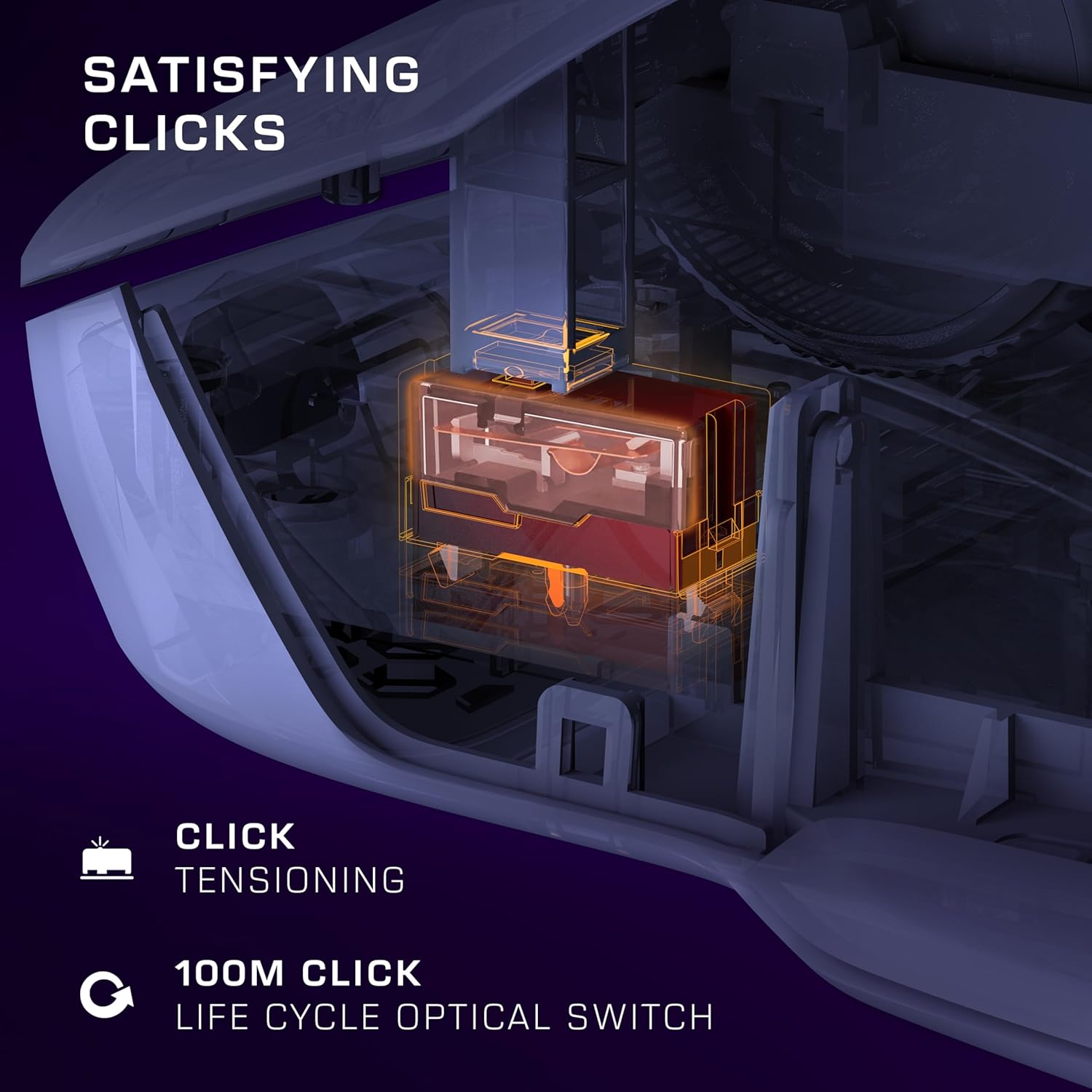
Image: The Turtle Beach Kone II mouse displaying its vibrant multi-zone RGB illumination.
The Kone II features three fully customizable RGB lighting zones. These can be programmed via the Swarm II app and include synchronized AIMO intelligent lighting for dynamic effects.
NVIDIA Reflex Compatibility
The Kone II is NVIDIA Reflex compatible, which, when paired with GeForce RTX GPUs and NVIDIA G-SYNC monitors, helps deliver sub-25ms response times. This feature is designed to help users acquire targets faster and increase aim precision in compatible games.
Customization with Swarm II
The Swarm II software is your central hub for customizing your Turtle Beach Kone II mouse. After installation, launch the application to access various settings:
- Tugasan Butang: Remap any of the 7 buttons and the 4D scroll wheel functions. Utilize Easy-Shift [+] to assign secondary functions, effectively expanding your control options to 23 inputs.
- Tetapan DPI: Adjust and save multiple DPI profiles, allowing you to switch sensitivity on the fly using the dedicated DPI buttons.
- Pencahayaan RGB: Customize the three-zone RGB illumination with various effects, colors, and brightness levels. Synchronize lighting with other AIMO-compatible devices.
- Kadar Pengundian: Adjust the mouse's polling rate to suit your preferences.
- Jarak Angkat: Fine-tune the lift-off distance for optimal tracking performance.
- Pengurusan Makro: Create and assign complex macros to any programmable button.
Regularly check the Swarm II software for firmware updates to ensure optimal performance and access to the latest features.
Penyelenggaraan
Pembersihan
- Untuk membersihkan tetikus, gunakan kain lembut dan tidak berbulu sedikit dampdisapu dengan air atau larutan pembersih lembut.
- Avoid using harsh chemicals, abrasive cleaners, or solvents, as these can damage the mouse's surface.
- Do not spray cleaning solutions directly onto the mouse.
- Regularly clean the optical sensor area on the underside of the mouse to ensure accurate tracking.
Penjagaan Kabel
- Avoid sharp bends or kinks in the PhantomFlex cable to prevent internal damage.
- Do not pull the mouse by its cable. Always grasp the mouse body when moving it.
Menyelesaikan masalah
Tetikus Tidak Membalas
- Semak Sambungan USB: Ensure the USB-A cable is securely plugged into a working USB port on your PC. Try a different USB port.
- Mulakan semula PC: Mula semula sistem yang mudah selalunya boleh menyelesaikan masalah sambungan.
- Test on Another PC: If possible, test the mouse on another computer to determine if the issue is with the mouse or your PC.
Tracking Issues / Cursor Lag
- Penderia Bersih: Ensure the optical sensor on the underside of the mouse is clean and free of dust or debris.
- Permukaan Pad Tetikus: Use the mouse on a clean, uniform surface or a high-quality mouse pad. Avoid highly reflective or transparent surfaces.
- Tetapan DPI: Adjust the DPI setting using the dedicated buttons or the Swarm II software. A very high DPI might feel erratic on some surfaces.
Swarm II Software Not Detecting Mouse
- Pasang semula Perisian: Uninstall and then reinstall the Swarm II software from the official Turtle Beach webtapak.
- Kemas kini Pemacu: Ensure your PC's USB drivers are up to date.
- Run as Administrator: Try running the Swarm II software as an administrator.
Butang Tidak Menjawab
- Semak Tetapan Perisian: Verify button assignments in the Swarm II software. Ensure no conflicting profiles aktif.
- Kemas kini Firmware: Check if a firmware update is available for your mouse via the Swarm II software.
Spesifikasi
| Ciri | Perincian |
|---|---|
| Jenama | Pantai Penyu |
| Nombor Model | TBM-1003-15 |
| Ketersambungan | Wired (PhantomFlex USB-A Cable) |
| Sensor | Owl-Eye Optical Sensor |
| Julat DPI | 50 - 26,000 DPI |
| Kelajuan Penjejakan | 650 IPS (16.5 m/s) |
| Suis | TITAN Optical Switches |
| Switch Life Cycle | 100 Juta Klik |
| Butang | 7 programmable buttons + 4D scroll wheel (23 customizable functions with Easy-Shift [+]) |
| meluncur | Pure, Heat-Treated PTFE |
| Pencahayaan | Three-zone AIMO Intelligent RGB |
| Keserasian Sistem Pengendalian | Windows 10 atau lebih baru |
| Berat badan | 3.2 auns (lebih kurang 90.7 gram) |
| Dimensi (LxWxH) | 7.09 x 4.96 x 0.1 inci (lebih kurang 18 x 12.6 x 0.25 cm) |
Waranti dan Sokongan
Turtle Beach products come with a manufacturer's warranty. For specific warranty terms and conditions, please refer to the warranty information provided with your product packaging or visit the official Turtle Beach webtapak.
For technical support, FAQs, driver downloads, and additional resources, please visit the Turtle Beach support portal:
Sokongan Pantai Penyu Webtapak
When contacting support, please have your product model number (TBM-1003-15) and purchase information ready.
Dokumen Berkaitan - TBM-1003-15
 |
Afterglow Wave Wired Controller for Xbox - Support Guide and Quick Start Comprehensive support guide and quick start instructions for the Afterglow Wave Wired Controller for Xbox by Turtle Beach, covering setup, features, customization, and troubleshooting. |
 |
Turtle Beach Burst II Pro User Guide User guide and regulatory information for the Turtle Beach Burst II Pro gaming mouse, including setup instructions, software support, and compliance details. |
 |
Panduan Permulaan Pantas Alat Dengar Permainan Turtle Beach Atlas 200 untuk PlayStation Panduan permulaan pantas yang ringkas untuk Fon Kepala Permainan Berwayar Turtle Beach Atlas 200, yang memperincikan kandungan pakej, kawalan fon kepala (bisu mikrofon, kelantangan) dan arahan persediaan untuk konsol PlayStation 5 dan PlayStation 4. |
 |
Turtle Beach Burst II Pro Quick Start Guide Quick start guide and setup instructions for the Turtle Beach Burst II Pro gaming mouse, including software download and regulatory compliance information. |
 |
Turtle Beach Rematch Advanced Wired Controller Quick Start Guide A concise guide to setting up and using the Turtle Beach Rematch Advanced Wired Controller for Xbox Series X|S and PC, including button mapping, volume control, and hair trigger mode. |
 |
Turtle Beach Recon Cloud Quick-Start Guide A concise guide to setting up and using the Turtle Beach Recon Cloud gaming controller for Xbox and PC, covering features, controls, and connectivity. |
Ask a question about this manual
Ask about setup, troubleshooting, compatibility, parts, safety, or missing instructions. Manuals+ will review the question and use this page’s manual context to help answer it.