
AceGamer PS-P-White
AceGamer RGB Charging Dock for PlayStation Portal - User Manual
Model: PS-P-White
1. Pengenalan
Terima kasih kerana membeliasing the AceGamer RGB Charging Dock for PlayStation Portal. This portable charging station is designed to provide a stable and efficient charging solution for your PlayStation Portal console, featuring customizable RGB lighting and essential protection features. Please read this manual carefully before use to ensure proper operation and maintenance.
2. Kandungan Pakej
- AceGamer RGB Charging Dock (1 unit)
- Kabel Pengecas Jenis-C (1 unit)
- Manual Pengguna (Dokumen ini)
3. Ciri-ciri Produk
- Dedicated Charging: Specifically designed for the PlayStation Portal console.
- Pencahayaan RGB: Features 7 distinct lighting modes for personalized aesthetics.
- Pengecasan Pantas: Efficient power delivery for fast charging.
- Perlindungan Keselamatan: Terbina dalam lebihan semasa, lebihan voltage, dan di bawah voltage perlindungan.
- Reka bentuk ergonomik: 30-degree comfortable viewing angle for the PlayStation Portal.
- Pangkalan Stabil: Equipped with anti-slip mats for secure placement.
- Ketersambungan: USB Type-C input for power.
4. Arahan Persediaan
- Sambungkan Kuasa: Insert the provided Type-C charging cable into the charging dock's input port and connect the other end to a suitable USB power adapter (not included).

Figure 4.1: Connecting the Type-C power cable to the charging dock.
- Place PlayStation Portal: Carefully align your PlayStation Portal console with the charging connector on the dock and gently place it into position. Ensure a secure connection for charging. The dock is designed to hold the Portal at a 30-degree angle for optimal viewing.

Figure 4.2: PlayStation Portal placed on the charging dock at a 30-degree angle.
- Anti-slip Stability: The base of the charging dock is equipped with anti-slip mats to prevent accidental movement. Ensure the dock is placed on a flat, stable surface.
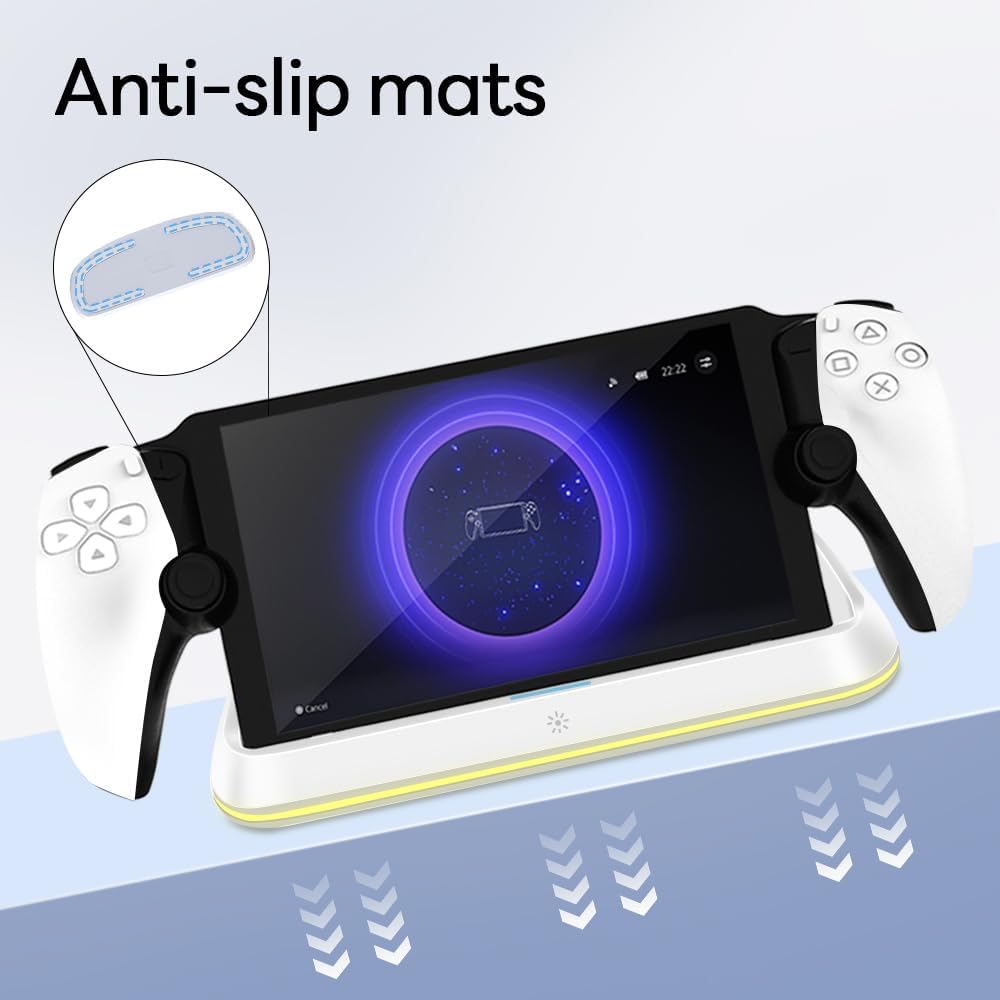
Figure 4.3: Anti-slip mats on the charging dock for enhanced stability.
- Panduan Visual: For a visual demonstration of the setup process, please refer to the video below.
Video 4.1: Demonstration of connecting the power supply and placing the PlayStation Portal onto the charging dock.
5. Arahan Operasi
- Charging the PlayStation Portal: Once the PlayStation Portal is correctly seated on the dock and the dock is powered, charging will begin automatically. A full charge typically takes approximately 3.5 hours. The dock includes protection against over-current, over-voltage, dan di bawah voltage to safeguard your device.

Figure 5.1: Charging indicators and safety protection features.
- Kawalan Pencahayaan RGB: The charging dock features a touch-sensitive button to control the RGB lighting. Press the button to cycle through 7 different lighting modes or to turn the lights off.

Figure 5.2: RGB lighting modes and touch control button.
6. Penyelenggaraan
- Keep the charging dock clean and free from dust. Use a soft, dry cloth for cleaning.
- Elakkan daripada mendedahkan peranti kepada suhu yang melampau, kelembapan atau cahaya matahari langsung.
- Jangan gunakan pembersih atau pelarut yang kasar, kerana ini boleh merosakkan permukaan.
- Ensure the charging port and connector are free of debris before placing the PlayStation Portal.
7. Penyelesaian masalah
- Peranti tidak dicas:
- Ensure the Type-C cable is securely connected to both the dock and the power adapter.
- Sahkan bahawa penyesuai kuasa berfungsi dengan betul dan dipalamkan ke saluran keluar hidup.
- Check if the PlayStation Portal is properly seated on the charging connector.
- Try using a different Type-C cable or power adapter.
- Lampu RGB tidak berfungsi:
- Ensure the charging dock is powered on.
- Press the touch light button to cycle through modes or turn the lights on.
- Unstable placement:
- Ensure the dock is placed on a flat, level surface.
- Check if the anti-slip mats are clean and intact.
8. Spesifikasi
| Jenama | AceGamer |
| Nombor Model | PS-P-White |
| Peranti Serasi | Portal PlayStation |
| Input Voltage | 5 Volt |
| Wattage | 7 Watt |
| Jenis Penyambung | USB Jenis-C (untuk input kuasa) |
| Ciri Khas | RGB Lighting, Fast Charging, Over-current Protection, Over-voltage Protection, Under-voltage Perlindungan |
| Dimensi | Kira-kira 22.5 x 8.9 x 8.4 cm |
| Berat badan | Kira-kira 290 g |
9. Waranti dan Sokongan
AceGamer products are designed and manufactured to the highest quality standards. For warranty information or technical support, please contact the retailer where you purchased the product or visit the official AceGamer website for customer service contact details. Please retain your proof of purchase for warranty claims.
Ask a question about this manual
Ask about setup, troubleshooting, compatibility, parts, safety, or missing instructions. Manuals+ will review the question and use this page’s manual context to help answer it.