
1. Pengenalan
This user manual provides comprehensive instructions for the installation, configuration, and operation of your KuWFi CPE120 and CPE130 2.4G Wireless WiFi Bridge and Outdoor Access Point. Please read this manual carefully before using the device to ensure proper setup and optimal performance. Keep this manual for future reference.
2. Produk Lebihview
The KuWFi CPE120 and CPE130 are 300Mbps outdoor wireless devices designed to extend Wi-Fi coverage over long distances, up to 1KM. They support Point-to-Point (PTP) and Point-to-Multi-Point (PTMP) connections, functioning as both a wireless bridge and an access point. These devices are built for outdoor use, featuring waterproof, dustproof, and lightning protection.
2.1. CPE120 Features
- 300Mbps Outdoor Wireless WiFi Bridge.
- Supports 1KM Long Range WiFi Extender functionality.
- LED display for configuring PTP/PTMP connections.
- Supports AP and Bridge operation modes.
- Waterproof, dustproof, and lightning protection.
- Operating Temperature: -30℃ to 55℃.
2.2. CPE130 Features
- Economic 300Mbps outdoor CPE.
- LED display support for 1KM Long Range.
- Improved wireless networking for extended coverage.
- Seamless wireless connectivity for homes and secondary buildings.
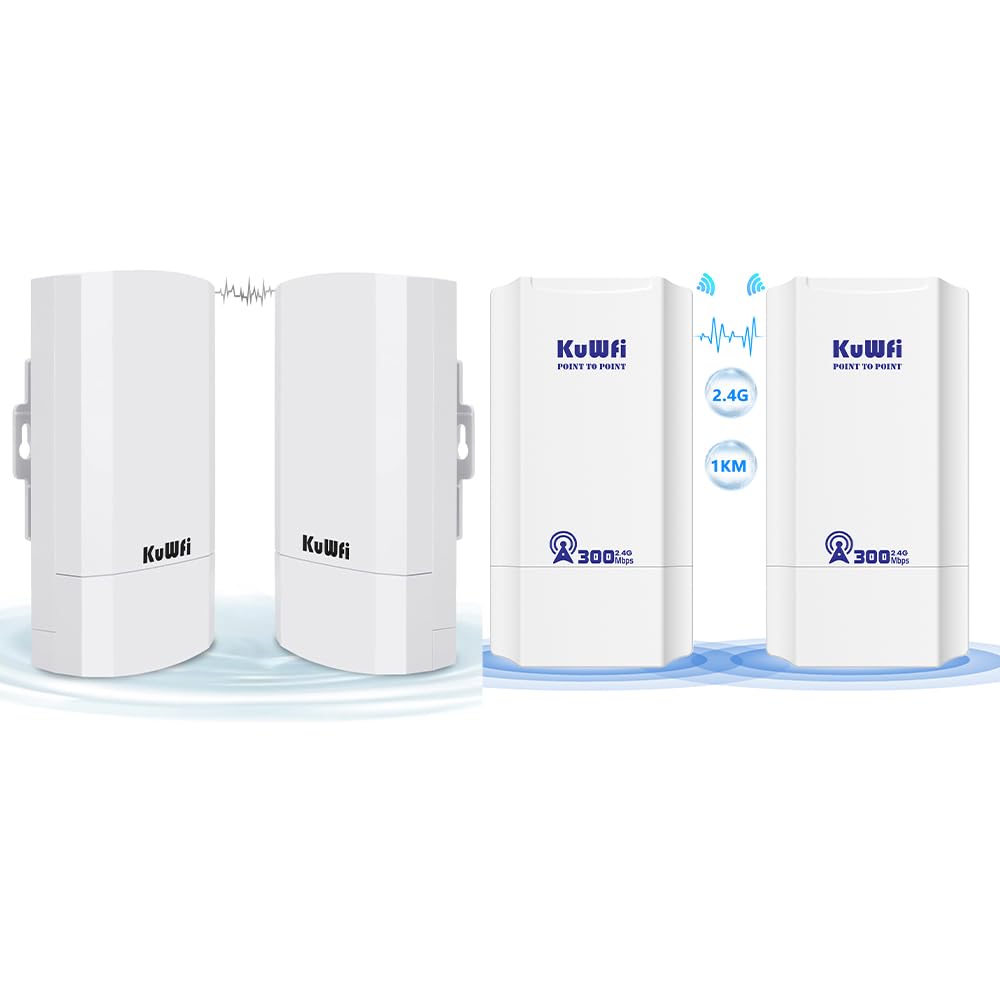
Figure 2.1: KuWFi CPE120/CPE130 Wireless Bridge Devices.

Figure 2.2: KuWFi CPE device highlighting 1KM long-range capability.
3. Kandungan Pakej
Selepas membuka pakej, sila sahkan bahawa semua item yang disenaraikan di bawah ada dan dalam keadaan baik:
- KuWFi CPE120/CPE130 Wireless Bridge Device(s)
- PoE (Power over Ethernet) Injector(s)
- Kabel Ethernet
- Mounting Accessories (e.g., zip ties)
- Manual Pengguna (dokumen ini)

Figure 3.1: Included accessories and device dimensions.
4. Perkakasan Terlaluview
Familiarize yourself with the physical components of the CPE device.
4.1. Pelabuhan dan Penunjuk
Each CPE device features the following ports and LED indicators on its underside:
- Pelabuhan WAN: Used for connecting to the network (e.g., router, NVR) and for Power over Ethernet (PoE) input.
- Port LAN: Used for connecting to client devices (e.g., IP camera, PC).
- Butang TETAP SEMULA: Used to reset the device to factory defaults. Press and hold for approximately 5-10 seconds while the device is powered on.
- Paparan led: A digital display showing configuration status (e.g., '8.8.8.8' for Master, '8.8.8.9' for Slave, or other status codes).
- Lampu Penunjuk:
- LED kuasa: Menunjukkan status kuasa.
- LED WAN: Indicates WAN port activity.
- LED LAN: Menunjukkan aktiviti port LAN.
- LED Kekuatan Isyarat: Multiple LEDs indicating wireless signal strength.

Figure 4.1: CPE Device Ports and Indicators (Master and Slave examples).

Rajah 4.2: Terperinci view of CPE device ports and controls.
5. Persediaan dan Pemasangan
The KuWFi CPE devices can be configured for Point-to-Point (PTP) or Point-to-Multi-Point (PTMP) connections. One device will act as the Cikgu, and the other(s) as budak.
5.1. Basic Connection Diagram (PTP)
For a basic Point-to-Point setup, you will need two CPE devices. One acts as the Master, connected to your network source (e.g., router), and the other as the Slave, connected to your client device (e.g., IP camera, PC).
- Master Device Setup:
- Connect an Ethernet cable from your router/NVR to the WAN port of the Master CPE device.
- Power the Master CPE device using the provided PoE injector.
- Ensure the LED display on the Master device shows the correct configuration (e.g., '8.8.8.8').
- Slave Device Setup:
- Connect an Ethernet cable from the LAN port of the Slave CPE device to your client device (e.g., IP camera, PC).
- Power the Slave CPE device using the provided PoE injector.
- Ensure the LED display on the Slave device shows the correct configuration (e.g., '8.8.8.9').
- Pemasangan: Mount the devices outdoors in a clear line of sight for optimal signal transmission. Use the provided mounting accessories.

Figure 5.1: Point-to-Point Extended Network Diagram.

Figure 5.2: Point-to-Point and Point-to-Multi-Point Extended Camera Monitoring Range.
Figure 5.3: Wireless Bridge Master and Slave Connection Examples.
5.2. Configuring Master/Slave Roles
The CPE devices typically use an LED display for initial configuration. Refer to the device's quick start guide or the manufacturer's website for specific steps on how to set one device as Master and the other(s) as Slave(s) using the LED display or a web antara muka.
- Cikgu: Connects to the main network source (e.g., router).
- budak: Connects to the remote client device(s).
6. Mod Operasi
The KuWFi CPE devices support two primary operating modes:
- Mod AP (Titik Akses): In this mode, the device acts as a wireless access point, broadcasting a Wi-Fi signal for other devices to connect to. This is typically used when the CPE is connected to a wired network and needs to provide wireless access.
- Mod Jambatan: In this mode, the device creates a wireless link between two wired networks or extends a wired network wirelessly. This is the primary mode for PTP/PTMP connections, where one CPE bridges the network to another CPE.
7. Penyelenggaraan
To ensure the longevity and optimal performance of your KuWFi CPE devices, follow these maintenance guidelines:
- Pembersihan: Periodically clean the exterior of the devices with a soft, dry cloth. Do not use liquid cleaners or aerosols.
- Kemas kini Firmware: Check the KuWFi official webtapak (www.kuwfi.com) for the latest firmware updates. Keeping the firmware updated can improve performance, add new features, and fix bugs.
- Perlindungan Alam Sekitar: Ensure the devices are securely mounted and protected from extreme weather conditions beyond their specified operating range.
8. Penyelesaian masalah
If you encounter issues with your KuWFi CPE devices, refer to the following common troubleshooting steps:
- Tiada Kuasa:
- Ensure the PoE injector is properly connected and receiving power.
- Periksa semua sambungan kabel.
- Tiada Sambungan Rangkaian:
- Verify that the Master and Slave devices are correctly configured (e.g., LED display shows correct codes).
- Check the WAN/LAN LED indicators for activity.
- Ensure there is a clear line of sight between the Master and Slave devices.
- Try resetting both devices to factory defaults and reconfiguring them.
- Confirm that the connected router/NVR is functioning correctly.
- Weak Signal/Slow Speed:
- Adjust the alignment of the devices to ensure optimal signal strength.
- Check for obstructions between the devices.
- Ensure the distance between devices does not exceed the recommended range (1KM).
- Kurangkan gangguan daripada peranti wayarles 2.4GHz yang lain.
- Tidak Boleh Akses Web Interface (if applicable):
- Ensure your computer is connected to the CPE's LAN port or a network segment that can reach the CPE's IP address.
- Verify the CPE's default IP address (refer to the quick start guide or device label).
- Lumpuhkan tembok api komputer anda buat sementara waktu.
For further assistance, please visit the KuWFi support webtapak atau hubungi perkhidmatan pelanggan.
9. Spesifikasi
| Ciri | Penerangan |
|---|---|
| Jenama | KuWFi |
| Nama Model | CPE120, CPE130 |
| Ciri Khas | Mod Titik Akses, WPS |
| Kelas Band Kekerapan | Jalur Tunggal (2.4GHz) |
| Standard Komunikasi Tanpa Wayar | 802.11n |
| Peranti Serasi | Komputer Riba, Komputer Peribadi, Telefon Pintar, Tablet |
| Teknologi Ketersambungan | Wi-Fi |
| Jenis Antena | tetap |
| Protokol Keselamatan | WPS (Persediaan Dilindungi Wi-Fi) |
| Kaedah Kawalan | Touch (referring to LED display interaction) |
| Lebar Jalur Pelabuhan LAN | 1000 Mbps |
| Kadar Pemindahan Data Huluan Maksimum | 300 Megabit Sesaat |
| Is Modem Compatible | Tidak |
| Liputan | 1KM Long Range |
| Suhu Operasi | -30 ℃ hingga 55 ℃ |
| Suhu Penyimpanan | -40 ℃ hingga 70 ℃ |
| Kalis Air/Habuk | ya |
| Perlindungan Kilat | ya |
10. Maklumat Keselamatan
Sila patuhi langkah berjaga-jaga keselamatan berikut:
- Jangan buka peranti casing. Rujuk semua servis kepada kakitangan yang berkelayakan.
- Ensure proper grounding for lightning protection.
- Use only the power adapter and PoE injector provided by the manufacturer.
- Elakkan meletakkan peranti berhampiran sumber haba atau di bawah cahaya matahari langsung untuk tempoh yang lama.
- Keep the device away from water or excessive humidity.
11. Waranti dan Sokongan
Specific warranty information is not provided within this manual. For details regarding warranty coverage, technical support, or customer service, please refer to the product packaging, the official KuWFi webtapak (www.kuwfi.com), or contact your retailer.