
1. Produk Lebihview
The AMROOLOO G12 GPS Head-Up Display (HUD) is designed to project essential driving data directly into the driver's line of sight, enhancing safety and convenience. This device displays real-time vehicle data and driving information, ensuring accuracy and timely updates. Its compact design allows for flexible placement on your dashboard, minimizing the need to divert your gaze from the road.
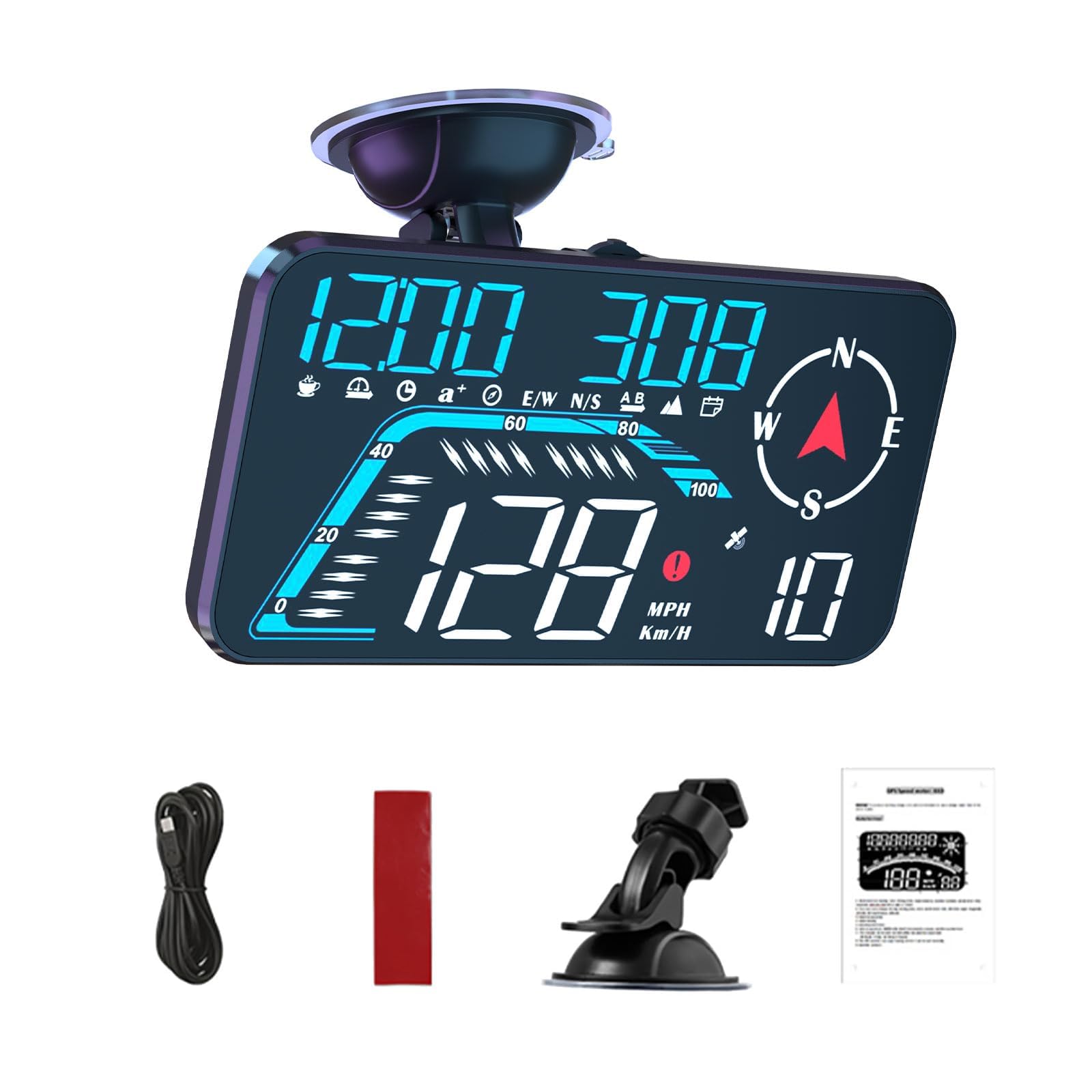
Image 1.1: The AMROOLOO G12 GPS Head-Up Display, showcasing its clear digital readout for speed and directional compass. This device is universal for all cars.
This product operates using a GPS system, making it compatible with all vehicle types without specific compatibility issues. Simply connect the device to your car using the provided USB cable, and it will begin searching for satellite signals. Once the satellite icon stops flashing, the device will update data and function normally. For faster satellite acquisition, operate the vehicle in an open area.
2. Kandungan Pakej
Sila sahkan bahawa semua item yang disenaraikan di bawah disertakan dalam pakej anda:
- G12 Host Unit
- Kabel USB Mikro
- Tikar tidak licin
- Rotary Suction Cup Holder
- Manual Pengguna

Image 2.1: Illustration of the G12 product display with dimensions and all included accessories: the G12 Host, Micro USB cable, non-slip mat, rotary suction cup holder, and the user manual.
3. Persediaan dan Pemasangan
- Pilih Lokasi: Select a position on your dashboard where the display is clearly visible without obstructing your view jalan raya.
- Selamatkan Peranti: Use the provided non-slip mat or the rotary suction cup holder to firmly secure the G12 unit to your dashboard. Ensure it is stable and does not move during driving.
- Sambungkan Kuasa: Plug the Micro USB cable into the G12 unit and connect the other end to a USB power source in your vehicle (e.g., a USB port or a car charger adapter).
- Power On and Satellite Acquisition: The device will power on automatically. It will then begin searching for GPS satellite signals. The satellite icon on the display will flash during this process. Drive to an open area if satellite acquisition is slow. Once the icon becomes steady, the device is ready for use.

Image 3.1: The G12 Head-Up Display mounted on a car dashboard, demonstrating its large screen and optimal placement for driver visibility.
4. Operating Instructions and Display Functions
The G12 offers a multi-functional display with various data points and customizable views. The device features a tilt button on the top for easy navigation and configuration.
4.1. Paparan Elemen

Image 4.1: A detailed breakdown of the G12 display, illustrating various function icons, speed progress bar, current speed, warning alarm icon, number of satellites, and satellite icon. Speed units can be MPH or KM/H.
- Kelajuan: Displays current driving speed in KM/H or MPH.
- Driving Distance: Shows the distance traveled during the current trip.
- Driving Direction: Indicates cardinal directions (N, S, E, W) and intermediate points.
- Bilangan Satelit: Displays the count of acquired GPS satellites.
- jam: Masa semasa.
- Mempercepatkan Masa: Time taken to accelerate.
- Latitude and Longitude: Geographic coordinates.
- Ketinggian: Ketinggian semasa.
- tarikh: Tarikh semasa.
- Over-speed Reminder: An icon or alert for exceeding a set speed limit.
- Peringatan Memandu Keletihan: An icon or alert to suggest taking a break after prolonged driving.
4.2. Adjusting Display Modes
You can customize the display to show one or multiple functions simultaneously. Use the tilt button on the top of the device to cycle through different display modes and configure settings.
5. Fungsi Penggera
The G12 Head-Up Display includes two primary alarm functions to enhance driving safety:
- Over-Speed Alarm: Anda boleh menetapkan multi-stage speeding alarm. When your vehicle exceeds the preset speed, the device will provide a visual or audible warning.
- Peringatan Memandu Keletihan: This feature reminds you to take a break after driving for a continuous period, typically set for 8 hours, to prevent driver fatigue.

Image 5.1: The G12 display highlighting the icons for the Over Speed alarm and the Fatigue Driving reminder, indicating active safety features.
6. Adaptive Light Sensing
The G12 is equipped with a light-sensitive hole on its front. This sensor automatically adjusts the display's brightness based on the ambient light conditions. This ensures that the data remains clearly visible during both day and night driving, without being too dim or too dazzling.

Image 6.1: Comparison of the G12 display's adaptive light sensing feature, showing clear visibility in bright daytime conditions and soft, non-dazzling illumination at night.
7. Spesifikasi
| Atribut | Nilai |
|---|---|
| Jenama | AMROOLOO |
| Model | G12 |
| bahan | plastik |
| Dimensi (LxWxH) | 9.5 x 2.3 x 4.3 cm (3.74 x 0.91 x 1.69 inci) |
| Berat Barang | 172 Gram (0.38 lbs) |
| Keserasian | Universal for all vehicles (GPS system) |
8. Penyelesaian masalah
If you encounter any issues with your AMROOLOO G12 HUD, please refer to the following common solutions:
- No Display / Device Not Powering On:
- Ensure the USB cable is securely connected to both the G12 unit and a working USB power source in your vehicle.
- Check if the vehicle's USB port or car charger adapter is functioning correctly. Try a different USB port or adapter if available.
- No GPS Signal / Satellite Icon Flashing Continuously:
- Move your vehicle to an open area away from tall buildings, tunnels, or dense foliage that might obstruct GPS signals.
- Allow a few minutes for the device to acquire satellite signals, especially during the first use or after a long period of inactivity.
- Ensure the device is placed on the dashboard with a clear view dari langit.
- Bacaan Kelajuan Tidak Tepat:
- GPS speed can sometimes have a slight delay or minor deviation compared to the vehicle's dashboard speedometer. This is normal for GPS-based devices.
- Ensure the device has a strong GPS signal (check the number of satellites displayed).
- Display Too Bright or Too Dim:
- The device features adaptive light sensing. Ensure the light sensor on the front of the unit is not obstructed.
- If issues persist, check the user manual for specific settings related to brightness adjustment, if available.
9. Penyelenggaraan
- Pembersihan: Use a soft, dry cloth to clean the display screen and the device body. Avoid using abrasive cleaners or solvents.
- Storan: Apabila tidak digunakan untuk tempoh yang lama, simpan peranti di tempat yang sejuk dan kering jauh dari cahaya matahari langsung dan suhu yang melampau.
- Penjagaan Kabel: Handle the USB cable gently to prevent damage. Do not bend or crimp the cable excessively.
10. Waranti dan Sokongan
This product has undergone quality control checks to ensure it reaches you in optimal condition. For any issues or support inquiries, please contact AMROOLOO customer service. Please refer to your purchase documentation for specific warranty terms and contact information.