
pengenalan
This manual provides essential information for the safe and effective operation of your ORDRO G801 64MP 4K Digital Camera. Please read this manual thoroughly before using the camera and keep it for future reference.
Apa yang Termasuk
Sahkan bahawa semua item yang disenaraikan di bawah terdapat dalam pakej anda:

Image: The ORDRO G801 camera package contents, showing the G700 camera body, two batteries, a 64GB SD card, a lens cap, a lanyard, a Type-C USB cable, and the user manual.
- ORDRO G801 Digital Camera (also referred to as G700 in some materials)
- Bateri Boleh Dicas semula (x2)
- Kad SD 64GB
- Cap Lens
- Lanyard / Wrist Strap
- Kabel USB Jenis-C
- Manual Pengguna (dokumen ini)
Persediaan
1. Mengecas Bateri
Insert the provided rechargeable battery into the camera or use the external charger. Ensure the battery is fully charged before first use. A full charge typically takes approximately 2-3 hours.
2. Memasukkan Kad SD
Locate the SD card slot on the camera body. Insert the 64GB SD card with the metal contacts facing the correct direction until it clicks into place. Ensure the camera is powered off before inserting or removing the SD card.
3. Attaching the Lanyard/Strap
Attach the lanyard or wrist strap to the designated strap lugs on the camera body. This helps prevent accidental drops and provides security during use.
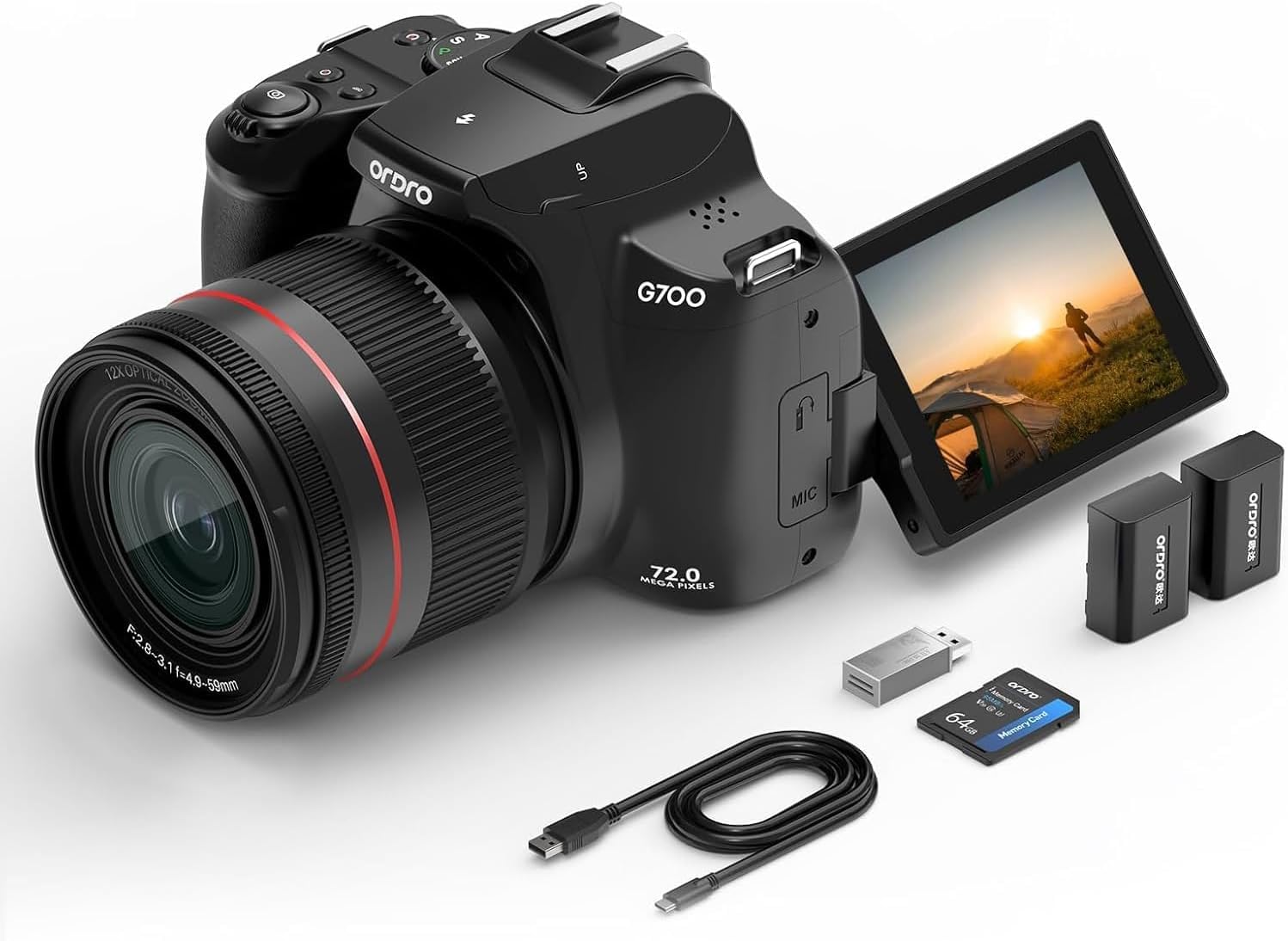
Image: A person's hands attaching the camera strap to the ORDRO G801 digital camera, which is resting on a concrete surface.
Operasi Asas
1. Menghidupkan/Mematikan
Press and hold the Power button (usually located on the top or side of the camera) to turn the camera on or off.
2. Using the Flip Screen
The camera features a 3-inch IPS HD touchscreen that can flip 180 to 270 degrees. This is ideal for vlogging, selfies, or shooting from various angles.

Image: The ORDRO G801 camera demonstrating its 3-inch foldable screen, showing it can rotate 270 degrees and flip 180 degrees for versatile shooting.

Image: The ORDRO G801 camera held in hands, with the 3-inch flip screen extended and displaying a live view, ready for use.
3. Menavigasi Menu
Use the directional buttons and the 'OK' button to navigate through the camera's menu options. The touchscreen also allows for direct selection.
4. Selecting Shooting Modes
Rotate the mode dial (typically on the top of the camera) to select your desired shooting mode. Available modes include AUTO, Programmed Auto Exposure (P), Aperture Priority (AV), Shutter Priority (TV), Manual (M), Scene Mode (SCN), and Filter (CA).

Image: The ORDRO G801 camera showing its mode dial, with a visual guide to different photo modes such as AUTO, P, AV, TV, M, SCN, and CA (Filter).

Image: A collage of images demonstrating the effect of various filter modes available on the ORDRO G801 camera, applied to portraits and landscapes.
Ciri Lanjutan
1. Kefungsian Zum
The camera features 12X optical zoom and 30X digital zoom. Use the zoom lever (typically around the shutter button) to adjust the focal length. Optical zoom maintains image quality, while digital zoom magnifies the image electronically.

Image: The ORDRO G801 camera illustrating its 12X optical zoom capability, with comparative images showing the view at 1X, 6X, and 12X zoom levels.

Image: The ORDRO G801 camera highlighting its 12X optical zoom and 30X digital zoom, with two images demonstrating the difference between a wide shot and a zoomed-in shot of a building.
2. Flash and Hot Shoe
The built-in flash provides illumination in low-light conditions. To activate, typically press a button or slide a switch. The camera also features a hot shoe for attaching external flash units or other accessories.

Image: The ORDRO G801 camera illustrating its built-in flash in both retracted and popped-up positions, alongside a diagram of its standard hot shoe for accessories.
3. Autofokus dan Fokus Manual
The camera supports both autofocus (AF) and manual focus (MF). In AF mode, the camera automatically detects and focuses on subjects, including face detection. In MF mode, you can manually adjust the focus for precise control.

Image: A screenshot from the ORDRO G801 camera's display during 4K video recording, showing green boxes indicating active face focus on multiple subjects.
4. Kesambungan Wi-Fi
Enable Wi-Fi in the camera settings to connect to your smartphone via a companion app. This allows for seamless transfer of images and videos, and remote control of the camera.
5. Webkamera dan Penstriman Langsung
Connect the camera to a PC via the USB cable and select 'PC Mode' to use it as a webcam for video calls or live streaming.

Image: The ORDRO G801 camera shown in two scenarios: connected to a laptop for use as a webcam during a video call, and connected to a television via HDMI for direct playback.
6. Rakaman Video
The camera supports 4K video recording. Select video mode and press the shutter button to start/stop recording. Ensure sufficient SD card space for 4K video files.

Image: The ORDRO G801 camera's view during 4K video recording, showing a person walking through a vibrant field of flowers.
Penyelenggaraan
1. Membersihkan Kamera
Use a soft, lint-free cloth to clean the camera body. For the lens, use a specialized lens cleaning cloth and solution. Avoid harsh chemicals or abrasive materials.
2. Penjagaan Bateri
Store batteries in a cool, dry place. If not using the camera for an extended period, remove the batteries. Recharge batteries regularly to maintain their lifespan.
3. Pengurusan Kad SD
Regularly back up your photos and videos from the SD card to a computer or external storage. Format the SD card periodically within the camera to ensure optimal performance.
Menyelesaikan masalah
Kamera Tidak Dihidupkan
- Pastikan bateri dicas sepenuhnya dan dimasukkan dengan betul.
- Try using the second provided battery.
- Check the power button for any obstructions.
Foto Kabur
- Verify that the lens is clean.
- Ensure proper focus mode (Autofocus or Manual Focus) is selected.
- Use the anti-shake function or a tripod in low light conditions.
- Check shutter speed settings; a faster shutter speed can reduce blur from camera shake or subject movement.
Isu Sambungan Wi-Fi
- Ensure Wi-Fi is enabled in the camera's settings.
- Restart both the camera and your smartphone/device.
- Confirm you are using the correct companion app and password.
Ralat Kad SD
- Pastikan kad SD dimasukkan dengan betul.
- Cuba formatkan kad SD (ini akan memadamkan semua data, jadi buat sandaran dahulu).
- Test with a different compatible SD card.
Spesifikasi
Below are the technical specifications for the ORDRO G801 Digital Camera:

Imej: Tamatview graphic highlighting key features of the ORDRO G700 (G801) 4K Digital Camera, such as 64MP resolution, auto and manual focus, flash, zoom capabilities, flip screen, and connectivity options.
| Ciri | Perincian |
|---|---|
| Jenama | ORDRO |
| Nama Model | G800 |
| Nombor Model | G801 |
| Resolusi Penderia Foto | 64 MP |
| Resolusi Video | 4K (2160p) |
| Zum Optik | 12x |
| Zum Digital | 30x |
| Saiz Skrin | 3 Inches (Articulating LCD) |
| Teknologi Ketersambungan | Wi-Fi, Bluetooth, USB, HDMI |
| Penstabilan Imej | digital |
| Ciri Fokus | Autofocus (Face Detection), Manual Focus |
| kilat | Built-In, Hot Shoe Mount |
| Simpanan Memori | 64 GB SD Card (Included), Supports up to 256GB |
| Jenis Bateri | Litium Ion (2 termasuk) |
| Berat (Bateri) | 19 Gram |
| Tahap Ketahanan Air | Bukan Tahan Air |
Waranti dan Sokongan
For warranty information and technical support, please refer to the contact details provided on the product packaging or the official ORDRO webtapak. Simpan resit pembelian anda sebagai bukti pembelian untuk tuntutan waranti.