
Radxa Radxa Camera 8M 219
Radxa Camera 8M 219 Instruction Manual
Model: Radxa Camera 8M 219
Produk Selesaiview
The Radxa Camera 8M 219 is a compact camera module designed for integration with Radxa Single Board Computers (SBCs). It features an 8-megapixel IMX219 sensor and connects via a MIPI CSI interface, providing high-quality imaging capabilities for various embedded applications.

Depan view of the Radxa Camera 8M 219, showing the lens and the Radxa logo on the green PCB.

belakang view of the Radxa Camera 8M 219, displaying the "Radxa Camera 8M" text and the MIPI CSI connector.
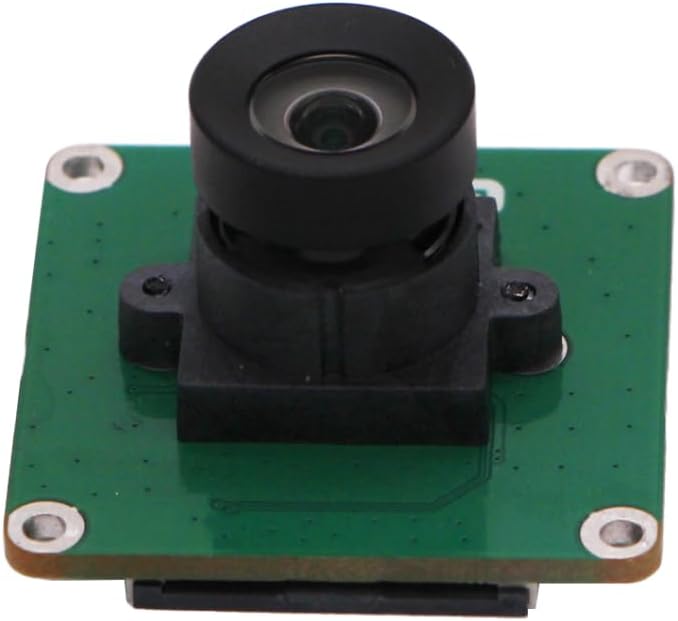
Pro sampinganfile of the Radxa Camera 8M 219, highlighting the compact form factor and lens assembly.
Ciri-ciri Utama
- IMX219 Sensor: Equipped with an 8-megapixel Sony IMX219 sensor for high-resolution image capture.
- MIPI CSI Interface: Utilizes the MIPI CSI (Camera Serial Interface) for efficient data transfer to compatible host devices.
- Radxa SBC Compatibility: Designed to seamlessly integrate with various Radxa Single Board Computers.

jarak dekat view of the Sony IMX219 sensor, highlighting its 8-megapixel capability.
Panduan Persediaan
1. Membongkar
Carefully remove the Radxa Camera 8M 219 from its packaging. Ensure all components listed in the "What's in the Box" section are present.
- Board Body
2. Connecting to a Radxa SBC
The camera connects to your Radxa Single Board Computer via the MIPI CSI interface. Locate the MIPI CSI connector on both the camera module and your SBC.
- Identify the MIPI CSI connector on your Radxa SBC. This is typically a small, multi-pin flat flexible cable (FFC) connector.
- Gently lift the locking tab on the SBC's MIPI CSI connector.
- Insert the ribbon cable from the Radxa Camera 8M 219 into the connector, ensuring the contacts are facing the correct direction (usually blue side up or contacts facing the PCB).
- Press down the locking tab to secure the ribbon cable in place.
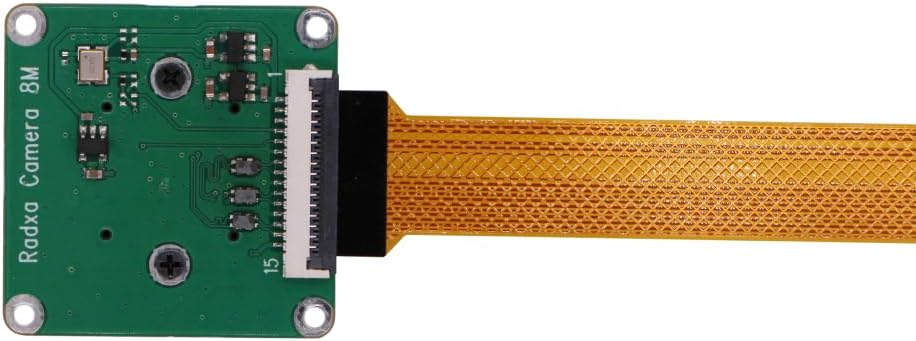
The Radxa Camera 8M 219 with its attached ribbon cable, ready for connection.

Diagram illustrating the connection of the camera's MIPI CSI interface to a compatible SBC.

The Radxa Camera 8M 219 fully connected to a Radxa Single Board Computer.
For specific instructions on your Radxa SBC model, refer to its official documentation.
Arahan Operasi
Once the camera is physically connected to your Radxa SBC, you will need to configure the software to enable and utilize the camera. This typically involves installing necessary drivers and camera software.
1. Konfigurasi Perisian
- Sistem pengendalian: Ensure your Radxa SBC is running a compatible Linux distribution.
- Pemasangan Pemandu: Install the appropriate camera drivers for the IMX219 sensor. Refer to the official Radxa documentation or community forums for detailed instructions specific to your SBC model and operating system.
- Perisian Kamera: Utilize standard Linux camera tools (e.g.,
libcamera,fswebcam,gstreamer) or specific Radxa-provided utilities to access and control the camera.
2. Basic Camera Usage (Example)
After successful driver installation, you can test the camera. For example, menggunakan libcamera-still (jika libcamera is installed and configured):
libcamera-still -o test.jpgArahan ini akan menangkap imej dan menyimpannya sebagai test.jpg dalam direktori semasa.
For video streaming, you might use libcamera-vid or gstreamer commands. Consult the documentation for your chosen software for advanced usage.
Penyelenggaraan
The Radxa Camera 8M 219 is a low-maintenance device. Follow these guidelines to ensure its longevity and optimal performance:
- Pembersihan Kanta: If the lens becomes dirty, gently clean it with a soft, lint-free cloth specifically designed for optical surfaces. Avoid abrasive materials or harsh chemicals.
- Perlindungan Debu: Keep the camera in a clean, dust-free environment when not in use or when integrated into a system.
- Pengendalian Fizikal: Handle the camera module by its edges to avoid touching the lens or the sensitive electronic components on the PCB.
- Suhu dan Kelembapan: Operate and store the camera within recommended environmental conditions to prevent damage. Avoid extreme temperatures and high humidity.
Menyelesaikan masalah
| Masalah | Kemungkinan Punca | Penyelesaian |
|---|---|---|
| Camera not detected by SBC. |
|
|
| No image or black screen. |
|
|
| Image is distorted or blurry. |
|
|
Spesifikasi
| Ciri | Perincian |
|---|---|
| Sensor | Sony IMX219 |
| Resolusi | 8 Megapiksel |
| Antara muka | MIPI CSI |
| Keserasian | Radxa Single Board Computers (SBCs) |
| Berat Barang | 0.48 auns (lebih kurang 13.6 gram) |
| Dimensi Pakej | 0.3 x 0.3 x 0.2 inci (lebih kurang 7.6 x 7.6 x 5.1 mm) |
| Pengeluar | Radxa |
| Negara Asal | China |
Waranti dan Sokongan
Maklumat Waranti
This product is typically covered by a standard manufacturer's warranty. Please refer to the specific warranty terms provided by Radxa or your point of purchase for details regarding coverage period and conditions. Keep your proof of purchase for warranty claims.
Sokongan Teknikal
For technical assistance, driver downloads, and detailed documentation, please visit the official Radxa website or their community forums. These resources provide comprehensive guides, software updates, and peer support for Radxa products.
Official Radxa Webtapak: www.radxa.com
For direct support inquiries, contact the seller or manufacturer through the platform where the product was purchased.
Ask a question about this manual
Ask about setup, troubleshooting, compatibility, parts, safety, or missing instructions. Manuals+ will review the question and use this page’s manual context to help answer it.