
1. Pengenalan
The Yesido TV12 Gaming TV Box is a versatile device designed to transform your television into a smart entertainment hub. It combines 4K media streaming capabilities with extensive gaming emulation, offering a comprehensive entertainment experience. This manual provides essential information for setting up, operating, maintaining, and troubleshooting your device.
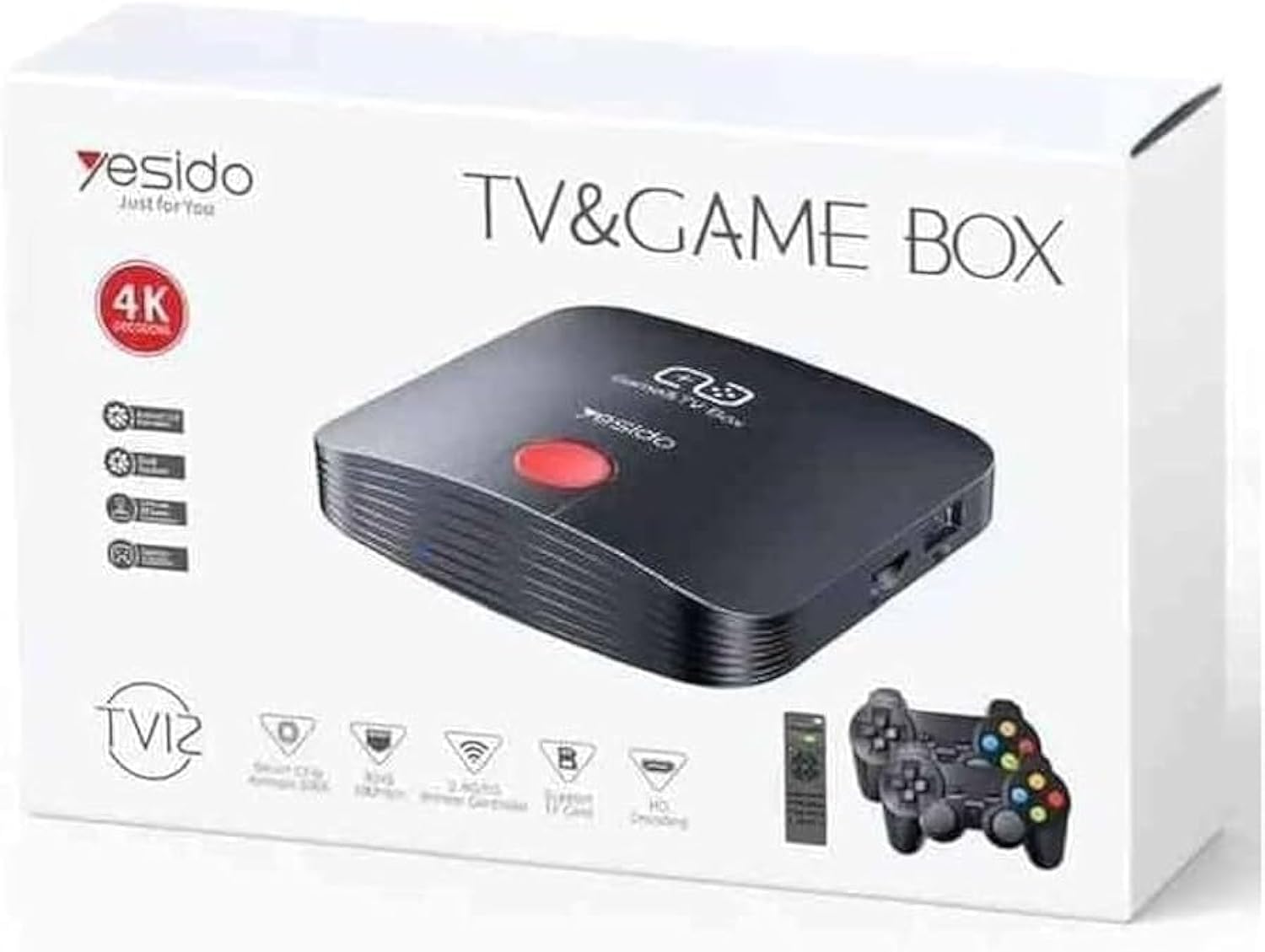
Image 1.1: The Yesido TV12 Gaming TV Box and included game controllers.
2. Produk Lebihview
The Yesido TV12 is a high-tech smart TV box that supports high-definition 4K resolution, allowing you to enjoy movies and TV shows with stunning clarity. It features an Amlogic S905 smart chip and runs on an Android 12.0 dual system. The device is equipped with 2GB RAM and 16GB internal storage, facilitating multitasking and storage of your favorite media and games. A powerful Mali-G31 MP2 GPU ensures smooth performance for demanding games.
Ciri-ciri Utama:
- 4K HD Resolution Support (1080P to 4K)
- Android 12.0 Dual System
- Amlogic S905 Smart Chip
- GPU Mali-G31 MP2
- 2GB RAM and 16GB Storage
- Supports over 10,000 game emulations (14 types)
- Integrated 2.4G/5G Wi-Fi and 100Mbps RJ45 Ethernet
- Compatible with popular streaming services (Netflix, Hulu, Amazon Prime Video, Disney+)
- Voice-controlled remote for easy navigation
- Compatible with two game controllers
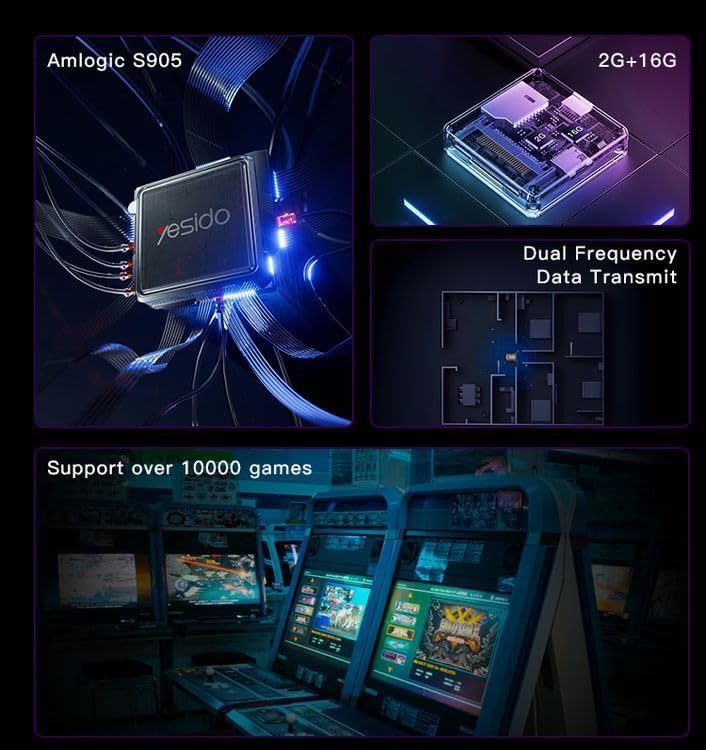
Image 2.1: Internal architecture highlighting the Amlogic S905 chip, memory, and data transmission capabilities.
3. Panduan Persediaan
3.1 Menyahkotak dan Komponen
Keluarkan semua barang dari pembungkusan dengan berhati-hati. Pastikan komponen berikut ada:
- Yesido TV12 Gaming TV Box
- Penyesuai Kuasa
- Kabel HDMI
- Alat Kawalan Jauh
- Game Controllers (quantity may vary)
- Manual Pengguna (dokumen ini)
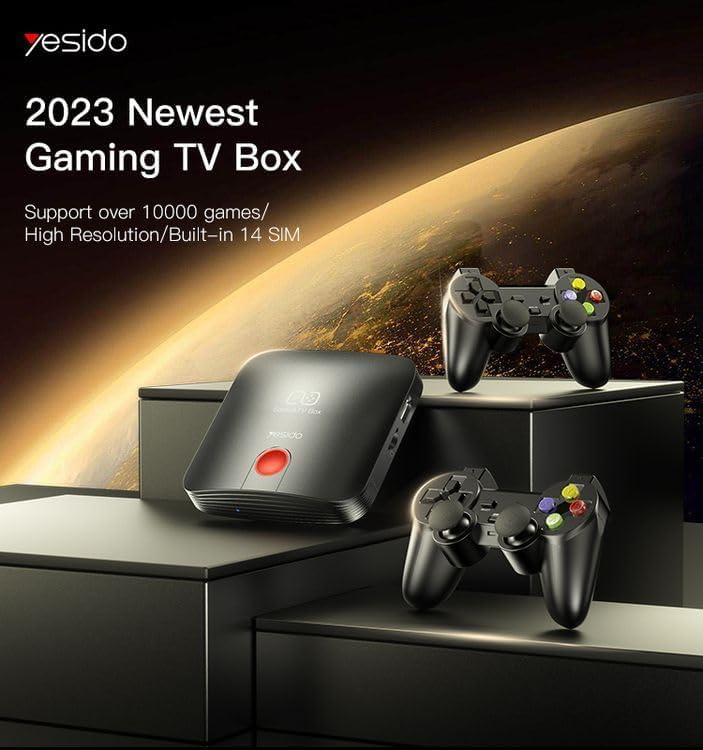
Image 3.1: The TV Box and game controllers, ready for setup.
3.2 Menyambung ke TV Anda
- Connect one end of the HDMI cable to the HDMI port on the Yesido TV12.
- Sambungkan hujung kabel HDMI yang satu lagi ke port input HDMI yang tersedia pada televisyen anda. Perhatikan nombor input HDMI (cth, HDMI 1, HDMI 2).
3.3 Menghidupkan
- Connect the power adapter to the DC IN port on the TV Box.
- Palamkan penyesuai kuasa ke salur keluar dinding.
- Hidupkan televisyen anda dan pilih input HDMI yang sepadan menggunakan alat kawalan jauh TV anda.
- The TV Box will automatically power on and display the boot-up screen.
3.4 Sambungan Rangkaian
For internet access, you can connect via Wi-Fi or Ethernet.
- Wi-Fi: Navigate to Settings > Network > Wi-Fi. Select your network from the list, enter the password, and connect.
- Ethernet: Connect an Ethernet cable from your router to the RJ45 port on the TV Box. The connection should be established automatically.
3.5 Remote Control and Gamepad Pairing
The included remote control is typically pre-paired. If not, or if pairing gamepads:
- Ensure batteries are inserted correctly into the remote/gamepad.
- For Bluetooth gamepads, go to Settings > Connected Devices > Pair new device and follow the on-screen instructions.
4. Arahan Operasi
4.1 Menavigasi Antara Muka
Use the remote control to navigate the Android 12.0 interface. The directional buttons move the cursor, the OK button selects, and the Back button returns to the previous screen. The Home button returns to the main launcher screen.
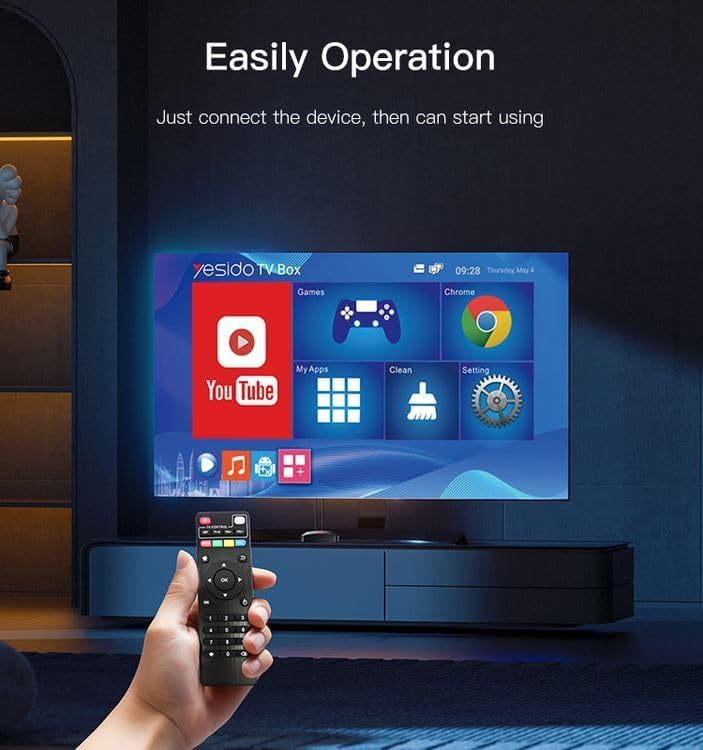
Image 4.1: Navigating the Yesido TV Box interface with the remote control.
4.2 Streaming Media
The TV Box supports various streaming applications. Pre-installed apps like YouTube are available, and you can download more from the app store (e.g., Netflix, Hulu, Amazon Prime Video, Disney+).
- Select the desired streaming app from the home screen or 'My Apps' section.
- Log masuk dengan kelayakan akaun anda.
- Browse and select content to watch.
4.3 Permainan
The Yesido TV12 is designed for gaming, supporting over 10,000 game emulations. Connect your game controllers as described in Section 3.5.
- Access the 'Games' or 'Emulator' section from the home screen.
- Select your desired game or emulator.
- Use the connected game controllers for an immersive gaming experience.

Image 4.2: The wireless gamepads compatible with the TV Box.
4.4 Kawalan Suara
If your remote control supports voice input, press the voice button and speak your commands or search queries. This allows for hands-free content search and device control.
5. Penyelenggaraan
5.1 Membersihkan Peranti
To maintain optimal performance and appearance, regularly clean the TV Box:
- Cabut plag peranti daripada salur keluar kuasa sebelum membersihkan.
- Gunakan kain lembut dan kering untuk mengelap permukaan luar.
- Do not use liquid cleaners, aerosols, or abrasive materials, as they may damage the device.
5.2 Kemas Kini Perisian
Keep your device's software updated to ensure the best performance and access to new features:
- Connect the TV Box to the internet.
- Navigate to Settings > About > System Update.
- Follow the on-screen prompts to check for and install any available updates.
5.3 Pengurusan Storan
With 16GB of internal storage, managing your space is important:
- Pergi ke Tetapan > Storan ke view penggunaan storan.
- Uninstall unused applications or delete unnecessary files untuk mengosongkan ruang.
- The device supports TF cards for expandable storage.
6. Penyelesaian masalah
6.1 Tiada Kuasa
- Ensure the power adapter is securely connected to the TV Box and a working power outlet.
- Cuba salur keluar kuasa yang berbeza.
6.2 No Signal / No Display
- Sahkan kabel HDMI disambungkan dengan selamat ke kedua-dua Kotak TV dan TV.
- Pastikan TV anda ditetapkan kepada sumber input HDMI yang betul.
- Cuba kabel HDMI atau port HDMI lain pada TV anda.
6.3 Isu Sambungan Rangkaian
- Wi-Fi: Check if your Wi-Fi router is working correctly. Re-enter the Wi-Fi password in Settings > Network.
- Ethernet: Ensure the Ethernet cable is properly connected to both the TV Box and the router.
- Restart your router and the TV Box.
6.4 Alat Kawalan Jauh Tidak Bertindak Balas
- Periksa dan gantikan bateri pada alat kawalan jauh.
- Pastikan tiada halangan antara alat kawalan jauh dan Kotak TV.
- Re-pair the remote control if necessary (refer to Section 3.5).
6.5 Game Performance Issues
- Close any background applications to free up RAM.
- Pastikan ruang simpanan mencukupi tersedia.
- For online games, check your internet connection stability.
7. Spesifikasi
Image 7.1: The powerful Amlogic S905 CPU at the core of the TV Box.
| Ciri | Penerangan |
|---|---|
| Nama Jenama | Yesido |
| Nama Model | TV12 |
| Sistem Operasi | Android 12.0 Dual System |
| CPU | Amlogic S905 |
| GPU | Mali-G31 MP2 |
| RAM yang dipasang | 2 GB |
| Kapasiti Penyimpanan Memori | 16 GB |
| Resolusi Keluaran Video | 1080P to 4K |
| Teknologi Ketersambungan | HDMI, Wi-Fi (2.4G/5G), RJ45 (100Mbps) |
| Jenis Penyambung | HDMI |
| Perkhidmatan Internet yang Disokong | Netflix, Hulu, Amazon Prime Video, Disney+ |
| Peranti Serasi | Televisyen |
| Komponen yang Disertakan | TV Box, Controllers |
| warna | Hitam |
| Berat Barang | 1200 gram |
| Dimensi Produk (L x W x H) | 20 x 5 x 10 cm |
8. Waranti dan Sokongan
8.1 Maklumat Waranti
The Yesido TV12 Gaming TV Box comes with a standard manufacturer's warranty. Please refer to the warranty card included in your product packaging for specific terms, conditions, and duration. Keep your proof of purchase for warranty claims.
8.2 Sokongan Pelanggan
If you encounter any issues not covered in this manual or require further assistance, please contact Yesido customer support. Contact details can typically be found on the product packaging, the official Yesido website, or your retailer's support page.