
DOUGH ES07E2D
DOUGH Spectrum Black 27-inch QHD OLED Gaming Monitor User Manual
Model: ES07E2D
pengenalan
This manual provides detailed instructions for the setup, operation, and maintenance of your DOUGH Spectrum Black 27-inch QHD OLED Gaming Monitor. Please read this manual thoroughly before using the product to ensure proper functionality and to maximize your user experience. Keep this manual for future reference.
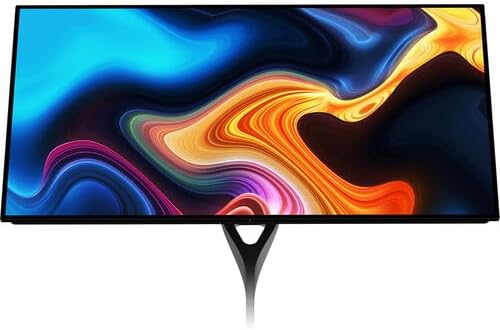
Rajah 1: Depan view of the DOUGH Spectrum Black 27-inch QHD OLED Gaming Monitor.
1. Persediaan
1.1 Membuka Kotak dan Kandungan Pakej
Carefully remove all components from the packaging. Ensure all items listed below are present. If any items are missing or damaged, contact customer support.
- DOUGH Spectrum Black 27-inch QHD OLED Gaming Monitor
- Kabel Kuasa dan Penyesuai
- Dokumentasi (Panduan Mula Pantas, Maklumat Waranti)
- (Optional: Monitor Stand, if purchased separately)
1.2 Monitor Assembly (Stand Attachment)
If your monitor stand was purchased separately, follow the instructions provided with the stand for assembly. Typically, the stand base attaches to the stand arm, which then connects to the VESA mounting points on the rear of the monitor. Ensure all screws are securely fastened.

Rajah 2: Belakang view of the monitor with stand attached.
1.3 Connecting to Your Devices
The DOUGH Spectrum Black monitor offers a variety of input and output ports for versatile connectivity. Refer to the image below for port locations.

Gambar 3: Lebihview of monitor ports.
- Kuasa: Sambungkan penyesuai kuasa ke input kuasa monitor dan kemudian ke soket dinding.
- Input Video:
- HDMI 2.1a (x2): For high-bandwidth connections to gaming consoles, PCs, and other HDMI-enabled devices.
- DisplayPort 1.4 (x1): For high-resolution and high-refresh-rate connections to PCs.
- USB-C 3.2 Gen 2 (x1, 100W PD): Connect compatible laptops for video, data, and up to 100W power delivery over a single cable.
- USB-C 3.2 Gen 2 (x1, Upstream/KVM): Connect to your desktop for KVM functionality, allowing the monitor's USB peripherals to be shared between two connected computers.
- Hab USB:
- USB-A (x2, side-facing): For connecting peripherals like keyboards, mice, or external drives.
- USB-C (x1, side-facing): For connecting USB-C peripherals.
- Output Audio:
- Bicu Audio 3.5mm (x1): Sambungkan fon kepala atau pembesar suara luaran untuk output audio.
1.4 Kuasa Awal Hidup
After connecting all necessary cables, press the power button on the monitor. The monitor will power on and display the DOUGH logo, followed by the input source. If no signal is detected, ensure your source device is powered on and the correct input is selected on the monitor.
2. Arahan Operasi
2.1 Navigasi Paparan Atas Skrin (OSD)
The monitor's settings are controlled via the On-Screen Display (OSD) menu. Use the joystick or buttons (location varies by model, typically on the rear or bottom-right) to navigate the menu. Common OSD options include:
- Tetapan Gambar: Kecerahan, Kontras, Suhu Warna, Gamma.
- Pilihan Input: Manually switch between HDMI 1, HDMI 2, DisplayPort, and USB-C inputs.
- Ciri-ciri Permainan: Access specific gaming enhancements.
- Tetapan Sistem: Language, OSD Timeout, Reset to Factory Defaults.
2.2 Display Features and Enhancements
- Visual Imersif: The 27-inch OLED panel is factory calibrated for Delta E <1 accuracy, covering 98.5% DCI-P3 and 100% sRGB color gamuts. HDR10 support provides a 1.5 million:1 contrast ratio and 1000 nits peak brightness for enhanced visuals.
- Teknologi Penyegerakan Adaptif: Supports AMD FreeSync Premium Pro, NVIDIA G-Sync, and VESA Adaptive-Sync. This technology dynamically adjusts the monitor's refresh rate to match the graphics card's frame rate, reducing screen tearing and stuttering.
- Ciri-ciri Permainan:
- Penyamaan Hitam: Adjusts darkened areas to improve visibility in shadows.
- Crosshair Overlay: Provides an on-screen crosshair for aiming assistance.
- Frame Rate Counter: Memaparkan kadar bingkai semasa pada skrin.
- Pixel-Perfect Upscaling: Uses integer-ratio pixel duplication for low-resolution input signals, maintaining the clarity of pixel art and retro games.
- Paparan Berbilang Sumber: The monitor can display video from two separate sources simultaneously using Picture-by-Picture (PbP) or Picture-in-Picture (PiP) modes.
- Fungsi USB-C: The USB-C 3.2 Gen 2 port on the rear panel supports video, data, and up to 100W power delivery for compatible laptops. A second USB-C 3.2 Gen 2 port enables KVM functionality, allowing you to control multiple computers with a single keyboard and mouse connected to the monitor's USB hub.
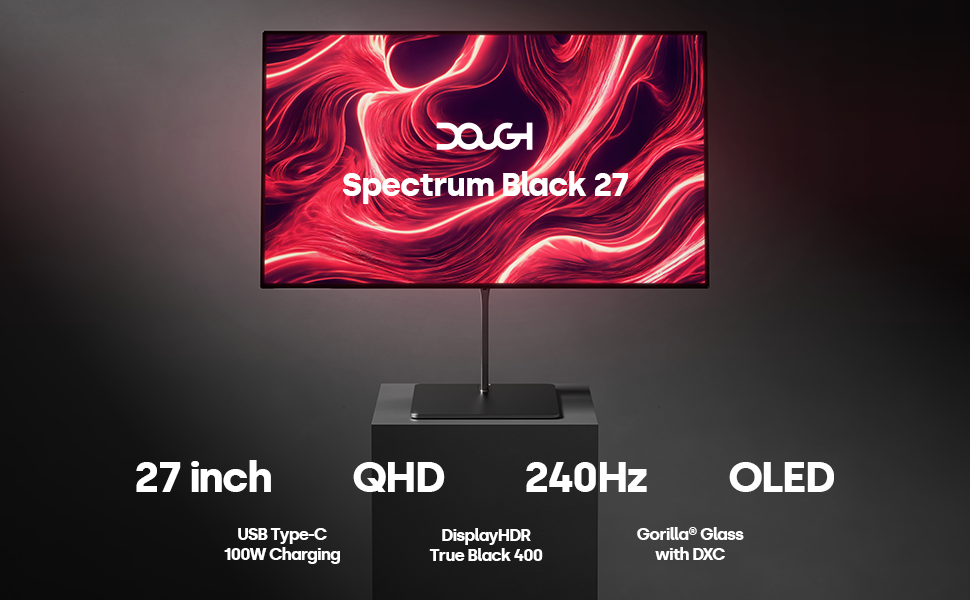
Figure 4: Key features of the DOUGH Spectrum Black monitor.
3. Penyelenggaraan
3.1 Membersihkan Monitor
Untuk membersihkan skrin monitor dan casing:
- Sentiasa matikan monitor dan cabut kabel kuasa sebelum membersihkan.
- Gunakan kain lembut dan tidak berbulu sedikit dampdisalut dengan air atau pembersih skrin yang tidak melelas.
- Lap skrin dengan lembut. Elakkan daripada mengenakan tekanan yang berlebihan.
- Do not use alcohol, ammonia, or abrasive cleaners, as these can damage the Gorilla Glass surface.
- Untuk casing, gunakan kain yang kering dan lembut.

Figure 5: Gorilla Glass with DXC technology reduces reflections.
3.2 OLED Pixel Care
OLED technology offers superior image quality but can be susceptible to image retention or burn-in if static images are displayed for extended periods. To minimize this risk:
- Enable screen saver or power-saving features when the monitor is idle.
- Avoid displaying static images or UI elements for very long durations.
- Utilize the monitor's built-in pixel refresh or pixel shift features, if available in the OSD.
4. Penyelesaian masalah
If you encounter issues with your monitor, refer to the following common solutions. If the problem persists, contact DOUGH customer support.
4.1 Tiada Kuasa / Tiada Paparan
- Pastikan kabel kuasa disambungkan dengan selamat ke kedua-dua monitor dan salur keluar kuasa yang berfungsi.
- Sahkan penyesuai kuasa berfungsi dengan betul.
- Tekan butang kuasa monitor untuk memastikan ia dihidupkan.
4.2 Tiada Isyarat
- Check that the video cable (HDMI, DisplayPort, or USB-C) is securely connected to both the monitor and your source device (PC, console).
- Pastikan peranti sumber dihidupkan dan mengeluarkan isyarat.
- Gunakan menu OSD untuk memilih sumber input yang betul secara manual.
- Try a different video cable or port on both the monitor and the source device.
4.3 Image Flickering or Distortion
- Pastikan pemacu kad grafik anda dikemas kini.
- Check the display resolution and refresh rate settings on your computer. Ensure they are within the monitor's supported specifications.
- Disable Adaptive Sync (FreeSync/G-Sync) temporarily to see if it resolves the issue.
- Cuba kabel video yang berbeza.
4.4 Port USB Tidak Berfungsi
- Ensure the USB upstream cable (for KVM functionality) or the USB-C data cable is connected from the monitor to your computer.
- Verify that the connected USB devices are functioning correctly.
5. Spesifikasi
| Ciri | Spesifikasi |
|---|---|
| Nombor Model | ES07E2D |
| Saiz Skrin | 27 Inci |
| Jenis Panel | OLED |
| Resolusi | 2560 x 1440 (QHD) |
| Kadar Segar Semula | 240 Hz |
| Nisbah Aspek | 16:9 |
| Kecerahan Puncak | 1000 nits (HDR Mode) |
| Nisbah Kontras | 1.5 million:1 |
| Warna Gamut | 98.5% DCI-P3, 100% sRGB |
| Permukaan Skrin | Gorilla Glass with DXC |
| Input Video | 2x HDMI 2.1a, 1x DisplayPort 1.4, 2x USB-C 3.2 Gen 2 (1x with 100W PD) |
| Port USB | 2x USB-A 3.2 Gen 2, 1x USB-C 3.2 Gen 2 (side-facing) |
| Output Audio | Bicu Audio 1x 3.5mm |
| Dimensi (Produk) | 6 x 26.5 x 17.5 inci |
| Berat Barang | 22 paun |
| Voltage | 100 Volt |
6. Waranti dan Sokongan
6.1 Waranti Produk
Your DOUGH Spectrum Black monitor is covered by a limited warranty. For specific terms and conditions, please refer to the warranty card included with your product or visit the official DOUGH webtapak. Simpan bukti pembelian anda untuk tuntutan waranti.
6.2 Sokongan Pelanggan
If you require technical assistance, have questions about your product, or need to report a defect, please contact DOUGH customer support. Before contacting support, please have your monitor's model number (ES07E2D) and serial number ready.
For the most up-to-date support information and contact methods, please visit the official DOUGH webtapak.