
pengenalan
This manual provides detailed instructions for the GAMFAMI TERIOS Wireless Controller. Please read this manual carefully before using the product to ensure proper operation and to maximize your gaming experience. This controller is designed for use with PlayStation 4, PS4 Pro, and PS4 Slim consoles.
Ciri-ciri Produk
- Kayu Joy Kesan Dewan: Equipped with Hall joysticks to prevent drift and ensure a longer lifespan with smooth, precise control.
- Pengaturcaraan Makro: Two programmable back buttons (M1, M2) allow mapping of various inputs (X, O, Triangle, Square, Up, Down, Left, Right, L3, R3, L1, R1, L2, R2) for enhanced gameplay.
- Kesambungan Tanpa Wayar: Enjoy a seamless wireless gaming experience with Bluetooth technology.
- Dual Shock Vibration: Enhanced dual shock motors provide immersive haptic feedback for a realistic gaming experience.
- Fungsi Turbo: Activate the Turbo feature for rapid, repeated button presses, offering a competitive advantage.
- Bateri tahan lama: Features a 1000mAh rechargeable battery for extended play sessions.
- Reka bentuk ergonomik: Lightweight and durable ABS construction with textured grips for comfortable handling.
- Built-in Speaker & 3.5mm Audio Jack: Provides high-quality audio directly from the controller and supports headset connection.
Kandungan Pakej
Sila semak kandungan pakej semasa membuka kotak:
- GAMFAMI TERIOS Wireless Controller
- Kabel Pengecas USB
- Manual Arahan
Susun atur Pengawal
Familiarize yourself with the buttons and features of your GAMFAMI TERIOS Wireless Controller.
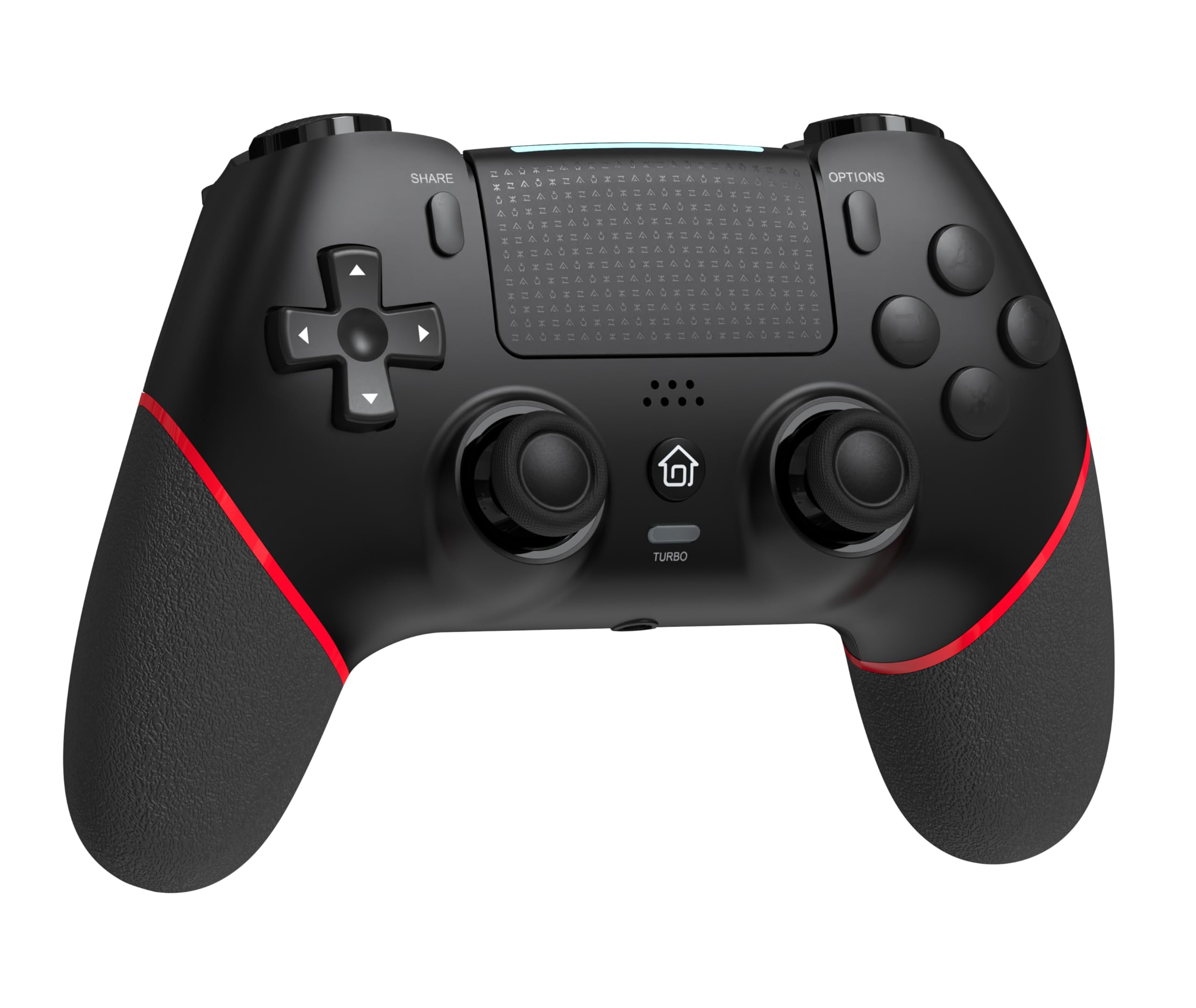
Depan view of the GAMFAMI TERIOS Wireless Controller, showing the joysticks, D-pad, action buttons, Share, Options, Home, and Turbo buttons, and the touchpad.
- Pad Arah (D-Pad): Untuk input arah.
- Butang Tindakan (Segitiga, Bulatan, Palang, Petak): Butang tindakan PlayStation standard.
- Kayu Analog Kiri/Kanan: For precise movement and camera control. Features Hall Effect technology.
- Butang SHARE: Untuk berkongsi kandungan permainan.
- Butang OPTIONS: Untuk menu dan pilihan dalam permainan.
- PS Button (Home Button): To access the PS4 system menu.
- Butang L1/R1: Butang bahu.
- Pencetus L2/R2: Pencetus analog.
- Pad sentuh: Multi-touch input area.
- Butang M1/M2: Butang belakang yang boleh diprogramkan.
- Butang TURBO: Activates/deactivates turbo function.
- Bicu Alat dengar 3.5mm: For connecting a compatible headset.
- Port USB-C: Untuk pengecasan dan sambungan berwayar.

belakang view of the controller, highlighting the M1 and M2 programmable buttons and product information.
Persediaan dan Sambungan
Pairing with PS4/PS4 Pro/PS4 Slim
- Pastikan konsol PS4 anda dihidupkan.
- Connect the controller to your PS4 console using the included USB charging cable.
- Press the PS button on the controller. The light bar will flash, indicating it is pairing.
- Once the light bar turns solid, the controller is successfully paired and ready for use.
- You can now disconnect the USB cable for wireless play.
Reconnecting to PS4
After initial pairing, simply press the PS button on the controller to reconnect wirelessly to your PS4 console.
Arahan Operasi
Menggunakan Fungsi Turbo
- Tekan dan tahan butang TURBO butang.
- Sambil pegang TURBO, press the action button (e.g., Cross, Circle, Square, Triangle, L1, R1, L2, R2) you wish to apply the turbo function to.
- Release both buttons. The selected action button will now rapidly repeat its input when held down.
- To disable turbo for a specific button, repeat the process: hold TURBO and press the turbo-enabled action button.
- To disable turbo for all buttons, press and hold the TURBO butang selama 5 saat.
Macro Programming (M1/M2 Buttons)
The M1 and M2 buttons on the back of the controller can be programmed to replicate other button inputs.
- Tekan dan tahan butang KONGSI butang dan M1 or M2 button simultaneously for 3 seconds until the light bar flashes rapidly. This indicates macro programming mode.
- Press the button(s) you wish to map to M1 or M2 (e.g., X, O, Triangle, Square, Up, Down, Left, Right, L3, R3, L1, R1, L2, R2). You can map a single button or a sequence of buttons.
- Tekan ke M1 or M2 button again to save the macro. The light bar will stop flashing rapidly and return to its normal state.
- To clear a macro, repeat step 1, then press the M1 or M2 button twice without pressing any other buttons.

Illustration of the advanced buttons and their programming capabilities.
Pengecasan dan Pengurusan Bateri
The controller is equipped with a 1000mAh rechargeable battery.
Mengecas Pengawal
- Connect the included USB charging cable to the USB-C port on the controller.
- Connect the other end of the cable to a USB port on your PS4 console (when powered on or in rest mode) or a compatible USB wall adapter (5V/1A recommended).
- The light bar on the controller will slowly pulse orange while charging.
- Once fully charged, the light bar will turn off.
Petunjuk Aras Bateri
The controller's light bar will indicate battery status. A low battery will cause the light bar to flash red. It is recommended to charge the controller when this occurs.
Penyelenggaraan
- Pembersihan: Gunakan kain lembut dan kering untuk membersihkan pengawal. Jangan gunakan bahan kimia yang keras atau bahan yang melelas.
- Storan: Simpan pengawal di tempat yang sejuk dan kering jauh dari cahaya matahari langsung dan suhu yang melampau.
- Elakkan Titisan: Lindungi pengawal daripada titisan dan hentaman, yang boleh merosakkan komponen dalaman.
Menyelesaikan masalah
| Masalah | Penyelesaian |
|---|---|
| Controller does not connect/pair. |
|
| Controller experiences input lag or disconnection. |
|
| Joysticks exhibit drift. |

Illustration of Hall Effect joystick technology, designed to prevent drift. |
| Pengawal tidak mengecas. |
|
Spesifikasi
| Nama Model | TERIOS |
| Jenama | GAMFAMI |
| Peranti Serasi | PS4, PS4 Pro, PS4 Slim |
| Jenis Pengawal | Pad permainan |
| Teknologi Ketersambungan | Bluetooth (Wayarles) |
| Sumber Kuasa | Dikuasakan Bateri |
| Kapasiti Bateri | 1000mAh |
| Berat Barang | 0.37 Kilogram |
| warna | Hitam Merah |
Waranti dan Sokongan
For warranty information and technical support, please refer to the documentation included with your purchase or visit the official GAMFAMI webtapak. Simpan resit pembelian anda sebagai bukti pembelian untuk sebarang tuntutan waranti.
For further assistance, please contact GAMFAMI customer service through their official channels.