
Baseus USB-C Hub with 30W PD Charger
Baseus USB C Hub User Manual
Model: USB-C Hub with 30W PD Charger
1. Pengenalan
Thank you for choosing the Baseus USB C Hub. This manual provides detailed instructions for setting up, operating, maintaining, and troubleshooting your device to ensure optimal performance and longevity. Please read this manual thoroughly before using the product.
2. Produk Lebihview
2.1 Kandungan Pakej
- Baseus USB C Hub
- 30W Dual Port USB C PD Charger Block
- Manual Pengguna
2.2 Rajah Produk
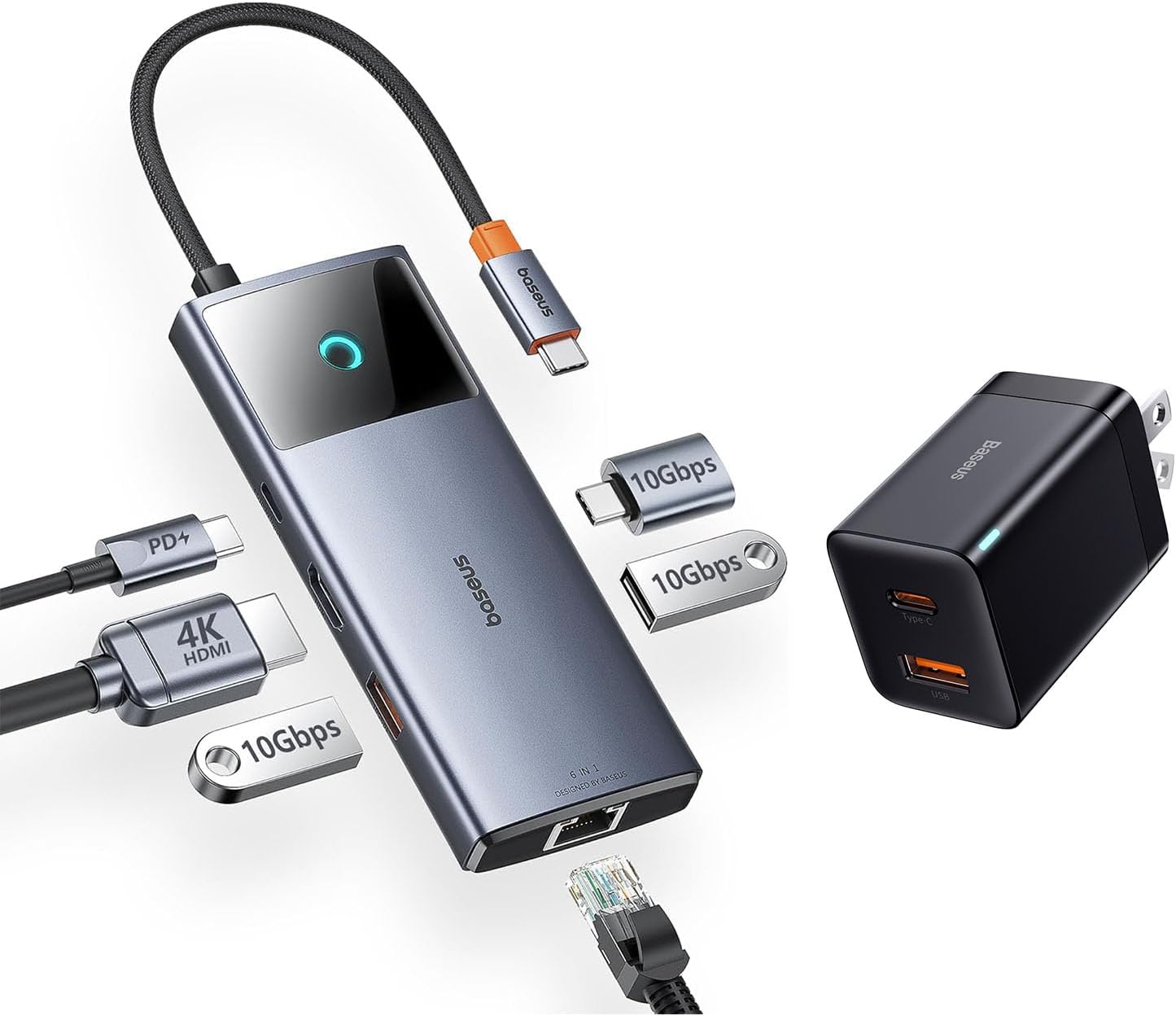
Image: The Baseus USB C Hub with its integrated cable, various ports, and the accompanying 30W dual-port charger.
The Baseus USB C Hub features multiple ports for expanded connectivity, including USB-A, USB-C data ports, an HDMI port, and an Ethernet port. The included 30W charger provides fast power delivery.
2.3 Ciri-ciri Utama
- Output HDMI 4K@60Hz: Supports ultra-clear video mirroring or extension to an external display.
- Pemindahan Data 10Gbps: Equipped with USB-C and USB-A data ports for high-speed file pemindahan.
- Port Ethernet Gigabit: Menyediakan sambungan internet berwayar yang stabil dan pantas.
- 30W Dual-Port PD Charging: Fast charges up to two devices simultaneously (18W USB-C, 12W USB-A).
- Reka bentuk padat dan mudah alih: Features a foldable plug for easy portability.
3. Persediaan
3.1 Menyambungkan Hab
- Connect the integrated USB-C cable of the Baseus USB C Hub to the USB-C port on your host device (e.g., laptop, iPad, iPhone 15 series).
- Ensure the connection is secure. The hub is plug-and-play and typically does not require driver installation.
3.2 Powering the Hub and Devices
- Plug the 30W Dual Port USB C PD Charger Block into a wall outlet.
- Connect your devices (e.g., smartphone, tablet) to the USB-C (18W) or USB-A (12W) output ports on the charger block using appropriate charging cables.
- For optimal performance of the hub and connected peripherals, ensure your host device is adequately powered.
4. Arahan Operasi
4.1 Pemindahan Data

Image: Illustration of high-speed 10Gbps data transfer through the hub's USB-C and USB-A data ports.
Connect your USB-C or USB-A storage devices (e.g., external hard drives, flash drives) to the corresponding data ports on the hub. The hub supports data transfer speeds up to 10Gbps, allowing for rapid transfer of large files.
4.2 Output Video (HDMI)

Image: A laptop connected to an external monitor via the Baseus USB C Hub, displaying 4K@60Hz clarity.
Connect an HDMI cable from the hub's HDMI port to an external monitor or projector. The hub supports 4K resolution at 60Hz, providing a clear and smooth visual experience for presentations, video editing, or extended desktop use. Ensure your host device and display support 4K@60Hz for optimal performance.
4.3 Network Connection (Ethernet)

Image: A laptop connected to a network cable via the Baseus USB C Hub's Gigabit Ethernet port.
For a stable and high-speed internet connection, connect an Ethernet cable from your router or modem to the Gigabit Ethernet port on the hub. This provides a reliable wired connection, ideal for online gaming, video conferencing, or large downloads.
4.4 Mengecas Peranti

Image: An iPhone 14 Pro Max charging rapidly with the 30W PPS charger, showing significant charge in 30 minutes.

Image: A smartphone and a tablet simultaneously charging from the USB-C (18W) and USB-A (12W) ports of the Baseus charger.
The included 30W dual-port charger allows you to fast charge two devices concurrently. Use the USB-C port for up to 18W Power Delivery (PD) and the USB-A port for up to 12W charging. This is suitable for smartphones, tablets, and other compatible USB-powered devices.
5. Penyelenggaraan
To ensure the longevity and proper functioning of your Baseus USB C Hub and charger, follow these maintenance guidelines:
- Pembersihan: Use a soft, dry cloth to wipe the surfaces of the hub and charger. Do not use liquid cleaners or abrasive materials.
- Storan: Simpan peranti di tempat yang sejuk dan kering jauh dari cahaya matahari langsung dan suhu yang melampau.
- Pengendalian: Elakkan daripada menjatuhkan atau mendedahkan peranti kepada hentaman kuat. Jangan bengkokkan kabel USB-C bersepadu secara berlebihan.
- Pengudaraan: Ensure the hub has adequate ventilation during use to prevent overheating.
6. Penyelesaian masalah
If you encounter issues with your Baseus USB C Hub, please refer to the following common solutions:
- Tiada Output Paparan:
- Pastikan kabel HDMI disambungkan dengan selamat ke hab dan monitor.
- Verify that your host device's USB-C port supports video output (DisplayPort Alternate Mode).
- Cuba kabel atau monitor HDMI yang berbeza.
- Mulakan semula peranti hos anda.
- Kelajuan Pemindahan Data Perlahan:
- Ensure your connected storage device supports 10Gbps (USB 3.1 Gen 2) speeds.
- Check if other high-bandwidth devices are connected to the hub simultaneously.
- Ensure your host device's USB-C port supports USB 3.1 Gen 2 speeds.
- Tiada Sambungan Rangkaian:
- Verify the Ethernet cable is properly connected to the hub and your router/modem.
- Semak tetapan rangkaian anda pada peranti hos anda.
- Pastikan penghala/modem anda berfungsi dengan betul.
- Peranti Tidak Mengecas:
- Ensure the 30W charger is securely plugged into a live wall outlet.
- Cuba kabel pengecasan yang berbeza.
- Verify that your device is compatible with the charging specifications (18W USB-C PD, 12W USB-A).
7. Spesifikasi
| Ciri | Spesifikasi |
|---|---|
| Model | Baseus USB C Hub (ASIN: B0CZP5S4JS) |
| Antara Muka Perkakasan | USB 3.0 Jenis C |
| Output HDMI | 4K@60Hz |
| Port Data USB | 1x USB-C (10Gbps), 2x USB-A (10Gbps) |
| Pelabuhan Ethernet | Gigabit Ethernet (10/100/1000 Mbps) |
| Charger Output (USB-C) | Penghantaran Kuasa 18W (PD) |
| Charger Output (USB-A) | 12W |
| Total USB Ports (Hub) | 4 (1x USB-C, 3x USB-A) |
| Peranti Serasi | iPad Pro, iPad Air, iPad Mini, iPhone 15, iPhone 15 Pro, iPhone 15 Pro Max, Laptops with USB-C |
| Ciri Khas | Pengecasan Cepat |
8. Waranti dan Sokongan
Baseus products are designed and manufactured to the highest quality standards. This product is covered by a limited warranty from the date of purchase. Please refer to the warranty card included in your package for specific terms and conditions.
For technical support, troubleshooting assistance, or warranty claims, please contact Baseus customer service through the official Baseus website or your point of purchase. When contacting support, please have your product model and purchase information ready.
Ask a question about this manual
Ask about setup, troubleshooting, compatibility, parts, safety, or missing instructions. Manuals+ will review the question and use this page’s manual context to help answer it.