
Contour Design 50120043
Manual Arahan Tetikus Vertikal Ergonomik Contour Unimouse
Model: 50120043
Jenama: Reka Bentuk Kontur
pengenalan
The Contour Unimouse is an advanced ergonomic vertical mouse designed to provide comfort and reduce strain during extended computer use. Its unique adjustable angle and customizable thumb rest promote a natural hand position, helping to alleviate discomfort associated with traditional mice. This manual provides comprehensive instructions for setting up, operating, maintaining, and troubleshooting your Unimouse, ensuring optimal performance and ergonomic benefits.

Figure 1: The Contour Unimouse Ergonomic Vertical Mouse, showcasing its unique vertical design and wired connection.
Persediaan
Kandungan Pakej
Before you begin, ensure all items are present in your Unimouse package:
- Contour Unimouse Ergonomic Vertical Mouse
- Kabel USB
Connecting Your Unimouse
The wired Unimouse connects directly to your computer via a USB-C cable. Follow these steps for initial setup:
- Locate the USB-C port on your Unimouse, typically at the front base.
- Connect one end of the provided USB cable to the Unimouse.
- Sambungkan hujung kabel USB yang lain ke port USB yang tersedia pada komputer anda.
- Your computer should automatically detect and install the necessary drivers. No additional software is required for basic functionality.
Operating Your Unimouse
Adjustable Angle (35°-70°)
The Unimouse features a unique friction-based hinge that allows you to adjust the mouse angle between 35 and 70 degrees. This adjustability helps prevent static posture and reduces wrist pain by allowing you to find the most comfortable and natural hand position.
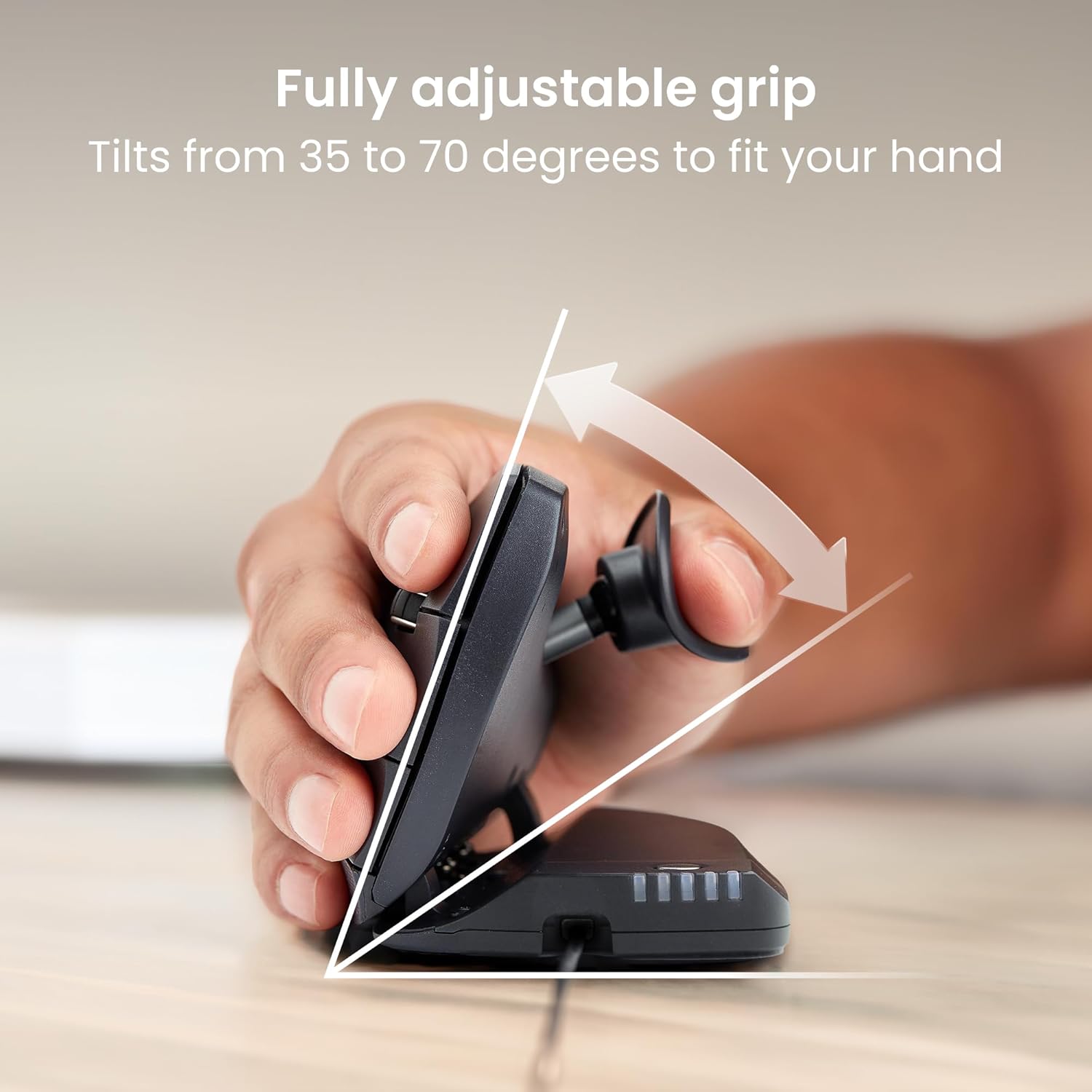
Figure 2: Adjusting the tilt angle of the Unimouse from 35 to 70 degrees for a customized grip.
Customizable Thumb Rest
For maximum comfort, the Unimouse includes a fully adjustable thumb rest. This rest can be moved in multiple directions to provide a relaxed grip and reduce pressure on the thumb base:
- Atas bawah: Adjust the vertical height.
- Dalam keluar: Adjust the horizontal distance from the mouse body.
- Maju/Mundur: Adjust the position along the mouse body.
- Putar: Angle the thumb rest for optimal support.
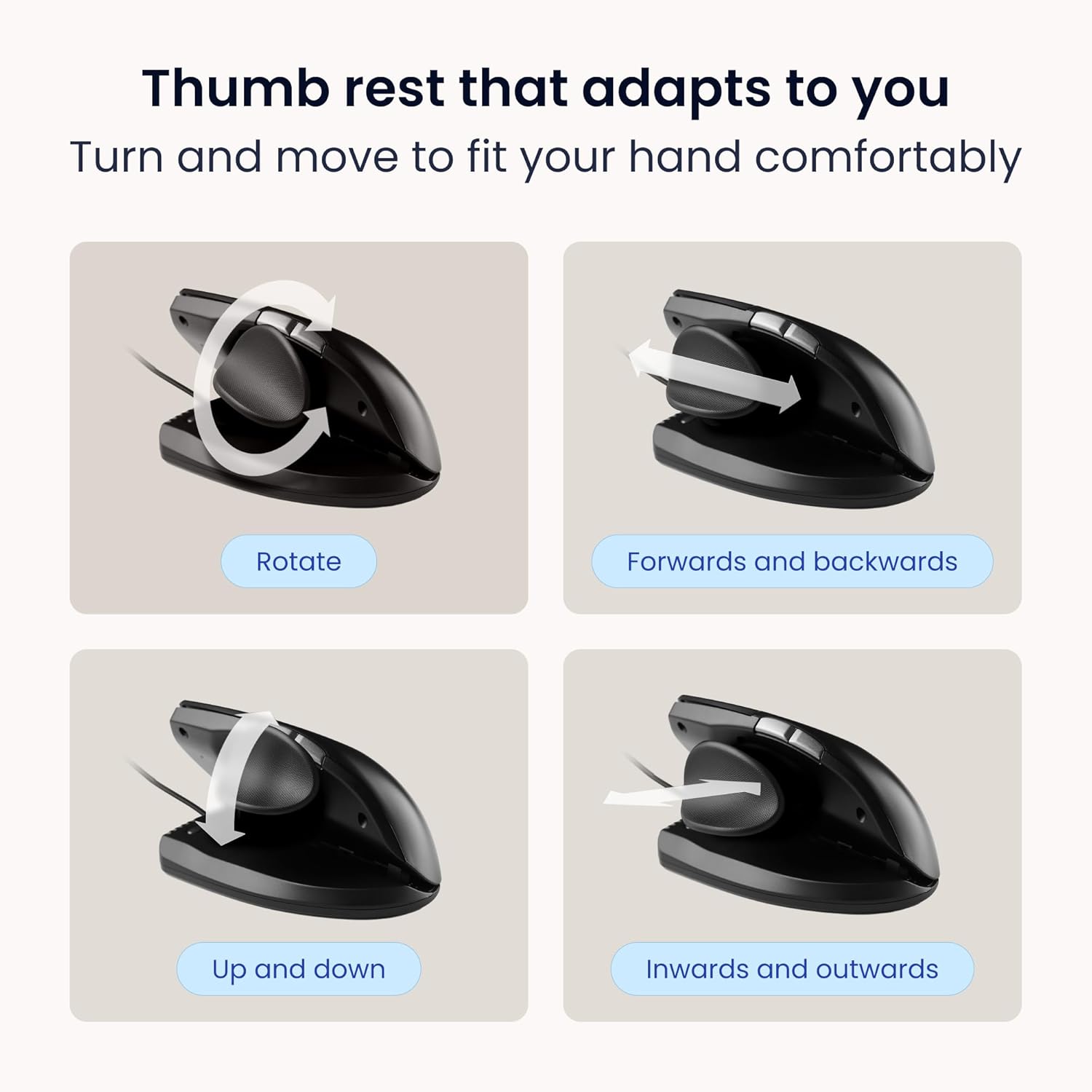
Figure 3: The Unimouse thumb rest can be rotated, moved forwards and backwards, up and down, and inwards and outwards for personalized comfort.
Butang Boleh Aturcara
The Unimouse features six programmable buttons and a smooth scroll wheel, allowing you to customize functions to suit your workflow. The default button assignments are:
- Klik Kiri
- Klik Kanan
- Roda Skrol (Boleh Diklik)
- Double Click Button (default)
- Butang ke belakang
- Butang Maju
To customize these buttons, download the free Contour desktop application from the official Contour Design website. This software allows you to reassign functions to optimize your productivity.

Gambar 4: Lebihview of the Unimouse's six customizable buttons and scroll wheel.
Cursor Speed Adjustment (DPI)
The Unimouse offers multiple DPI (Dots Per Inch) settings to adjust cursor speed and precision, catering to different tasks and preferences. You can typically cycle through these settings using a dedicated DPI button or through the software:
- 600 DPI: For fine precision work (e.g., graphic design, CAD).
- 1000 DPI: Standard setting for general office and productivity tasks.
- 2000 DPI: Faster movement for multi-screen setups or quick navigation.
- 4000 DPI: Highest speed for rapid cursor movement across large displays.

Figure 5: The Unimouse allows easy adjustment of DPI settings to match various activities, from precision design work to fast multi-screen navigation.
Penyelenggaraan
Pembersihan
To ensure the longevity and optimal performance of your Unimouse, regular cleaning is recommended:
- Gunakan kain lembut dan tidak berbulu sedikit dampened with water or a mild, non-abrasive cleaner to wipe the surface of the mouse.
- Elakkan mendapatkan kelembapan ke dalam mana-mana bukaan atau port.
- For the optical sensor, use a dry cotton swab or compressed air to gently remove any dust or debris.
Penyimpanan
When not in use for extended periods, store your Unimouse in a clean, dry environment away from extreme temperatures and direct sunlight.
Menyelesaikan masalah
If you encounter issues with your Contour Unimouse, refer to the following common problems and solutions:
| Masalah | Kemungkinan Punca | Penyelesaian |
|---|---|---|
| Tetikus tidak bertindak balas. | Loose connection, incorrect USB port, or driver issue. | Ensure the USB cable is securely connected to both the mouse and the computer. Try a different USB port. Restart your computer. |
| Pergerakan kursor tidak menentu atau tidak tepat. | Dirty optical sensor, unsuitable surface, or incorrect DPI setting. | Clean the optical sensor. Use the mouse on a clean, non-reflective surface or a mouse pad. Adjust the DPI setting to a suitable level. |
| Programmable buttons not working as expected. | Software configuration issue or driver conflict. | Ensure the Contour desktop application is installed and updated. Verify button assignments within the software. For Mac users, check for potential conflicts with third-party drivers like USB Overdrive. |
| Mouse feels unstable or tips over in vertical position. | Improper hand grip or surface. | Ensure your hand is resting naturally on the mouse and thumb rest. Use on a flat, stable surface. The design is intended to be stable with proper ergonomic use. |
For further assistance, please visit the Contour Design support webtapak atau hubungi perkhidmatan pelanggan.
Spesifikasi
| Ciri | Perincian |
|---|---|
| Dimensi Produk | 8.74 x 5.74 x 2.44 inci |
| Berat Barang | 12 auns |
| Pengeluar | Reka Bentuk Kontur |
| ASIN | B0CXJCCM28 |
| Nombor Model Item | 50120043 |
| Jenama | Reka Bentuk Kontur |
| warna | berwayar |
| Teknologi Ketersambungan | berwayar |
| Ciri Khas | Reka Bentuk Ergonomik |
| Teknologi Pengesanan Pergerakan | Optik |
Waranti dan Sokongan
Contour Design products are manufactured to the highest quality standards. For information regarding warranty coverage, product registration, and technical support, please visit the official Contour Design webtapak atau hubungi bahagian perkhidmatan pelanggan mereka.
Sokongan dalam talian: www.contourdesign.com/support
Ask a question about this manual
Ask about setup, troubleshooting, compatibility, parts, safety, or missing instructions. Manuals+ will review the question and use this page’s manual context to help answer it.