
1. Pengenalan
This manual provides essential information for the safe and efficient use of your Google TV 7000 Series 4K Ultra HD LED Television. Please read these instructions thoroughly before operating the device and retain them for future reference.
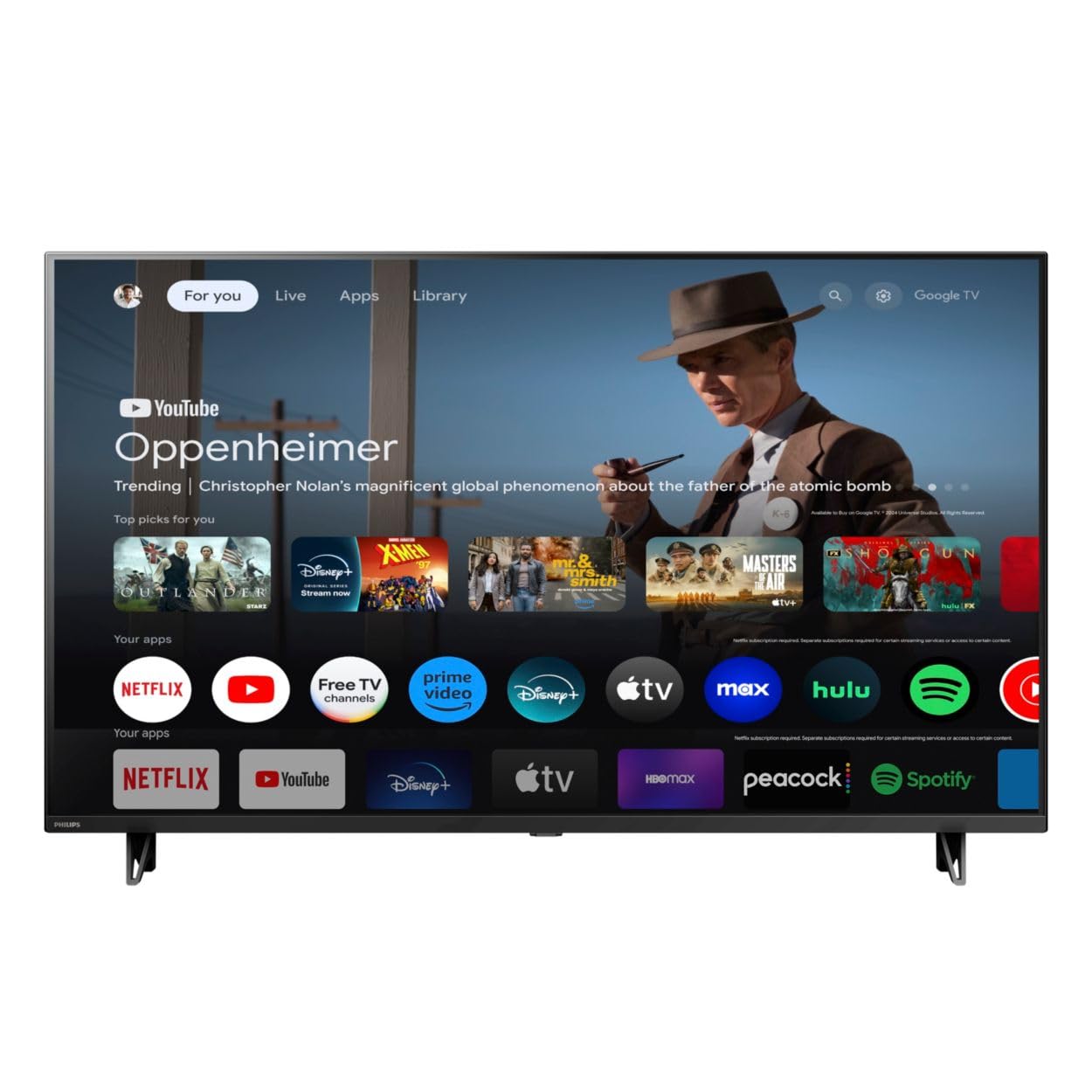
Depan view of the Google TV 7000 Series 4K Ultra HD LED Television, showcasinbezel dan paparannya yang nipis.
2. Persediaan
2.1 Membuka Kotak dan Kandungan Pakej
Keluarkan semua item dari bungkusan dengan berhati-hati. Pastikan semua komponen ada:
- Google TV 7000 Series Television
- Alat kawalan jauh
- Bateri untuk alat kawalan jauh
- Pendirian meja
- Screws for tabletop stand
- Panduan permulaan cepat
- Manual Pengguna (dokumen ini)
2.2 Kuasa Penyambung
Connect the power cord to the TV's power input, then plug the other end into a wall outlet. Ensure the power outlet is easily accessible.
2.3 Menyambung Peranti Luaran
Your television supports various connectivity options:
- HDMI: Connect devices like Blu-ray players, game consoles, or set-top boxes to the HDMI ports. This model features Audio Return Channel (HDMI 2).
- USB: Use the USB port for media playback or connecting compatible accessories.
- Ethernet: Untuk sambungan internet berwayar yang stabil, sambungkan kabel Ethernet ke port LAN.
- Fon Kepala Keluar: Sambungkan fon kepala untuk mendengar secara peribadi.
- Audio Keluar Digital (Optik): Untuk menyambung ke sistem audio luaran.
- CVBS+Audio L/R Dalam: Untuk menyambungkan peranti analog lama.
2.4 Persediaan Awal
Setelah dihidupkan pertama, TV akan membimbing anda melalui proses persediaan awal. Ini termasuk:
- Pemilihan bahasa
- Connecting to a Wi-Fi network or using Ethernet
- Signing in with your Google account to access Google TV features and apps
- Scanning for available channels (ATSC, NTSC)
2.5 Pilihan Pemasangan
You can place your TV on a tabletop using the included stand or mount it on a wall.
- Stand Atas Meja: Attach the tabletop stand using the provided screws as per the quick start guide.
- Pemasangan Dinding: For wall mounting, use a VESA compatible mount (600 x 400 mm). Consult a professional for wall mounting to ensure safety and proper installation.
3. Arahan Operasi
3.1 Alat Kawalan Jauh Lebihview
The remote control allows you to navigate the Google TV interface, adjust settings, and control playback. It supports voice control for Google Assistant.
3.2 Fungsi Asas
- Kuasa: Tekan butang kuasa untuk menghidupkan atau mematikan TV.
- Kelantangan: Gunakan butang kelantangan untuk melaraskan tahap bunyi.
- Saluran: Use the channel buttons to switch between TV channels.
- Input: Select the desired input source (HDMI, USB, etc.).
3.3 Navigasi Antara Muka Google TV
Use the directional pad and 'OK' button on your remote to navigate the Google TV home screen. The home screen provides access to your installed apps, recommended content, and settings.
3.4 Ciri Pintar
- Chromecast Terbina dalam: Cast content from your compatible mobile devices or computer directly to your TV.
- Google Assistant Terbina dalam: Press the Google Assistant button on your remote to use voice commands for searching content, controlling smart home devices, getting information, and more.
- Apl Penstriman: Access popular streaming services like Netflix, YouTube, Discovery+, Tubi TV, and Prime Video directly from the Google TV interface.
3.5 Tetapan Gambar dan Bunyi
Sesuaikan anda viewpengalaman membaca dan mendengar melalui menu tetapan TV:
- Picture Style: Choose from various preset picture modes or customize settings like brightness, contrast, color, and sharpness. Features include Dynamic contrast, Film mode, Blue stretch, and Custom Color management.
- Sokongan HDR: The TV supports HDR10 and HLG for enhanced contrast and color with compatible content.
- Mod Permainan: Optimize picture settings for gaming to reduce input lag.
- Gaya Bunyi: Select sound presets or adjust bass and treble. Features include Dolby Audio and Auto Volume Leveling.
- Nisbah Aspek: Adjust the screen aspect ratio (e.g., Automatic, 4:3, Movie Expand, Full).
3.6 Ketersambungan
Your TV offers various ways to connect to networks and devices:
- Wi-Fi: Sambungkan secara wayarles ke rangkaian rumah anda untuk akses internet.
- Bluetooth: Connect compatible Bluetooth devices such as headphones or game controllers.
- Ethernet: Menyediakan sambungan internet berwayar yang stabil.
4. Penyelenggaraan
4.1 Membersihkan Skrin dan Badan TV
- Sentiasa cabut plag TV sebelum membersihkan.
- Gunakan kain lembut, kering dan tidak berbulu untuk mengelap skrin dan badan TV dengan lembut.
- Untuk tanda degil, ringankan dampen kain dengan air atau pembersih skrin khusus. Jangan sekali-kali menyembur pembersih terus ke skrin.
- Elakkan daripada menggunakan pembersih yang melelas, lilin atau pelarut.
4.2 Kemas Kini Perisian
Your Google TV may receive automatic software updates to improve performance and add new features. Ensure your TV is connected to the internet to receive these updates. You can also manually check for updates in the settings menu.
4.3 Penjagaan Alat Kawalan Jauh
Replace batteries when the remote control's response becomes sluggish. Do not mix old and new batteries or different types of batteries. Keep the remote control away from moisture and direct sunlight.
5. Penyelesaian masalah
Jika anda menghadapi masalah dengan televisyen anda, rujuk kepada penyelesaian biasa berikut:
| Masalah | Penyelesaian yang Mungkin |
|---|---|
| Tiada kuasa | Periksa sama ada kord kuasa dipasang dengan kukuh pada TV dan soket dinding. Pastikan soket berfungsi. |
| Tiada gambar, tetapi bunyi hadir | Sahkan bahawa sumber input yang betul telah dipilih. Periksa sambungan peranti luaran. |
| Tiada bunyi, tetapi ada gambar | Check the volume level and mute status. Ensure external audio systems are properly connected and powered on. |
| Alat kawalan jauh tidak berfungsi | Gantikan bateri. Pastikan tiada halangan antara alat kawalan jauh dan penderia IR TV. |
| Isu sambungan rangkaian | Restart your router and modem. Reconnect to the Wi-Fi network or check the Ethernet cable connection. |
| Picture quality issues (e.g., pixelation) | Check the signal strength for broadcast channels. For streaming content, ensure a stable internet connection. Adjust picture settings. |
5.1 Tetapan Semula Kilang
If problems persist, a factory reset may resolve them. This will erase all personal settings and installed apps, returning the TV to its original factory state. Consult the on-screen menu for the factory reset option, usually found under System or Device Preferences in Settings.
6. Spesifikasi
Key technical specifications for the Google TV 7000 Series 4K Ultra HD LED Television:
| Ciri | Spesifikasi |
|---|---|
| Saiz Skrin | 43 Inci |
| Teknologi Paparan | LCD UltraHD Display, LED Backlight |
| Resolusi | 4K (2160p) |
| Kadar Segar Semula | 120 PMR (Picture Motion Rate) |
| Format HDR Disokong | HDR10, HLG |
| Sistem Operasi | Android 11 (Google TV) |
| Teknologi Ketersambungan | Bluetooth, Ethernet, USB, Wi-Fi |
| Ciri Audio | Dolby Audio, Auto Volume Leveling |
| Ciri Khas | Chromecast Built-in, Google Assistant Built-in, Game Mode, Digital Noise Reduction, MPEG artifact reduction, Dynamic contrast |
| Dimensi Produk (D x W x H) | 9.8"D x 37.9"W x 23.9"H |
| Berat Barang | 14.99 paun |
| Pemasangan VESA Standard | 600 x 400 mm |
| Pengeluar | Philips |
| Nombor Model | 43PUL7652/F7 |
| UPC | 609585254893 |
7. Waranti dan Sokongan
7.1 Maklumat Waranti
This product comes with a Limited Warranty. Please refer to the warranty card included in your package or contact the manufacturer for specific terms and conditions regarding coverage and duration.
7.2 Sokongan Pelanggan
For technical assistance, troubleshooting beyond this manual, or warranty claims, please contact the manufacturer, Philips, or your retailer. Have your model number (43PUL7652/F7) and serial number ready when contacting support.