
1. Pengenalan
This manual provides detailed instructions for the setup, operation, and maintenance of your EMEET C960 AF Webcam. Designed for superior video quality and ease of use, this webcam is ideal for video calls, streaming, and online education.
Ciri-ciri Utama:
- FHD 1080P Autofocus: Delivers up to 1080p resolution at 60fps with fast and precise PDAF autofocus (20-300cm range).
- 73° View Angle with Privacy Cover: Ideal for personal use, minimizing background distractions, and ensuring privacy when not in use.
- Built-in Dual Noise Reduction Microphones: Meningkatkan kejelasan audio dengan mengurangkan hingar latar belakang.
- Plug and Play USB: No additional drivers required for quick setup.
- Keserasian Luas: Supports Windows, MacOS, Linux, and Android TV, compatible with major applications like Zoom, Teams, and Google Meet.
- EMEETLINK Software Support: Membenarkan penyesuaian bagi webtetapan cam.

Visual comparison highlighting the superior clarity of 1080p at 60 frames per second provided by the EMEET C960 AF Webcam.

Demonstration of the PDAF autofocus feature, ensuring sharp and precise imagery during video calls.
2. Persediaan
2.1 Apa yang ada di dalam Kotak
- C960 Webcam AF Version
- Perlindungan Privasi
- Manual Pengguna
2.2 Fizikal Overview
The EMEET C960 AF Webcam features a compact design with integrated microphones and a lens. The adjustable stand allows for versatile placement.

Depan view of the EMEET C960 AF Webcam, showing the lens and microphone grilles.
2.3 Pemasangan
The webcam can be installed on a monitor, laptop, or tripod.
- Pada Monitor/Komputer riba:
Letakkan webcam on top of your monitor or laptop screen. The adjustable clip base will securely rest on the top edge, with the rear foot providing stability against the back of the screen. Adjust the angle as needed.

The EMEET C960 AF Webcam securely clipped onto the top of a laptop screen.
- Pada Tripod:
The webcam's base includes a 1/4-inch tripod thread. Screw the webcam onto a compatible tripod. Adjust the tripod's height and position for optimal viewing.

The EMEET C960 AF Webcam attached to a tripod, suitable for desktop placement.
2.4 Connecting to Your Computer (Plug and Play)
The EMEET C960 AF Webcam is a plug-and-play device, requiring no additional drivers for basic functionality.
- Sambungkan kabel USB-A daripada webcam ke port USB yang tersedia pada komputer anda.
- Your computer will automatically detect and install the necessary generic drivers. This process usually takes less than a minute.
- Setelah dipasang, webcam sedia untuk digunakan dengan aplikasi persidangan video atau penstriman pilihan anda.
Video demonstrating the unboxing, installation of the privacy cover, and connecting the EMEET C960 AF Webcam to a computer. This video also shows how to select the webcam and microphone in conference software.
3. Arahan Operasi
3.1 Menggunakan Perlindungan Privasi
The included physical privacy cover can be attached to the webcam to block the lens when not in use, ensuring your privacy and protecting the lens from dust.
- Kupaskan pelekat pada penutup privasi.
- Sejajarkan penutup di atas webcam lens and press firmly to secure it.
- Slide the cover open to use the webcam and close it when finished.

The EMEET C960 AF Webkamera menunjukkan penutup privasi dalam kedua-dua posisi terbuka dan tertutup.
3.2 Keserasian Perisian
The C960 AF webcam is broadly compatible with various operating systems and applications:
- Sistem Operasi: Windows 10/11, MacOS 10.14 or later, Linux, Android TV 7.0 or later.
- Permohonan: Zoom, Microsoft Teams, Facetime, Google Meet, OBS, Twitch, Facebook, YouTube, and more.
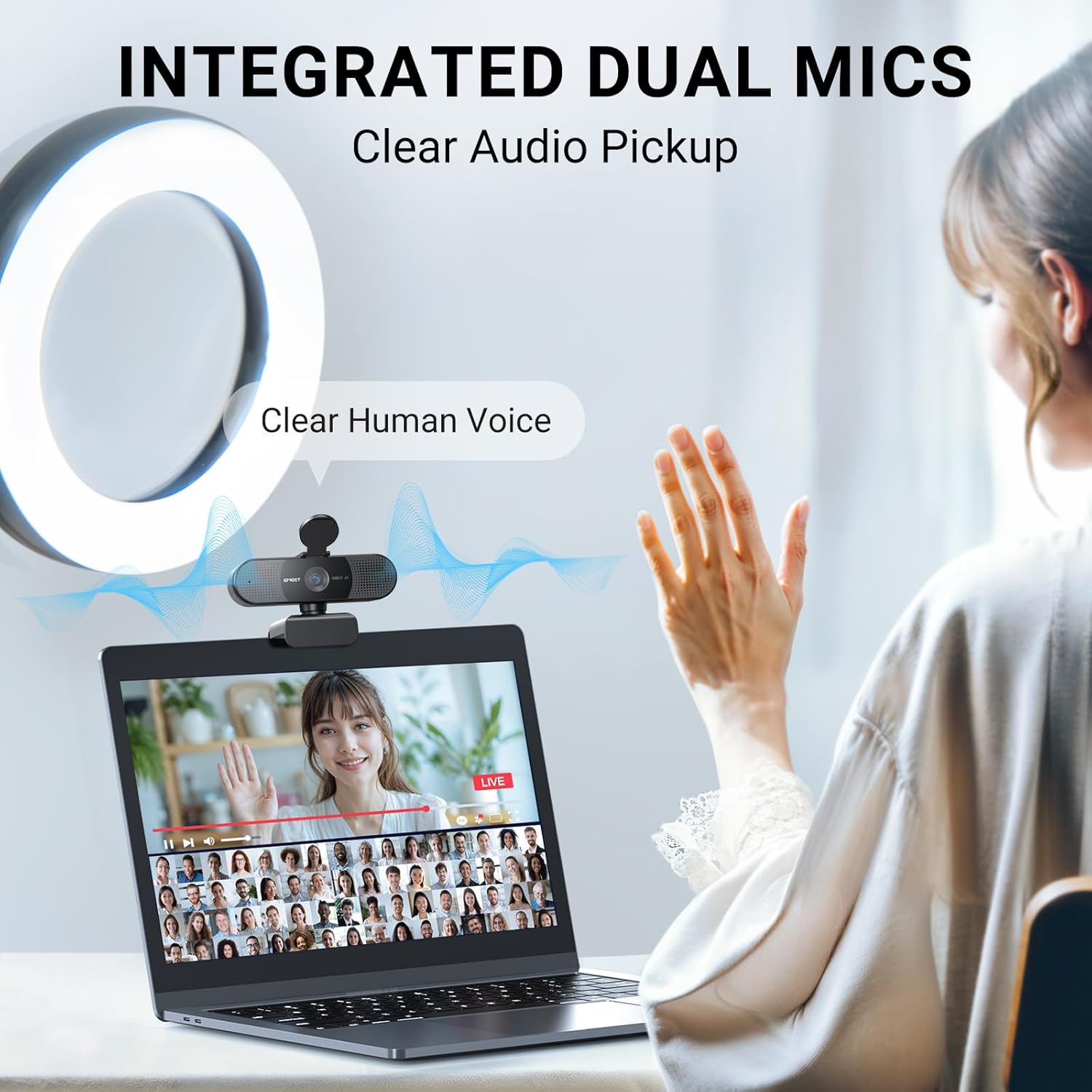
Image displaying the EMEET C960 AF Webcam and logos of compatible software platforms like Zoom, Teams, and Google Meet.
3.3 EMEETLINK Software Application
For advanced customization and optimal performance, download the EMEETLINK software from the official EMEET webtapak.
- melawat emeet.com and navigate to the "Support Center" -> "Downloads" section.
- Download and install the EMEETLINK software compatible with your operating system (Windows or MacOS).
- Within EMEETLINK, you can adjust various settings such as brightness, contrast, saturation, white balance, and image filters to fine-tune your video output.
Video tutorial on how to download and use the EMEETLINK software for customizing webtetapan cam.
3.4 Adjusting Video Resolution
You can adjust the video resolution and frame rate through your computer's camera software or within the EMEETLINK application.
- Open your computer's native camera application (e.g., "Camera" on Windows).
- Access the settings menu within the camera application.
- Locate "Video Quality" or similar settings and select your desired resolution and frame rate (e.g., 1080p 60fps).
Video demonstrating how to adjust the resolution settings for the EMEET C960 AF Webcam using the computer's camera software.
4. Penyelenggaraan
- Simpan webcam lens clean using a soft, dry cloth. Avoid abrasive materials or harsh chemicals.
- Simpan webcam in a cool, dry place when not in use. Utilize the privacy cover to protect the lens.
- Elakkan daripada mendedahkan peranti kepada suhu yang melampau atau cahaya matahari langsung untuk tempoh yang lama.
5. Penyelesaian masalah
- Tiada Imej/Video:
- Pastikan kabel USB disambungkan dengan selamat ke kedua-dua webcam dan komputer anda.
- Verify that the privacy cover is open.
- Check your application settings to ensure the EMEET C960 AF is selected as the video input device.
- Cuba sambungkan ke port USB lain pada komputer anda.
- Kualiti Imej Lemah:
- Pastikan pencahayaan yang mencukupi di persekitaran anda.
- Bersihkan webkanta cam.
- Adjust settings (brightness, contrast, etc.) using the EMEETLINK software or your computer's camera settings.
- Verify that the selected resolution and frame rate are appropriate for your system.
- Tiada Kualiti Audio/Kualiti Audio Lemah:
- Check your application settings to ensure the EMEET C960 AF is selected as the audio input (microphone) device.
- Ensure your computer's microphone volume is not muted or set too low.
- Kurangkan bunyi latar belakang dalam persekitaran anda.
- Image Display is Abnormal (e.g., incorrect colors, flickering):
If the image display appears abnormal, such as incorrect colors or flickering, try the following steps:
- Open the EMEETLINK software and navigate to the video settings.
- Look for options like "Anti-flicker" and adjust the frequency (e.g., 50Hz or 60Hz) to match your region's power supply frequency.
- Restore default settings within EMEETLINK or your computer's camera application.
- Ensure your operating system and camera drivers are up to date.
6. Spesifikasi
| Ciri | Perincian |
|---|---|
| Jenama | EMEET |
| Nama Model | EMEET SmartCam C960 AF |
| Nombor Model | E3130 |
| Resolusi Tangkapan Video | 1080p |
| Resolusi Paparan Maksimum | 1080p HD Penuh |
| Teknologi Penderia Foto | CMOS |
| Jenis Fokus | Auto Focus (PDAF) |
| Viewsudut | 73 Darjah |
| Mikrofon Terbina dalam | Dual Noise Reduction Mics |
| Teknologi Ketersambungan | USB |
| Keserasian Sistem Pengendalian | Windows (Win 10, 11), macOS (10.14 and above), Linux, Android TV (V7.0 and above) |
| Dimensi Item (D x W x H) | 2.16"D x 3.94"W x 2.32"H |
| Berat Barang | 4.64 auns |
| Ciri-ciri | 1080P@60fps, Auto Focus, Dual Noise Reduction Mics, Plug and Play, Privacy Cover |
7. Waranti dan Sokongan
7.1 Maklumat Waranti
The EMEET C960 AF Webcam datang dengan a Waranti 2 tahun from the date of purchase. This warranty covers manufacturing defects and ensures reliable performance of your device.
7.2 Sokongan Pelanggan
For technical assistance, troubleshooting, or any inquiries regarding your EMEET product, please contact EMEET customer support:
- Lawati EMEET rasmi webtapak: emeet.com
- Navigate to the "Support Center" for FAQs, downloads, and contact options.
- Utilize the EMEETLINK software for device management and firmware updates.
Manufacturer: Shenzhen eMeet technology Co.,Ltd.