
1. Pengenalan
Thank you for choosing the OSALO OS-8812T Desktop Calculator. This manual provides detailed instructions for setting up, operating, maintaining, and troubleshooting your calculator. Designed for home and office use, this 12-digit calculator features a large display, comfortable buttons, and essential functions including VAT tax calculation. Please read this manual thoroughly to ensure optimal performance and longevity of your device.

Figure 1.1: OSALO OS-8812T Desktop Calculator
2. Produk Lebihview
Familiarize yourself with the calculator's layout and key functions.

Figure 2.1: Key Functions Diagram
- 1. Operation Symbol Display: Shows the current operation symbol (e.g., +, -, ×, ÷).
- 2. GT (Grand Total): Displays the grand total of all calculations performed since the last GT clear.
- 3. M+, M- (Memory Plus/Minus): Adds/subtracts the displayed value to/from the memory.
- BSMM (Memori Ingat/Kosongkan): Press once to recall memory, press twice to clear memory.
- 4. Back Space (◀): Memadam digit terakhir yang dimasukkan.
- 5. AC (All Clear): Clears all entries and calculations, including memory.
- C/CE (Clear Entry/Clear): Clears the last entry. Press twice to clear the current calculation.
- 6. TAX+, TAX- (Tax Rate Settings): Used for tax calculations. TAX+ adds tax, TAX- subtracts tax.
- KADAR: Used to set the tax rate.
- 7. MU (Mark-Up): Digunakan untuk pengiraan margin keuntungan.
- 8. √ (Root): Mengira punca kuasa dua nombor yang dipaparkan.
The calculator features a 5-inch large LCD display capable of showing up to 12 digits, ensuring clear visibility. The display is tilted at 15 degrees for enhanced viewkeselesaan.

Figure 2.2: Calculator Dimensions and 15-degree Display Tilt
The keys are ergonomically designed with a concave shape for comfortable and accurate input.
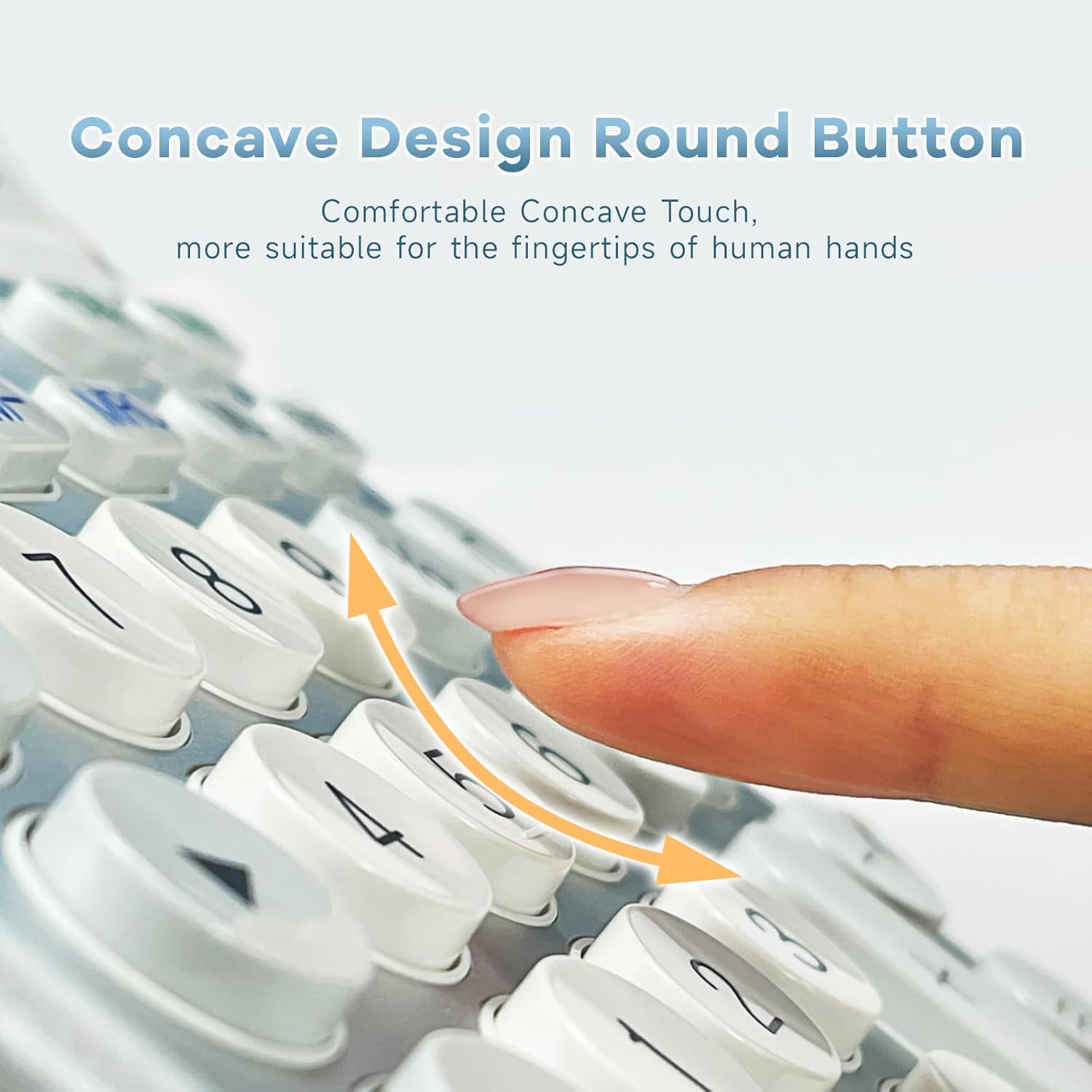
Figure 2.3: Concave Design Round Buttons
3. Persediaan
The OSALO OS-8812T calculator operates on dual power: solar energy and a single LR44 battery (included). The battery provides power in low-light conditions, while the solar panel powers the calculator in sufficient light, extending battery life.
3.1. Pemasangan Bateri
The calculator comes with an LR44 battery pre-installed. If replacement is needed:
- Balikkan kalkulator itu.
- Cari penutup petak bateri.
- Remove the cover and insert one LR44 battery, ensuring correct polarity (+/-).
- Gantikan penutup petak bateri dengan selamat.

Figure 3.1: Battery Compartment and Anti-Slip Mat Location
3.2. Hidupkan/Mati Kuasa
The calculator automatically powers on when a key is pressed. It will automatically power off after approximately 8-10 minutes of inactivity to conserve energy.
4. Arahan Operasi
4.1. Basic Calculations
- Tambahan (+): Enter first number, press +, enter second number, press =.
- Tolak (-): Enter first number, press -, enter second number, press =.
- Pendaraban (×): Enter first number, press ×, enter second number, press =.
- Pembahagian (÷): Enter first number, press ÷, enter second number, press =.
- Peratustage (%): Enter number, press ×, enter percentage value, press %. (e.g., 100 × 10 % = 10)
- Punca Kuasa Dua (√): Enter number, press √.
4.2. Tax Function (VAT)
The calculator features a built-in tax function for quick VAT calculations. You can set a custom tax rate.

Figure 4.1: Tax Function Operation Examples
| Tujuan | Operasi | Hasilnya |
|---|---|---|
| Tax Rate Setting (e.g., 8%) | AC → RATE → 8 → RATE | 8. |
| Total Amount 200, Tax Rate 8%, Total Amount After Tax | AC → 200 → TAX+ | 216. (Total) 16. (Tax Amount) |
| Total Amount 216, Tax Rate 8%, Total Amount Before Tax | AC → 216 → TAX- | 200. (Total) 16. (Tax Amount) |
| Tax Rate Check | AC → RATE → TAX- (RECALL) | 8. |
4.3. Fungsi Memori
- M+: Menambah nilai yang dipaparkan pada memori.
- M-: Menolak nilai yang dipaparkan daripada memori.
- BSMM: Press once to recall the value stored in memory. Press twice to clear the memory (M).
- GT (Jumlah Besar): Accumulates the results of all calculations. Press GT to display the grand total. The grand total is cleared when AC is pressed.
5. Penyelenggaraan
- Bersihkan kalkulator dengan kain lembut dan kering. Jangan gunakan pembersih atau pelarut yang kasar.
- Avoid exposing the calculator to extreme temperatures, humidity, or direct sunlight for prolonged periods.
- Do not drop or subject the calculator to strong impacts.
- If the calculator will not be used for an extended period, it is recommended to remove the battery to prevent leakage.
6. Penyelesaian masalah
- Paparan kosong: Ensure there is sufficient light for the solar panel or check if the LR44 battery needs replacement.
- Pengiraan yang salah: Press the AC button to clear all previous entries and calculations before starting a new one. Ensure correct operation sequence.
- Kekunci tidak responsif: Clean around the keys to remove any debris. If the issue persists, the battery might be low.
- Mesej ralat pada paparan: Press AC to clear the error and re-enter the calculation. This usually occurs due to overflow or invalid operations.
7. Spesifikasi
| Ciri | Spesifikasi |
|---|---|
| Model | OS-8812T(Extra Large) |
| Digit Paparan | 12 Digit |
| Saiz Skrin | 5 Inci |
| Sumber Kuasa | Solar & Battery Powered (1 x LR44 included) |
| Jenis Kalkulator | Standard Function, Desktop |
| Dimensi Produk | 7.44 x 5.51 x 0.1 inci |
| Berat Barang | 8.6 auns |
| warna | Putih & Perak |
| Pengeluar | osalo co., ltd. |
| Negara Asal | China |
8. Waranti dan Sokongan
OSALO products are manufactured with high-quality materials and undergo strict quality control. For any questions, technical support, or warranty claims, please contact OSALO customer service through the retailer where the product was purchased. Please retain your proof of purchase for warranty purposes.