
1. Pengenalan
This manual provides comprehensive instructions for the TIMBOOTECH Wireless HDMI Transmitter and 2 Receivers. This device allows for wireless transmission of HDMI signals from a source device to multiple display units, supporting high-definition video and audio.
2. Kandungan Pakej
Sahkan bahawa semua item yang disenaraikan di bawah disertakan dalam pakej anda:
- 1x Wireless HDMI Transmitter
- 2x Wireless HDMI Receivers
- 3x Kabel HDMI
- 3x Kabel Pengecas USB-C
- 2x Mini/Micro HDMI Adapters
- 1x Manual Pengguna

Image: All components included in the TIMBOOTECH Wireless HDMI Transmitter and 2 Receivers package.
3. Produk Lebihview
The TIMBOOTECH Wireless HDMI system consists of a transmitter (TX) and multiple receivers (RX). It operates on a 5.8G chip for stable, low-latency transmission.
3.1 Ciri-ciri Utama
- Real-Time Sharing: Supports sharing to 2 TVs and up to 6 mobile devices simultaneously.
- Resolusi Tinggi: 4K input decoding and 1080P@60Hz output for clear visuals.
- Pasang dan Main: Pre-paired units require no Wi-Fi or Bluetooth setup.
- Multi-Receiver Support: One transmitter can connect to up to 8 receivers or touchscreens.
- Fungsi Apl: Use a dedicated app to turn iOS/Android devices into wireless monitors.
- Julat Lanjutan: Transmits up to 165ft (50m) with minimal delay.
- Keserasian Luas: Works with various devices including laptops, PCs, cameras, and game consoles.

Image: The TIMBOOTECH Wireless HDMI Transmitter (TX) and Receivers (RX).
4. Arahan Persediaan
The devices are pre-paired at the factory for a plug-and-play experience. Follow these steps for initial setup:
4.1 Sambungan Asas
- Connect Transmitter (TX): Plug the HDMI end of the transmitter into the HDMI output port of your source device (e.g., laptop, PC, camera). Connect a USB-C charging cable to the transmitter and a power source (e.g., USB port on your device or a USB power adapter).
- Connect Receiver (RX): For each receiver, plug its HDMI end into an HDMI input port on your display device (e.g., TV, monitor, projector). Connect a USB-C charging cable to the receiver and a power source.
- Hidupkan kuasa: Ensure both the transmitter and all receivers are powered on.
- Pencerminan Automatik: Wait approximately 5 seconds for the screen to automatically mirror from the source device to the displays.

Image: Visual guide for connecting the transmitter and receivers to source and display devices.
4.2 Re-pairing or Adding Multiple Receivers
If the connection is abnormal or you wish to add more receivers (up to 8 total), follow these steps:
- Connect and Power TX: Connect the TX (Transmitter) to your HDMI output device and ensure it is powered.
- Connect and Power RX: Connect the RX (Receiver) to your HDMI input device and ensure it is powered.
- Mulakan Berpasangan: Long press the RX button for 5 seconds, then press the TX button for 10 seconds. Wait for the devices to pair.
- Sahkan Sambungan: After successful pairing, the screen should display the mirrored content.

Image: Visual steps for re-pairing or adding additional receivers.
5. Arahan Operasi
5.1 Multi-Screen Display
The system supports displaying content from one transmitter to multiple receivers simultaneously, allowing for multi-screen setups in various environments.
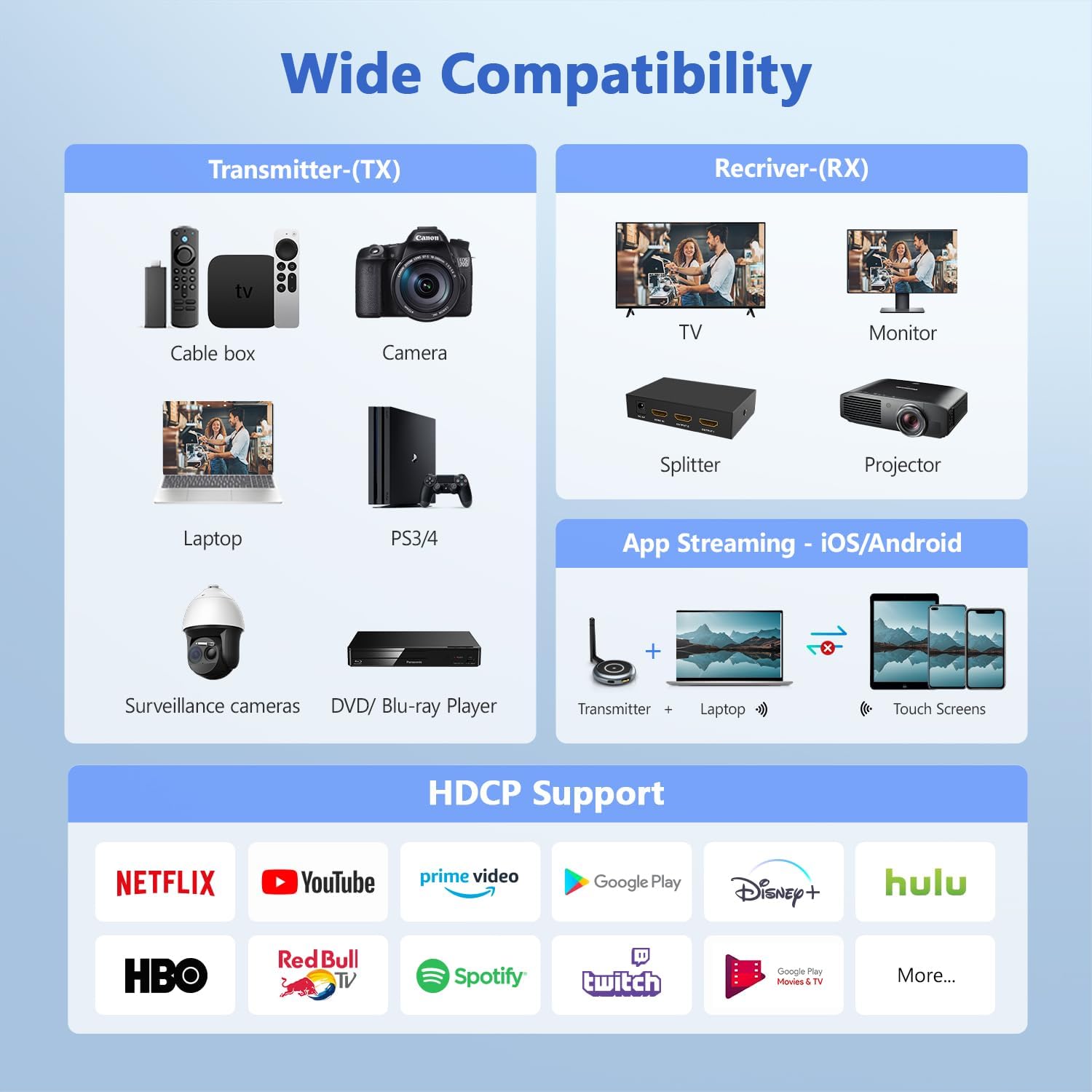
Image: A laptop transmitting to four separate display screens.
5.2 App Functionality (iOS/Android)
Utilize the dedicated app to extend your display to iOS or Android mobile devices. This feature is ideal for monitoring camera feeds or sharing content with nearby users.
- Connect TX: Connect the transmitter to your HDMI output device and power it.
- Pasang Aplikasi: Download and install the "TuTuLink" app on your iOS/Android device.
- Sambung ke Wi-Fi: Open the app, connect to the Wi-Fi hotspot broadcast by the transmitter (SSID and password usually provided on the screen or manual).
- Mula Penstriman: Open the app again, and it should automatically sync and display the content.

Image: Guide for using the TuTuLink app to mirror content to mobile devices.
5.3 Adjusting Wireless Channels
In environments with heavy Wi-Fi traffic, you can adjust the wireless channel via the app for optimal performance and signal stability.

Image: Adjusting wireless channels via the app for improved signal.
6. Keserasian
The TIMBOOTECH Wireless HDMI system offers broad compatibility with various devices and supports HDCP.
6.1 Peranti Sumber yang Serasi (Pemancar - TX)
- Komputer riba
- PC
- Cameras (DSLR, Surveillance)
- Pemain Blu-ray
- Set-top Boxes / Cable Boxes / Fire TV Stick
- Game Consoles (PS3/4, PS5)
6.2 Peranti Paparan yang Serasi (Penerima - RX)
- TV
- Pemantau
- Projektor
- Pemisah HDMI
- iOS/Android Touch Screens (via App)
6.3 Model Compatibility Note
This system is compatible only with the latest TIMBOOTECH receiver models (ASIN: B0DNF72YK1 for blue interface version, B0CSFS69XF for black interface version).

Imej: Selesaiview of compatible devices for both transmitter and receiver, including app functionality.
7. Penyelesaian masalah
Jika anda menghadapi masalah, sila rujuk penyelesaian biasa berikut:
- No Signal/Connection:
- Ensure both transmitter and receivers are properly powered via their USB-C cables.
- Verify HDMI cables are securely connected to both source and display devices.
- Perform the re-pairing process (Section 4.2) if devices are not connecting automatically.
- Check if the HDMI input on your display is set to the correct port.
- Intermittent Signal/Poor Quality:
- Ensure there are no major physical obstructions (walls, large furniture) between the transmitter and receivers.
- Adjust the wireless channel via the TuTuLink app to avoid interference from other Wi-Fi networks (Section 5.3).
- Ensure devices are within the recommended 165ft (50m) transmission range.
- Check for strong electromagnetic interference from other electronic devices.
- Isu Penyegerakan Audio/Video:
- Restart both the transmitter and receivers.
- Pastikan semua kabel disambungkan dengan selamat.
- Isu Sambungan Apl:
- Ensure your mobile device is connected to the correct Wi-Fi hotspot broadcast by the transmitter.
- Verify the Wi-Fi password (usually provided on the screen or manual).
- Restart the app and the transmitter.
Video: Official TIMBOOTECH video demonstrating smooth and stable wireless HDMI to multiple screens, highlighting the product's functionality.
8. Spesifikasi
| Ciri | Perincian |
|---|---|
| Jenama | TIMBOOTECH |
| Nombor Model | G70 |
| Teknologi Ketersambungan | Wayarles (5.8G) |
| Penyelesaian Input | Sehingga 4K |
| Resolusi Output | 1080P @ 60Hz |
| Julat Penghantaran | Sehingga 165 kaki (50m) |
| Latensi | Low (approx. 0.1s) |
| Sokongan Berbilang Penerima | Up to 8 receivers/touchscreens |
| Sokongan HDCP | ya |
| Berat Barang | 7 auns |
| Dimensi Produk | 1.97 x 1.57 x 1.18 inci |
9. Waranti dan Sokongan
TIMBOOTECH offers 24/7 support for a worry-free experience. Please contact customer service for any issues.
- Sokongan: Sokongan pelanggan 24/7 tersedia.
- Jaminan Wang Dikembalikan: 30-day money-back return and refund guarantee.
- Waranti: 1-year free replacement.
Video: Official TIMBOOTECH video demonstrating the RScreen App for touchscreen devices, showcasing additional features and support.