
1. Pengenalan
Thank you for choosing the ieGeek 5MP Outdoor Wi-Fi Security Camera. This manual provides essential information for the proper installation, operation, and maintenance of your camera. Please read these instructions carefully before use and retain them for future reference. This camera is designed to provide reliable outdoor surveillance with advanced features for enhanced security.
2. Produk Lebihview
The ieGeek 5MP Outdoor Wi-Fi Security Camera offers high-definition monitoring with flexible connectivity and smart detection capabilities.
Ciri-ciri Utama:
- Resolusi HD 5MP: Provides clear and vivid images and videos with 2880x1600 resolution and 4x digital zoom.
- Dual-Band Wi-Fi (2.4/5 GHz): Supports both 2.4 GHz and 5 GHz Wi-Fi for stable and faster network connection.
- 360° PTZ Monitoring: Pan (355° horizontal) and Tilt (120° vertical) functionality allows for comprehensive area coverage.
- Penglihatan Malam Warna: Three night vision modes (color, infrared, smart) with a range of up to 15 meters (50 feet).
- Pengesanan Humanoid PIR: Advanced human detection reduces false alarms caused by non-human movements.
- Bunyi dan Penggera Cahaya: Deters intruders with customizable sound and light alerts.
- Rakaman Berterusan 24/7: Supports continuous recording and event-based recording.
- Tempatan & Storan Awan: Compatible with Micro SD cards (up to 128GB, not included) and cloud storage options.
- Perkongsian Berbilang Pengguna: Share camera access with family members via the dedicated app.
- Rintangan Cuaca IP65: Direka untuk kegunaan luaran, tahan habuk dan air.
Komponen Kamera:
The camera unit typically includes the main camera body, dual Wi-Fi antennas, a power input port, and a Micro SD card slot.
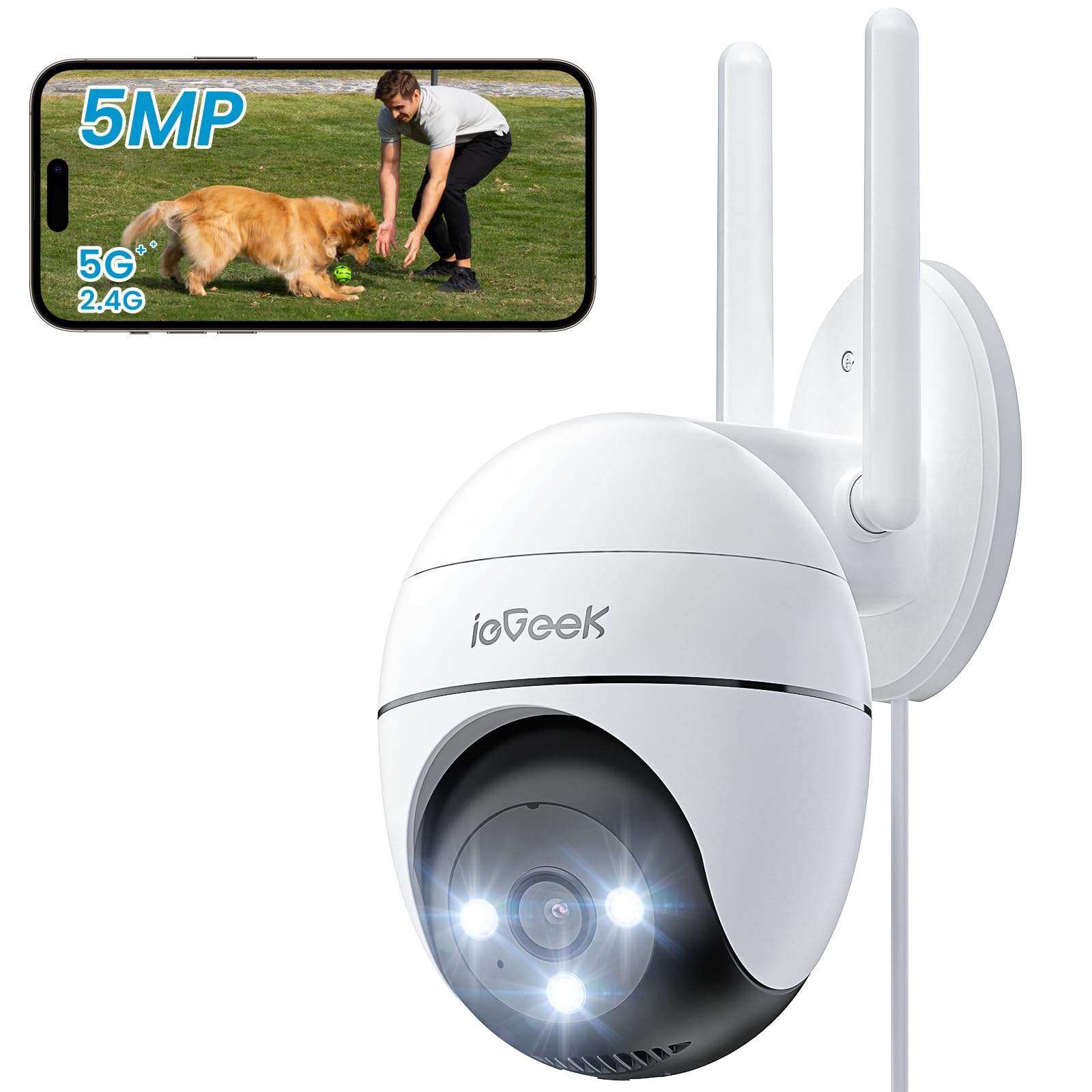
Figure 2.1: ieGeek 5MP Outdoor Wi-Fi Security Camera (Model ZS-GQ4)

Gambar 2.2: Lebihview of ieGeek 5MP Camera Features including PTZ, 24/7 recording, 2-way audio, humanoid tracking, Alexa compatibility, local and cloud storage, multi-user sharing, customizable alert areas, AI detection, and acoustic/light alarms.

Figure 2.3: The camera features a 5dBi antenna for improved Wi-Fi signal strength and stability.
3. Arahan Persediaan
3.1 Kandungan Pakej
- ieGeek 5MP Outdoor Wi-Fi Security Camera
- Penyesuai Kuasa
- Skru dan Penambat Pemasangan
- Manual Pengguna
3.2 Muat Turun Apl dan Pendaftaran Akaun
- Muat turun ieGeek Cam or CloudEdge app from your smartphone's app store (iOS/Android).
- Register for an account using your email address and create a secure password.
3.3 Sambungan Kamera
- Power on the camera by connecting it to a power outlet using the provided adapter.
- Open the ieGeek Cam/CloudEdge app and tap the "+" icon to add a new device.
- Follow the on-screen instructions to connect the camera to your 2.4 GHz or 5 GHz Wi-Fi network. Ensure your phone is connected to the same Wi-Fi network during setup.
- Imbas kod QR yang dipaparkan pada telefon anda dengan kanta kamera apabila diminta.
- Setelah disambungkan, anda boleh menamakan kamera anda dan mula secara langsung viewing.

Figure 3.1: Connecting the power adapter to the camera.
3.4 Pemasangan Fizikal
- Pilih lokasi luar yang sesuai dengan kawasan yang bersih view dan isyarat Wi-Fi yang kuat.
- Gunakan templat pelekap yang disediakan untuk menandakan lubang gerudi.
- Drill holes, insert anchors, and secure the camera base with screws.
- Laraskan sudut kamera mengikut keperluan.

Figure 3.2: Ensure optimal Wi-Fi signal strength at the chosen installation location for stable performance.
4. Arahan Operasi
4.1 Langsung View dan Kawalan PTZ
- Open the ieGeek Cam/CloudEdge app and select your camera to view suapan langsung.
- Use the on-screen joystick or swipe gestures to control the camera's pan (horizontal 355°) and tilt (vertical 120°) movements.

Figure 4.1: Control the camera's 355° horizontal and 120° vertical rotation directly from your smartphone app.
4.2 Mod Penglihatan Malam
Kamera menawarkan tiga mod penglihatan malam:
- Penglihatan Malam Warna: Utilizes built-in spotlights to provide full-color images in low-light conditions.
- Penglihatan Malam Inframerah: Menggunakan LED inframerah untuk imej hitam putih dalam kegelapan sepenuhnya.
- Penglihatan Malam Pintar: Automatically switches between infrared and color night vision upon detection of motion.
4.3 Motion Detection and Alarms
- Pengesanan Humanoid PIR: Configure sensitivity levels in the app to minimize false alarms.
- Zon Pengesanan Boleh Disesuaikan: Set specific areas for motion detection to focus on critical zones.
- Bunyi dan Penggera Cahaya: When motion is detected, the camera can activate a siren and/or spotlights to deter intruders. You can choose between silent, spotlight only, siren only, or both siren and spotlight modes.

Figure 4.2: Select from silent, spotlight only, siren only, or both siren and spotlight alarm modes to suit your security needs.

Figure 4.3: The camera's humanoid motion tracking follows detected human figures, reducing false alarms from other movements.

Figure 4.4: AI smart monitoring can differentiate between various detection types such as people, animals, packages, and vehicles (some features may require a subscription).
4.4 Rakaman dan Penyimpanan
- Rakaman Berterusan: The camera supports 24/7 continuous recording to a Micro SD card (not included).
- Rakaman Acara: Merakam klip video apabila gerakan dikesan.
- Kad SD mikro: Insert a Micro SD card (up to 128GB) into the designated slot for local storage.
- Storan Awan: Optional cloud storage plans are available through the app for secure off-site backup.

Figure 4.5: The camera supports 24/7 continuous recording, ensuring constant surveillance.
5. Penyelenggaraan
5.1 Membersihkan Kamera
- Pastikan kamera dimatikan sebelum membersihkannya.
- Gunakan yang lembut, damp cloth to wipe the camera body.
- For the lens, use a specialized lens cleaning cloth to avoid scratches. Do not use harsh chemicals or abrasive cleaners.
5.2 Pertimbangan Alam Sekitar
- The camera has an IP65 weather resistance rating, making it suitable for outdoor use in various weather conditions.
- Julat suhu operasi: -20°C hingga 50°C (-4°F hingga 122°F).

Figure 5.1: The camera is designed with IP65 weather resistance to withstand outdoor elements like rain.

Figure 5.2: The camera operates effectively within a wide temperature range of -20°C to 50°C.
6. Penyelesaian masalah
If you encounter issues with your ieGeek camera, please refer to the following common troubleshooting steps:
6.1 Isu Sambungan
- Kamera Luar Talian: Ensure the camera is powered on and within range of your Wi-Fi router. Check your Wi-Fi signal strength in the app. Try restarting the camera and your router.
- Gagal Menyambung ke Wi-Fi: Verify your Wi-Fi password is correct. Ensure you are connecting to a 2.4 GHz or 5 GHz network as supported. If using a dual-band router, ensure the camera is connecting to the correct band.
6.2 Masalah Pengesanan Gerakan
- Too Many False Alarms: Adjust the PIR detection sensitivity in the app. Define specific detection zones to exclude areas with frequent irrelevant movements (e.g., trees swaying).
- Tiada Pengesanan Gerakan: Ensure motion detection is enabled in the app settings. Check the camera's field of view for obstructions. Increase detection sensitivity if necessary.
6.3 Isu Kualiti Imej
- Imej Kabur: Clean the camera lens carefully. Ensure there is no condensation on the lens.
- Penglihatan Malam yang lemah: Ensure the night vision mode is set correctly (color, infrared, or smart). Check for any obstructions blocking the infrared LEDs or spotlights.
6.4 Isu Lain
- Kad SD Tidak Merakam: Ensure the Micro SD card is inserted correctly and is not full. Format the SD card via the app if it's a new card or if issues persist.
- Apl Tidak Menjawab: Close and restart the app. Ensure your smartphone's operating system is up to date.
If these steps do not resolve your issue, please contact ieGeek customer support for further assistance.
7. Spesifikasi
| Model | ZS-GQ4 |
| Resolusi | 5MP (2880x1600) |
| Lensa | 3.6 mm |
| Zum Digital | 4x |
| Jarak Penglihatan Malam | Sehingga 15 meter (50 kaki) |
| Kesambungan Wi-Fi | 2.4 GHz / 5 GHz Dual-Band |
| Julat Pan/Sendeng | Pan 355 °, Condong 120 ° |
| Pilihan Storan | Kad Mikro SD (sehingga 128GB, tidak termasuk), Storan Awan |
| Rintangan Cuaca | IP65 |
| Suhu Operasi | -20°C hingga 50°C (-4°F hingga 122°F) |
| Dimensi | 17 x 9 x 10 cm |
| Kaedah Kawalan | Mobile App (ieGeek Cam / CloudEdge) |
| Jenis Penggera | PIR Humanoid Motion Detection, Sound & Light Alarm |
8. Waranti dan Sokongan
ieGeek is committed to providing high-quality products and excellent customer service.
8.1 Maklumat Waranti
- Waranti 2 Tahun: Your ieGeek camera is covered by a 2-year warranty from the date of purchase, protecting against manufacturing defects.
- Jaminan Wang Dikembalikan 30 Hari: If you are not satisfied with your purchase, you may return the product for a full refund within 30 days.

Figure 8.1: ieGeek offers a 2-year warranty and a 30-day money-back guarantee, along with lifetime support.
8.2 Sokongan Pelanggan
For any questions, technical assistance, or warranty claims, please contact ieGeek customer support. Refer to the contact information provided with your product packaging or visit the official ieGeek webtapak untuk butiran sokongan.
- Sokongan dalam talian: melawat www.iegeek.com/support (cthample link, please refer to actual webtapak)
- Sokongan E-mel: support@iegeek.com (cthample email, please refer to actual contact)
- Sokongan Teknikal Seumur Hidup: ieGeek provides lifetime technical support for its products.