
X68
VGN X68 Mechanical Gaming Keyboard User Manual
Model: X68 | Brand: Generic
1. Pengenalan
Thank you for choosing the VGN X68 Mechanical Gaming Keyboard. This user manual provides detailed instructions on setting up, operating, and maintaining your new keyboard. The VGN X68 is a versatile mechanical keyboard designed for gaming and productivity, featuring three connectivity modes (wired, 2.4G wireless, and Bluetooth 5.0), vibrant RGB backlighting, and hot-swappable switches for personalized customization.

Image: The VGN X68 Mechanical Gaming Keyboard with its retail packaging, showcasing its design and RGB lighting.
2. Kandungan Pakej
Sila sahkan bahawa semua item yang disenaraikan di bawah disertakan dalam pakej anda:
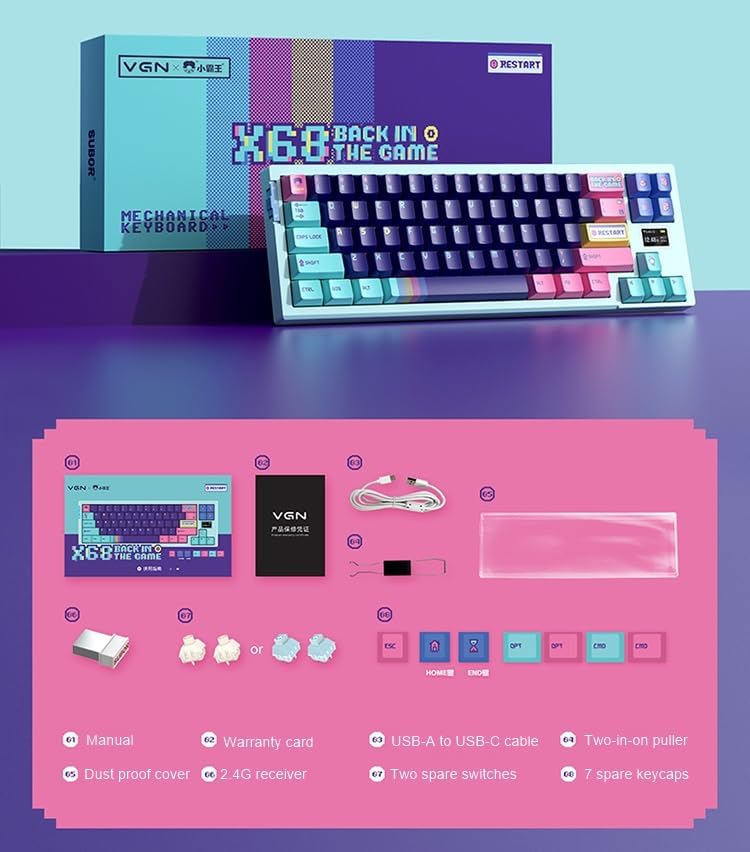
Image: A visual representation of all items included in the VGN X68 keyboard package.
- VGN X68 Mechanical Gaming Keyboard
- Manual Pengguna
- Kad Waranti
- Kabel USB-A ke USB-C
- Two-in-one Puller (for keycaps and switches)
- Penutup Kalis Habuk
- Penerima Wayarles 2.4G
- Two Spare Switches
- Seven Spare Keycaps
3. Persediaan
3.1 Pengecasan Awal
Before first use, it is recommended to fully charge the keyboard. Connect the provided USB-A to USB-C cable to the keyboard's Type-C port and a USB power source (e.g., computer USB port, wall adapter). The charging indicator will show the charging status.
3.2 Menyambung Papan Kekunci Anda
The VGN X68 supports three connection modes: Wired, 2.4G Wireless, and Bluetooth 5.0. Use the switch located on the keyboard to select your desired mode.

Imej: A terperinci view of the physical switch on the keyboard used to toggle between 2.4G wireless, wired, and Bluetooth modes.
3.2.1 Mod Berwayar
- Set the mode switch to 'Wired' (usually indicated by a cable icon or 'USB').
- Connect the USB-C end of the cable to the keyboard and the USB-A end to your computer.
- The keyboard will be automatically recognized by your operating system (e.g., Windows 10) and ready for use.
3.2.2 Mod Tanpa Wayar 2.4G
- Set the mode switch to '2.4G' (usually indicated by a wireless icon).
- Pasangkan penerima wayarles 2.4G ke port USB yang tersedia pada komputer anda.
- The keyboard should connect automatically. If not, press Fn + R (or a similar key combination indicated in the manual) to initiate pairing.
3.2.3 Mod Bluetooth
- Set the mode switch to 'BT' (Bluetooth).
- Pada komputer atau peranti anda, dayakan Bluetooth dan cari peranti baharu.
- The keyboard will appear as 'VGN X68' or similar. Select it to pair.
- You may need to press Fn + 1/2/3 to select a Bluetooth profile if the keyboard supports multiple Bluetooth connections.
4. Arahan Operasi
4.1 Fungsi Utama dan Susun Atur
The VGN X68 is a 61-key mechanical keyboard. Many functions are accessed via the 'Fn' key in combination with other keys. Refer to the keycap legends for specific shortcuts.
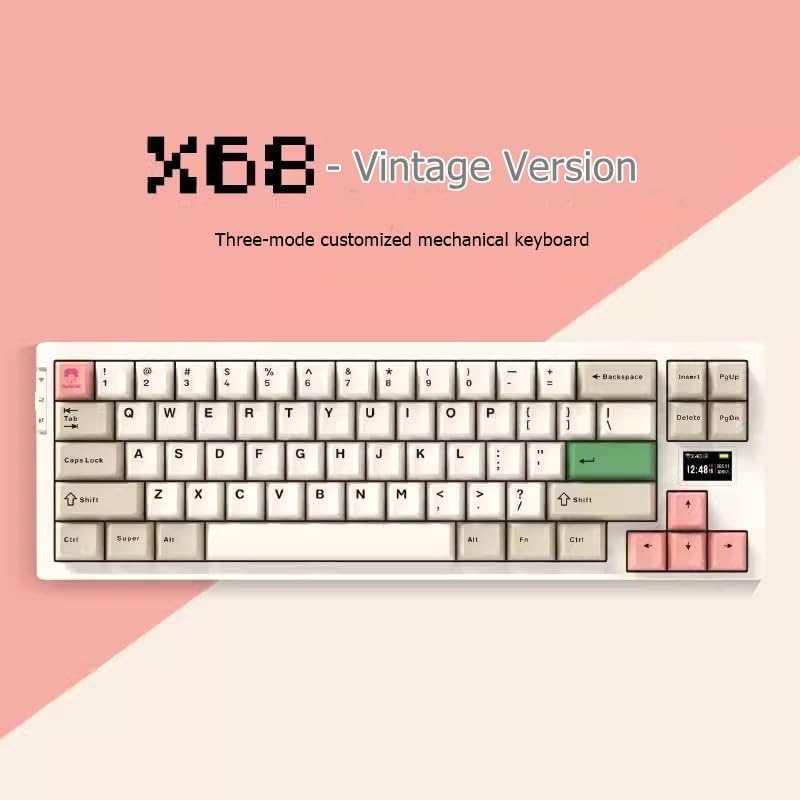
Image: The VGN X68 keyboard, showcasinsusun atur padat dan reka bentuk penutup kekuncinya.
4.2 Kawalan Lampu Latar RGB
The keyboard features multicolor RGB backlighting. Use the following key combinations to control the lighting effects:
- Fn + \|: Kitaran melalui mod pencahayaan RGB yang berbeza.
- Fn + ↑/↓: Laraskan kecerahan lampu latar.
- Fn + ←/→: Laraskan kelajuan atau arah kesan pencahayaan.
- Fn + Del: Change backlight color (for static modes).
4.3 Screen Display Functions
The VGN X68 features a small screen display that provides useful information at a glance:
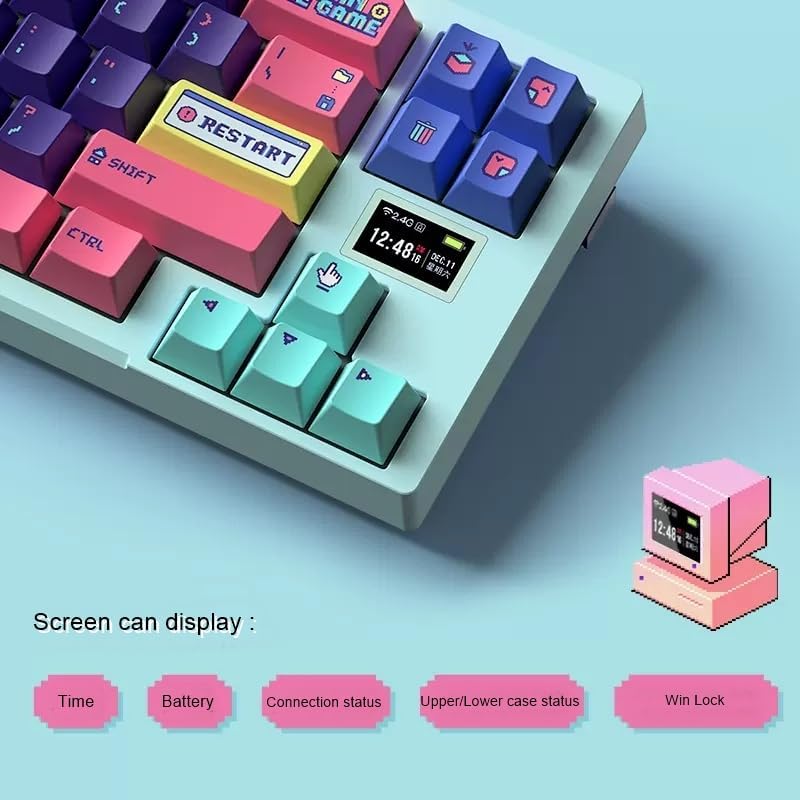
Image: A close-up of the keyboard's integrated screen, displaying icons for time, battery level, connection status, case status, and Win Lock.
- Masa: Memaparkan masa semasa.
- Bateri: Menunjukkan paras bateri semasa.
- Status Sambungan: Indicates the active connection mode (Wired, 2.4G, or Bluetooth).
- Upper/Lower Case Status: Shows if Caps Lock is enabled.
- Win Lock: Indicates if the Windows key is locked (to prevent accidental presses during gaming).
5. Penyelenggaraan
5.1 Pembersihan
Untuk mengekalkan prestasi dan penampilan papan kekunci anda:
- Putuskan sambungan papan kekunci daripada komputer anda sebelum membersihkan.
- Gunakan berus lembut atau udara termampat untuk membuang habuk dan serpihan dari antara penutup kekunci.
- Wipe the keycaps and keyboard surface with a slightly damp, kain bebas bulu. Elakkan kelembapan berlebihan.
- Use the provided dust proof cover when the keyboard is not in use to prevent dust accumulation.
5.2 Penggantian Kekunci dan Suis
The VGN X68 features hot-swappable switches, allowing you to easily change switches without soldering. Use the provided two-in-one puller for both keycaps and switches.
- To remove a keycap: Use the keycap puller end of the tool to gently pull the keycap straight up.
- To remove a switch: Use the switch puller end of the tool to grasp the switch from its top and bottom clips, then gently pull it straight up.
- To install a switch: Sejajarkan pin suis baharu dengan lubang pada PCB dan tekan dengan kuat sehingga ia klik pada tempatnya. Pastikan pin tidak bengkok.
- To install a keycap: Align the keycap with the switch stem and press down firmly.
6. Penyelesaian masalah
If you encounter issues with your VGN X68 keyboard, please refer to the following common solutions:
- Papan kekunci tidak bertindak balas: Ensure the keyboard is charged. Check the connection mode switch (Wired, 2.4G, Bluetooth) and ensure it matches your connection method. For wired, try a different USB port. For wireless, ensure the receiver is properly plugged in or Bluetooth is paired.
- Kunci tidak mendaftar: Check if any keycaps or switches are loose. Re-seat them if necessary. Test on another device to rule out software issues.
- Backlight not working/flickering: Ensure the keyboard is charged. Try cycling through backlight modes (Fn + \|) or adjusting brightness (Fn + ↑/↓).
- Sambungan Bluetooth tidak stabil: Ensure no other devices are interfering with the Bluetooth signal. Try re-pairing the keyboard. Ensure your device's Bluetooth drivers are up to date.
- 2.4G wireless lag: Ensure the receiver is not too far from the keyboard. Avoid placing the receiver near other wireless devices that might cause interference.
Jika masalah berterusan, sila rujuk bahagian Waranti dan Sokongan.
7. Spesifikasi
| Ciri | Spesifikasi |
|---|---|
| Jenama | Generik |
| Model | X68 |
| Pengeluar | Jin |
| warna | Cyan |
| Keserasian Sistem Pengendalian | Windows 10 |
| Teknologi Ketersambungan | Bluetooth 5.0, Wayarles 2.4G, Berwayar Jenis-C |
| Penerangan Papan Kekunci | mekanikal |
| Penggunaan yang Disyorkan | Permainan |
| Ciri Khas | Lampu belakang |
| Bilangan Kunci | 61 |
| Sokongan Warna Lampu Latar Papan Kekunci | RGB (Merah, Hijau, Biru) |
| Gaya | moden |
| Percetakan Keycap | Pukulan Berganda |
| Bahan Kekunci | Plastik PBT |
| Suis boleh tukar panas | ya |
| Switch Manufacturer | Kailh |
| Jenama Badan Axis | Kailh Box |
| Full-size Keyboard | Tidak |
| Wrist Rest Support | Tidak |
8. Waranti dan Sokongan
Your VGN X68 Mechanical Gaming Keyboard comes with a manufacturer's warranty. For any product issues, including damaged or incorrect items, please do not hesitate to contact our support team. We are committed to providing prompt assistance and will respond to your inquiries within 24 hours.
Please refer to the warranty card included in your package for specific terms and conditions.
Ask a question about this manual
Ask about setup, troubleshooting, compatibility, parts, safety, or missing instructions. Manuals+ will review the question and use this page’s manual context to help answer it.