
Dragon Touch Notepad K10
Dragon Touch Notepad K10 Tablet User Manual
Model: Notepad K10
1. Pengenalan
Welcome to the user manual for your new Dragon Touch Notepad K10 Tablet. This guide provides essential information to help you set up, operate, maintain, and troubleshoot your device. Please read this manual thoroughly to ensure proper and safe use of your tablet.
1.1 Kandungan Pakej
Sebelum anda memulakan, sila sahkan bahawa semua item terdapat dalam pakej anda:
- Dragon Touch Notepad K10 Tablet
- Kabel USB
- Pengecas
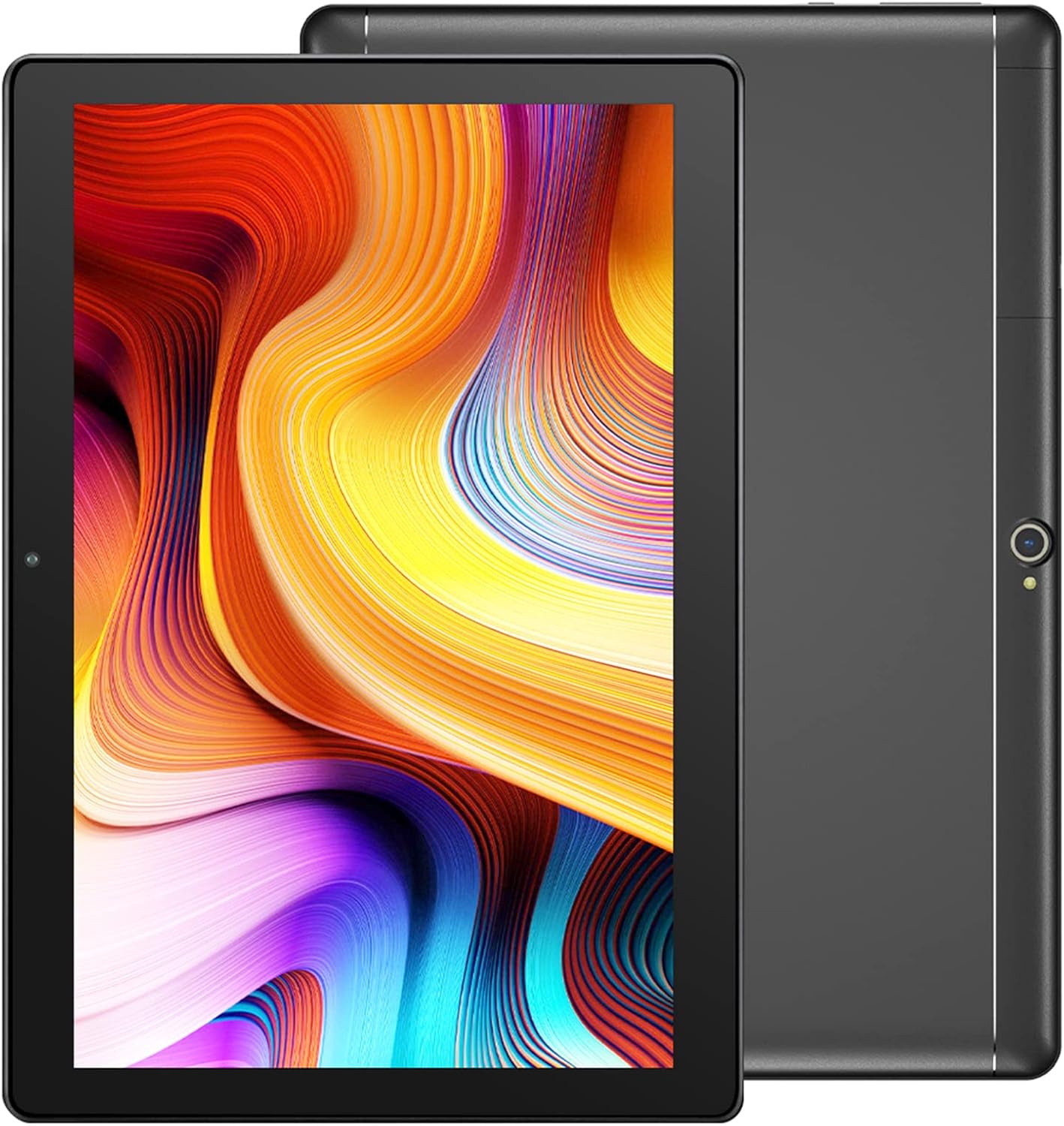
Image: The Dragon Touch Notepad K10 Tablet shown with its USB charging cable and power adapter.
2. Peranti Lebihview
Familiarize yourself with the physical features and components of your Notepad K10 Tablet.
2.1 Depan dan Belakang View
The tablet features a 10.1-inch IPS HD display on the front, along with a front-facing camera for video calls and selfies. The rear of the tablet houses the 8MP main camera and dual speakers.

Imej: A terperinci view of the Notepad K10 tablet, illustrating its 10.1-inch display, Android 9.0 operating system, Quad-Core CPU, 2GB RAM, 32GB storage, dual cameras, and dual Wi-Fi capabilities.
2.2 Port dan Butang
Locate the following ports and buttons on your tablet:
- Butang Kuasa: Used to turn the tablet on/off or put it to sleep/wake it up.
- Butang Kelantangan: Laraskan kelantangan audio.
- Port USB Mikro: For charging the tablet and connecting to a computer.
- Port Mikro HDMI: Connects the tablet to an external display (e.g., TV, monitor).
- Bicu Fon Kepala 3.5mm: Untuk menyambungkan fon kepala atau pembesar suara luaran.
- Slot Kad Mikro SD: For expanding storage with a Micro SD card.
3. Persediaan
3.1 Pengecasan Awal
Before first use, fully charge your tablet. Connect the included USB cable to the tablet's Micro USB port and the charger to a power outlet. The battery indicator will show charging status.
3.2 Menghidupkan/Mematikan
- Untuk Menghidupkan: Press and hold the Power button until the Dragon Touch logo appears.
- Untuk Mematikan: Press and hold the Power button until a power-off menu appears, then select 'Power off'.
- Tidur/Bangun: Tekan butang Kuasa sebentar untuk mematikan atau membangunkan tablet.
3.3 Wizard Persediaan Awal
Setelah dihidupkan pertama, tablet akan membimbing anda melalui wizard persediaan awal. Ikuti gesaan pada skrin untuk:
- Pilih bahasa anda.
- Sambung ke rangkaian Wi-Fi.
- Set up your Google account (recommended for app downloads and services).
- Configure date, time, and other basic settings.
3.4 Memasukkan Kad SD Mikro
The Notepad K10 supports Micro SD cards up to 128GB for expanded storage. Locate the Micro SD card slot, gently insert the card with the gold contacts facing down until it clicks into place. The tablet will recognize the new storage.
4. Arahan Operasi
4.1 Navigasi Asas
The tablet uses a capacitive touchscreen. Common gestures include:
- Ketik: Untuk memilih item atau membuka aplikasi.
- Ketik & Tahan: Untuk mengakses menu kontekstual atau mengalihkan ikon.
- Leret: Untuk menatal halaman atau senarai.
- Cubit: Untuk mengezum masuk atau keluar pada imej dan web muka surat.
4.2 Menyambung ke Wi-Fi
Untuk menyambung ke internet:
- Pergi ke tetapan > Rangkaian & internet > Wi-Fi.
- Togol Wi-Fi On.
- Pilih rangkaian yang anda inginkan daripada senarai.
- Masukkan kata laluan jika digesa, kemudian ketik Sambung.
The Notepad K10 supports dual-band Wi-Fi (2.4GHz and 5GHz) for faster and more stable connections.
4.3 Menggunakan Kamera
The tablet is equipped with an 8MP rear camera for capturing photos and videos, and a front camera for video calls and selfies. Open the Kamera app from the home screen or app drawer to start. You can switch between front and rear cameras within the app.

Image: The tablet's 8MP rear camera is shown in use, capturing a family moment, highlighting its ability to record wonderful memories.

Image: The tablet's front camera facilitates video calls, allowing users to stay connected with friends and family.
4.4 Connecting to a TV via Micro HDMI
The Notepad K10 features a Micro HDMI port, allowing you to connect it to a larger display like a TV or monitor for an enhanced viewpengalaman dalam.
- Obtain a Micro HDMI to HDMI cable (not included).
- Connect the Micro HDMI end to your tablet and the HDMI end to your TV.
- Switch your TV's input source to the corresponding HDMI port.
- The tablet's screen content will be mirrored on the TV.

Image: The tablet connected to a television, demonstrating its capability to provide great entertainment enjoyment on a larger screen.
4.5 Mengurus Storan
The tablet comes with 32GB of internal storage. You can expand this by inserting a Micro SD card (up to 128GB). To check storage usage or manage files, pergi ke tetapan > Penyimpanan.
4.6 Pengurusan Bateri
The Notepad K10 is equipped with a 5000mAh Lithium Polymer battery. Average battery life is approximately 5 hours for general use. To optimize battery life:
- Kurangkan kecerahan skrin.
- Matikan Wi-Fi dan Bluetooth apabila tidak digunakan.
- Tutup aplikasi yang tidak digunakan.
- Elakkan suhu yang melampau.

Image: An illustration of the tablet's 5000mAh battery, detailing its long-lasting performance for various activities like video playback, gaming, navigation, and music.
4.7 Eye-Care Mode
The tablet features an Eye-Care mode that automatically adjusts and optimizes the backlight to reduce eye strain, making it more comfortable for reading, especially at night. This setting can typically be found in the Display settings.
5. Penyelenggaraan
5.1 Membersihkan Tablet
Untuk membersihkan tablet anda, gunakan kain lembut dan tidak berbulu. Untuk calitan degil, sedikit dampen the cloth with water. Avoid using harsh chemicals, abrasive cleaners, or aerosol sprays directly on the tablet.
5.2 Kemas Kini Perisian
Periodically check for system updates to ensure your tablet has the latest features and security patches. Go to tetapan > Sistem > Kemas kini sistem.
5.3 Penjagaan Bateri
To prolong the life of your tablet's battery:
- Elakkan menyahcas sepenuhnya bateri dengan kerap.
- Do not leave the tablet in direct sunlight or extremely hot environments.
- If storing the tablet for a long period, charge it to about 50% before turning it off.
6. Penyelesaian masalah
If you encounter issues with your tablet, refer to the following common problems and solutions:
6.1 Tablet Tidak Akan Dihidupkan
- Ensure the battery is sufficiently charged. Connect the charger and wait a few minutes before attempting to power on.
- Tekan dan tahan butang Kuasa selama 10-15 saat untuk melakukan mula semula secara paksa.
6.2 Isu Sambungan Wi-Fi
- Check that Wi-Fi is enabled in tetapan.
- Ensure you are within range of the Wi-Fi router.
- Mulakan semula penghala Wi-Fi anda.
- Lupakan rangkaian dalam tetapan tablet dan sambung semula.
6.3 Prestasi Perlahan
- Tutup aplikasi yang tidak digunakan yang berjalan di latar belakang.
- Kosongkan data cache untuk aplikasi dalam tetapan > Apl & pemberitahuan.
- Mulakan semula tablet.
- Pastikan ruang storan kosong mencukupi.
6.4 Skrin Tidak Membalas
- Perform a forced restart (press and hold Power button for 10-15 seconds).
- Pastikan skrin bersih dan bebas daripada lembapan atau serpihan.
6.5 HDMI Output Issues
- Verify that the Micro HDMI cable is securely connected to both the tablet and the TV.
- Ensure the TV input source is set to the correct HDMI port.
- Try a different Micro HDMI cable if available.
- Restart both the tablet and the TV.
7. Spesifikasi
Detailed technical specifications for the Dragon Touch Notepad K10 Tablet:
| Ciri | Perincian |
|---|---|
| Model | Notepad K10 |
| Sistem Operasi | Android |
| Saiz Paparan | 10.1 Inci |
| Resolusi Paparan | 1280 x 800 pixels IPS |
| Pemproses | Quad-Core, 1.3GHz MediaTek |
| RAM | 2GB |
| Storan Dalaman | 32GB |
| Storan Boleh Dikembangkan | Up to 128GB via Micro SD card |
| Kamera Belakang | 8MP |
| Kamera Depan | Yes (for video calls) |
| Wi-Fi | Dwi-Jalur 2.4GHz & 5GHz |
| Bluetooth | ya |
| Pelabuhan | Micro USB, Micro HDMI, 3.5mm Headphone Jack, Micro SD Card Slot |
| Bateri | Polimer Lithium 5000mAh |
| Dimensi (LxWxH) | 9.4 x 0.4 x 6.7 inci |
| Berat badan | 1.88 paun |
8. Waranti dan Sokongan
8.1 Maklumat Waranti
For detailed warranty information regarding your Dragon Touch Notepad K10 Tablet, please refer to the warranty card or documentation included with your original purchase. You may also find the most up-to-date warranty terms on the official Dragon Touch webtapak.
8.2 Sokongan Pelanggan
If you have any questions, require technical assistance, or encounter issues that cannot be resolved using this manual, please contact Dragon Touch customer support:
- Lawati pegawai Dragon Touch Store on Amazon untuk maklumat produk dan sumber sokongan.
- Refer to the Dragon Touch official website for contact details, FAQs, and additional support.
Ask a question about this manual
Ask about setup, troubleshooting, compatibility, parts, safety, or missing instructions. Manuals+ will review the question and use this page’s manual context to help answer it.