
1. Pengenalan
The Cleyver HC95 is a wired headset designed for professional communication, offering clear audio and a noise-cancelling microphone. It features an integrated Busylight to indicate user availability and is optimized for various communication platforms, ensuring efficient and focused conversations.
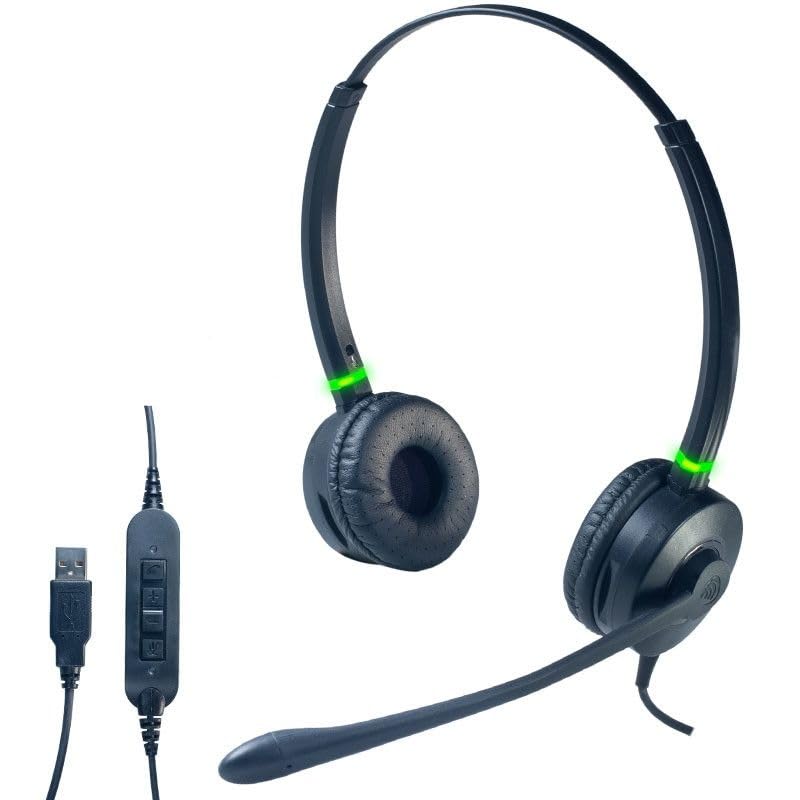
A depan view of the Cleyver HC95 wired headset, highlighting its over-ear design and microphone boom.
2. Kandungan Pakej
Sila tandai kotak untuk item berikut:
- Cleyver HC95 Wired Headset (with integrated USB-A cable)
- Manual Pengguna (dokumen ini)
3. Persediaan
- Sambungkan Alat dengar: Plug the USB-A connector of the Cleyver HC95 headset into an available USB port on your computer.
- Pemasangan Automatik: Sistem pengendalian anda (Windows, macOS, Linux) harus secara automatik mengesan dan memasang pemacu yang diperlukan. Ini mungkin mengambil masa beberapa saat.
- Pilih sebagai Peranti Lalai: Once installed, navigate to your computer's sound settings and select the Cleyver HC95 as your default audio input (microphone) and output (speaker) device for calls and media.
- Konfigurasi Perisian: For optimal performance with communication software (e.g., Microsoft Teams, Skype for Business, Zoom), ensure the Cleyver HC95 is selected as the audio device within the application's settings.

The inline control unit for the Cleyver HC95 headset, featuring buttons for call management, volume adjustment, and microphone mute, along with the USB-A connector.
4. Arahan Operasi
4.1 Memakai Alat dengar
- Adjust the headband for a comfortable fit over your head.
- Position the earcups over your ears. The HC95 features an over-ear design for comfort during extended use.
- Rotate the microphone boom arm to position the microphone approximately 2-3 cm (1 inch) from the corner of your mouth for optimal voice pickup.
4.2 Inline Control Functions
The inline control unit provides easy access to essential call management features:
- Butang panggilan: Tekan untuk menjawab atau menamatkan panggilan.
- Kelantangan Naik (+): Tekan untuk meningkatkan kelantangan mendengar.
- Perlahankan suara (-): Tekan untuk mengurangkan kelantangan mendengar.
- Butang Bisukan: Press to mute or unmute the microphone. An LED indicator on the control unit may show the mute status.
4.3 Busylight Functionality
The integrated Busylight on the earcups provides a visual indication of your call status to those around you.
- Lampu Hijau: Indicates you are available or on a call.
- Lampu Merah: Indicates you are busy or in a meeting.

Headset with green Busylight, indicating availability.

Headset with red Busylight, indicating busy status.
5. Ciri-ciri
- Extreme Comfort: The lightweight design ensures a comfortable, pressure-free wearing experience, even during extended periods of use.
- Kualiti Bunyi Luar Biasa: Enjoy clear and crisp conversations thanks to wideband audio technology.
- Advanced Noise-Cancelling Microphone: The long boom microphone effectively reduces up to 80% of ambient background noise, making it ideal for use in noisy office environments.
- Acoustic Protection and Busylight Indicators: Built-in acoustic protection safeguards your hearing. Integrated luminous indicators on the earcups signal your availability to colleagues, minimizing interruptions.
- Optimized for Communication Software: The headset is pre-configured for efficient communication with platforms like Microsoft Skype for Business and Microsoft Teams. It also offers extended compatibility with various other softphones and operating systems.
6. Penyelenggaraan dan Penjagaan
- Pembersihan: Gunakan kain lembut dan kering untuk membersihkan set kepala. Untuk kusyen telinga, lap perlahan-lahan dengan sedikit damp kain dan biarkan kering sepenuhnya sebelum digunakan. Jangan gunakan bahan kimia yang keras atau pembersih yang kasar.
- Storan: Simpan alat dengar di tempat yang sejuk dan kering, jauh daripada cahaya matahari langsung dan suhu yang melampau. Elakkan kabel daripada kusut.
- Penjagaan Kabel: Do not pull on the cable to disconnect the headset. Always grasp the USB connector. Avoid bending or twisting the cable excessively.
- Tahan Air: This headset is not water-resistant. Avoid exposure to liquids.
7. Penyelesaian masalah
7.1 Tiada Bunyi daripada Fon Kepala
- Ensure the headset is securely plugged into a USB port.
- Check your computer's sound settings to confirm the Cleyver HC95 is selected as the default output device.
- Verify the volume on the inline control unit and your computer is not muted or set too low.
- Test the headset on a different USB port or another computer to rule out port issues.
7.2 Mikrofon Tidak Berfungsi
- Ensure the microphone is not muted via the inline control unit or within your communication software.
- Check your computer's sound settings to confirm the Cleyver HC95 is selected as the default input device.
- Adjust the microphone gain/level in your computer's sound settings.
- Ensure the microphone boom arm is correctly positioned near your mouth.
7.3 Busylight Not Functioning
- Ensure the headset is properly connected and recognized by your computer.
- The Busylight functionality is often integrated with specific communication software (e.g., Microsoft Teams). Ensure the software is running and the headset is selected as the active device.
- Restart your communication software or computer.
8. Spesifikasi
| Nombor Model | ODHC95USB |
| Jenama | Cleyver |
| Teknologi Ketersambungan | Berwayar (USB-A) |
| Mikrofon | Mikrofon Boom Pembatal Bunyi |
| Kualiti Audio | Audio Jalur Lebar |
| Kaedah Kawalan | Inline Remote Control, Voice Control |
| Penempatan Telinga | Telinga Lebih (Circumaural) |
| Kawalan Bunyi | Pengasingan Akustik |
| bahan | Keluli Tahan Karat, Aluminium |
| warna | Hitam |
| Peranti Serasi | Softphone software including Skype for Business, Microsoft Teams, Cisco, Avaya, and 3CX |
| Tahap Ketahanan Air | Bukan Tahan Air |
9. Waranti dan Sokongan
For warranty information, technical support, or service inquiries, please refer to the documentation provided with your purchase or contact Cleyver customer support directly. Keep your proof of purchase for warranty claims.