
pengenalan
This manual provides detailed instructions for the proper use, setup, operation, and maintenance of your OSALO Scientific Calculator OS-82ES II. Please read this manual thoroughly to ensure optimal performance and longevity of your device. Keep this manual for future reference.
Produk Selesaiview
The OSALO OS-82ES II is a scientific calculator designed for students and professionals, featuring 252 functions and a natural display for easy input and output. It operates on a dual power source (solar and battery) and comes with a protective sliding cover.

Figure 1: OSALO Scientific Calculator OS-82ES II with its protective cover.
This image shows the calculator from a slightly elevated angle, highlighting its black body, white keys, and the clear display. The protective sliding cover is partially visible at the bottom.

Figure 2: The OSALO Scientific Calculator OS-82ES II being used on a desk.
This image shows the calculator placed on a light-colored desk, next to a laptop and a camera, illustrating its compact size and suitability for various study or work environments.
Persediaan
Sumber Kuasa
The OSALO OS-82ES II calculator utilizes a dual power system: solar energy and two LR44 button cell batteries. The solar panel provides power in well-lit environments, while the batteries ensure continuous operation in low-light conditions.
Pemasangan/Penggantian Bateri
- Ensure the calculator is turned OFF.
- Cari petak bateri di bahagian belakang kalkulator.
- Gunakan pemutar skru kecil untuk membuka penutup petak bateri.
- Remove the old batteries (if replacing) and insert two new LR44 batteries, ensuring correct polarity (+/-).
- Gantikan penutup petak bateri dan kencangkannya dengan skru.
Initial Power On and Display Adjustment
Untuk menghidupkan kalkulator, tekan butang ON button. The display should illuminate. If the display appears dim or too bright, you can adjust its contrast.
The brightness of the screen can be adjusted for optimal viewing and to reduce eye strain. Refer to the 'Contrast Adjustment Function' section under Operating Instructions for detailed steps.
Arahan Operasi
Operasi Asas
Perform standard arithmetic operations using the number keys and the +, -, ×, ÷ buttons. Press = untuk mendapatkan hasilnya.
Written Display (Natural Input & Output)
The OS-82ES II features a "Written Display" that allows you to input expressions and view results as they would appear in a textbook, making complex calculations easier to understand. The 2-line display shows both the input expression and the calculated result simultaneously.
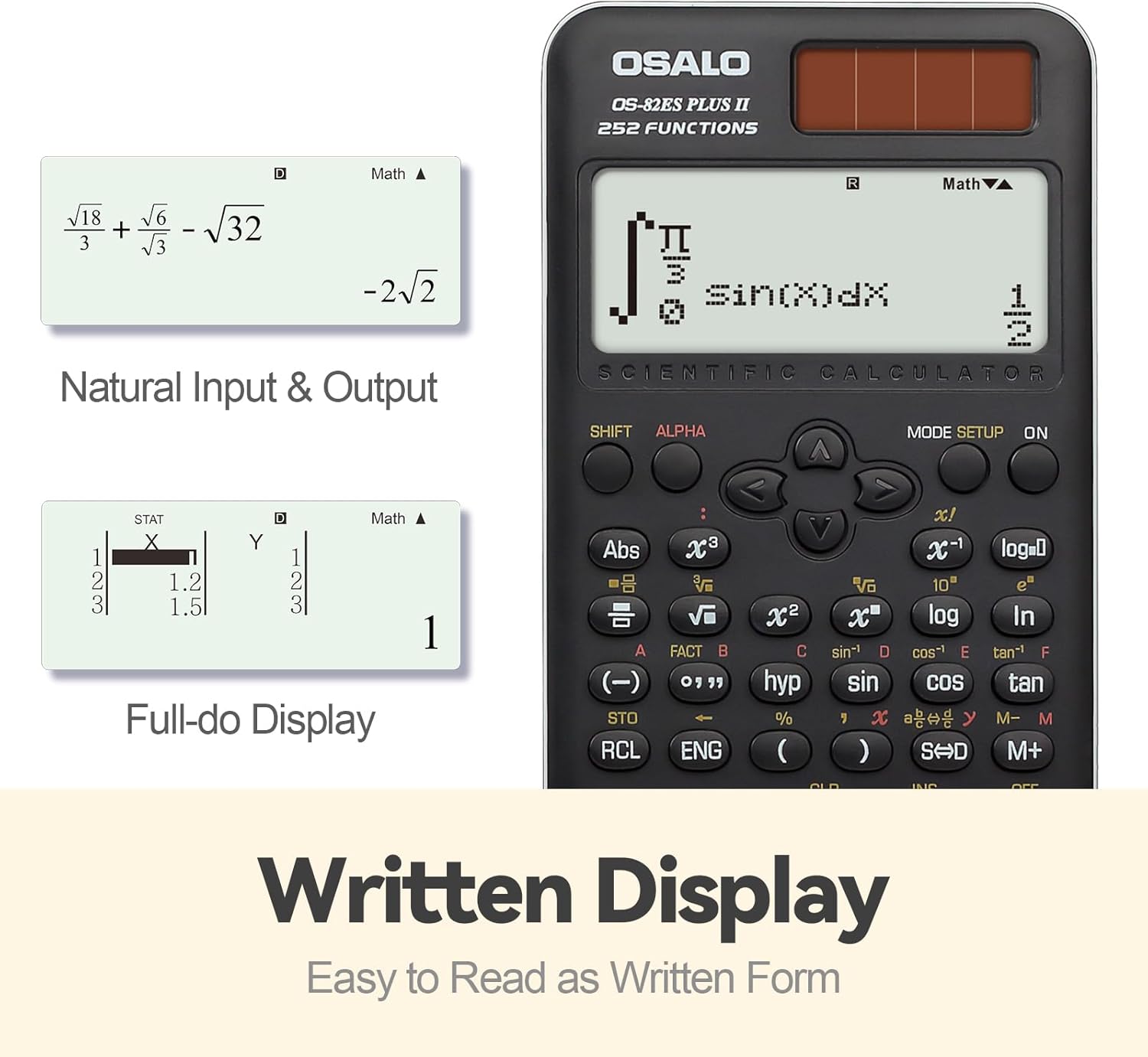
Gambar 3: Cthamples of Natural Input & Output and Full-do Display.
This image illustrates the calculator's display capabilities, showing how mathematical expressions like fractions and integrals are displayed naturally, similar to how they are written. It also shows a "Full-do Display" for statistical data input.
Fungsi Utama Selesaiview
Familiarize yourself with the calculator's key layout and their primary and secondary functions. Secondary functions are typically accessed by pressing the SHIFT or ALPHA keys before the desired function key.

Figure 4: Key layout and main components of the OSALO Scientific Calculator.
This diagram labels key components such as the solar panel, extra-large display, control keys, SHIFT key, Mode key, Power on button, Function keys, Delete key, and Last answer key, providing a visual guide to the calculator's interface.
252 Fungsi
The OS-82ES II offers 252 functions, covering a wide range of mathematical and scientific calculations. These include:
- Pecahan: Input and calculate with fractions directly.
- Statistik: Includes STAT data editor, standard deviation, and regression analysis.
- Fungsi trigonometri: Sine, Cosine, Tangent, and their inverses.
- Exponential and Logarithmic Functions: ex, 10x, ln, log.
- Multi-replay Function: Quickly recall and re-execute previously performed formulas for editing.
- Combination and Permutation: Functions for combinatorial mathematics.
- 9 Variable Memories: Store and recall values for efficient calculations.

Gambar 5: Lebihview of key functions available on the OSALO Scientific Calculator.
This image highlights the calculator's capabilities, including multi-replay, combination and permutation, statistics (STAT-data editor, standard deviation, regression analysis), fraction calculation, and 9 variable memories. It also notes that the calculator comes with a slide-on hard case and is suitable for students.
Contrast Adjustment Function
To adjust the display contrast:
- Tekan SHIFT.
- Tekan PENYEDIAAN MODE (which has 'CONTRAST' as a secondary function).
- Gunakan kekunci anak panah (KIRI or BETUL) to adjust the contrast. Moving left will darken the display (relieve visual fatigue), and moving right will brighten it (clearer results).
- Tekan AC to exit the contrast adjustment mode.

Figure 6: Demonstrating the contrast adjustment feature of the calculator's display.
This image shows two calculator displays side-by-side, one with a darker contrast (labeled "Dark" for relieving visual fatigue) and one with a brighter contrast (labeled "Bright" for clear and intuitive viewing), illustrating the effect of the contrast adjustment function.
Penyelenggaraan
Pembersihan
To clean the calculator, wipe it gently with a soft, dry cloth. Do not use abrasive cleaners, solvents, or spray directly onto the calculator, as this may damage the surface or internal components.
Penyimpanan
Always use the provided protective sliding cover when the calculator is not in use. This protects the display and keys from dust, scratches, and impact. Store the calculator in a cool, dry place, away from direct sunlight and extreme temperatures.
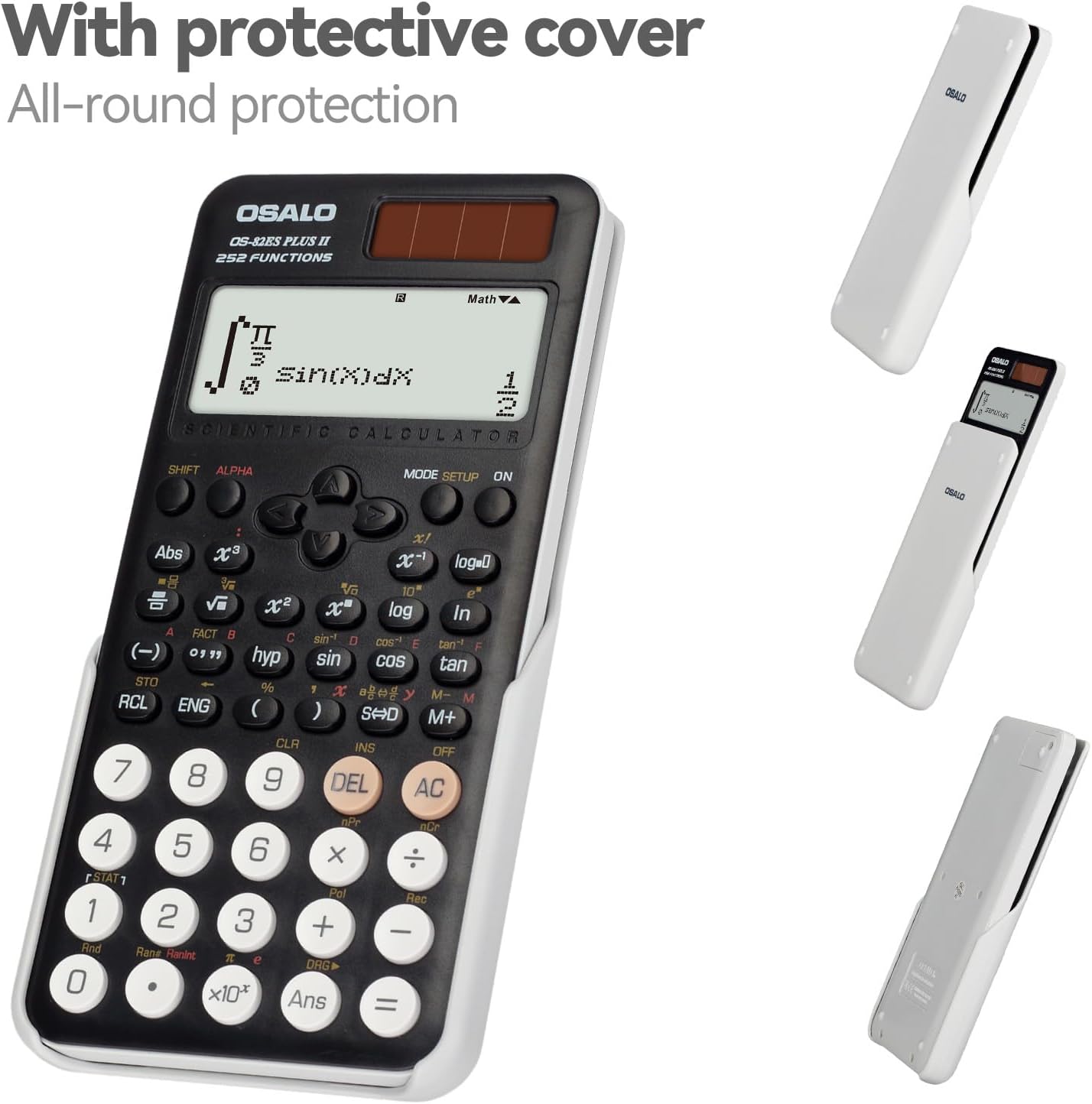
Figure 7: The calculator shown with its protective sliding cover.
This image displays the calculator alongside its white protective cover, demonstrating how the cover slides on to provide all-round protection for the device.
Amaran Pembongkaran
AMARAN: Disassembly of the calculator should only be performed by qualified professionals. Attempting to disassemble the device yourself may result in damage and void the warranty.
Menyelesaikan masalah
Isu dan Penyelesaian Biasa
- Paparan kosong atau malap:
- Ensure sufficient light for the solar panel.
- Check battery levels and replace LR44 batteries if necessary.
- Adjust display contrast (refer to 'Contrast Adjustment Function' section).
- Calculator does not respond to key presses:
- Tekan ke ON butang dengan kuat.
- If unresponsive, try performing a reset (see below).
- Keputusan pengiraan yang salah:
- Verify the input expression.
- Check the current mode (e.g., DEG/RAD/GRAD for angles). Press PENYEDIAAN MODE untuk berubah.
- Perform a reset if the issue persists.
Menetapkan semula Kalkulator
If the calculator malfunctions or behaves unexpectedly, a reset may resolve the issue. To perform a full reset:
- Tekan SHIFT.
- Tekan CLR (Jelas).
- Pilih pilihan 3: Semua to clear all settings and memory.
- Tekan = untuk mengesahkan.
Note that performing a reset will erase all data stored in memory and revert settings to their factory defaults.
Spesifikasi
| Ciri | Perincian |
|---|---|
| Nombor Model | OS-82ES II |
| Bilangan Fungsi | 252 |
| Jenis Paparan | 2-line LCD (Natural Textbook Display) |
| Sumber Kuasa | Solar and Battery (2 x LR44 included) |
| Dimensi (L x W) | 16.4 cm x 8 cm (6.46 inci x 3.15 inci) |
| Berat badan | 141 g (4.9 oz) |
| bahan | Plastik ABS |
| warna | Hitam |

Figure 8: Physical dimensions and weight of the OSALO Scientific Calculator.
This image provides a visual representation of the calculator's dimensions (length, width, and thickness) and its net weight, emphasizing its thin and lightweight design.
Waranti dan Sokongan
Maklumat Waranti
Please refer to the warranty card included with your product packaging for specific warranty terms and conditions. Typically, OSALO products come with a limited warranty covering manufacturing defects from the date of purchase.
Sokongan Pelanggan
For technical assistance, troubleshooting not covered in this manual, or warranty claims, please contact OSALO customer support through the contact information provided on the product packaging or the official OSALO website. When contacting support, please have your product model number (OS-82ES II) and purchase details ready.