
1. Pengenalan
This manual provides detailed instructions for the setup, operation, and maintenance of the HK SYSTEMS RP326 thermal receipt printer. This printer is designed for various business environments, including retail, convenience stores, restaurants, and cafes. It offers versatile connectivity options and efficient printing capabilities.
The RP326 printer features an 80mm thermal printing mechanism with an auto-cutter, capable of printing at speeds up to 250mm/second. It supports multiple interfaces including USB, Serial, and Ethernet, ensuring compatibility with Windows, Mac, and Linux operating systems. The printer also includes support for cash drawer connection via an RJ11 port.
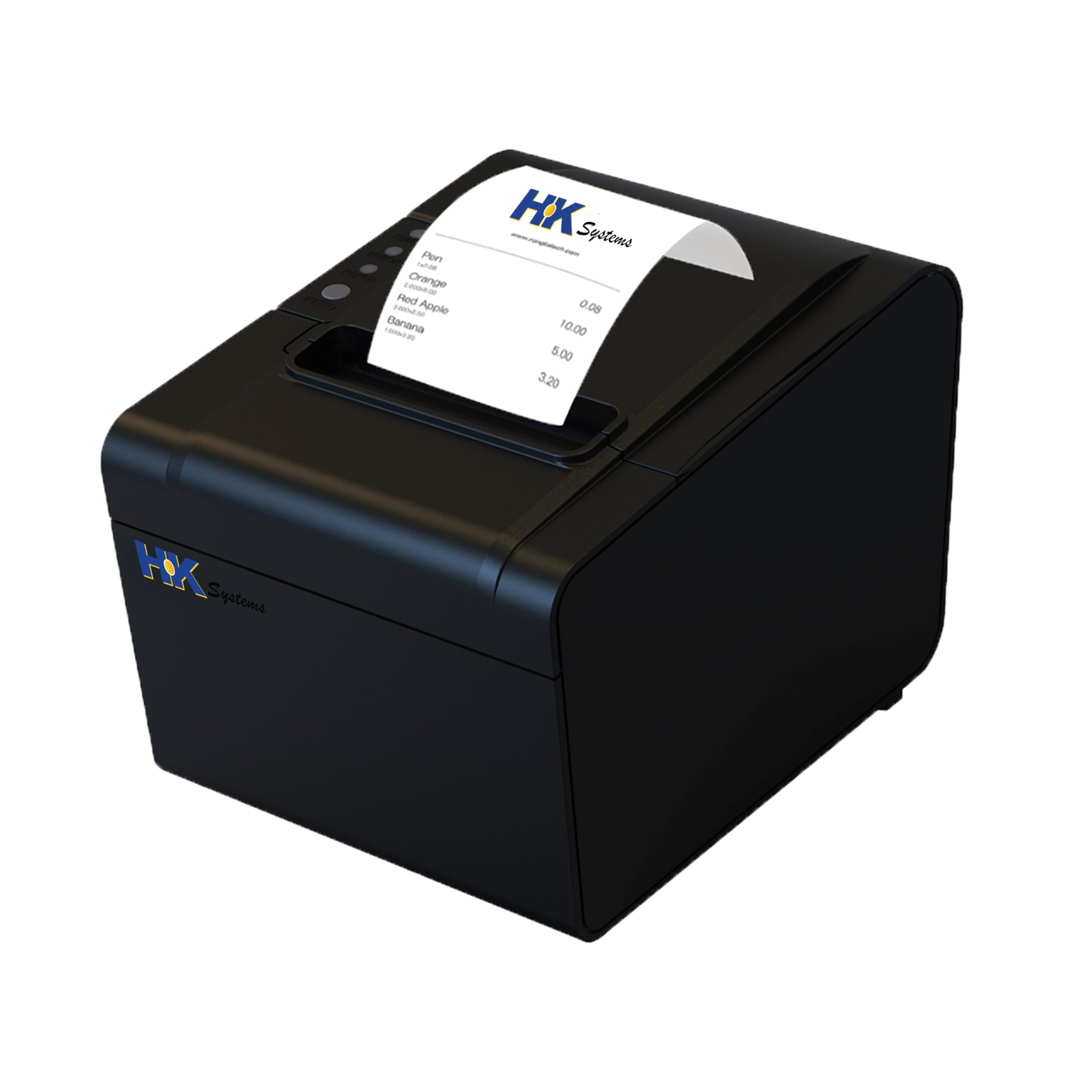
Rajah 1: Depan view of the HK SYSTEMS RP326 Thermal Receipt Printer.
2. Apa yang ada di dalam Kotak
Carefully unpack the box and ensure all the following items are present:
- HK SYSTEMS RP326 Thermal Receipt Printer
- Test Thermal Paper Roll
- USB Drive (containing printer drivers)
- Kabel Bersiri
- Kabel USB
- Penyesuai Kuasa
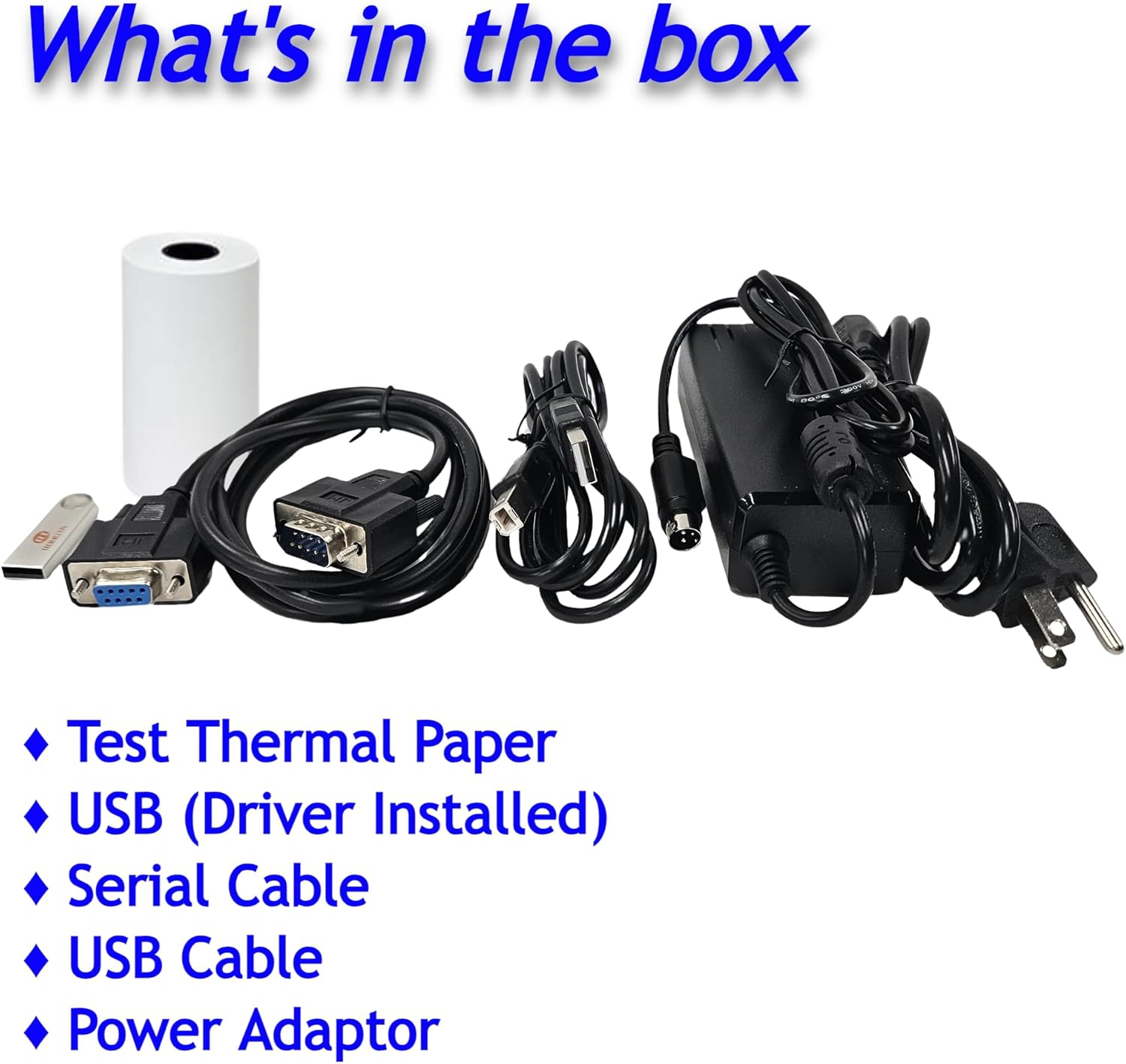
Rajah 2: Komponen yang disertakan dalam pembungkusan produk.
3. Produk Lebihview
The HK SYSTEMS RP326 printer is equipped with multiple ports for various connectivity needs. Understanding these ports is crucial for proper setup and operation.

Rajah 3: Belakang view of the printer highlighting available interfaces.
- Port Serial: For serial data communication.
- Port USB: Untuk sambungan terus ke komputer.
- Port LAN (Ethernet): Untuk sambungan rangkaian.
- Pelabuhan RJ11: For connecting a cash drawer.
- Pelabuhan Kuasa: Untuk menyambungkan penyesuai kuasa.
4. Persediaan
4.1. Memuatkan Kertas Termal
- Open the printer cover by pressing the release button or lever.
- Insert the thermal paper roll with the printing side facing up. Ensure the roll is seated correctly in the paper compartment.
- Tarik sedikit kertas keluar melepasi pemotong.
- Tutup penutup pencetak dengan kuat sehingga ia berbunyi klik pada tempatnya.
4.2. Menyambungkan Pencetak
- Sambungan Kuasa: Connect the power adapter to the printer's power port and then plug it into an electrical outlet.
- Sambungan Antara Muka: Pilih salah satu daripada kaedah sambungan berikut:
- USB: Connect the USB cable from the printer to an available USB port on your computer.
- bersiri: Connect the serial cable from the printer to the serial port on your computer or POS system.
- Ethernet: Connect an Ethernet cable from the printer's LAN port to your network router or switch.
- Sambungan Laci Tunai (Pilihan): If using a cash drawer, connect its RJ11 cable to the RJ11 port on the printer.
4.3. Pemasangan Pemandu
Proper driver installation is required for the printer to function with your operating system (Windows, Mac, or Linux). The necessary printer drivers are provided on the included USB drive.
- Insert the provided USB drive into your computer.
- Locate and run the appropriate driver installer for your operating system.
- Ikut arahan pada skrin untuk melengkapkan pemasangan pemacu.
- After installation, it may be necessary to restart your computer.
5. Arahan Operasi
5.1. Hidupkan/Mati Kuasa
- Hidupkan kuasa: Ensure the power adapter is connected. Press the power button, usually located on the front or side of the printer. The power indicator light should illuminate.
- Matikan: Press and hold the power button until the printer shuts down.
5.2. Printing a Receipt
Once the printer is connected and drivers are installed, you can print receipts from your POS software or application. The printer will automatically cut the receipt after printing.

Figure 4: Printer displaying a self-test receipt with configuration details.
6. Penyelenggaraan
6.1. Membersihkan Pencetak
Pembersihan berkala membantu mengekalkan kualiti cetakan dan memanjangkan jangka hayat pencetak.
- Matikan pencetak dan tanggalkan kabel kuasa sebelum membersihkannya.
- Gunakan kain yang lembut dan tidak berbulu dampened with isopropyl alcohol to clean the thermal print head. Allow it to dry completely before use.
- Clean the paper path and exterior with a dry, soft cloth.
6.2. Replacing Thermal Paper
Refer to Section 4.1 for detailed instructions on loading thermal paper.
7. Penyelesaian masalah
7.1. Isu Biasa
- Pencetak Tidak Memberi Respons: Check power connections, USB/Serial/Ethernet cable connections, and ensure the printer is powered on. Verify driver installation.
- Kualiti Cetakan Lemah: Ensure you are using thermal paper. Clean the print head as described in Section 6.1.
- Jem kertas: Turn off the printer, open the cover, and carefully remove any jammed paper. Close the cover and restart the printer.
- Kunci Pemotong: If the auto-cutter is locked, turn off the printer, open the cover, and manually adjust the gear if accessible. Then close the cover and restart.

Figure 5: Auto-cutter mechanism with attention label for cutter lock.
7.2. System Incompatibility Notice
The HK SYSTEMS RP326 printer (Model RPH326B) is Tidak serasi with the following systems and platforms:
- Semanggi
- Segi empat
- Doordash
- Postmasters
- Ubereats
- Grubhub
- Kelajuan ringan
- Chromebook
This printer also does not support Wi-Fi or Bluetooth connectivity.
8. Spesifikasi
| Ciri | Spesifikasi |
|---|---|
| Nombor Model | RPH326B |
| Teknologi Percetakan | terma |
| Monokrom Kelajuan Cetakan Maks | 250 ppm (43 receipts per minute) |
| Resolusi Cetakan Hitam dan Putih Maksimum | 203 dpi |
| Saiz Media Maksimum | 80mm (3 inci) |
| Antara Muka Perkakasan | Ethernet, Serial Interface, USB |
| Fungsi Pencetak Tambahan | Print Only, Auto-Cutter |
| Kaedah Kawalan | App (via connected system) |
| Dimensi Produk | 5.2"D x 6.3"W x 5.3"H (13.2 x 16 x 13.5 cm) |
| Berat Barang | 4.11 paun (1.86 kg) |
| Warna Dakwat | Black (thermal ink) |
| Input Kuasa | 24V DC, 2.5A (typical) |
| Sokongan Sistem Pengendalian | WIN2003/WINXP/WIN7/WIN8/WIN10/LINUX/Mac |
9. Waranti dan Sokongan
9.1. Maklumat Waranti
The HK SYSTEMS RP326 printer comes with a limited warranty. Please refer to the warranty card included in your product packaging or contact HK SYSTEMS customer service for specific terms and conditions.
9.2. Sokongan Pelanggan
For technical assistance, troubleshooting not covered in this manual, or warranty inquiries, please contact HK SYSTEMS customer support. Contact information can typically be found on the HK SYSTEMS official webtapak atau pada pembungkusan produk.