
pengenalan
This manual provides detailed instructions for the setup, operation, and maintenance of your Zenwire USB-C Hub 10-in-1 Adapter. Please read this manual thoroughly before using the device to ensure optimal performance and longevity.

Image: The Zenwire USB-C Hub, a compact gray device, is shown connected to various cables and accessories, including HDMI, USB, Ethernet, and SD cards, illustrating its multi-functionality.
Produk Selesaiview
The Zenwire USB-C Hub is a versatile 10-in-1 adapter designed to expand the connectivity of your USB-C enabled devices. It features a durable aluminum alloy shell for efficient heat dissipation.
Ciri-ciri Utama dan Pelabuhan:
- Port HDMI 2.1: Supports resolutions up to 8K@30Hz or 4K@120Hz, with backward compatibility for lower resolutions.
- DisplayPort 1.4: Supports resolutions up to 8K@30Hz or 4K@120Hz, with backward compatibility for lower resolutions.
- USB-C Power Delivery (PD) 100W Port: Allows fast charging of your host device while using the hub, providing up to 100W power.
- 2x Port USB 3.0: Offers data transfer speeds up to 5 Gbps, 10 times faster than USB 2.0.
- Pembaca Kad SD: Supports SD cards up to 2TB.
- Pembaca Kad MicroSD: Supports MicroSD cards up to 2TB.
- RJ-45 Gigabit Ethernet Port: Provides a stable wired internet connection with speeds up to 1000 Mbps.
- Bicu Audio 3.5mm: Untuk menyambungkan fon kepala, mikrofon atau pembesar suara luaran.
- USB-C 3.1 / Thunderbolt 3.0 Host Connection: Connects the hub to your laptop or compatible device.

Imej: A terperinci view of the Zenwire USB-C Hub, highlighting its 10 ports including 3.5mm audio, Type-C PD100W, DP1.6, HDMI2.1, Gigabit Ethernet, USB3.0 5Gbps, SD, and MicroSD slots.

Image: A close-up of the Zenwire USB-C Hub, emphasizing its aluminum alloy shell designed for effective heat dissipation, ensuring the device remains cool during operation.
Persediaan
- Sambung ke Peranti Hos: Plug the integrated USB-C cable of the Zenwire Hub into a compatible USB-C or Thunderbolt 3.0/4.0 port on your laptop, tablet, or smartphone. The hub is Plug & Play and typically requires no driver installation.
- Penghantaran Kuasa (Pilihan): If your host device requires charging or if you are connecting power-intensive peripherals, connect your original USB-C power adapter to the USB-C PD 100W port on the hub.
- Sambung Peranti: Connect your desired devices (monitors, USB drives, Ethernet cable, SD/MicroSD cards, audio devices) to the corresponding ports on the hub.
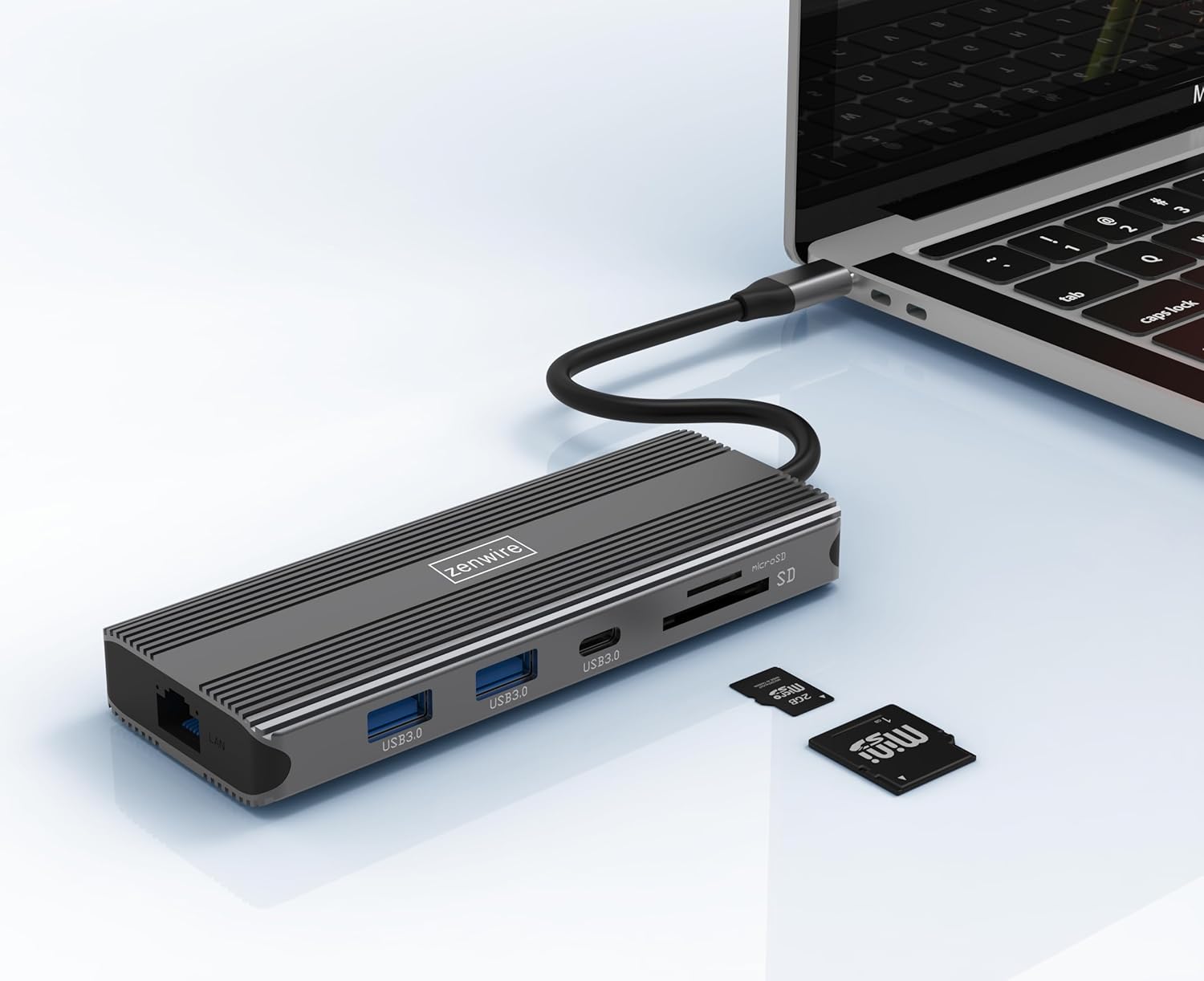
Image: The Zenwire USB-C Hub is shown connected to a laptop via its integrated USB-C cable, with SD and MicroSD cards placed nearby, illustrating a typical setup scenario.
Arahan Operasi
Kesambungan Paparan:
The hub supports connecting up to two external monitors simultaneously via its HDMI 2.1 and DisplayPort 1.4 interfaces. Both can display video in 4K@60Hz concurrently.
- Monitor Tunggal: Connect your monitor to either the HDMI or DisplayPort.
- Monitor Berganda: Connect one monitor to the HDMI port and another to the DisplayPort.

Image: A laptop is displayed connected to two larger external monitors, demonstrating the multi-display capability of the Zenwire USB-C Hub.
Multi-Display Modes (MacOS vs. Windows):
The behavior of multiple external displays can vary between operating systems.
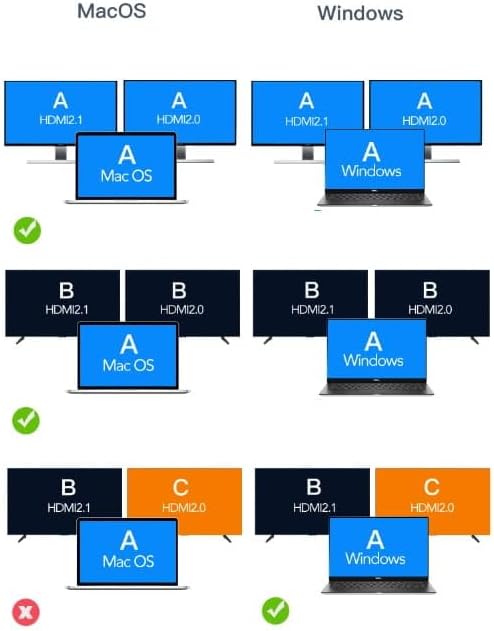
Image: A diagram illustrating different multi-display configurations for MacOS and Windows. It shows that MacOS typically supports extended desktop across two external monitors (A, B) and the laptop screen (A), while Windows can support extended desktop across three screens (A, B, C) or mirrored displays.
- MacOS: Typically supports extended desktop across two external monitors (A, B) and the laptop screen (A). Mirroring is also supported.
- Windows: Supports extended desktop across three screens (A, B, C) or mirrored displays, offering more flexibility for multi-monitor setups.
HDMI 2.1 and DisplayPort 1.4 Advanced Features:
These ports offer higher refresh rates and advanced features for an enhanced visual experience:
- High Transfer Speeds: Up to 48 Gbps for HDMI 2.1, ensuring high data throughput.
- eARC (Saluran Pulangan Audio Dipertingkat): For higher audio quality and support for object-based audio formats like Dolby Atmos and DTS-X.
- VRR (Kadar Segar Semula Boleh Ubah): Useful for gaming, where refresh rates are not constant.
- ALLM (Mod Kependaman Rendah Auto): Automatically detects content like games and switches the device to a low-latency mode.
- QMS (Quick Media Switching): The image on the screen changes immediately when switching between content.
- QFT (Quick Frame Transport): Reduces input lag further.
- HDR dinamik: Adjusts the image parameters during content transmission for higher quality visuals. Supports HDR 10 and 10+.
Kesambungan Audio:
The 3.5mm audio jack allows connection of various audio devices:
- Mikrofon
- Fon kepala
- Headphones with integrated microphone
- Pembesar suara luaran
Penyelenggaraan
- Pembersihan: Gunakan kain lembut dan kering untuk membersihkan hab. Elakkan pembersih cecair atau bahan kasar.
- Storan: Simpan hab di tempat yang sejuk dan kering jauh dari cahaya matahari langsung dan suhu yang melampau.
- Pengendalian: Elakkan daripada menjatuhkan peranti atau terkena impak yang kuat.
- Pelesapan Haba: The aluminum alloy shell is designed for effective heat dissipation. Ensure the hub is placed in a well-ventilated area during prolonged use.
Menyelesaikan masalah
- Tiada Output Paparan:
- Pastikan kabel USB-C dari hab disambungkan dengan selamat ke peranti hos anda.
- Verify that the HDMI/DisplayPort cable is firmly connected to both the hub and the monitor.
- Semak tetapan paparan peranti hos anda untuk memastikan monitor luaran dikesan dan dikonfigurasikan dengan betul (cth, dilanjutkan, dicerminkan).
- Try a different HDMI/DisplayPort cable or monitor to rule out cable/monitor issues.
- No Power Delivery:
- Ensure your USB-C power adapter is connected to the hub's PD port and is functioning correctly.
- Sahkan bahawa peranti hos anda menyokong Penghantaran Kuasa USB-C.
- Peranti USB Tidak Dikenali:
- Reconnect the USB device to a different USB 3.0 port on the hub.
- Ensure the USB device is functioning correctly by connecting it directly to your host device.
- Some high-power USB devices may require external power if the hub's PD port is not utilized.
- Isu Sambungan Ethernet:
- Check if the Ethernet cable is securely connected to both the hub and your router/modem.
- Sahkan tetapan rangkaian pada peranti hos anda.
- Ensure your router/modem is working correctly.
- Kad SD/MicroSD Tidak Dikesan:
- Pastikan kad dimasukkan sepenuhnya ke dalam slot yang betul.
- Check if the card is formatted correctly and readable by your operating system.
- Cuba kad lain untuk menolak masalah kad.
Spesifikasi
| Jenama | Zenwire |
| Model | Zenwire USB-C Hub |
| Ketersambungan | USB-C 3.1 / Thunderbolt 3.0 (Host) |
| Pelabuhan |
|
| Kelajuan Pemindahan Data | USB 3.0: 5 Gbps; Ethernet: 1000 Mbps |
| Penghantaran Kuasa | Sehingga 100W |
| bahan | Shell Aloi Aluminium |
| Dimensi (L x W x H) | 118 x 48 x 15 mm |
| Berat badan | 109 g |
| Panjang Kabel | Lebih kurang 15 cm |
| Keserasian Sistem Pengendalian | Windows 11/10/8/7, Apple macOS, Linux, Android, iPad Pro iOS (USB-C models) |

Imej: Bersudut view of the Zenwire USB-C Hub, showcasing its compact design and the integrated USB-C host cable.
Waranti dan Sokongan
Zenwire products are designed for reliability and performance. For warranty information and technical support, please refer to the official Zenwire webtapak atau hubungi peruncit anda. Simpan resit pembelian anda untuk tuntutan waranti.
For the latest software updates or driver information (if applicable), please visit the Zenwire support page. This device is designed to be Plug & Play, generally not requiring additional drivers.