
1. Pengenalan
This manual provides detailed instructions for the MEETION MT-M915 USB Gaming Mouse with Backlight. Please read this guide thoroughly before using the product to ensure correct installation, optimal performance, and to understand its features. This mouse is designed for gaming and general computer use, offering reliable performance and a comfortable design.
2. Kandungan Pakej
- MEETION MT-M915 USB Gaming Mouse
- Manual Arahan (dokumen ini)
3. Keperluan Sistem
- Operating System: Windows XP, Linux
- Compatible Devices: Personal Computer, Laptop
- Port USB yang ada
4. Persediaan
4.1 Menyambung Tetikus
- Cari port USB yang tersedia pada komputer atau komputer riba anda.
- Plug the USB connector of the MEETION MT-M915 mouse into the USB port.
- The operating system will automatically detect and install the necessary drivers. This is a plug-and-play device, so no additional software installation is typically required.
- The mouse backlight will illuminate upon successful connection.
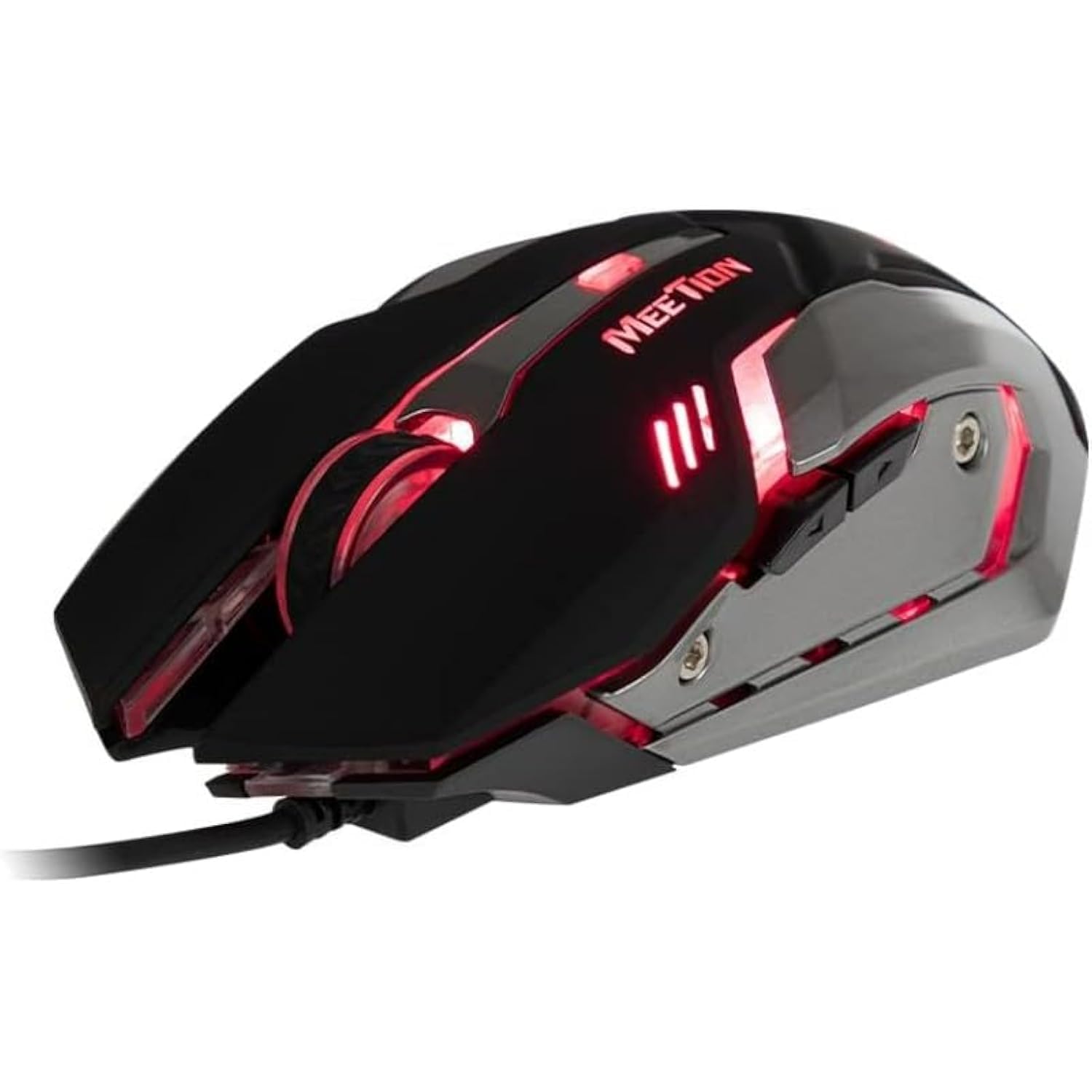
Rajah 1: Sisi view of the MEETION MT-M915 mouse with red backlight.
5. Mengendalikan Tetikus
5.1 Fungsi Asas
- Klik Kiri: Primary action button, typically used for selecting items, opening files, atau berinteraksi dengan perisian.
- Klik kanan: Secondary action button, typically used for opening context menus or accessing additional options.
- Roda Tatal: Digunakan untuk menatal dokumen dan web pages. It can also function as a middle click button.
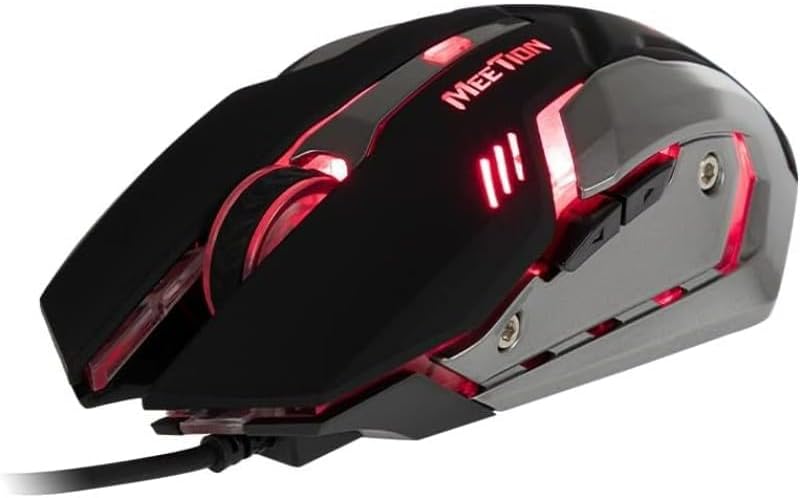
Rajah 2: Atas-bawah view of the MEETION MT-M915 mouse, showing button layout.
5.2 Operasi Lampu Latar
The MEETION MT-M915 mouse features an integrated backlight. The backlight activates automatically when the mouse is connected to a powered USB port. The color of the backlight may vary or cycle through different colors, as shown in Figure 3.

Rajah 3: Sisi view of the MEETION MT-M915 mouse with purple backlight.
5.3 Ambidextrous Design
The mouse is designed for ambidextrous use, meaning it can be comfortably used by both left-handed and right-handed individuals.
6. Penyelenggaraan
6.1 Pembersihan
- Putuskan sambungan tetikus dari komputer anda sebelum membersihkan.
- Gunakan kain lembut dan kering untuk mengelap permukaan tetikus.
- Untuk kotoran degil, sedikit dampen kain dengan air atau larutan pembersih lembut. Elakkan bahan kimia yang keras.
- Jangan biarkan cecair memasuki tetikusasing.
6.2 Penyimpanan
Simpan tetikus di tempat yang sejuk dan kering, jauh daripada cahaya matahari langsung dan suhu yang melampau apabila tidak digunakan untuk tempoh yang lama.
7. Penyelesaian masalah
7.1 Tetikus Tidak Membalas
- Pastikan kabel USB dipasang dengan selamat ke dalam port USB yang berfungsi pada komputer anda.
- Cuba pasangkan tetikus ke port USB yang berbeza.
- Mulakan semula komputer anda.
- Test the mouse on another computer to determine if the issue is with the mouse or your computer's USB ports.
7.2 Lampu Latar Tidak Berfungsi
- Sahkan tetikus disambungkan dengan betul ke port USB berkuasa.
- If the mouse functions but the backlight does not, there might be an internal issue. Contact customer support if the mouse is still under warranty.
7.3 Pergerakan Kursor Tidak Menentu
- Ensure the optical sensor on the bottom of the mouse is clean and free from dust or debris.
- Use the mouse on a clean, uniform surface. Avoid highly reflective or transparent surfaces.
- Cuba mulakan semula komputer anda.
8. Spesifikasi
| Ciri | Perincian |
|---|---|
| Jenama | MESYUARAT |
| Nama Model | MT-M915 |
| Nombor Model Pengeluar | CE ELECTRON-559 |
| Teknologi Ketersambungan | USB |
| Teknologi Pengesanan Pergerakan | Optik |
| Orientasi Tangan | Ambidextrous |
| Ciri Khas | Ringan |
| Kegunaan Disyorkan Untuk Produk | Permainan |
| Peranti Serasi | Komputer Peribadi, Komputer Riba |
| Sistem Operasi | Linux, Windows XP |
| Berat Barang | 50 gram |
| Dimensi Pakej | 20.7 x 14.3 x 6.1 cm |
| Bateri Termasuk | Tidak |
9. Waranti dan Sokongan
9.1 Maklumat Waranti
This product is covered by a standard manufacturer's warranty. Please refer to the warranty card included with your purchase or contact your retailer for specific warranty terms and conditions.
9.2 Sokongan Pelanggan
For technical assistance, troubleshooting, or warranty claims, please contact the retailer where you purchased the product or visit the official MEETION webtapak untuk sumber sokongan.