
Star Micronics MCL32CBI
Star Micronics mC-Label3 MCL32CBI Direct Thermal Printer User Manual
Model: MCL32CBI
pengenalan
This manual provides essential information for the setup, operation, maintenance, and troubleshooting of your Star Micronics mC-Label3 MCL32CBI Direct Thermal Printer. Please read this manual thoroughly before using the printer to ensure proper and safe operation.
Kandungan Pakej
Sahkan bahawa semua item yang disenaraikan di bawah disertakan dalam pakej anda:
- mC-Label3 Multifunctional Printer
- Penyesuai AC
- Kabel Kuasa
- USB Cables (C-C 1.0m and C-A 1.8m)
- Kabel LAN (1m)
- Simple Setup Sheet Safety Guide

Imej: Depan view of the Star Micronics mC-Label3 printer, showcasing its compact design and label output slot.
Persediaan
1. Menyambungkan Pencetak
The mC-Label3 MCL32CBI printer offers multiple connectivity options:
- USB-C: Connect the printer directly to your PC, Android, or iOS device using the provided USB-C to USB-C or USB-C to USB-A cables.
- Ethernet (LAN): For network connectivity, connect the printer to your router or network switch using the supplied LAN cable.
- Bluetooth: The MCL32CBI model supports Bluetooth connectivity for iOS and Android devices. Ensure Bluetooth is enabled on your device and pair with the printer.

Imej: Belakang view of the mC-Label3 printer, highlighting the LAN, USB, and power ports for various connection types.
2. Memuatkan Media
The printer supports various media types, including linerless labels, die-cut labels, continuous labels, and thermal receipt paper.
- Open the top cover of the printer by lifting the latch.
- Place the media roll into the media compartment, ensuring the leading edge feeds out from the top.
- Pull a small amount of media past the print head and close the top cover securely.
- Ensure the media is properly aligned within the guides.

Imej: Atas ke bawah view of the mC-Label3 printer with its cover open, illustrating the internal mechanism for loading thermal paper or label rolls.
Arahan Operasi
1. Menghidupkan/Mematikan
Connect the power cable to the printer and a power outlet. Press the power button located on the front of the printer to turn it on. The status indicator light will illuminate.
2. Printing Labels and Receipts
The mC-Label3 MCL32CBI printer is designed for efficient label and receipt printing. It supports various applications and cloud services.
- Keserasian Perisian: Works seamlessly with PC, Android, and iOS applications.
- Perkhidmatan Awan: Utilize Star Micronics Cloud Services to design and manage labels.
- One Touch Label: This feature allows storing pre-made receipts and labels for quick and easy printing directly from the printer.
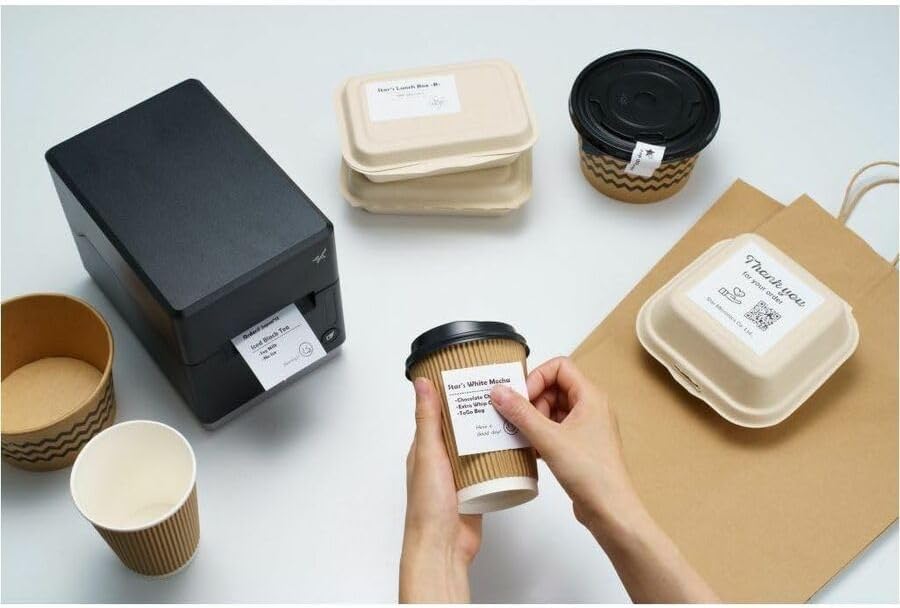
Image: A hand pressing the feed button on the mC-Label3 printer, demonstrating the printing of a 'Thank you' label.

Image: The mC-Label3 printer shown in a practical setting, printing labels for food containers and coffee cups, illustrating its versatility.
Penyelenggaraan
1. Membersihkan Pencetak
Regular cleaning ensures optimal performance and extends the life of your printer.
- Gunakan kain yang lembut dan tidak berbulu dampdicairkan dengan alkohol isopropil untuk membersihkan kepala cetak.
- Lap bahagian luar pencetak dengan kain lembut dan kering.
- Elakkan menggunakan pembersih atau pelarut yang kasar.
2. Replacing Media
When the media roll is depleted, follow the media loading instructions in the Setup section to replace it.
3. Effortless Repairs
The mC-Label3 is designed for effortless, no-tools-required repairs with minimal upkeep, simplifying any necessary component replacements.
Menyelesaikan masalah
Bahagian ini menyediakan penyelesaian kepada isu biasa yang mungkin anda hadapi.
| Masalah | Kemungkinan Punca | Penyelesaian |
|---|---|---|
| Pencetak tidak dihidupkan | Kabel kuasa tidak disambungkan; Isu salur keluar kuasa | Pastikan kabel kuasa disambungkan dengan selamat; Cuba salur keluar kuasa yang berbeza. |
| Tiada keluaran cetakan | Out of media; Media loaded incorrectly; Driver issue | Load new media; Re-load media correctly; Reinstall printer drivers. |
| Kualiti cetakan buruk | Dirty print head; Low quality media | Clean the print head; Use recommended thermal media. |
| Isu ketersambungan | Incorrect cable connection; Bluetooth not paired; Network configuration | Check USB/Ethernet cables; Re-pair Bluetooth; Verify network settings. |
Spesifikasi
| Ciri | Perincian |
|---|---|
| Nama Model | mC-Label3 |
| Nombor Model Item | MCL32CBI |
| Teknologi Percetakan | Terma Terus |
| Output Pencetak | Monokrom |
| Monokrom Kelajuan Cetakan Maks | 23 ppm |
| Resolusi Cetakan Hitam dan Putih Maksimum | 203 DPI (203 x 203 DPI) |
| Media Cetak | Labels (Linerless, Die-Cut, Continuous), Thermal Receipt |
| Teknologi Ketersambungan | Bluetooth, Wired (USB, Ethernet) |
| Antara Muka Perkakasan | USB-Ethernet |
| Peranti Serasi | PC, Android, iOS |
| Jenis Pengawal | iOS, Android |
| Dimensi Produk | 6.7"D x 5.6"W x 8.3"H (17.0 x 14.2 x 21.1 cm) |
| Berat Barang | 7.2 paun (3.27 kg) |
| Kapasiti Penyimpanan Memori | 64 MB |
| warna | Hitam |
| Pengeluar | STAR MICRONICS |
| Negara Asal | China |
Maklumat Waranti
The Star Micronics mC-Label3 MCL32CBI printer comes with a manufacturer's warranty. For specific terms and conditions, please refer to the warranty card included in your package or visit the official Star Micronics webtapak.
Jenis Waranti: Pengeluar
Sokongan
For further assistance, technical support, or to download the latest drivers and firmware, please visit the official Star Micronics support webtapak atau hubungi perkhidmatan pelanggan mereka.
Star Micronics Official Webtapak: www.starmicronics.com
Pautan Sokongan: www.starmicronics.com/support
Ask a question about this manual
Ask about setup, troubleshooting, compatibility, parts, safety, or missing instructions. Manuals+ will review the question and use this page’s manual context to help answer it.