
pengenalan
This manual provides detailed instructions for the Contour Design Wireless Black Balance Keyboard (Model 102104). This keyboard is engineered to complement Contour Design RollerMouse and SliderMouse products, promoting an ergonomic workspace by minimizing reach and supporting a natural hand position.
Ciri-ciri Utama
- Reka bentuk ergonomik: Reduces forward reach to minimize wrist and shoulder strain, especially when paired with RollerMouse or SliderMouse.
- Kecondongan boleh laras: Offers negative, neutral, and positive tilt options for personalized comfort and optimal typing posture.
- Fungsi Penuh: Includes a numeric keypad, function keys (F1-F12), media controls, and shortcut keys.
- Kesambungan Tanpa Wayar: Supports both USB-A receiver (2.4GHz Contour protocol) and Bluetooth connections.
- Keserasian Merentas Platform: Works with both PC and Mac operating systems.
- Compact Profile: Pro rendahfile keys and a slim design optimize desk space.
Kandungan Pakej
- Contour Design Wireless Black Balance Keyboard
- Penerima USB-A
- 2 x Bateri AAA (dipasang atau disertakan secara berasingan)
- Manual Pengguna (dokumen ini)
Persediaan
1. Pemasangan Bateri
The keyboard requires 2 AAA batteries. These are typically included with your purchase.
- Cari petak bateri di bahagian bawah papan kekunci.
- Buka penutup petak.
- Masukkan 2 bateri AAA, pastikan kekutuban (+/-) yang betul.
- Tutup penutup petak bateri dengan selamat.
2. Menyambung Papan Kekunci
The Balance Keyboard offers two wireless connection methods: via USB-A receiver or Bluetooth.
Option A: USB-A Receiver (2.4GHz Wireless)
- Locate the USB-A receiver, usually found in the battery compartment or packaged separately.
- Plug the USB-A receiver into an available USB port on your computer (PC or Mac).
- Turn on the keyboard using the power switch, typically located on the side or back.
- The keyboard should automatically connect to your computer. No additional drivers are usually required.
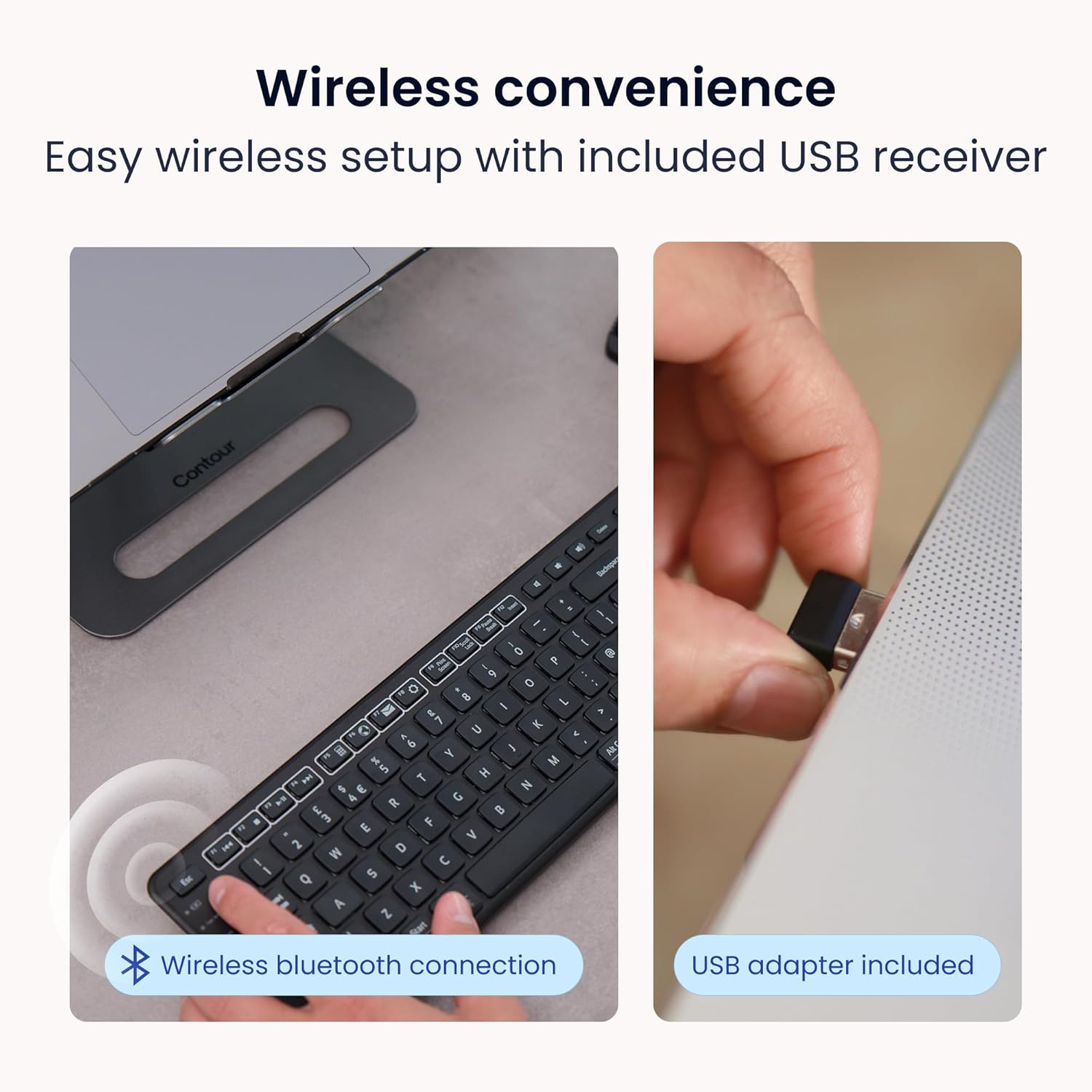
Image: Wireless convenience with USB adapter. This image shows the USB receiver being inserted into a computer port, illustrating the plug-and-play setup for wireless connectivity.
Pilihan B: Sambungan Bluetooth
- Pastikan papan kekunci dihidupkan.
- Activate Bluetooth pairing mode on the keyboard. (Refer to the keyboard's specific button for Bluetooth pairing, often indicated by a Bluetooth icon or a dedicated pairing button).
- On your computer (PC or Mac), open Bluetooth settings.
- Cari untuk available devices and select "Contour Balance Keyboard" or a similar name.
- Ikuti mana-mana gesaan pada skrin untuk melengkapkan proses berpasangan.
Arahan Operasi
Penaipan dan Tata Letak Asas
The Balance Keyboard features a standard QWERTY layout with a full numeric keypad.

Imej: Atas ke bawah view of the Contour Design Wireless Black Balance Keyboard. This image displays the full keyboard layout, including the numeric keypad and function keys.
Function Keys (F1-F12) and Media Controls
The top row of keys serves dual functions. By default, they may act as media controls (e.g., volume, play/pause) or shortcuts. To access the traditional F1-F12 functions, use the Fn key, typically located near the bottom left of the keyboard. Some keyboards feature an Kunci Fn feature to toggle between these modes.
Kecondongan Boleh Laras
The keyboard is designed with adjustable legs to allow for three different tilt positions: negative, neutral, and positive. Adjusting the tilt can help optimize your typing posture and reduce wrist strain.
- Kecondongan Negatif: Tilts the keyboard downwards towards the user, often considered optimal for a natural hand angle.
- Neutral Tilt: The keyboard lies flat on the desk.
- Kecondongan Positif: Tilts the keyboard upwards away from the user, a more traditional keyboard angle.
To adjust, locate the adjustable feet on the underside of the keyboard and extend or retract them as desired.

Image: Adjustable tilt options. This diagram illustrates the three available tilt positions: positive, neutral, and negative, demonstrating how to customize the keyboard angle for comfort.
Pairing with RollerMouse and SliderMouse
The Balance Keyboard is specifically designed to integrate seamlessly with Contour Design RollerMouse Pro and SliderMouse Pro devices. Its compact design minimizes the distance you need to reach, promoting a more centralized and ergonomic workspace.

Image: Seamless RollerMouse pairing. This image shows the Balance Keyboard positioned directly above a RollerMouse, demonstrating an ideal ergonomic setup.

Image: Natural hand position. This image illustrates a user typing on the Balance Keyboard with a RollerMouse, highlighting how the setup keeps hands close and promotes a healthier posture.

Image: Slim profile. A side view of the keyboard on a desk, emphasizing its low-profile keys and compact design that saves desk space.

Image: Ergonomic design in use. This image shows a user working with the Balance Keyboard and a RollerMouse, demonstrating how the setup reduces forward reach and minimizes wrist and shoulder strain. It also highlights compatibility with Mac and Windows, and multiple screens.
Penyelenggaraan
To ensure the longevity and optimal performance of your Balance Keyboard, follow these maintenance guidelines:
- Pembersihan: Gunakan kain lembut dan tidak berbulu sedikit dampened with water or a mild, non-abrasive cleaner to wipe the surface of the keyboard. Avoid excessive moisture. Do not spray cleaners directly onto the keyboard.
- Penyingkiran habuk: Gunakan udara termampat untuk mengeluarkan habuk dan serpihan dari antara kekunci.
- Penggantian Bateri: Replace AAA batteries when the low battery indicator (if present) illuminates, or when keyboard responsiveness decreases.
- Storan: Apabila tidak digunakan untuk tempoh yang lama, simpan papan kekunci di tempat yang kering dan sejuk, jauh daripada cahaya matahari langsung dan suhu yang melampau.
Menyelesaikan masalah
If you encounter issues with your Balance Keyboard, refer to the following common solutions:
| Masalah | Penyelesaian yang Mungkin |
|---|---|
| Keyboard not responding (USB-A receiver) |
|
| Papan kekunci tidak bertindak balas (Bluetooth) |
|
| Kekunci melekit atau tidak responsif |
|
| Hayat bateri pendek |
|
Spesifikasi
| Ciri | Perincian |
|---|---|
| Nombor Model | 102104 |
| Dimensi Produk | 17.5"P x 6"L x 1.5"T (44.45 sm x 15.24 sm x 3.81 sm) |
| Berat Barang | 1.28 paun (0.58 kg) |
| Teknologi Ketersambungan | RF (2.4GHz via USB-A receiver), Bluetooth |
| Peranti Serasi | Mac, PC |
| Sumber Kuasa | 2 x Bateri AAA (termasuk) |
| warna | Hitam |
| bahan | plastik |
| Ciri Khas | Adjustable Tilt, Compact Keyboard, Ergonomic, Full-size Keyboard, Numeric Keypad, Plug & Play, Wireless |
Maklumat Waranti
The Contour Design Wireless Black Balance Keyboard is backed by a Waranti 2 tahun dari tarikh pembelian. Waranti ini meliputi kecacatan pembuatan dan memastikan produk memenuhi piawaian prestasi yang dinyatakan di bawah penggunaan biasa. Sila simpan bukti pembelian anda untuk tuntutan waranti.
Sokongan
For technical assistance, troubleshooting beyond this manual, or warranty inquiries, please contact Contour Design's customer support team.
- Webtapak: Visit the official Contour Design webtapak untuk sumber sokongan, Soalan Lazim dan maklumat hubungan.
- Hubungi: Rujuk kepada pembungkusan atau rasmi website for specific contact methods (phone, email, support portal).
Our friendly and professional support team is available to assist you.