
1. Pengenalan
The ASUS ROG Gladius III Wireless Aimpoint Gaming Mouse is designed for precision and comfort, offering versatile connectivity and advanced features for an optimized gaming experience. This manual provides essential information for setting up, operating, maintaining, and troubleshooting your device.
Ciri-ciri Utama:
- ROG AimPoint Optical Sensor: Experience unparalleled accuracy with a 36,000 DPI sensor, <1% CPI deviation, 650 IPS tracking speed, and 50g acceleration.
- Kesambungan Tri-Mod: Seamlessly switch between ultrafast 2.4 GHz RF wireless, Bluetooth fast pairing (up to three devices), and wired USB modes.
- Reka bentuk ringan: Weighing only 79 grams, the mouse provides swift and controlled movements.
- Suis Boleh Tukar Panas: Customize click feel and extend lifespan with easily replaceable 3-pin mechanical and 5-pin optical micro switches.
- Jangka Hayat Bateri: Enjoy up to 119 hours of wireless gameplay in 2.4 GHz RF mode or up to 143 hours in Bluetooth mode.
- Reka bentuk ergonomik: The classic asymmetrical shape ensures lasting comfort for various right-handed grip styles.
2. Kandungan Pakej
Sahkan bahawa semua item terdapat dalam pakej anda:
- ROG Gladius III Wireless Aimpoint Mouse
- ROG mouse grip tapes
- Dongle USB
- Pemanjangan dongle USB
- ROG Paracord (USB-C to USB-A cable)
- Micro switches (spare)
- ROG switch remover
- Pelekat ROG
- ROG Mouse Feet (spare)
- Manual pengguna (dokumen ini)
- Buku kecil jaminan

Imej: Atas view of the ASUS ROG Gladius III Wireless Aimpoint Gaming Mouse, showcasing its ergonomic design and scroll wheel.
3. Persediaan
3.1 Mengecas Tetikus
Before first use, it is recommended to fully charge the mouse. Connect the ROG Paracord cable to the USB-C port on the front of the mouse and the USB-A end to your computer or a USB power adapter. The mouse can be used while charging in wired mode.
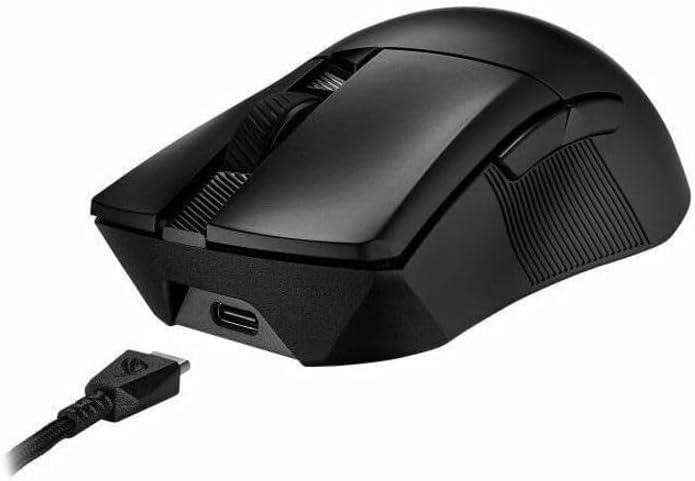
Image: The ASUS ROG Gladius III Wireless Aimpoint Gaming Mouse connected to a USB cable, illustrating wired mode and charging.
3.2 Menyambung Tetikus
The ROG Gladius III Wireless Aimpoint offers three connectivity options:
- Mod Wayarles RF 2.4 GHz:
- Masukkan dongle USB ke dalam port USB yang tersedia pada komputer anda.
- Turn on the mouse and set the switch on the bottom to 2.4 GHz RF mod.
- The mouse should automatically connect. For optimal signal, use the USB dongle extender to place the dongle closer to the mouse.
- Mod Bluetooth:
- Turn on the mouse and set the switch on the bottom to Bluetooth mod.
- Press and hold the pairing button on the bottom of the mouse until the LED indicator blinks blue.
- On your computer, go to Bluetooth settings and select the ROG Gladius III Wireless Aimpoint to pair.
- The mouse can store up to three Bluetooth profiles.
- Mod USB Berwayar:
- Connect the ROG Paracord cable to the mouse and your computer.
- Tetikus akan bertukar secara automatik ke mod berwayar dan mula mengecas.

Image: The ASUS ROG Gladius III Wireless Aimpoint Gaming Mouse positioned on a desk next to a keyboard, demonstrating its wireless capability in a typical setup.
3.3 Applying Grip Tapes
The included ROG mouse grip tapes can be applied to the sides of the mouse for enhanced grip and a personalized aesthetic. Ensure the mouse surface is clean and dry before applying.

Image: The ASUS ROG Gladius III Wireless Aimpoint Gaming Mouse shown with its patterned grip tape applied to the sides, highlighting the customizable grip feature.
4. Mengendalikan Tetikus
4.1 Fungsi Butang
- Klik Kiri/Kanan: Fungsi tetikus standard.
- Roda Tatal: Tatal ke atas/bawah, klik tengah.
- Butang Sisi: Programmable for various functions, typically forward/back.
- Butang DPI: Located behind the scroll wheel, cycles through preset DPI levels.
- Profile Butang: Located on the bottom of the mouse, cycles through onboard profiles.
4.2 Pelarasan DPI
Press the DPI button to cycle through different sensitivity levels. The LED indicator will change color to indicate the current DPI setting. Default settings can be customized via the Armoury Crate software.

Image: An illustration detailing the ROG AimPoint Sensor's capabilities, including 36,000 DPI resolution, 650 inches per second maximum speed, and 50g maximum acceleration.
4.3 Software Customization (Armoury Crate)
For advanced customization of DPI settings, button assignments, lighting effects, and calibration, download and install the ASUS Armoury Crate software from the official ASUS support website. This software allows you to fine-tune the mouse to your preferences.
5. Penyelenggaraan
5.1 Pembersihan
To maintain optimal performance, regularly clean your mouse. Use a soft, dry cloth to wipe the surface. For optical sensor, use a cotton swab lightly dampened with isopropyl alcohol. Avoid harsh chemicals or abrasive materials.
5.2 Suis Boleh Tukar Panas
The ROG Gladius III Wireless Aimpoint features hot-swappable switch sockets, allowing you to replace the micro switches without soldering. This extends the mouse's lifespan and allows for personalized click feel.
- Pastikan tetikus dimatikan.
- Carefully remove the top cover of the mouse.
- Use the included ROG switch remover tool to gently extract the existing micro switches.
- Insert new compatible 3-pin mechanical or 5-pin optical micro switches into the sockets, ensuring correct orientation.
- Gantikan penutup atas.

Imej: Satu dalaman view of the mouse highlighting the ROG Push-Fit Switch Socket and a separate ROG Micro Switch, demonstrating the hot-swappable feature.
5.3 Mouse Feet Replacement
If the mouse feet show significant wear, they can be replaced with the spare set included in the package. Carefully peel off the old feet and apply the new ones, ensuring the surface is clean for proper adhesion.
6. Penyelesaian masalah
6.1 Tetikus Tidak Membalas
- Ensure the mouse is powered on and fully charged.
- Check the connectivity mode switch (2.4 GHz RF, Bluetooth, or Wired) and ensure it matches your connection method.
- For 2.4 GHz RF, ensure the USB dongle is securely plugged into your computer. Try a different USB port.
- For Bluetooth, ensure Bluetooth is enabled on your computer and the mouse is paired. Try re-pairing the device.
- In wired mode, ensure the USB cable is securely connected to both the mouse and the computer.
- Mulakan semula komputer anda.
6.2 Erratic Tracking or Lag
- Bersihkan penderia optik di bahagian bawah tetikus.
- Pastikan anda menggunakan tetikus pada permukaan yang sesuai (cth, pad tetikus). Elakkan permukaan yang sangat reflektif atau lutsinar.
- For wireless modes, ensure there are no obstructions or sources of interference (e.g., other wireless devices, large metal objects) between the mouse and the receiver/computer.
- Update mouse drivers and Armoury Crate software to the latest version.
- Try adjusting the DPI settings.
6.3 Bateri Tidak Mengecas
- Ensure the USB cable is properly connected to both the mouse and a working USB port or power adapter.
- Cuba kabel USB atau port USB yang berbeza.
- Ensure the mouse is not in an extremely hot or cold environment, which can affect charging.
7. Spesifikasi
| Ciri | Spesifikasi |
|---|---|
| Nombor Model | P711 ROG GIII WL AIMPOINT/BLK |
| Ketersambungan | Bluetooth, 2.4 GHz RF, USB 2.0 (Wired) |
| Sensor | ROG AimPoint Optical Sensor |
| Resolusi | 100 - 36,000 DPI |
| Kelajuan Maks | 650IPS |
| Percepatan Maks | 50 G |
| Berat badan | 79 grams (without cable) |
| Dimensi (LxWxH) | 4.86 x 2.68 x 0.1 inci (lebih kurang 123.4 x 68 x 40 mm) |
| Hayat Bateri | Up to 119 hours (2.4 GHz RF), Up to 143 hours (Bluetooth) |
| Suis | ROG Micro Switches (70-million-click lifespan), Hot-swappable |
| OS yang serasi | Windows, macOS |

Imej: Atas ke bawah view of the mouse with overlaid measurements, indicating its length of 4.86 inches and width of 2.68 inches.
8. Waranti dan Sokongan
8.1 Maklumat Waranti
The ASUS ROG Gladius III Wireless Aimpoint Gaming Mouse comes with a limited warranty. Please refer to the included warranty booklet for detailed terms and conditions, including coverage period and limitations. Keep your proof of purchase for warranty claims.
8.2 Sokongan Teknikal
For technical assistance, driver downloads, software updates, or further product information, please visit the official ASUS support webtapak:
You may also contact ASUS customer service directly using the contact information provided in your warranty booklet or on the support webtapak.