pengenalan
This manual provides detailed instructions for the TQQ UKGW281BTKeyboard Bluetooth QWERTZ Wireless Keyboard. Please read this manual carefully before use to ensure proper operation and to maximize the lifespan of your device. This keyboard is designed for use with various tablets, smartphones, and computers, offering an ergonomic QWERTZ layout and stable Bluetooth connectivity.
Kandungan Pakej
Selepas membuka pakej, sila sahkan bahawa semua item yang disenaraikan di bawah ada dan dalam keadaan baik:
- 1 x TQQ Bluetooth Wireless Keyboard
- 1 x Kabel Pengecas USB
- 1 x Manual Pengguna (dokumen ini)
- 1 x Dust Film
Persediaan
1. Mengecas Papan Kekunci
Before initial use, fully charge the keyboard. Connect the provided USB charging cable to the keyboard's charging port and to a USB power source (e.g., computer, USB wall adapter). The charging indicator light will illuminate during charging and turn off when fully charged. A full charge typically takes 2 to 3 hours.

Imej: The keyboard's charging port and indicators for standby time (over 130 days) and charging time (2 hours).
2. Berpasangan dengan Peranti Anda
- Pastikan papan kekunci dicas.
- Turn on the keyboard using the power switch, usually located on the side or back. The Bluetooth indicator light will start blinking, indicating it's in pairing mode.
- On your device (tablet, smartphone, PC), go to tetapan dan membolehkan Bluetooth.
- Cari untuk available Bluetooth devices. You should see "Papan Kekunci Bluetooth" or a similar name in the list.
- Select the keyboard from the list to initiate pairing. Your device may display a pairing code. Type this code on the TQQ keyboard and press Masuk.
- Once paired, the Bluetooth indicator light on the keyboard will stop blinking and remain solid or turn off, depending on the model. The device will show the keyboard as "Connected."

Imej: The TQQ Bluetooth keyboard shown with various compatible tablets, illustrating its broad compatibility across different operating systems.
3. Switching Operating Systems
The keyboard supports multiple operating systems. To optimize key functions for your specific OS, use the following shortcuts:
- Fn + Q: For Android devices
- Fn + W: For Windows devices
- Fn + E: For iOS devices (iPad/iPhone)

Imej: The keyboard layout highlighting the dedicated keys for switching between Android, Windows, and iOS operating systems using the Fn key combination.
Arahan Operasi
Keyboard Layout and Special Functions
This keyboard features a QWERTZ layout with scissor-switch keys for a comfortable and responsive typing experience. It includes dedicated function keys and multimedia shortcuts.

Imej: The keyboard displaying its hotkeys and multimedia function row (F1-F12), which can be accessed with the Fn key.
- Function Keys (F1-F12): These keys perform various system-specific functions when pressed in combination with the Fn key. Refer to your device's operating system for specific functions. Common functions include screen brightness control, volume control, media playback, and search.
- Scissor-Switch Keys: The keyboard utilizes a stable scissor mechanism under each key, providing a precise and sensitive typing feel.
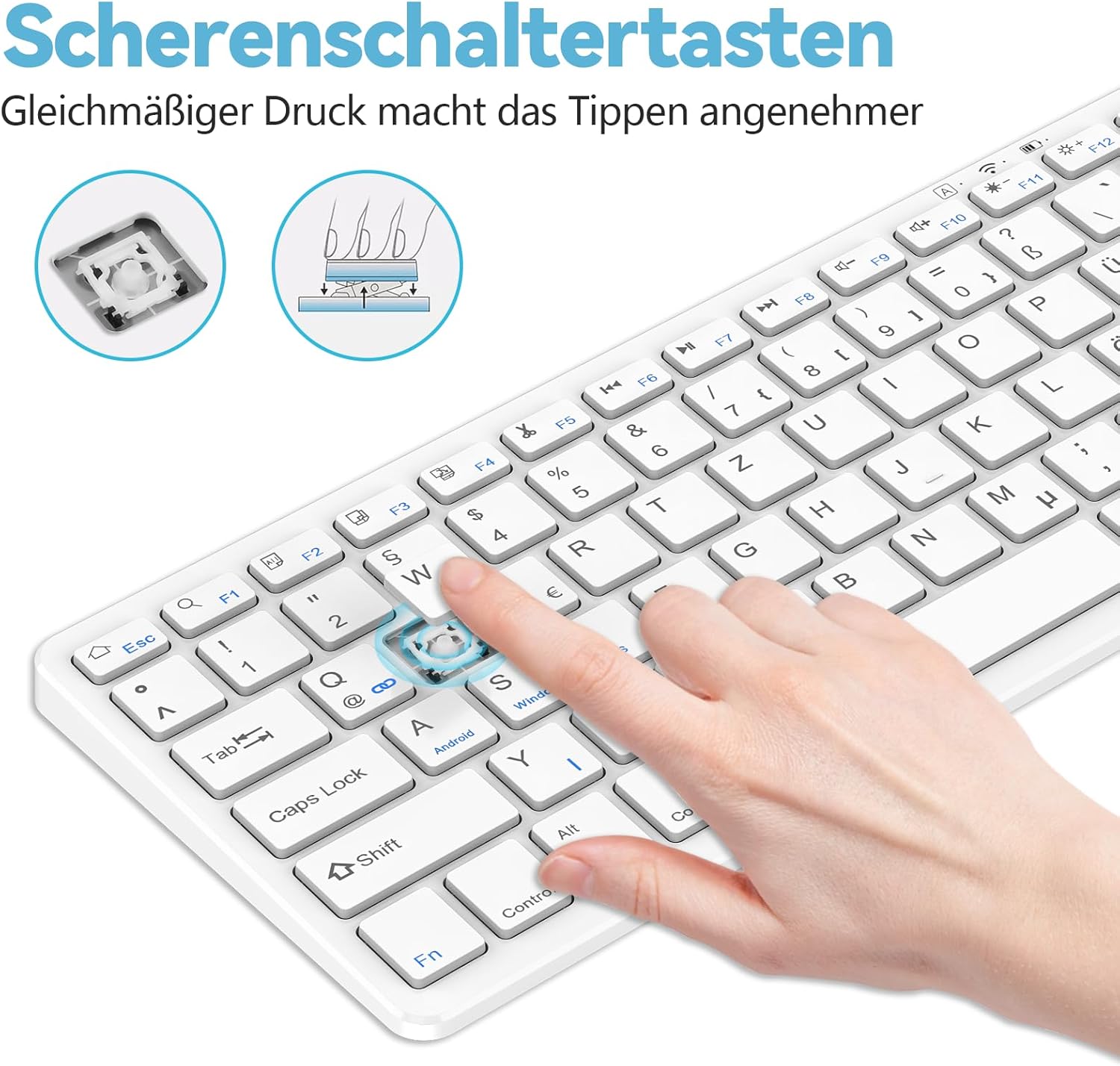
Imej: Satu jarak dekat view of the keyboard keys, illustrating the scissor-switch mechanism that ensures uniform pressure and comfortable typing.
Penyelenggaraan
Pembersihan
Untuk membersihkan papan kekunci anda, lap permukaannya dengan lembut menggunakan kain lembutamp cloth. Avoid using harsh chemicals or abrasive materials. For dust between keys, use a can of compressed air. Ensure the keyboard is powered off before cleaning.
Penyimpanan
Store the keyboard in a cool, dry place away from direct sunlight and extreme temperatures. When not in use for extended periods, turn off the keyboard to conserve battery life. The included dust film can be used to protect the keys from dust and spills.
Menyelesaikan masalah
- Papan kekunci tidak bersambung:
- Pastikan papan kekunci dicas dan dihidupkan.
- Pastikan Bluetooth didayakan pada peranti anda.
- Cuba nyahpasang dan pasang semula papan kekunci daripada tetapan Bluetooth peranti anda.
- Ensure the keyboard is within the 10-meter Bluetooth range of your device.
- Kekunci tidak bertindak balas atau menaip dengan salah:
- Check if the correct operating system mode is selected (Fn+Q for Android, Fn+W for Windows, Fn+E for iOS).
- Recharge the keyboard if the battery is low.
- Mulakan semula papan kekunci dan peranti anda yang disambungkan.
- Hayat bateri pendek:
- Pastikan papan kekunci dicas sepenuhnya sebelum digunakan.
- Matikan papan kekunci apabila tidak digunakan untuk tempoh yang lama.
Spesifikasi
| Nombor Model | UKGW281BTKeyboard |
| Jenama | TQQ |
| Teknologi Ketersambungan | Bluetooth |
| Susun atur papan kekunci | QWERTZ |
| Peranti Serasi | Laptop, PC, Smartphone, Tablet, iPad (Android, Windows, iOS) |
| Jenis Bateri | Lithium-polymer (500mA) |
| Masa Mengecas | 2-3 jam |
| Masa Tunggu Sedia | ≥ 130 hari |
| Jarak Operasi | Sehingga 10 meter (33 kaki) |
| Dimensi (L x W x H) | 28.3 cm x 12 cm x 1.1 cm (11.14 in x 4.72 in x 0.43 in) |
| Berat badan | Kira-kira 11.9 auns (337 gram) |
| Ciri Khas | Ergonomic, Lightweight, Portable, Multimedia Keys, Rechargeable |

Imej: A diagram illustrating the precise dimensions of the TQQ Bluetooth keyboard, including length, width, height, and the height of the non-slip feet.
Waranti dan Sokongan
Maklumat Waranti
This TQQ Bluetooth Wireless Keyboard comes with a Waranti 24 bulan dari tarikh pembelian. Waranti ini meliputi kecacatan pembuatan dan mutu kerja. Ia tidak melindungi kerosakan yang disebabkan oleh penyalahgunaan, kemalangan, pengubahsuaian yang tidak dibenarkan atau haus dan lusuh biasa.
Sokongan Pelanggan
If you have any questions, concerns, or require assistance with your TQQ Bluetooth Wireless Keyboard, please contact our customer support team. Refer to the contact information provided with your purchase or visit the official TQQ website for support details. Please have your model number (UKGW281BTKeyboard) and purchase date ready when contacting support.