
1. Pengenalan
This manual provides essential information for setting up, operating, maintaining, and troubleshooting your Beelink SER5 5500U Mini PC. Please read it carefully before using the product to ensure optimal performance and longevity.
The Beelink SER5 5500U is a compact and powerful Mini PC featuring an AMD Ryzen 5 5500U processor, designed for various applications from office work to multimedia entertainment and light gaming. It supports dual 4K display output and offers robust connectivity options.
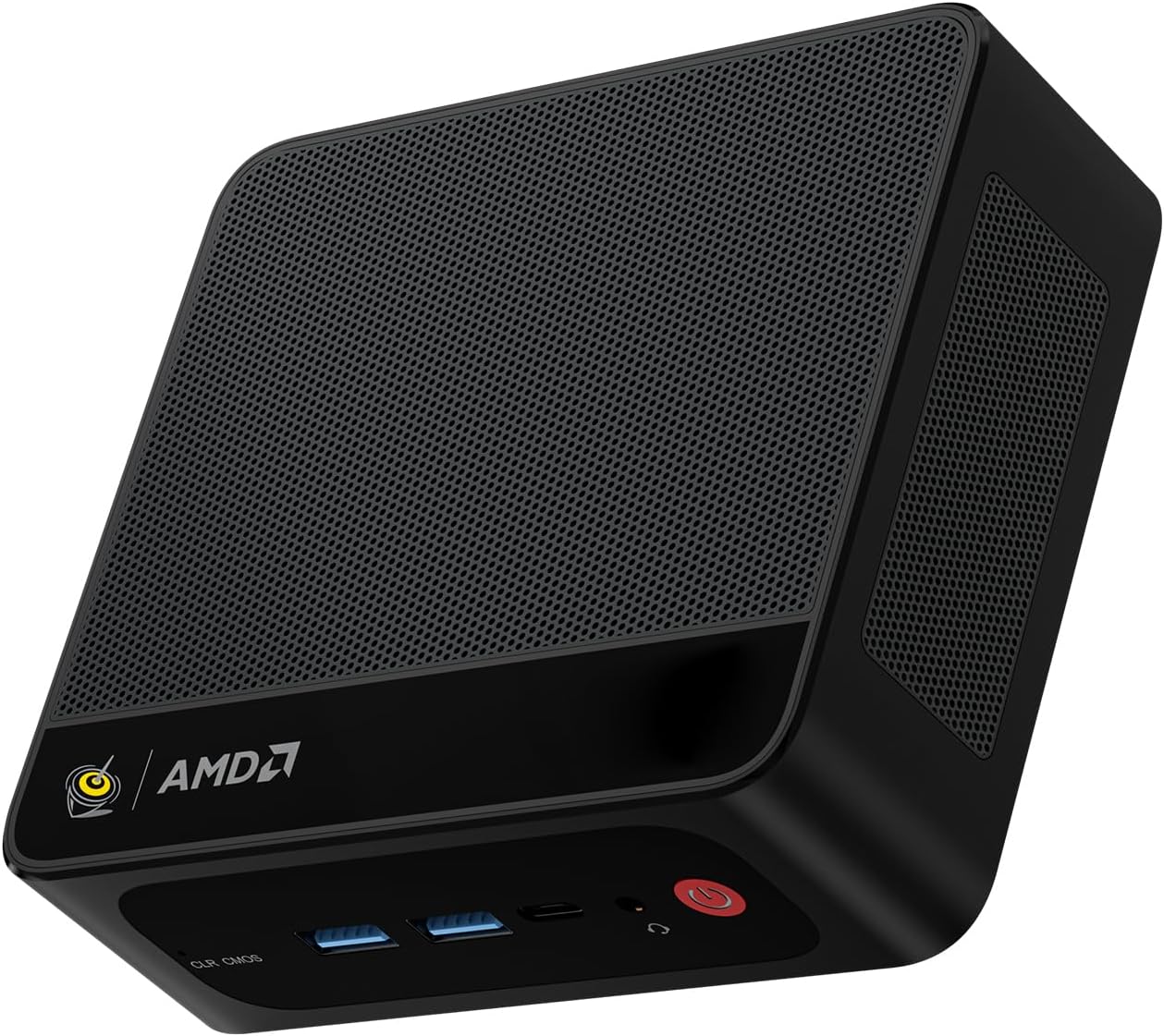
Figure 1: Beelink SER5 5500U Mini PC
2. Kandungan Pakej
Sahkan bahawa semua item terdapat dalam pakej:
- Beelink SER5 5500U Mini PC (x1)
- HDMI Cable (100cm) (x1)
- Power Adapter (19V/3.42A) (x1)
- Wall-Mounted Bracket (x1)
- Manual Pengguna (dokumen ini)
3. Arahan Persediaan
3.1 Menyambung Peranti
- Paparan Sambungkan: Use the provided HDMI cable to connect your monitor to the HDMI port on the Mini PC. Alternatively, use a DisplayPort cable for DP connection.
- Sambungkan Papan Kekunci dan Tetikus: Pasangkan papan kekunci dan tetikus USB anda ke port USB yang tersedia.
- Sambungkan Kuasa: Sambungkan penyesuai kuasa ke port DC-in pada Mini PC, kemudian pasangkan penyesuai ke soket kuasa.
- Sambungan Rangkaian (Pilihan): For a wired connection, connect an Ethernet cable to the 2.5G LAN port. For wireless, ensure your WiFi network is available.

Figure 2: Front and Rear Ports
3.2 Boot-Up Awal
Press the power button on the front of the Mini PC. The system will boot up, and you will see the Windows 11 Pro setup screen. Follow the on-screen instructions to complete the initial Windows setup.
4. Arahan Operasi
4.1 Hidupkan/Mati dan Mulakan Semula
- Hidupkan kuasa: Tekan butang kuasa.
- Matikan: Click the Start button in Windows, then select Power > Shut down. Alternatively, press and hold the power button for 5 seconds to force a shutdown (not recommended for regular use).
- Mulakan semula: Klik butang Mula dalam Windows, kemudian pilih Kuasa > Mulakan semula.
4.2 Persediaan Paparan Dwi
The Beelink SER5 5500U supports dual 4K display output via its HDMI and DisplayPort interfaces. Connect two monitors to these ports. Windows will automatically detect the displays. You can configure display settings (extend, duplicate, etc.) via Windows Display Settings.

Figure 3: Dual Display Configuration
4.3 Kesambungan Wayarles
- Wi-Fi 6: The Mini PC supports Wi-Fi 6 (802.11ax) for high-speed wireless internet. Connect via Windows network settings.
- Bluetooth 5.2: Pair Bluetooth devices such as keyboards, mice, or headphones through Windows Bluetooth settings.
4.4 Pengembangan Storan
The Mini PC includes a 500GB M.2 PCIe NVME 2280 SSD. For additional storage, a 2.5-inch HDD/SSD (not included) can be installed in the dedicated slot. Refer to the internal hardware guide for installation steps.
5. Penyelenggaraan
5.1 Pembersihan
Regularly clean the exterior of the Mini PC with a soft, dry cloth. Use compressed air to gently clear dust from the ventilation openings to maintain optimal airflow and cooling performance. Do not use liquid cleaners directly on the device.
5.2 Kemas Kini Perisian
Keep your Windows operating system and device drivers updated. Windows Update will handle most OS updates. For graphics drivers (AMD Radeon Graphics), visit the AMD official webtapak untuk versi terkini.
5.3 Sistem Penyejukan
The Beelink SER5 5500U features a high-speed cooling fan. Ensure the Mini PC is placed in a well-ventilated area and that the air vents are not obstructed to prevent overheating.

Figure 4: Internal Cooling Fan
6. Penyelesaian masalah
6.1 Tiada Kuasa
- Pastikan penyesuai kuasa disambungkan dengan selamat ke PC Mini dan salur keluar kuasa yang berfungsi.
- Periksa sama ada alur keluar kuasa berfungsi dengan memasang peranti lain.
- Cuba penyesuai kuasa lain jika tersedia dan serasi.
6.2 Tiada Paparan
- Verify that the HDMI or DisplayPort cable is securely connected to both the Mini PC and the monitor.
- Ensure the monitor is powered on and set to the correct input source (HDMI/DP).
- Uji dengan monitor atau kabel yang berbeza jika boleh.
- If the issue persists, try resetting the CMOS by pressing the CLR CMOS button (refer to Figure 2 for location).
6.3 Isu Ketersambungan Rangkaian
- Berwayar (LAN): Check the Ethernet cable connection and your router/modem.
- Wireless (Wi-Fi/Bluetooth): Ensure Wi-Fi and Bluetooth are enabled in Windows settings. Restart your router/modem.
- Kemas kini pemacu rangkaian jika perlu.
6.4 System Slowdown
- Tutup aplikasi yang tidak perlu berjalan di latar belakang.
- Semak dan pasang sebarang kemas kini Windows yang belum selesai.
- Ensure the cooling vents are clear of obstructions.
- Jalankan pembersihan dan defragmentasi cakera (untuk HDD, tidak diperlukan untuk SSD).
7. Spesifikasi

Figure 5: Product Specification Overview
| Ciri | Perincian |
|---|---|
| Jenama | Beelink |
| Model | SER5 5500U |
| Sistem Operasi | Windows 11 Pro |
| CPU | AMD Ryzen 5 5500U (6 Cores/12 Threads, 2.1GHz Base, up to 4.0GHz Boost) |
| Grafik | Grafik AMD Radeon (7 Teras, 1800 MHz) |
| RAM | 16GB DDR4 (Dual Channel, expandable up to 64GB) |
| Penyimpanan | 500GB M.2 PCIe NVME 2280 SSD (expandable with 2.5-inch HDD/SSD) |
| Output Video | 1x HDMI (4K@60Hz), 1x DisplayPort (4K@60Hz) |
| Port USB | 3x USB 3.2 Gen2, 1x USB 2.0, 1x Type-C (Data) |
| Rangkaian | Wi-Fi 6 (802.11ax), Bluetooth 5.2, 2.5G LAN (RJ45) |
| Audio | Audio Jack (HP&MIC) |
| Dimensi | 12.6 x 11.3 x 4.2 cm |
| Menyejukkan | Penyejukan Udara |
| Penyesuai Kuasa | 19V/3.42A |
8. Waranti dan Sokongan
8.1 Maklumat Waranti
Your Beelink SER5 5500U Mini PC comes with a Waranti pengilang selama 3 tahun. Sila simpan bukti pembelian anda untuk tuntutan waranti.
8.2 Product Key Retrieval
If you received your product without a physical product key, you can contact Beelink support to obtain it. Please provide the SN code located on the bottom of your product when contacting support.
8.3 Sokongan Pelanggan
For technical assistance, warranty claims, or any other inquiries, please contact Beelink customer support through the official Beelink store or website. Support is typically available within 24 hours for messages.