
1. Pengenalan
This manual provides detailed instructions for the setup, operation, and maintenance of your INPHIC M6Pro Wireless Tri-Mode Ergonomic Mouse. Please read this manual thoroughly before using the product to ensure proper functionality and longevity.
2. Produk Lebihview
The INPHIC M6Pro is a versatile wireless mouse designed for comfort and efficiency. It features multiple connectivity options, customizable performance, and smart features to enhance your computing experience.
Ciri-ciri Utama:
- Kesambungan Dwi: Supports both 2.4G wireless and Bluetooth 5.0 connections for flexible device pairing.
- Reka bentuk ergonomik: Right-handed design with a 39mm height, wide thumb rest, and non-slip grips for enhanced comfort and stability during extended use.
- Customizable Performance: Offers 5-speed DPI adjustment ranging from 800 to 2400 DPI, allowing you to tailor cursor sensitivity. Features silent click buttons for quiet operation.
- Ciri Pintar: Includes RGB lighting effects, a stepped battery indicator, and optimized three-dimensional side buttons designed to prevent accidental clicks.
- Kecekapan Kuasa: Equipped with a 500mAh rechargeable battery and a convenient Type-C charging port for prolonged use.
3. Kandungan Pakej
- INPHIC M6Pro Wireless Mouse
- USB Receiver (stored in the mouse)
- Kabel Pengecas USB-C
- Manual Pengguna
4. Persediaan
4.1 Mengecas Tetikus
Before first use, fully charge the mouse. Connect the provided USB-C charging cable to the Type-C port on the front of the mouse and to a USB power source.

Image: The INPHIC M6Pro mouse being charged via its Type-C port. The battery indicator lights are visible, showing charging status.
The battery indicator lights will flash in a cycle while charging. Once fully charged, all battery indicator lights will remain steadily lit.
Video: Demonstrates the mouse charging process, showing the battery indicator lights flashing during charging and remaining solid when fully charged.
4.2 Sambungan Wayarles 2.4G
- Locate the USB receiver stored in the compartment at the bottom of the mouse.
- Palamkan penerima USB ke dalam port USB yang tersedia pada komputer anda.
- Turn on the mouse using the ON/OFF switch located at the bottom.
- Ensure the mode switch at the bottom is set to the '2.4G' position (red light will be on). The mouse should automatically connect to your device.
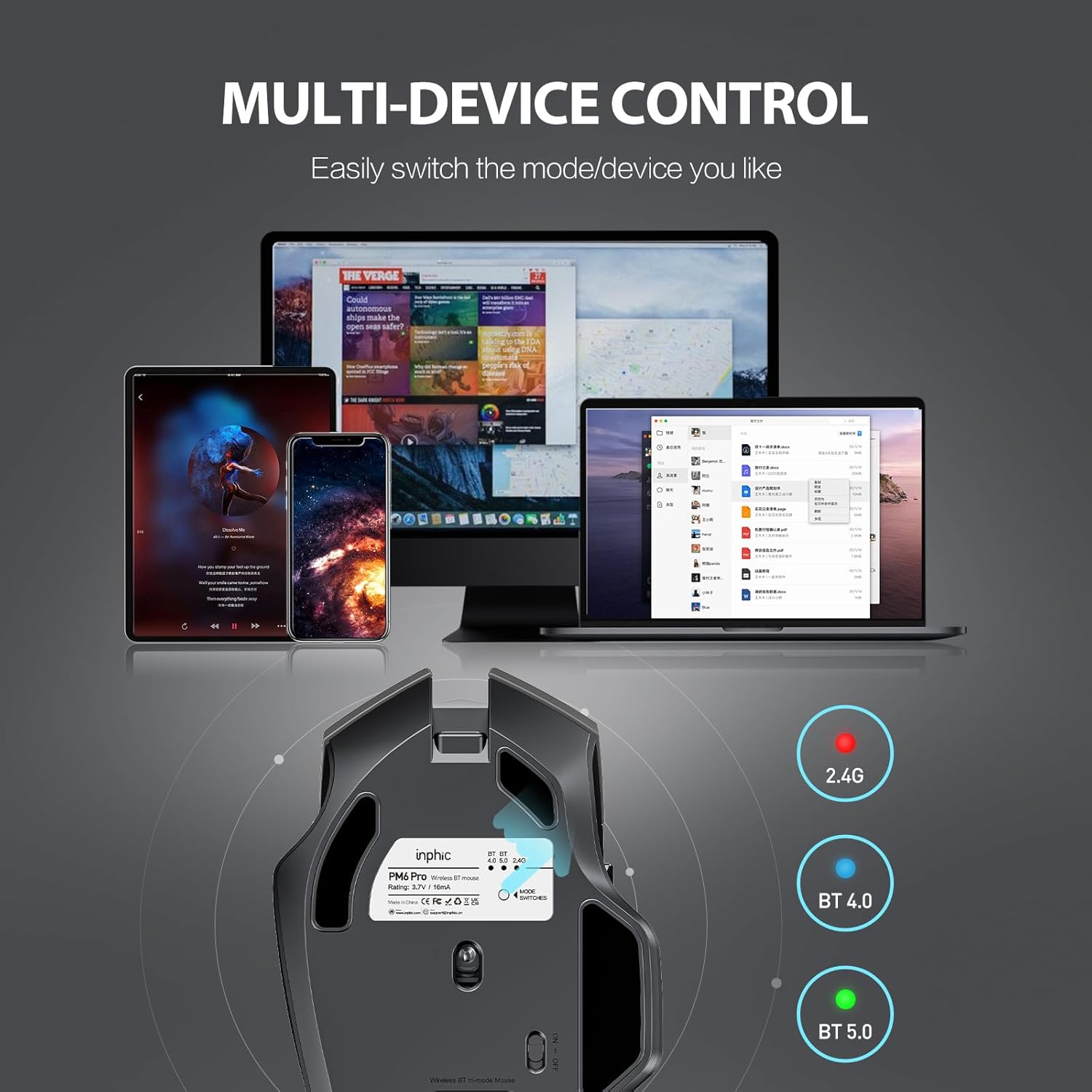
Image: The underside of the mouse, highlighting the USB receiver storage and the mode switch for 2.4G, BT 4.0, and BT 5.0 connections.
4.3 Bluetooth Connection (BT 5.0 / BT 4.0)
- Turn on the mouse using the ON/OFF switch at the bottom.
- Short-press the 'MODE SWITCHES' button at the bottom to cycle through connection modes until the desired Bluetooth indicator (BT 5.0 or BT 4.0) lights up.
- For pairing, long-press the 'MODE SWITCHES' button until the selected Bluetooth indicator light flashes rapidly. This indicates the mouse is in pairing mode.
- On your device (computer, tablet, etc.), go to Bluetooth settings and search for new devices. Select 'INPHIC M6Pro' (or similar name) to pair.
Video: Demonstrates how to switch between 2.4G and Bluetooth modes (BT 4.0, BT 5.0) and enter pairing mode by pressing the mode switch button on the mouse's underside.
5. Arahan Operasi
5.1 Pelarasan DPI
The mouse features a DPI switch button located behind the scroll wheel. Press this button to cycle through 5 DPI settings (800, 1200, 1600, 2000, 2400 DPI) to adjust cursor sensitivity to your preference.

Image: A diagram illustrating the location of the DPI switch button and other buttons on the mouse.
5.2 Fungsi Butang
The INPHIC M6Pro mouse is equipped with 6 buttons:
- Kekunci Kiri: Fungsi klik kiri standard.
- Kunci Kanan: Fungsi klik kanan standard.
- Roda Tatal: Scrolls up/down, and acts as a middle-click button.
- Suis DPI: Adjusts cursor sensitivity (DPI).
- Butang ke hadapan: Navigasi ke hadapan web pelayar atau file penjelajah.
- Butang ke belakang: Navigasi ke belakang web pelayar atau file penjelajah.

Imej: Terperinci view of the mouse's underside, showing the power switch, LED indicator, and USB receiver slot.
5.3 Ergonomic Design and Silent Operation
The mouse features a curved, skin-like material design for a comfortable grip, reducing hand strain during prolonged use. The widened thumb rest further enhances comfort and control.
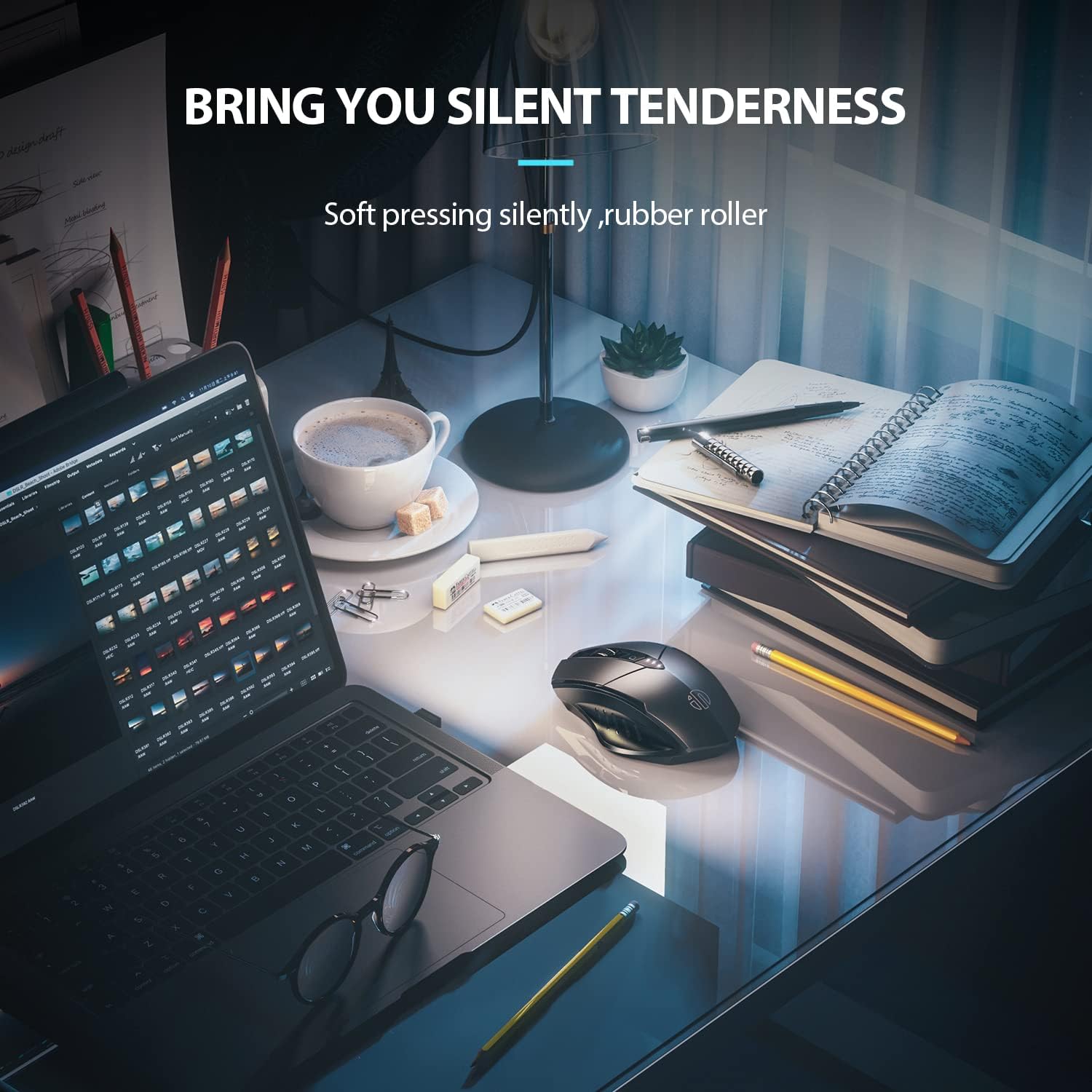
Image: The ergonomic shape of the mouse, designed for a comfortable user experience.

Image: A close-up showing the widened thumb rest for a more comfortable grip.
The left and right click buttons are designed for silent operation, allowing you to work without disturbing others.

Image: Illustrates the silent click feature of the mouse, ideal for quiet environments.
6. Penyelenggaraan
To ensure the longevity and optimal performance of your INPHIC M6Pro mouse, follow these maintenance guidelines:
- Pembersihan: Gunakan kain lembut dan kering untuk mengelap tetikus. Untuk kotoran degil, sedikit dampen kain dengan air atau larutan pembersih lembut. Elakkan bahan kimia yang keras atau bahan yang melelas.
- Storan: Apabila tidak digunakan untuk tempoh yang lama, matikan tetikus untuk menjimatkan hayat bateri. Simpan di tempat yang sejuk dan kering jauh dari cahaya matahari langsung dan suhu yang melampau.
- Penjagaan Bateri: Avoid fully discharging the battery frequently. Charge the mouse when the battery indicator shows low power.
- Penerima USB: Keep the USB receiver in its designated storage slot at the bottom of the mouse when traveling to prevent loss.
7. Penyelesaian masalah
If you encounter issues with your INPHIC M6Pro mouse, refer to the following common solutions:
| Masalah | Kemungkinan Punca | Penyelesaian |
|---|---|---|
| Mouse not responding (2.4G) | USB receiver not properly connected or mouse is off. | Ensure the USB receiver is securely plugged into a USB port. Turn on the mouse and ensure the mode switch is set to 2.4G. Try a different USB port. |
| Mouse not responding (Bluetooth) | Not paired, out of range, or incorrect Bluetooth mode selected. | Ensure the mouse is in the correct Bluetooth mode (BT 5.0 or BT 4.0) and in pairing mode (flashing light). Re-pair the mouse with your device. Ensure the mouse is within 10 meters of your device. |
| Pergerakan kursor tidak menentu atau perlahan | Low battery, incorrect DPI setting, or dirty sensor. | Charge the mouse. Adjust the DPI setting using the DPI button. Clean the optical sensor at the bottom of the mouse with a soft cloth. |
| Butang tidak klik atau tidak responsif | Low battery or connection issue. | Charge the mouse. Re-establish the connection (2.4G or Bluetooth). |
| Bateri tidak dicas | Kabel atau punca kuasa rosak. | Try a different USB-C cable and a different USB power source. Ensure the cable is properly connected to the mouse's Type-C port. |
8. Spesifikasi
| Ciri | Perincian |
|---|---|
| Nombor Model | M6Pro |
| Teknologi Ketersambungan | Tanpa Wayar 2.4G, Bluetooth 5.0, Bluetooth 4.0 (Tri-Mod) |
| Teknologi Pengesanan Pergerakan | Optik |
| Tetapan DPI | 800, 1200, 1600, 2000, 2400 |
| Butang | 6 (Kiri, Kanan, Roda Tatal, Suis DPI, Ke Hadapan, Ke Belakang) |
| Jenis Bateri | Polimer Litium Boleh Dicas Semula (500mAh) |
| Port Pengecasan | Jenis-C |
| Dimensi Produk | 4.65 x 1.57 x 0.04 inci |
| Berat Barang | 3.35 auns |
| Sistem Operasi yang Serasi | Windows Vista/7 and above, Mac OS X 10.10 and above, iOS 13 and above, Android 5.0 and above, Linux kernel 2.6+, Chrome OS |
9. Waranti dan Sokongan
INPHIC products are designed for reliability and performance. For warranty information or technical support, please refer to the contact details provided with your product packaging or visit the official INPHIC webtapak. Simpan resit pembelian anda sebagai bukti pembelian untuk tuntutan waranti.