
pengenalan
The AVATTO S16 Pro is a universal smart remote control designed to integrate various infrared (IR) and radio frequency (RF 433 MHz) devices into a single control system via Wi-Fi. It operates through the TUYA smart home platform, allowing you to manage your home appliances from anywhere using your smartphone. This manual provides essential information for setting up, operating, maintaining, and troubleshooting your S16 Pro device.
Persediaan
Kandungan Pakej
- 1 x AVATTO S16 Pro Universal Remote Control Unit
- 1 x USB Power Cable
- 1 x Manual Pengguna (dokumen ini)
Peranti Lebihview
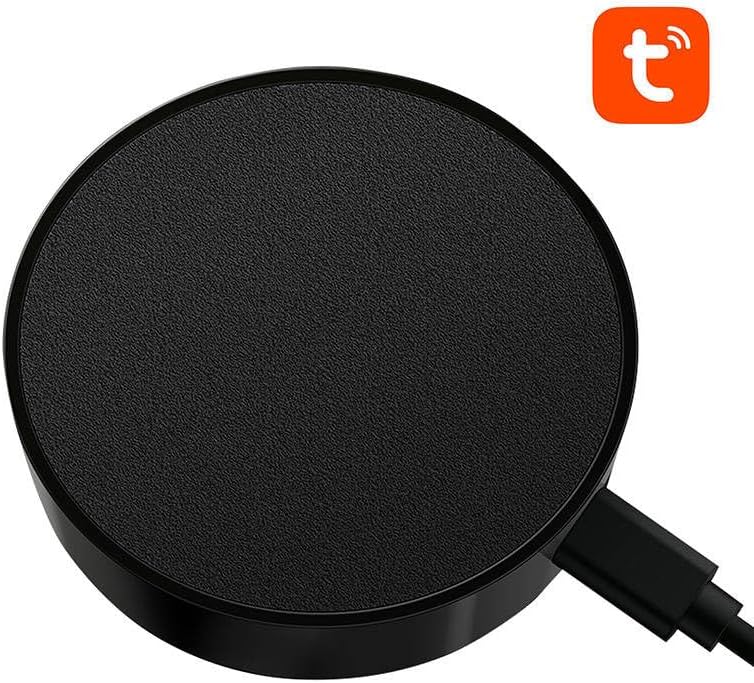
Imej: Atas view of the AVATTO S16 Pro Universal Remote Control, showing its circular design and the USB power input.
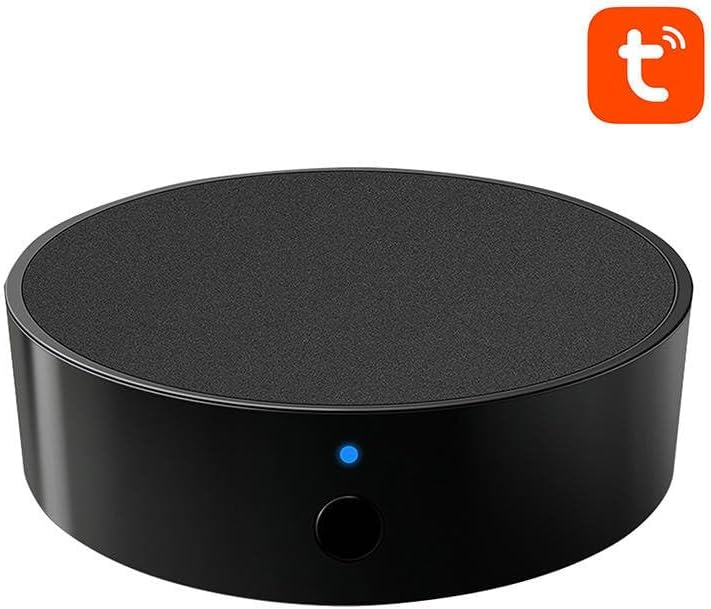
Imej: Depan view of the AVATTO S16 Pro Universal Remote Control, highlighting the blue indicator light and the physical button.
Menghidupkan
- Connect the provided USB power cable to the micro-USB port on the AVATTO S16 Pro.
- Plug the other end of the USB cable into a 5V/1A USB power adapter (not included) or a compatible USB port.
- The indicator light on the device will illuminate, indicating it is powered on.
Connecting to TUYA App
- Muat turun Tuya Smart or Kehidupan Pintar aplikasi daripada gedung aplikasi telefon pintar anda (iOS atau Android).
- Daftar atau log masuk ke akaun anda.
- Ensure your smartphone is connected to a 2.4 GHz Wi-Fi network. The S16 Pro does not support 5 GHz Wi-Fi.
- Open the app, tap the "+" icon in the top right corner to add a device.
- Select "Universal Remote Control" or search for the device type.
- Follow the on-screen instructions to put the S16 Pro into pairing mode (usually by pressing and holding the reset button until the indicator light blinks rapidly).
- Confirm the indicator light status in the app and enter your Wi-Fi password.
- Wait for the device to connect. Once connected, you can rename the device and assign it to a room.
Adding Devices (IR/RF)
After successfully connecting the S16 Pro to the app, you can add IR and RF controlled devices:
- In the S16 Pro device interface within the Tuya app, select "Add Remote Control".
- Choose the type of device you want to add (e.g., TV, Air Conditioner, Fan, RF Curtain).
- For IR devices, you can often select from a pre-defined brand library or use the "DIY" learning function.
- For RF 433 MHz devices, use the "RF Learn" function to capture the signals from your existing RF remote. Follow the app's prompts to press buttons on your original remote.
- Test the added controls to ensure they function correctly.
Arahan Operasi
Menggunakan Apl
- Open the Tuya Smart or Smart Life app on your smartphone.
- Select the AVATTO S16 Pro from your device list.
- Access the virtual remote controls for your added IR/RF devices.
- Tap the corresponding buttons to control your appliances.
Mengawal Peranti
Ensure the S16 Pro is placed in a central location with a clear line of sight to IR-controlled devices. For RF devices, line of sight is not strictly necessary, but proximity can improve signal reliability.
Creating Automations and Scenes
The Tuya app allows you to create smart scenes and automations:
- Adegan: Combine multiple actions into a single tap (e.g., "Movie Night" scene turns on TV, lowers lights, and adjusts AC).
- Automasi: Set up conditions to trigger actions (e.g., turn on AC when room temperature exceeds 28°C, or turn off TV at a specific time).
Penyelenggaraan
Pembersihan
- Lap peranti dengan kain lembut dan kering.
- Do not use liquid cleaners, aerosols, or abrasive chemicals, as these can damage the device.
Keadaan Persekitaran
- Keep the device away from direct sunlight, high temperatures, and high humidity.
- Elakkan meletakkan peranti berhampiran medan elektromagnet yang kuat.
Menyelesaikan masalah
- Peranti tidak bersambung ke Wi-Fi: Ensure your Wi-Fi network is 2.4 GHz. Check your Wi-Fi password. Try resetting the S16 Pro by pressing and holding the button for 5-10 seconds until the indicator light blinks rapidly, then attempt pairing again.
- IR devices not responding: Ensure the S16 Pro has a clear line of sight to the IR-controlled device. The distance between the S16 Pro and the IR device should not be excessive. Re-learn the IR commands if necessary.
- RF devices not responding: Ensure the S16 Pro is within range of the RF device. RF signals can pass through walls but may be weakened by obstacles. Re-learn the RF commands if necessary.
- App not controlling devices: Check your internet connection. Ensure the S16 Pro is online in the Tuya app. Restart the app or your smartphone.
- Lampu penunjuk tidak menyala: Verify the USB power cable is securely connected and the power adapter is functioning. Try a different USB cable or power adapter.
Spesifikasi
| Jenama | AVATTO |
| Model | S16Pro |
| warna | Hitam |
| Ketersambungan | IR, Wi-Fi (2.4 GHz), RF 433 MHz |
| Keserasian | TUYA Smart / Smart Life App |
| Nombor Item | 10229 |
| Komponen yang Disertakan | 1 unit |
Waranti dan Sokongan
Maklumat Waranti
The AVATTO S16 Pro comes with a Waranti pengilang 2 tahun. Sila simpan bukti pembelian anda untuk tuntutan waranti.
Sokongan Pelanggan
For technical assistance, troubleshooting beyond this manual, or warranty inquiries, please contact your retailer or the AVATTO customer support directly. Refer to the product packaging or AVATTO's official weblaman web untuk maklumat hubungan.