
pengenalan
Thank you for choosing the EBTOOLS Bluetooth Remote Control Page Turner. This device offers convenient wireless control for various functions on your iOS and Android smartphones, including remote camera shutter, video page turning, and e-book navigation. Please read this manual carefully to ensure proper use and optimal performance.
Produk Selesaiview
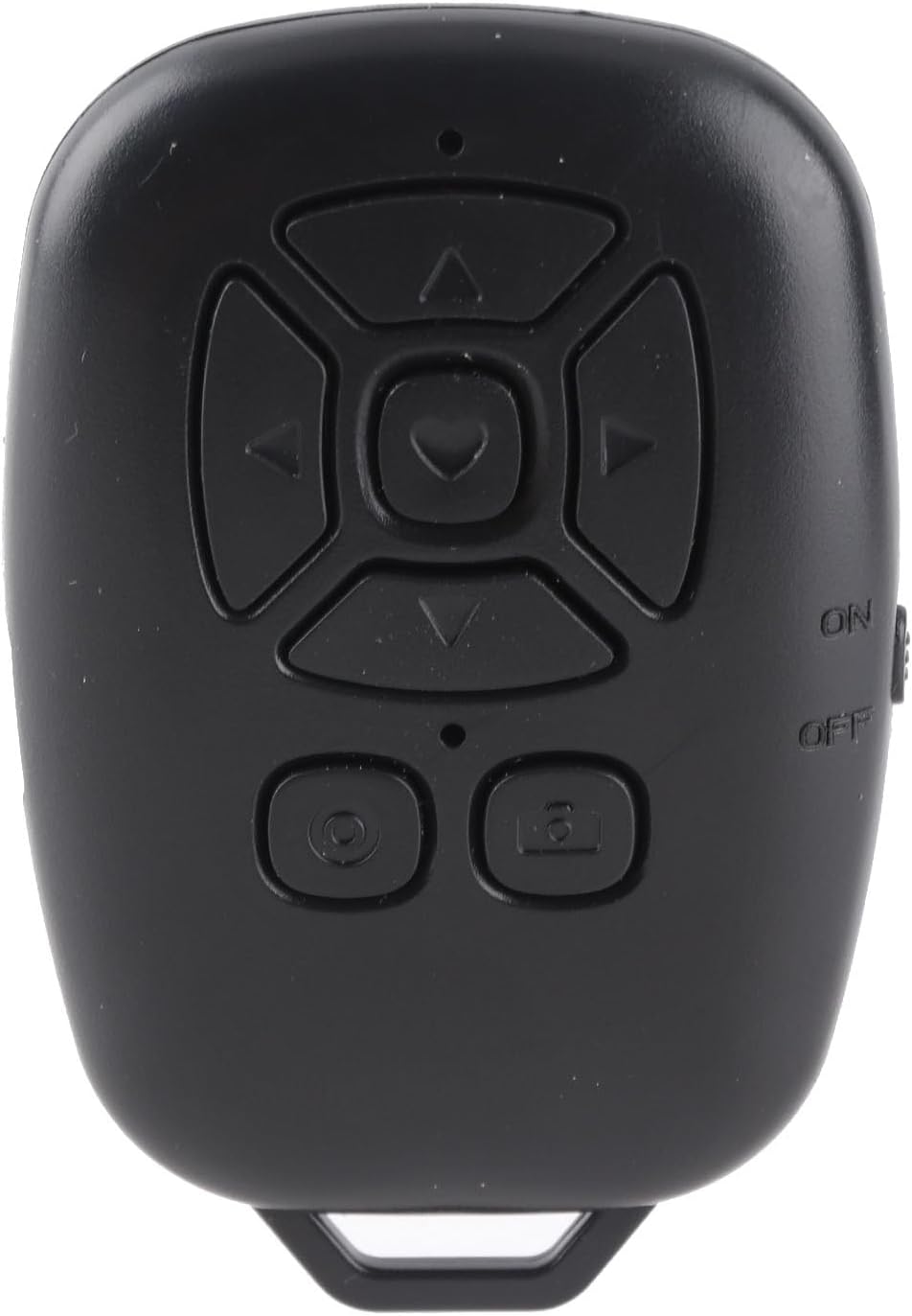
Rajah 1: Depan view of the EBTOOLS Bluetooth Remote Control, showcasing its compact design and intuitive button layout for various functions.
The EBTOOLS Bluetooth Remote Control is a compact and lightweight device designed for ease of use. It features a multi-directional control pad, dedicated camera/record buttons, and an ON/OFF switch. Its ergonomic design allows for comfortable handling, and the integrated loop enables attachment to keychains for portability.
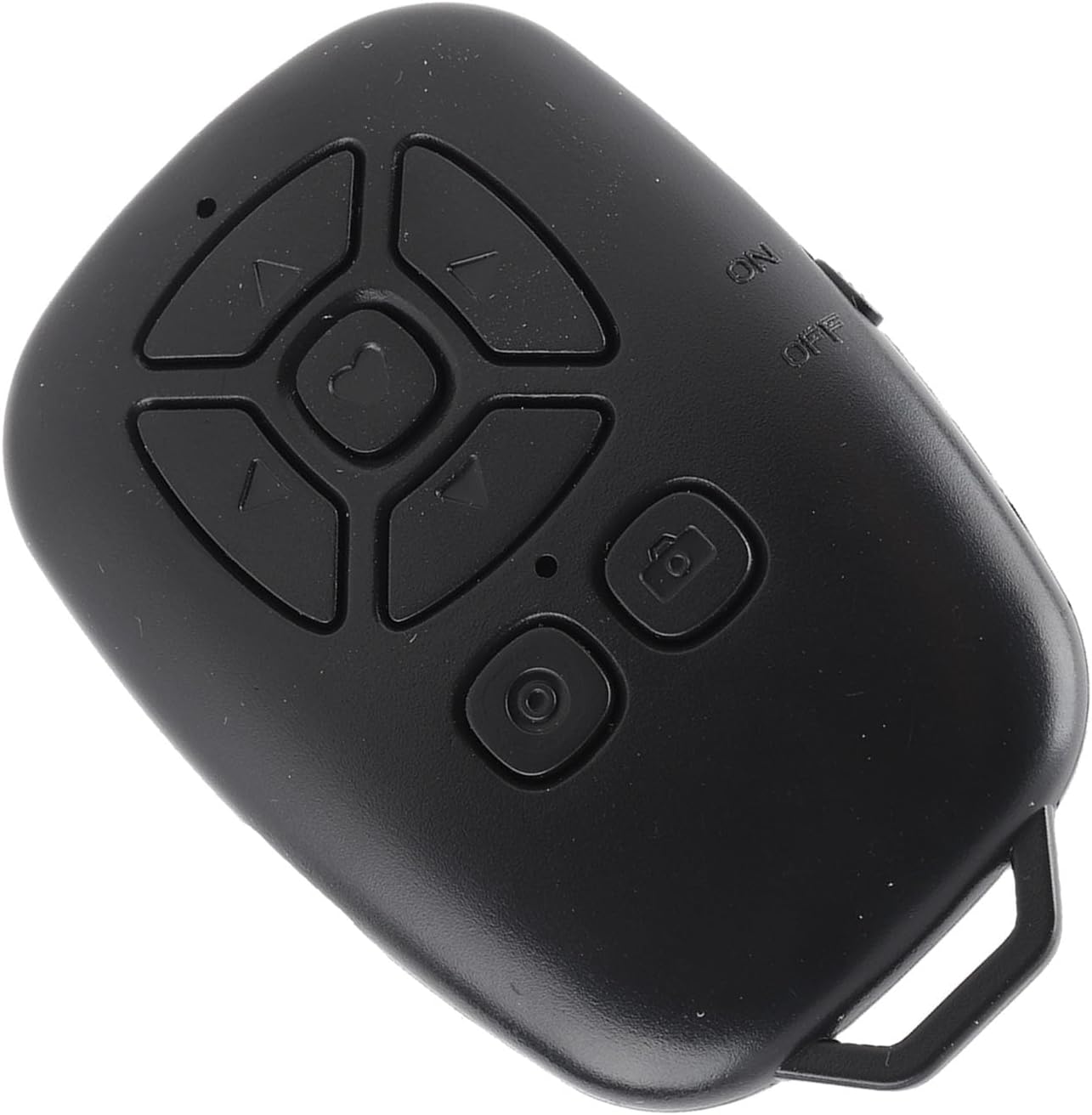
Rajah 2: Bersudut view of the EBTOOLS Bluetooth Remote Control, showing its ergonomic shape and the side-mounted ON/OFF switch.
Spesifikasi
| Ciri | Perincian |
|---|---|
| Versi Bluetooth | Bluetooth 5.0 |
| Teknologi Ketersambungan | Bluetooth, USB |
| Peranti Serasi | Camera (Smartphones: iOS, Android) |
| Jenis Bateri Kawalan Jauh | Polymer Lithium Battery, 1 x CR2032 |
| Kapasiti Bateri | 80mAh (Terbina dalam) |
| Berat Barang | 1.2 auns |
| Dimensi Pakej | 3.54 x 2.76 x 0.79 inci |
| Nombor Model | EBTOOLSdug3rt25po |
Kandungan Pakej
Item berikut termasuk dalam pakej anda:
- 1 x EBTOOLS Bluetooth Remote Control
- 1 x Manual Arahan (dokumen ini)
- 1 x Kabel USB (Jenis-C)
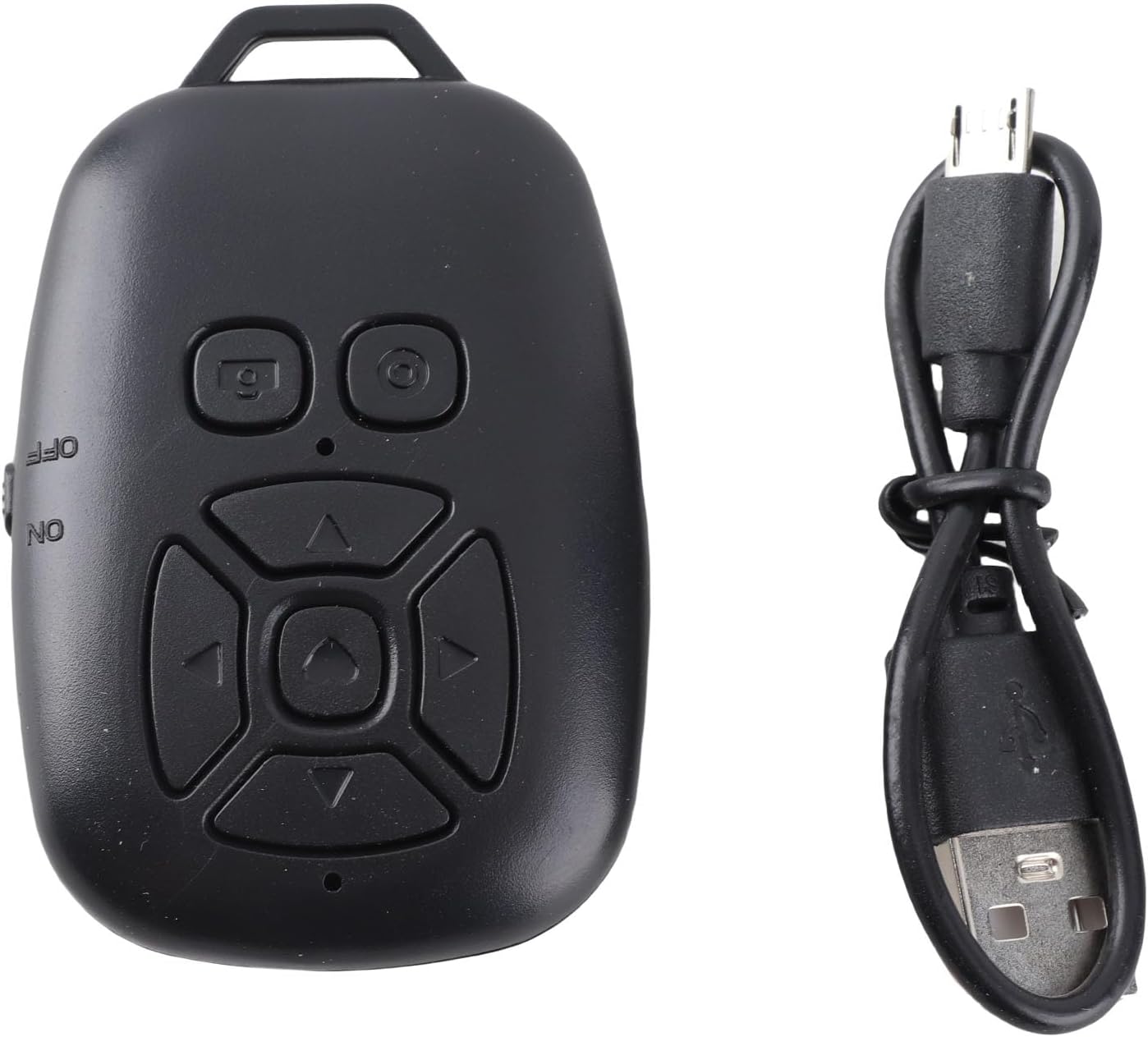
Rajah 3: The EBTOOLS Bluetooth Remote Control alongside its USB-C charging cable, highlighting the device's compact size and charging method.
Persediaan
1. Sambungan Bluetooth
- Ensure the remote control is charged (refer to the Charging section).
- Turn on the remote control using the ON/OFF switch located on the side.
- On your smartphone, navigate to tetapan > Bluetooth.
- Cari untuk available Bluetooth devices. The remote control will appear as BLE M3.
- Pilih BLE M3 to pair and connect. Once connected, the indicator light on the remote will typically stop flashing or turn solid.
2. For iOS Systems (Additional Settings)
After establishing the Bluetooth connection, iOS users may need to enable Accessibility features for full functionality:
- Pergi ke tetapan > Kebolehcapaian > Sentuh > AssistiveTouch.
- Togol AssistiveTouch kepada ON.
- pastikan Lakukan Gerak Isyarat Sentuh is also set to ON within the AssistiveTouch settings.
3. For Android Systems
Once the Bluetooth connection is successfully established, the remote control is generally ready for use on Android devices without further specific settings.

Rajah 4: A person using the EBTOOLS Bluetooth Remote Control to capture a selfie with a smartphone, demonstrating its utility for remote photography.
Arahan Operasi
Remote Shutter Function
Open your smartphone's camera application. Press the dedicated camera button on the remote control to remotely trigger the shutter for photos or start/stop video recording. This allows for stable shots and wider angles, especially when using a tripod.
Page Turning and Media Control
The directional buttons (up, down, left, right) and the central button can be used for various functions depending on the application:
- Short Video Apps: Use the up/down buttons to scroll through videos, and the left/right buttons for other navigation or interactions. The central button may act as a 'like' or 'play/pause' function.
- E-book Readers: Use the left/right buttons to turn pages.
- Main Semula Muzik/Video: Control volume, skip tracks, or play/pause media.
Adjusting Camera Point (for specific apps)
If the camera point or cursor is not aligned in certain applications, you can adjust its position:
- Press and hold the camera button on the remote.
- While holding the camera button, use the up, down, left, or right directional keys to move the cursor on your screen to the desired camera position.
- Release the camera button once the cursor is correctly positioned.

Rajah 5: A user interacting with a smartphone, with the EBTOOLS Bluetooth Remote Control positioned nearby, illustrating its convenience for media control and page turning.
Mengecas Peranti
The EBTOOLS Bluetooth Remote Control features a USB Type-C charging port for convenient recharging. When the battery is low, connect the provided USB Type-C cable to the remote control and a standard USB power source (e.g., computer USB port, wall adapter). The indicator light will typically show charging status and turn off or change color when fully charged.
Penjagaan dan Penyelenggaraan
- Pastikan peranti kering. Kelembapan boleh merosakkan komponen elektronik.
- Avoid extreme temperatures. Do not expose to direct sunlight or very cold environments.
- Bersihkan peranti dengan kain lembut dan kering. Jangan gunakan bahan kimia yang keras atau pembersih yang kasar.
- Simpan peranti di tempat yang selamat apabila tidak digunakan untuk mengelakkan kerosakan fizikal.
Panduan Penyelesaian Masalah
Device Not Connecting via Bluetooth
- Ensure the remote control is turned ON and fully charged.
- Pastikan Bluetooth didayakan pada telefon pintar anda.
- Try unpairing and re-pairing the device from your phone's Bluetooth settings.
- Mulakan semula telefon pintar dan alat kawalan jauh anda.
- Pastikan tiada peranti Bluetooth lain yang mengganggu sambungan.
Functions Not Working on iOS
- Sahkan itu AssistiveTouch dan Lakukan Gerak Isyarat Sentuh are enabled in your iOS Accessibility settings as described in the Setup section.
Alat Kawalan Jauh Tidak Bertindak Balas
- Periksa tahap bateri dan cas semula jika perlu.
- Ensure the remote is within the effective Bluetooth range (up to 30 feet/10 meters).
- Confirm the remote is paired and connected to your device.
Waranti dan Sokongan
EBTOOLS products are manufactured with quality and performance in mind. For specific warranty information, please refer to the documentation provided at the time of purchase or contact your retailer. If you encounter any issues or require technical assistance, please reach out to the customer support channel provided by your seller.


