
pengenalan
This manual provides instructions for the setup, operation, maintenance, and troubleshooting of your AWOW AiBook 10 detachable 2-in-1 laptop. The AiBook 10 functions as both a tablet and a laptop, featuring a 10.1-inch touchscreen display and running Windows 11. It is equipped with an Intel Celeron N4120 processor, 8GB RAM, and 256GB SSD storage.
Apa yang ada dalam Kotak
Setelah membuka bungkusan, pastikan semua barang ada:
- AWOW AiBook 10 Detachable 2-in-1 Laptop
- Papan Kekunci boleh tanggal
- Power Adapter (AC adapter)
Produk Selesaiview
The AWOW AiBook 10 is designed for versatility, allowing seamless transition between tablet and laptop modes. Familiarize yourself with the device's components and ports.

Image: The AWOW AiBook 10 in laptop configuration, showcasing the main unit and attached keyboard.

Imej: Terperinci view of the AiBook 10, highlighting its dimensions and port locations.
Pelabuhan dan Penyambung:
- Port USB 3.0: For connecting USB devices such as external storage, mice, or printers.
- Port Mikro HDMI: Untuk menyambung ke paparan luaran atau projektor.
- Slot Kad TF: For expanding storage with a microSD card (up to 512GB).
- Bicu Fon Kepala (3.5mm): Untuk menyambungkan fon kepala atau pembesar suara luaran.
- DC 12V/3A Jack: Untuk menyambungkan penyesuai kuasa bagi mengecas peranti.
Kamera:
- Kamera Depan: 2.0MP, suitable for video calls.
- Kamera Belakang: 5.0MP, for capturing photos and videos.

Image: Illustration of the 2MP front camera and 5MP rear camera on the AiBook 10.
Persediaan
1. Pengecasan Awal
Before first use, fully charge the AiBook 10. Connect the provided power adapter to the DC 12V/3A jack on the device and plug it into a power outlet. The charging indicator will illuminate.
2. Memasang Papan Kekunci
Align the magnetic connector of the detachable keyboard with the corresponding port at the bottom edge of the tablet. The keyboard will snap into place magnetically.

Image: The detachable keyboard being connected to the AiBook 10 tablet.
3. Hidupkan kuasa
Press and hold the power button located on the side of the tablet until the screen illuminates. The device will boot into Windows 11.
4. Persediaan Windows Awal
Follow the on-screen prompts to complete the Windows 11 setup process. This includes selecting your language, region, connecting to a Wi-Fi network, and creating a user account.
Beroperasi
Switching Between Tablet and Laptop Modes
The AiBook 10 automatically detects the presence of the detachable keyboard. When the keyboard is attached, it functions as a laptop. When detached, it operates as a tablet, and Windows 11 will adjust its interface accordingly.
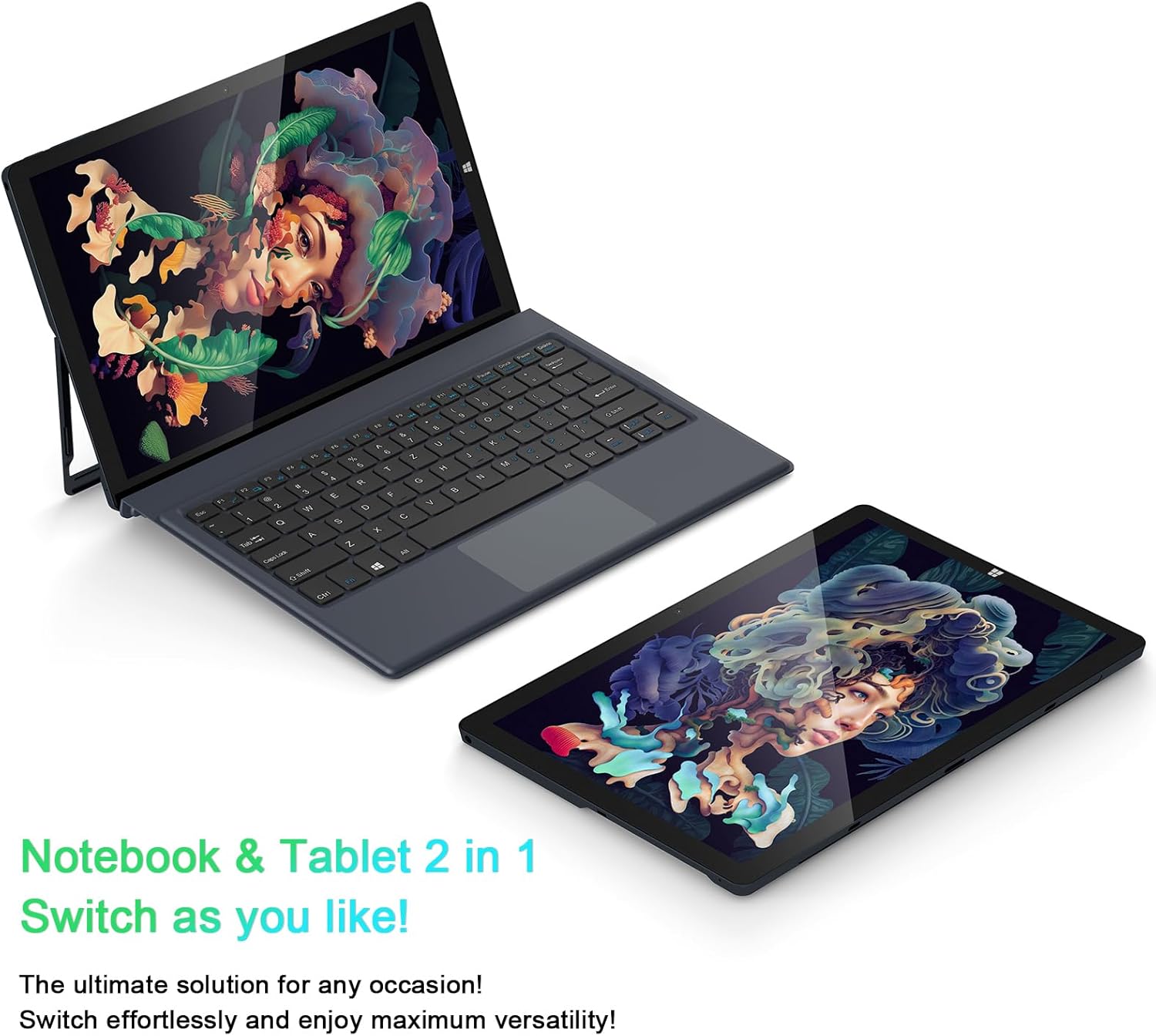
Image: The AiBook 10 displayed in both its laptop and tablet configurations.
Menggunakan Skrin Sentuh
The 10.1-inch IPS display supports multi-touch gestures. Use your fingers to navigate, tap, swipe, and pinch-to-zoom.
Menyambung Peranti
- Bluetooth: Enable Bluetooth in Windows settings to pair with compatible devices such as headphones, mice, or keyboards. The device supports Bluetooth 4.2.
- Peranti USB: Plug USB devices into the USB 3.0 port.
- Paparan luaran: Connect an external monitor using the Micro HDMI port. An appropriate adapter or cable may be required.
Melaraskan Pendirian
The integrated stand bracket allows you to adjust the viewing angle of the tablet up to 145 degrees. Carefully extend the stand from the back of the tablet to your desired position.
Penyelenggaraan
Membersihkan Peranti
Gunakan kain lembut dan tidak berbulu untuk membersihkan skrin dan permukaan luar. Untuk kesan degil, gosok sedikitampen kain dengan air atau larutan pembersih skrin. Elakkan bahan kimia yang keras atau bahan yang melelas.
Penjagaan Bateri
To prolong battery life, avoid fully discharging the battery frequently. Store the device in a cool, dry place when not in use for extended periods. The device features a 6500mAh Lithium Polymer battery.

Image: Visual representation of the 6500mAh battery capacity.
Kemas Kini Perisian
Regularly check for and install Windows updates to ensure optimal performance and security. Access Windows Update through the Settings menu.
Menyelesaikan masalah
This section addresses common issues you might encounter with your AiBook 10.
Peranti Tidak Menghidupkan
- Ensure the device is charged. Connect the power adapter and wait a few minutes before attempting to power on again.
- Tekan dan tahan butang kuasa selama 10-15 saat untuk melakukan tetapan semula keras.
Screen Flickering or Display Issues
- Mulakan semula peranti.
- Check for updated display drivers through Windows Update or the device manufacturer's webtapak.
- If connected to an external display, ensure the cable is securely connected.
Keyboard or Touchpad Not Responding
- Ensure the detachable keyboard is securely attached to the tablet.
- Mulakan semula peranti.
- Check Windows settings for keyboard and touchpad functionality.
Wi-Fi or Bluetooth Connectivity Problems
- Ensure Wi-Fi or Bluetooth is enabled in Windows settings.
- Mulakan semula penghala/modem anda untuk masalah Wi-Fi.
- For Bluetooth, try unpairing and re-pairing the device.
- Check for updated network drivers.
Prestasi Perlahan
- Tutup aplikasi yang tidak perlu berjalan di latar belakang.
- Pastikan ruang storan kosong yang mencukupi pada SSD.
- Run a disk cleanup and optimize drives in Windows.
- Semak dan pasang sebarang kemas kini Windows yang belum selesai.
Spesifikasi
| Jenama | AWOW |
| Nama Model | AiBook 10 |
| Saiz Skrin | 10.1 Inci |
| Resolusi Paparan | 1280 x 800 Pixels (Full HD IPS) |
| Sistem Operasi | Windows 11 |
| Model CPU | Intel Celeron N4120 (up to 2.6 GHz) |
| Memori RAM | 8 GB LPDDR4 |
| Saiz Cakera Keras | 256 GB SSD (eMMC) |
| Kad Grafik | Grafik Intel UHD 600 Bersepadu |
| Ketersambungan | 2.4G+5G WiFi, Bluetooth 4.2, USB 3.0, Micro HDMI |
| Kamera | Depan 2.0MP, Belakang 5.0MP |
| Bateri | Polimer Lithium 6500mAh |
| Berat Barang | 1.4 Pounds (tablet only) |
| Dimensions (L x W x Thickness) | 10.1" x 6.8" x 0.38" (tablet only) |
Waranti dan Sokongan
Maklumat Waranti
The AWOW AiBook 10 comes with a Waranti Terhad 1 TahunSila simpan bukti pembelian anda untuk tuntutan jaminan. Jaminan ini meliputi kecacatan pembuatan di bawah keadaan penggunaan biasa.
Sokongan Pelanggan
For technical assistance, troubleshooting beyond this manual, or warranty inquiries, please contact AWOW customer support. Refer to the product packaging or the official AWOW webtapak untuk maklumat hubungan terkini.