
GMKtec NucBoxG1
GMKtec Mini PC 12th Intel N95 User Manual
1. Pengenalan
This manual provides detailed instructions for setting up, operating, and maintaining your GMKtec Mini PC. Designed for efficiency and performance, this compact desktop computer is equipped with the Intel 12th Gen N95 processor, offering robust capabilities for home and office use. Please read this manual thoroughly to ensure proper usage and to maximize the lifespan of your device.
2. Kandungan Pakej
Upon opening your GMKtec Mini PC package, please verify that all the following items are included:
- Host (GMKtec Mini PC) x 1
- Penyesuai kuasa x 1
- AC line x 1
- Accessory screw bag x 1
- Manual x 1
- Kad waranti x 1

Image: All items included in the GMKtec Mini PC package.
3. Produk Lebihview
The GMKtec Mini PC is designed for compact efficiency, measuring approximately 2.83 x 2.83 x 0.72 inches and weighing about 0.79 pounds. Its small footprint makes it ideal for space-saving setups.

Imej: Depan dan belakang views of the GMKtec Mini PC, highlighting its compact design.
3.1. Pelabuhan dan Penyambung
Familiarize yourself with the available ports for connecting peripherals and displays:
- Panel Depan:
- USB-A 3.2 Gen2 Ports (x2): For high-speed data transfer (10 Gbps) and connecting USB devices.
- Power Button: To turn the device on/off.
- Panel belakang:
- DC Port (20V 5A): For power input.
- HDMI Ports (x2): Supports dual 4K@60Hz display output.
- RJ45 (2.5G) Gigabit Ethernet Port: For high-speed wired network connection.
- USB-A 3.2 Gen2 Ports (x2): Additional high-speed USB ports.
- Audio (3.5mm CTIA): For headphones or speakers.

Imej: Terperinci view of the front and rear ports and their functions.
3.2. Ciri-ciri Utama
- Powerful Intel 12th Gen N95 Processor: Features a 10nm 4-core, 4-thread CPU with Turbo up to 3.4GHz, 6MB L3 Smart Cache, and 15W TDP, offering enhanced performance over previous generations.
- High-Speed Storage and Expandability: Comes with 8GB DDR4 RAM and a 512GB M.2 2280 NVMe (PCIe3.0) SSD. Supports expansion up to 2TB for NVMe and an additional M.2 2242 SATA slot for up to 1TB.
- Kesambungan Lanjutan: Equipped with Dual-band Wi-Fi 6 (2.4G+5G) and Bluetooth 5.2 for faster and more stable wireless connections. Includes a 2.5G Gigabit Ethernet port for high-speed wired networking.
- Dual 4K Display Support: Features two HDMI 2.0 ports supporting simultaneous 4K@60Hz display output for a clear and smooth visual experience.
- Penyejukan yang cekap: Utilizes a superconducting copper twin turbo cooling design with two-way convection air inlet for quiet and effective heat dissipation.
- Padat dan Mudah Alih: Its small size and light weight make it easy to transport and save desk space.

Image: Illustration of the efficient cooling system within the Mini PC.

Image: Comparison of Wi-Fi 5 vs. Wi-Fi 6 speeds and Bluetooth 5.2 capabilities.

Image: Illustration of 2.5G Gigabit LAN speed and connection.
Video: Tamatview of the GMKtec Desktop Mini PC, showcasing its features and compact design.
4. Persediaan
Ikuti langkah ini untuk menyediakan PC Mini GMKtec anda:
- Sambung ke Kuasa: Plug the AC line into the power adapter, then connect the power adapter to the DC port on the rear of the Mini PC. Plug the AC line into a wall outlet.
- Sambung ke Paparan: Use an HDMI cable to connect your monitor(s) to the HDMI port(s) on the rear of the Mini PC. For dual display, connect both HDMI ports to separate monitors.
- Sambung Peranti: Connect your keyboard, mouse, and any other USB devices to the available USB 3.2 ports on the front or rear of the Mini PC.
- Sambungan Rangkaian: For a wired connection, connect an Ethernet cable from your router or modem to the RJ45 port on the rear. For wireless, ensure your Wi-Fi network is available and you have the password ready for setup within Windows.
- Hidupkan kuasa: Press the power button on the front of the Mini PC. The system will boot up, and you can proceed with the Windows 11 Pro initial setup.
4.1. Pemasangan VESA
The GMKtec Mini PC supports VESA installation, allowing you to mount it behind a compatible monitor to save desk space.

Image: Desktop placement and VESA installation options for the Mini PC.
5. Arahan Operasi
Once your Mini PC is set up, you can begin using it for various tasks:
- Persediaan Windows Awal: Follow the on-screen prompts to complete the Windows 11 Pro setup, including region, keyboard layout, network connection, and user account creation.
- Menyambung ke Wi-Fi: If not using a wired connection, navigate to Windows Settings > Network & Internet > Wi-Fi, select your network, and enter the password.
- Konfigurasi Paparan Dwi: After connecting two monitors via HDMI, Windows should automatically detect them. If not, right-click on the desktop, select 'Display settings', and configure the display mode (e.g., Extend, Duplicate).
- Output Audio: Connect speakers or headphones to the 3.5mm audio jack or use HDMI audio if your monitor supports it. Adjust audio settings in Windows Sound settings.
- Shut Down/Restart: Use the standard Windows Start menu options to shut down, restart, or put the computer to sleep.

Image: The Mini PC supporting dual 4K displays for enhanced productivity or entertainment.
6. Penyelenggaraan
Regular maintenance helps ensure the longevity and optimal performance of your Mini PC:
- Pembersihan: Regularly clean the exterior with a soft, dry cloth. Use compressed air to gently clear dust from the ventilation grilles to prevent overheating. Do not use liquid cleaners directly on the device.
- Kemas Kini Perisian: Pastikan sistem pengendalian dan pemacu Windows anda dikemas kini untuk memastikan keselamatan dan prestasi.
- Pengurusan Storan: Periksa penggunaan storan anda secara berkala dan padamkan yang tidak perlu files untuk mengosongkan ruang.
- Keadaan Persekitaran: Operate the Mini PC in a well-ventilated area, away from direct sunlight, excessive heat, humidity, or dust.
6.1. Storage and RAM Expansion
The GMKtec Mini PC allows for easy expansion of RAM and storage:
- RAM: Supports DDR4 SO-DIMM, max 32GB.
- SSD: Pre-installed with M.2 2280 NVMe (PCIe3.0) SSD, expandable up to 2TB. An additional M.2 2242 SATA slot is available for expansion up to 1TB.
For expansion, gently remove the bottom cover. Refer to the internal layout for component placement. Ensure the device is powered off and unplugged before performing any internal modifications.

Imej: Dalaman view of the Mini PC, illustrating RAM and SSD expansion options and installation steps.
7. Penyelesaian masalah
Jika anda menghadapi masalah dengan PC Mini GMKtec anda, rujuk kepada masalah dan penyelesaian biasa berikut:
| Masalah | Kemungkinan Punca | Penyelesaian |
|---|---|---|
| No power/Doesn't turn on | Power cable loose, faulty adapter, power outlet issue. | Check all power connections. Try a different power outlet. Ensure the power adapter is functioning correctly. |
| Tiada paparan pada monitor | Monitor off, incorrect input source, faulty HDMI cable, driver issue. | Ensure monitor is on and set to correct HDMI input. Try a different HDMI cable. Restart the Mini PC. Update graphics drivers in Windows. |
| Wi-Fi/Bluetooth tidak berfungsi | Drivers not installed, Wi-Fi/Bluetooth turned off in settings, interference. | Check Windows Network & Internet settings. Ensure drivers are updated. Move closer to the router or reduce interference. |
| Prestasi perlahan | Too many programs running, low storage space, overheating. | Close unnecessary applications. Free up disk space. Ensure proper ventilation and clean dust from vents. |
| Bunyi kipas kuat | High CPU load, dust accumulation in fan. | Ensure proper ventilation. Clean dust from the fan and vents. Reduce demanding tasks if possible. |
If the problem persists after trying these solutions, please contact GMKtec customer support.
8. Spesifikasi
Detailed technical specifications for your GMKtec Mini PC:
| Ciri | Perincian |
|---|---|
| Pemproses | Intel 12th Gen N95 (4C/4T, 7nm, 6M Cache, up to 3.4GHz) |
| Sistem Operasi | Windows 11 Pro |
| RAM | 8GB DDR4 (boleh dikembangkan sehingga 32GB) |
| Penyimpanan | 512GB M.2 2280 NVMe (PCIe3.0) SSD (expandable up to 2TB) |
| Slot Storan Tambahan | M.2 2242 SATA (expandable up to 1TB) |
| Grafik | Intel UHD Graphics 16EU 1200MHz |
| Output Video | 2 x HDMI (4K@60Hz Dual Display) |
| Port USB | 4 x USB 3.2 Gen2 (10 Gbps) |
| Rangkaian | Wi-Fi 6, Bluetooth 5.2, 2.5G RJ45 Gigabit Ethernet |
| Audio | Bicu Audio CTIA 3.5mm |
| Dimensi (LxWxH) | 2.83 x 2.83 x 0.72 inci (114 x 106 x 42.5mm) |
| Berat badan | 0.79 paun (358g) |
| Sumber Kuasa | DC 20V 5A |
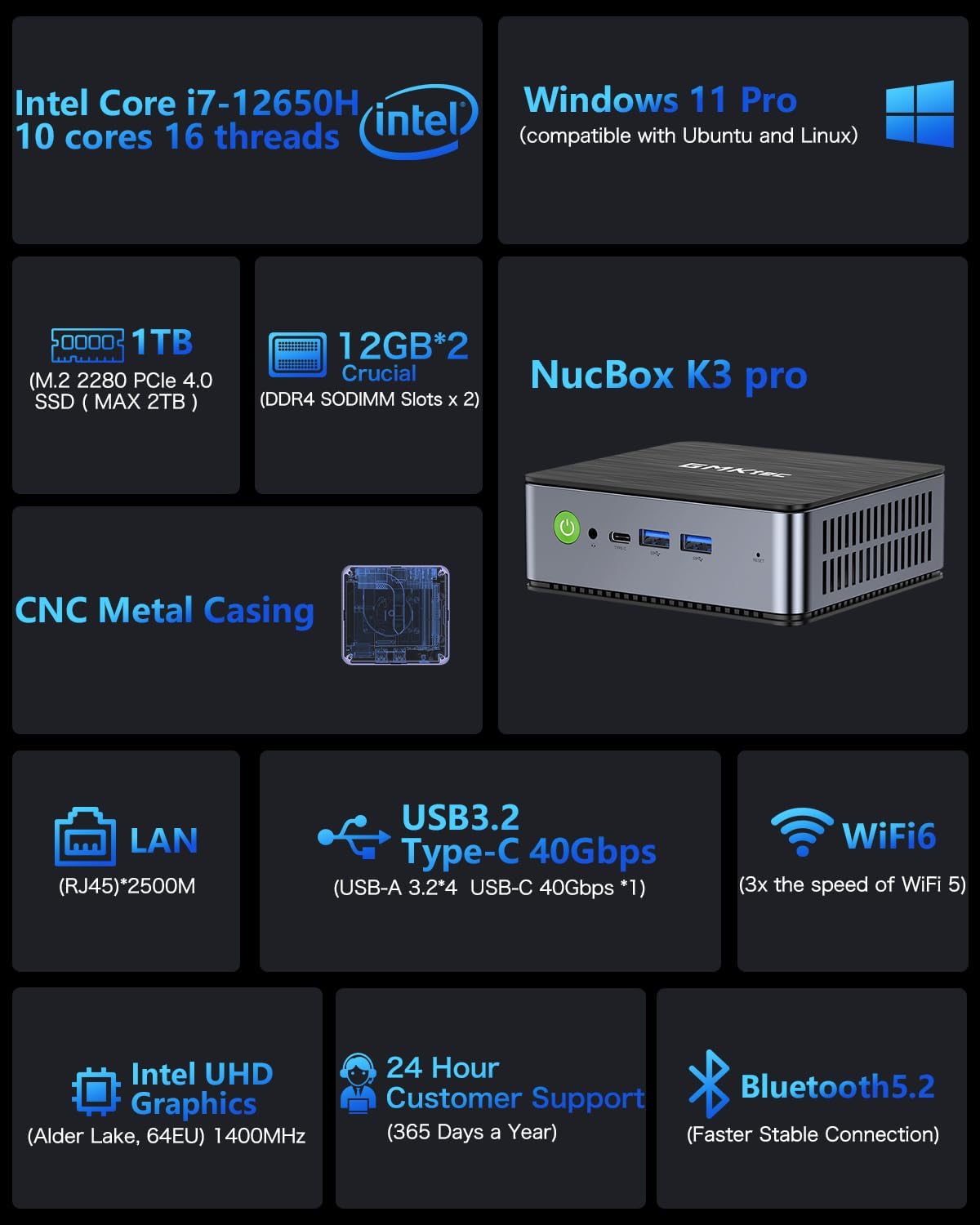
Image: Key specifications and features of the GMKtec Mini PC.

Image: Performance comparison of the Intel N95 processor against other Celeron models.
9. Waranti dan Sokongan
GMKtec is committed to providing reliable, high-quality products and professional after-sales service. Your GMKtec Mini PC comes with a warranty and dedicated support.
- Waranti: The product includes a warranty, typically 12 months of satisfying service. Please refer to your warranty card for specific terms and conditions.
- Sokongan Teknikal: GMKtec offers lifetime technical support for its products.
- Menghubungi Sokongan:
- For product questions, you can log into your Amazon account, go to 'Your Orders', and select 'Ask Product Question'.
- Alternatively, you can reach out via email: support@gmktec.com
Ask a question about this manual
Ask about setup, troubleshooting, compatibility, parts, safety, or missing instructions. Manuals+ will review the question and use this page’s manual context to help answer it.