
Produk Selesaiview
The Delton S12 Ergonomic Vertical Wireless Mouse is designed for comfort and efficiency, promoting a natural hand and wrist posture. It features a 2.4GHz wireless connection, six buttons, and three adjustable DPI levels for precise control. This manual provides instructions for setup, operation, maintenance, and troubleshooting.

Image: The Delton S12 Ergonomic Vertical Wireless Mouse, showcasing its vertical design.
Persediaan
1. Membongkar
Carefully remove the mouse and its accessories from the packaging. Ensure all components are present: the Delton S12 Vertical Wireless Mouse and the USB dongle.
2. Pemasangan Bateri
The Delton S12 mouse requires two (2) AAA batteries (not included). Follow these steps to install them:
- Cari petak bateri di bahagian bawah tetikus.
- Gently slide open the battery compartment cover.
- Masukkan dua bateri AAA, pastikan kekutuban (+/-) betul.
- Tutup penutup petak bateri sehingga ia berbunyi klik dengan selamat pada tempatnya.
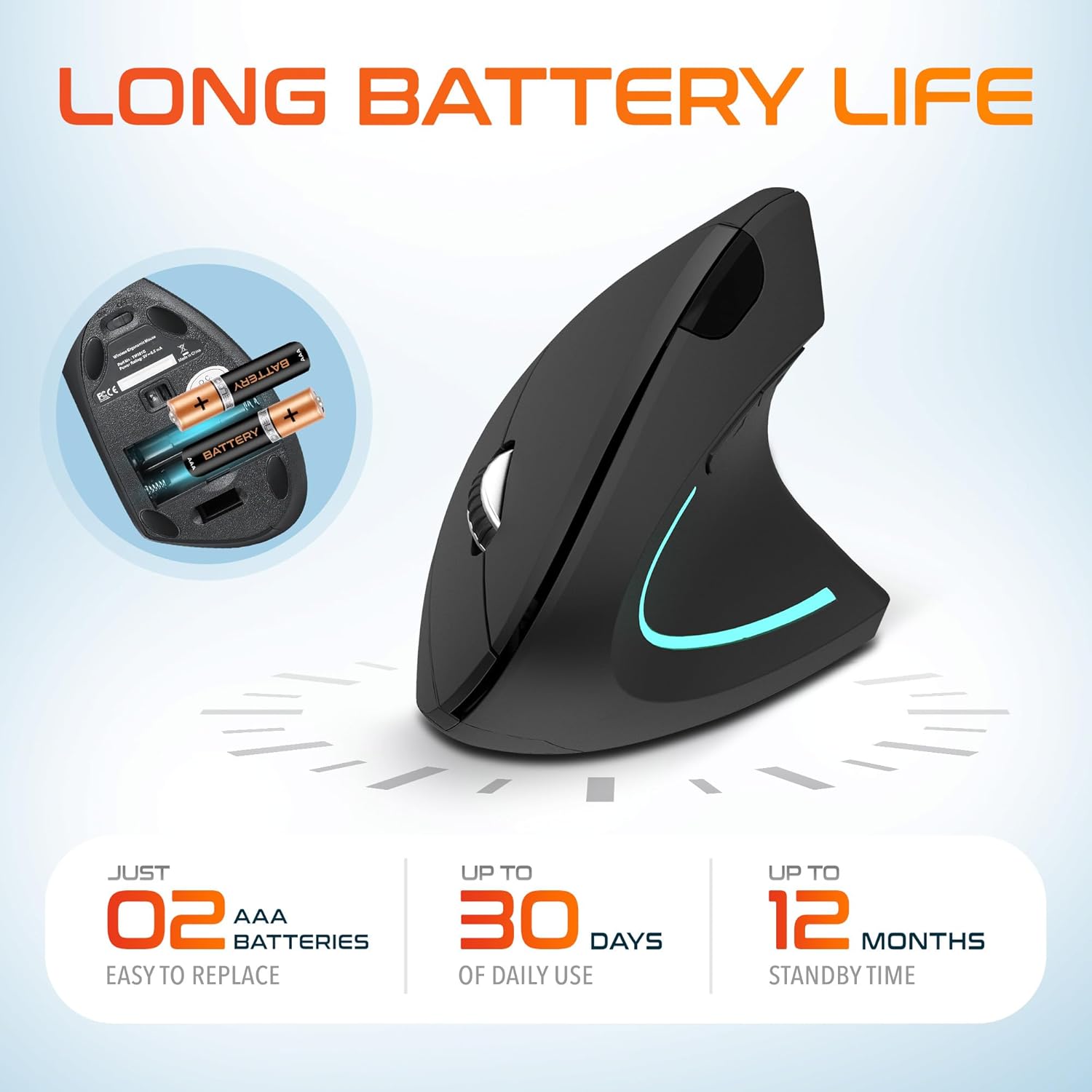
Image: The underside of the Delton S12 mouse with the battery compartment open, showing the correct placement for two AAA batteries.
3. Connecting the USB Dongle
The mouse connects wirelessly via a 2.4GHz USB dongle. No drivers are typically required for most operating systems.
- Remove the USB dongle from its storage slot, usually located near the battery compartment.
- Plug the USB dongle into an available USB port on your computer (PC, Laptop, Mac, Chromebook, etc.).
- The computer should automatically detect and install the necessary drivers. The mouse is ready for use once detected.

Image: The Delton S12 mouse positioned next to its USB dongle, ready for connection to a computer.
Mengendalikan Tetikus Anda
The Delton S12 mouse features six buttons and a scroll wheel for enhanced functionality.
1. Fungsi Butang
- Klik Kiri: Primary selection and activation button.
- Klik kanan: Mengakses menu kontekstual.
- Roda Tatal: Menatal secara menegak melalui dokumen dan web halaman. Boleh juga diklik untuk fungsi klik tengah.
- Butang Suis DPI: Adjusts cursor sensitivity (DPI).
- Butang ke hadapan: Navigasi ke hadapan web pelayar atau file penjelajah.
- Butang ke belakang: Navigasi ke belakang web pelayar atau file penjelajah.

Image: Diagram illustrating the location and function of the six buttons on the Delton S12 Ergonomic Vertical Wireless Mouse.
2. Pelarasan DPI
The mouse offers three adjustable DPI levels (800, 1200, 2400) to suit different tasks and preferences. Press the DPI Switch Button (located behind the scroll wheel) to cycle through the settings. An indicator LED will change color to show the current DPI level:
- LED biru: 800 DPI (Lower sensitivity, suitable for precise work)
- LED Merah: 1200 DPI (Medium sensitivity, standard use)
- LED hijau: 2400 DPI (Higher sensitivity, suitable for faster cursor movement)

Image: Close-up of the Delton S12 mouse showing the DPI indicator LED changing colors (blue, red, green) for different sensitivity settings.
Penyelenggaraan
1. Pembersihan
To maintain optimal performance, regularly clean your mouse. Use a soft, dry cloth to wipe the surface. For stubborn dirt, a slightly damp Kain boleh digunakan, tetapi pastikan tiada kelembapan memasuki komponen dalaman. Elakkan bahan kimia yang keras atau pembersih yang kasar.
2. Penggantian Bateri
When the mouse performance degrades or it stops responding, it's time to replace the batteries. Follow the battery installation steps outlined in the Setup section. Dispose of used batteries responsibly according to local regulations.
Menyelesaikan masalah
Tetikus Tidak Menjawab:
- Pastikan tetikus dihidupkan.
- Periksa sama ada bateri dipasang dengan betul dan mempunyai cas yang mencukupi. Gantikan jika perlu.
- Sahkan bahawa dongle USB telah dipasang dengan selamat ke port USB yang berfungsi pada komputer anda. Cuba port USB yang lain.
- Move the mouse closer to the USB dongle to ensure it's within the 30-foot operating range.
- Mulakan semula komputer anda.
Pergerakan Kursor Tidak Menentu:
- Bersihkan penderia optik di bahagian bawah tetikus dengan kain lembut dan kering.
- Pastikan anda menggunakan tetikus pada permukaan yang sesuai. Elakkan permukaan yang sangat memantulkan cahaya atau lutsinar. Pad tetikus disyorkan.
- Semak gangguan daripada peranti wayarles lain.
DPI Indicator Light Not Changing:
- Press the DPI switch button firmly. If the issue persists, ensure batteries are fresh.
Spesifikasi
| Jenama | Delton |
| Nombor Model | S12 |
| Teknologi Ketersambungan | Tanpa Wayar 2.4GHz (Dongle USB) |
| Teknologi Pengesanan Pergerakan | Optik |
| Tahap DPI | 800, 1200, 2400 |
| Bilangan Butang | 6 |
| Orientasi Tangan | Betul |
| Sumber Kuasa | Battery Powered (2 x AAA batteries required) |
| Purata Hayat Bateri | Up to 30 days (daily use) |
| Julat Tanpa Wayar | Sehingga 30 kaki |
| Peranti Serasi | PC, Laptop, Mac, Chromebook, iOS devices |
| Sistem Operasi | Windows 11/10/9/8/7/XP, Mac OS 9/8/7, Linux, Chrome OS |
| bahan | plastik |
Waranti dan Sokongan
Maklumat Waranti:
This Delton S12 Ergonomic Vertical Wireless Mouse comes with a 1-Year Manufacturer Warranty. This warranty covers defects in materials and workmanship under normal use. For warranty claims, please retain your proof of purchase.
Sokongan Pelanggan:
For technical assistance, troubleshooting, or any questions regarding your Delton S12 mouse, please contact Delton customer support. Refer to the product packaging or the official Delton webtapak untuk maklumat hubungan terkini.