
AVARRO 0E-HDMIMX4
Manual Pengguna Penukar HDMI AVARRO 0E-HDMIMX4
Model: 0E-HDMIMX4
1. Pengenalan
The AVARRO 0E-HDMIMX4 is a high-performance 4x4 HDMI matrix switcher designed to route any of four HDMI input sources to any of four HDMI output displays. It supports 4K Ultra HD resolutions, HDCP 2.2, and advanced features like Smart EDID Management and a built-in 4K-1080P downscaler. This manual provides detailed instructions for installation, operation, and troubleshooting to ensure optimal performance of your device.
2. Maklumat Keselamatan
- Baca semua arahan dengan teliti sebelum mengendalikan peranti.
- Do not expose this unit to rain, moisture, or excessive humidity.
- Do not place any objects filled with liquids on the unit.
- Jangan menyekat bukaan pengudaraan.
- Gunakan hanya penyesuai kuasa yang disediakan.
- Jangan cuba menservis unit ini sendiri. Rujuk semua servis kepada kakitangan yang berkelayakan.
- Pastikan pembumian yang betul untuk semua peralatan yang disambungkan.
3. Kandungan Pakej
Verify that all items are present before installation:
- AVARRO 0E-HDMIMX4 HDMI Switcher Unit
- Kawalan Jauh IR
- Penyesuai Kuasa 12V DC
- Manual Pengguna (dokumen ini)
- Mounting Brackets (if applicable, not explicitly mentioned but common for such devices)
4. Produk Lebihview
4.1 Panel Depan

Imej: Depan view of the AVARRO 0E-HDMIMX4 HDMI Switcher, showing the IR receiver and output selector buttons.
- Penerima IR: Menerima isyarat daripada alat kawalan jauh IR.
- Output Selectors (1-4): Buttons to select the input source for each corresponding HDMI output. Each output has its own set of source selection buttons (1, 2, 3, 4).
- Penunjuk LED: Indicate the currently selected input for each output.
4.2 Panel Belakang
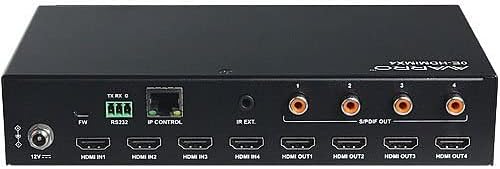
Imej: Belakang view of the AVARRO 0E-HDMIMX4 HDMI Switcher, displaying all input/output ports and control interfaces.
- DC 12V DALAM: Port input kuasa.
- FW (Micro USB): Micro-USB port for firmware upgrades.
- RS232: Serial port for control via RS232 commands.
- IP CONTROL (RJ45): Ethernet port for network control and Web Akses UI.
- KELUAR IR: Port for connecting an external IR receiver.
- HDMI MASUK (1-4): HDMI input ports for connecting source devices (e.g., Blu-ray player, game console).
- HDMI OUT (1-4): HDMI output ports for connecting display devices (e.g., TV, projector).
- S/PDIF OUT (1-4): Digital audio output ports for each HDMI output, supporting PCM 2.0/5.1, Dolby Digital, and DTS up to 5.1 Channel.
5. Persediaan dan Sambungan
- Matikan Semua Peranti: Before making any connections, ensure all source devices, displays, and the switcher are powered off.
- Sambungkan Sumber HDMI: Connect your HDMI source devices (e.g., media players, gaming consoles) to the HDMI IN 1-4 ports on the switcher using high-quality HDMI cables.
- Sambungkan Paparan HDMI: Connect your HDMI display devices (e.g., TVs, projectors) to the HDMI OUT 1-4 ports on the switcher using high-quality HDMI cables.
- Connect Audio Outputs (Optional): If desired, connect external audio systems to the S/PDIF OUT ports for digital audio extraction.
- Sambungkan Rangkaian (Pilihan): For IP control and Web UI access, connect an Ethernet cable from your network router/switch to the IP CONTROL (RJ45) port.
- Sambungkan Kuasa: Connect the provided DC 12V power adapter to the DC 12V IN port on the switcher, then plug the adapter into a power outlet.
- Hidupkan Peranti: Power on the switcher, then your display devices, and finally your source devices.
Nota: For optimal performance with 4K content, use certified High-Speed HDMI cables.
6. Arahan Operasi
6.1 Front Panel Control
To switch an input source for a specific output:
- Locate the "SELECTOR" buttons for the desired OUTPUT (1-4).
- Press the corresponding "SOURCE" button (1, 2, 3, or 4) below the "SELECTOR" button to route the desired input to that output. The LED indicator will illuminate to show the active input.
6.2 Kawalan Jauh IR
The included IR remote control allows for convenient switching from a distance. Point the remote towards the IR receiver on the front panel of the switcher.
- Butang Input (1-4): Memilih sumber input.
- Output Buttons (A-D or 1-4): Selects the output to control.
- Penukaran Matriks: Typically, you would press an Output button, then an Input button to route that input to the selected output. Refer to the remote's specific layout for exact button functions.
6.3 Web Kawalan UI
The Web UI provides a graphical interface for advanced control and configuration.
- Ensure the switcher is connected to your network via the IP CONTROL port.
- Obtain the IP address of the switcher (refer to network settings or device documentation for default IP or discovery method).
- Buka a web pelayar pada komputer yang disambungkan ke rangkaian yang sama.
- Enter the switcher's IP address into the browser's address bar.
- Log in using the default credentials (if prompted, refer to device documentation for default username/password).
- Gunakan Web UI to manage input/output routing, EDID settings, and other advanced features.
6.4 Kawalan RS232
The RS232 port allows for integration with control systems using serial commands. Refer to the detailed RS232 command set documentation (usually available from the manufacturer's website) for specific protocols and commands.
7. Smart EDID Management
The 0E-HDMIMX4 features Smart EDID Management to ensure compatibility between source devices and displays. EDID (Extended Display Identification Data) communicates display capabilities to the source. The switcher can automatically manage EDID or allow manual configuration via the Web UI to optimize video and audio formats for connected devices.
8. Peningkatan Perisian Tegar
Firmware updates can improve performance, add new features, or resolve issues. The 0E-HDMIMX4 supports firmware upgrading via both the Micro-USB port and the Web UI.
- Micro-USB: Connect a computer to the FW (Micro USB) port and use the manufacturer's provided upgrade tool.
- Web UI: Akses ke Web UI and navigate to the firmware upgrade section.
Always download the latest firmware and instructions from the official AVARRO website before attempting an upgrade.
9. Spesifikasi
| Ciri | Perincian |
|---|---|
| Model | 0E-HDMIMX4 |
| Input | 4 x HDMI IN |
| Keluaran | 4 x HDMI OUT, 4 x S/PDIF OUT (Digital) |
| Pelabuhan Kawalan | 1 x RS232, 1 x IP CONTROL (RJ45), 1 x FW (Micro USB) |
| Pematuhan HDMI | 4K Ultra HD, HDCP 2.2 compliant |
| Sokongan Resolusi Video | VESA: 800x600 to 1920x1200; SMPTE: 720x576P to 4096x2160 |
| Sokongan HDR | HDR 10, HLG, DOLBY VISION up to 4K60 444 |
| Penskala rendah | Built-in 4K-1080P downscaler |
| Kadar Data Maksimum | 18 Gbps |
| Jam Pixel Maksimum | 600 MHz |
| Format Audio (HDMI) | PCM 2.0/5.1/7.1, Dolby TrueHD, Dolby Atmos, DTS HD Master Audio, DTS:X |
| Audio Formats (S/PDIF) | PCM 2.0/5.1, Dolby Digital, DTS up to 5.1 Channel |
| Perlindungan ESD | ±8kV (Nyahcas celah udara) / ±4kV (Nyahcas kenalan) |
| Perlindungan Lonjakan | Voltage: ±1 Kv |
| Bekalan Kuasa | DC 12V 2A |
| Penggunaan Kuasa (maks) | 10.8W |
| Dimensi Peranti (L x W x H) | 8.46 "x 4.73" x 1.65 "(21.49 cm x 12.01 cm x 4.19 cm) |
| Berat Produk | 1.19 paun (0.54 kg) |
10. Penyelesaian masalah
Jika anda menghadapi masalah, sila rujuk kepada masalah dan penyelesaian biasa berikut:
- Tiada Output Video/Audio:
- Pastikan semua kabel HDMI disambungkan dengan kukuh.
- Verify the power adapter is correctly connected and the unit is powered on.
- Check that the correct input source is selected for the desired output.
- Uji dengan kabel HDMI yang berbeza.
- Bypass the switcher to confirm source and display functionality.
- Check EDID settings, especially with mixed resolution displays.
- Intermittent Signal/Flickering:
- Use high-quality, certified HDMI cables, especially for longer runs or 4K content.
- Ensure cables are not excessively bent or damaged.
- Check for potential electromagnetic interference from other devices.
- Alat Kawalan Jauh Tidak Berfungsi:
- Ensure there are no obstructions between the remote and the switcher's IR receiver.
- Gantikan bateri kawalan jauh.
- Verify the remote is pointed directly at the IR receiver.
- Web UI/IP Control Issues:
- Confirm the Ethernet cable is properly connected.
- Verify the switcher's IP address and ensure your computer is on the same network subnet.
- Check firewall settings on your computer or network.
11. Penyelenggaraan
- Pembersihan: Gunakan kain lembut dan kering untuk membersihkan bahagian luar unit. Jangan gunakan pembersih cecair atau aerosol.
- Pengudaraan: Pastikan bukaan pengudaraan bersih dan tidak tersumbat untuk mengelakkan pemanasan melampau.
- Storan: If storing the unit for an extended period, disconnect power and store in a cool, dry place.
12. Waranti dan Sokongan
AVARRO products are designed for reliability and performance. For specific warranty information, please refer to the warranty card included with your product or visit the official AVARRO weblaman web. Untuk sokongan teknikal, pendaftaran produk atau untuk memuat turun pemacu dan firmware terkini, sila lawati www.avarrus.com or contact AVARRO customer service.
Ask a question about this manual
Ask about setup, troubleshooting, compatibility, parts, safety, or missing instructions. Manuals+ will review the question and use this page’s manual context to help answer it.