
1. Pengenalan
Welcome to the user manual for your Havit Gaming Mouse MS1032. This document provides essential information for setting up, operating, maintaining, and troubleshooting your device. Please read it carefully to ensure optimal performance and longevity of your mouse.
The Havit MS1032 is a gaming mouse featuring six adjustable DPI settings, a comfortable ergonomic design, and a non-slip surface. It is engineered for smooth and quiet operation, aiming to reduce fatigue during extended use.
2. Persediaan
2.1 Kandungan Pakej
- Havit Gaming Mouse MS1032
- Manual Pengguna
2.2 Keperluan Sistem
- Operating System: Windows XP, Windows 7, Linux
- Port USB yang tersedia
2.3 Menyambung Tetikus
- Unpack the Havit Gaming Mouse MS1032 from its packaging.
- Cari port USB yang tersedia pada komputer anda.
- Masukkan penyambung USB tetikus ke dalam port USB.
- Sistem pengendalian anda harus secara automatik mengesan dan memasang pemacu yang diperlukan. Proses ini mungkin mengambil masa beberapa saat.
- Setelah pemasangan selesai, tetikus sedia untuk digunakan.
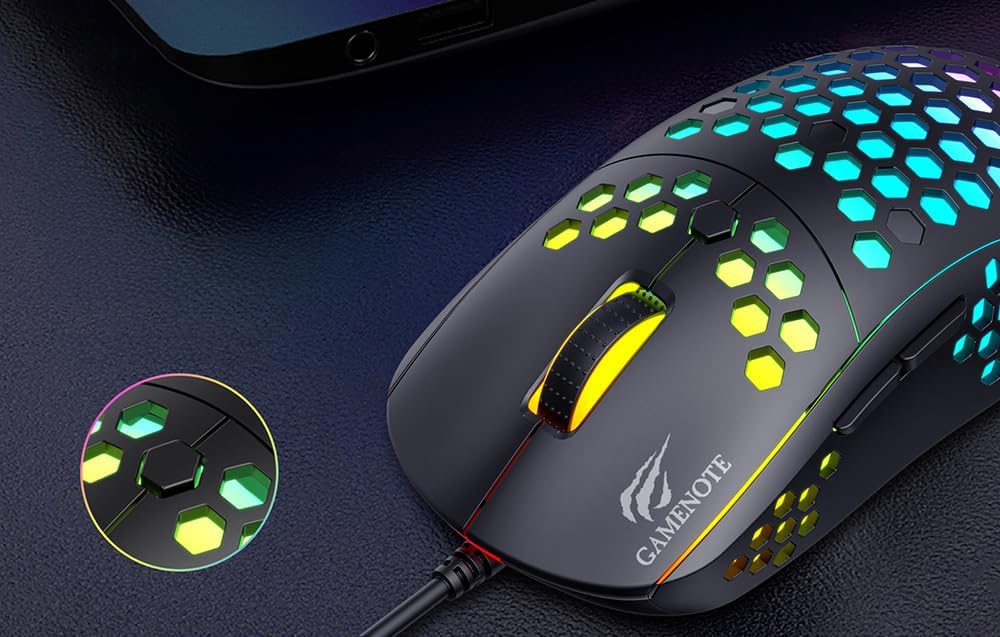
Figure 1: Havit MS1032 Gaming Mouse connected via USB.
3. Arahan Operasi
3.1 Fungsi Asas
- Klik Kiri: Primary action, selection, activation.
- Klik kanan: Opens context menus, performs secondary actions.
- Roda Tatal: Scrolls up/down documents or web halaman. Boleh juga ditekan untuk fungsi klik tengah.
- Butang Sisi: Typically used for forward/backward navigation in web browsers or custom functions in games.
3.2 Pelarasan DPI
The Havit MS1032 features six adjustable DPI (Dots Per Inch) settings, allowing you to change the mouse sensitivity on the fly. This is useful for adapting to different tasks, such as precise aiming in games or fast navigation across multiple monitors.
To adjust the DPI, locate the DPI button, typically positioned behind the scroll wheel. Press this button to cycle through the available DPI settings. The LED lighting on the mouse may change to indicate the current DPI level, providing visual feedback for your selection.
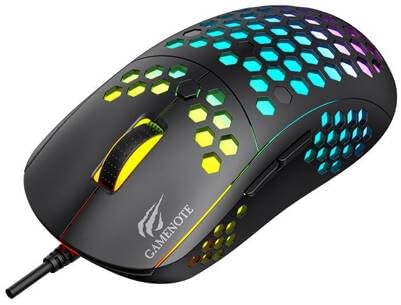
Figure 2: Location of the DPI button (behind the scroll wheel).
4. Penyelenggaraan
4.1 Pembersihan
Untuk mengekalkan prestasi dan penampilan yang optimum, bersihkan tetikus anda dengan kerap:
- Putuskan sambungan tetikus dari komputer anda sebelum membersihkan.
- Gunakan kain lembut dan tidak berbulu sedikit dampdisapu dengan air atau larutan pembersih yang lembut dan tidak melelas.
- Lap perlahan permukaan tetikus.
- For crevices and the optical sensor, use a cotton swab or compressed air to remove dust and debris.
- Avoid using harsh chemicals, abrasive cleaners, or excessive moisture, as these can damage the mouse's finish or internal components.
4.2 Penyimpanan
When not in use, store the mouse in a clean, dry environment away from direct sunlight and extreme temperatures to prevent damage.
4.3 Penjagaan Am
- Elakkan daripada menjatuhkan tetikus atau mendedahkannya kepada hentaman yang kuat.
- Do not attempt to disassemble the mouse, as this will void the warranty and may cause irreparable damage.
- Keep the mouse away from liquids to prevent electrical damage.
5. Penyelesaian masalah
If you encounter issues with your Havit Gaming Mouse MS1032, please refer to the following common solutions:
5.1 Tetikus Tidak Membalas
- Semak Sambungan USB: Pastikan kabel USB dipasang dengan kukuh ke port USB yang berfungsi pada komputer anda. Cuba port USB yang lain.
- Mulakan semula Komputer: Sometimes a simple computer restart can resolve connectivity issues.
- Uji pada Komputer Lain: Jika boleh, uji tetikus pada komputer lain untuk menentukan sama ada masalahnya berpunca daripada tetikus atau tetapan komputer anda.
5.2 Cursor Movement is Erratic or Jumpy
- Penderia Bersih: Pastikan sensor optik di bahagian bawah tetikus bersih dan bebas daripada habuk atau serpihan.
- Semak Permukaan: Gunakan tetikus pada permukaan yang bersih, tidak memantulkan cahaya dan seragam (cth., pad tetikus). Elakkan kaca atau permukaan yang sangat memantulkan cahaya.
- Laraskan DPI: If the cursor is too fast or too slow, adjust the DPI setting using the DPI button.
5.3 Butang Tidak Berfungsi
- Semak halangan: Pastikan tiada serpihan bersarang di bawah butang.
- Konflik Perisian: If you have custom mouse software installed, try uninstalling it temporarily to see if it resolves the issue.
5.4 Lampu LED Tidak Berfungsi
- Semak Sambungan: Pastikan tetikus disambungkan dengan betul ke komputer.
- Kitaran Kuasa: Disconnect and reconnect the mouse to reset its power.
6. Spesifikasi

Figure 3: Havit MS1032 Gaming Mouse design overview.
| Ciri | Perincian |
|---|---|
| Model | MS1032 |
| Jenama | Havit |
| Dimensi | 15 x 8 x 5.2 cm |
| Berat badan | 200g |
| Tetapan DPI | 6 tahap laras |
| Sistem Operasi | Linux, Windows 7, Windows XP |
| Ketersambungan | USB berwayar |
| Bateri Diperlukan | Tidak |
7. Waranti dan Sokongan
For detailed warranty information and technical support, please refer to the official Havit website or contact your local retailer where the product was purchased. It is recommended to keep your purchase receipt as proof of purchase for any warranty claims.
Pengeluar: Havit
Nombor Model: MS1032