1. Pengenalan
The HK SYSTEMS DT-100U USB Cash Drawer Trigger is designed to connect an RJ11/RJ12 printer-driven cash drawer directly to a Windows PC via a USB port. This device eliminates the need for a receipt printer to open the cash drawer, providing a direct interface for point-of-sale (POS) systems.

Image 1: The HK SYSTEMS DT-100U USB Cash Drawer Trigger with its USB cable.
2. Keserasian
This USB trigger is specifically designed for use with Windows PCs only. It is compatible with RJ11/RJ12 printer-driven cash drawers.
- Sistem pengendalian: Windows 10. For Windows 11, additional steps and driver installations may be required. Please refer to the manufacturer's website for detailed instructions for Windows 11.
- Cash Drawer Type: RJ11/RJ12 printer-driven cash drawers.
- Ketidakserasian: Peranti ini adalah not compatible with Square systems (e.g., Square Stand, Square Register) or other non-Windows operating systems.
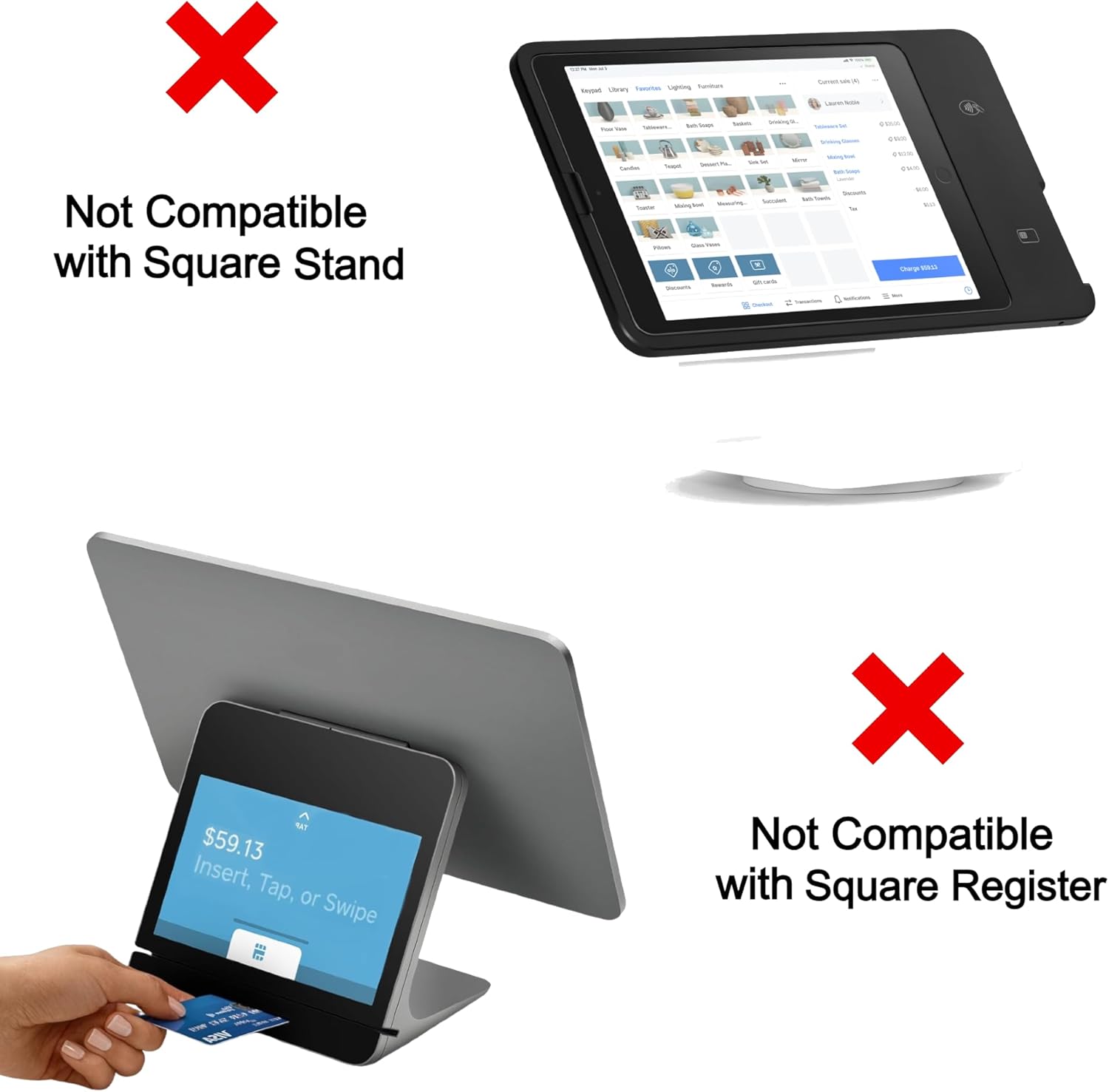
Image 2: Visual representation of incompatibility with Square Stand and Square Register.
3. Arahan Persediaan
Follow these steps to set up your HK SYSTEMS DT-100U USB Cash Drawer Trigger:
- Connect the Cash Drawer: Plug the RJ11/RJ12 cable from your cash drawer into the corresponding port on the HK SYSTEMS DT-100U USB Trigger.
- Sambung ke PC: Plug the USB end of the DT-100U trigger into an available USB port on your Windows PC.
- Pemasangan Pemacu (Windows 10): For Windows 10, the device is typically plug-and-play. The system should automatically detect and install the necessary drivers, creating a virtual serial (COM) port.
- Pemasangan Pemacu (Windows 11): For Windows 11, manual driver installation or additional configuration steps may be required. Please visit the official HK SYSTEMS website for specific instructions and driver downloads for Windows 11 compatibility.
- Verify COM Port: After installation, verify the assigned COM port number through your computer's Device Manager (e.g., COM1, COM2). This port number will be used by your POS software to trigger the cash drawer.
4. Operasi
Once the DT-100U USB Trigger is successfully installed and recognized by your Windows PC as a COM port, your point-of-sale (POS) software can send commands to this virtual serial port to open the cash drawer.
- The trigger functions by receiving any command sent to its assigned COM port, which then activates the cash drawer solenoid to open the drawer.
- Consult your POS software documentation for instructions on how to configure it to send commands to a specific serial (COM) port for cash drawer operation.
5. Spesifikasi
- Jenama: HK SYSTEMS
- Nombor Model: DT-100U
- Dimensi Produk: 2.5"D x 1.5"W x 1"H
- warna: USB Trigger (Black)
- Bahan: Polikarbonat (PC)
- Ciri Khas: Mudah alih
- Jenis Pemasangan: Atas meja
- Tahap Rintangan Air: Bukan Tahan Air
- Berat Barang: 3.34 auns
- Ketersambungan: USB to RJ11/RJ12
6. Penyelesaian masalah
- Cash Drawer Does Not Open:
- Ensure the cash drawer is an RJ11/RJ12 printer-driven model.
- Verify all cables are securely connected to both the trigger and the PC.
- Check Device Manager on your PC to confirm the DT-100U is recognized and assigned a COM port.
- Confirm your POS software is configured to send commands to the correct COM port.
- Device Not Recognized (Windows 11):
- Windows 11 may require specific drivers or configuration. Visit the HK SYSTEMS webtapak for Windows 11 driver downloads and installation guides.
- Isu ketidakserasian:
- This device is strictly for Windows PCs and RJ11/RJ12 cash drawers. It will not function with Square systems or other non-Windows platforms.
7. Penyelenggaraan
The HK SYSTEMS DT-100U USB Cash Drawer Trigger requires minimal maintenance:
- Simpan peranti dalam persekitaran yang kering, jauh daripada kelembapan dan suhu yang melampau.
- Bersihkan bahagian luar dengan kain lembut dan kering. Jangan gunakan pembersih cecair atau pelarut.
- Elakkan daripada menjatuhkan peranti atau terkena impak yang kuat.
8. Waranti dan Sokongan
For warranty information, technical support, or further assistance, please contact HK SYSTEMS directly. You can find contact details and additional resources on the official HK SYSTEMS webtapak or through your purchase vendor.