
1. Produk Lebihview
The GIGABYTE G24F 2 is a 23.8-inch gaming monitor designed for an immersive visual experience. It features a Super Speed IPS panel, Full HD (1920 x 1080) resolution, and a high refresh rate for smooth gameplay.

Rajah 1.1: Depan view of the GIGABYTE G24F 2 gaming monitor.
Ciri-ciri Utama:
- Saiz Panel: 23.8-inch SS IPS display
- Resolusi: 1920 x 1080 (FHD)
- Masa Respons: 1ms MPRT
- Kadar Segar Semula: 165Hz (Boleh overclock hingga 180Hz)
- Saturasi warna: 95% DCI-P3, 125% sRGB
- Kecerahan: 300 cd / m2 (JENIS)
- Nisbah Kontras: 1100:1
- Ketersambungan: 2 x HDMI 2.0, 1 x DisplayPort 1.2 (HDR capable), 2 x USB 3.2 Gen 1 Downstream, 1 x USB 3.2 Gen 1 Upstream, 1 x Earphone Jack
- Ciri Khas: OSD Sidekick, Aim Stabilizer, Black Equalizer, Dashboard, Crosshair, Timer, Counter, Auto-Update, Smart OD, HDR Ready, Flicker-free, Kensington lock
2. Maklumat Keselamatan
Please read all instructions carefully before using the monitor. Keep this manual for future reference.
- Jangan dedahkan monitor kepada hujan atau kelembapan untuk mengelakkan bahaya kebakaran atau renjatan.
- Jangan buka monitor casing. Tiada bahagian yang boleh diservis pengguna di dalamnya. Rujuk semua servis kepada kakitangan yang berkelayakan.
- Letakkan monitor pada permukaan yang stabil dan rata untuk mengelakkannya daripada jatuh.
- Pastikan pengudaraan yang betul di sekeliling monitor. Jangan sekat bukaan pengudaraan.
- Gunakan hanya penyesuai kuasa dan kabel yang disediakan oleh pengilang.
- Cabut palam monitor daripada soket kuasa semasa ribut petir atau apabila tidak digunakan untuk jangka masa yang lama.
- Clean the screen with a soft, lint-free cloth. Avoid using liquid cleaners directly on the screen.
3. Kandungan Pakej
Sahkan bahawa semua item terdapat dalam pakej anda:
- GIGABYTE G24F 2 Monitor
- Stand Monitor (Asas dan Leher)
- Kabel Kuasa
- Kabel HDMI
- USB Cable (Upstream)
- Panduan Mula Pantas (QSG)
- Kad Waranti

Rajah 3.1: Belakang view of the monitor, illustrating the stand attachment area.
4. Persediaan
4.1 Memasang Pendirian
- Keluarkan komponen monitor dan berdiri dengan berhati-hati daripada pembungkusan.
- Pasangkan leher pendirian pada panel monitor. Pastikan ia klik dengan selamat pada tempatnya atau diikat dengan skru jika disediakan.
- Pasangkan tapak penyangga pada leher penyangga. Ketatkan skru ibu jari atau skru di bahagian bawah tapak.
- Letakkan monitor yang dipasang pada permukaan yang stabil dan rata.
4.2 Menyambung Monitor
Connect the monitor to your computer and other devices using the appropriate cables.

Rajah 4.1: Pantau port sambungan.
- Sambungan Kuasa: Sambungkan kabel kuasa ke input kuasa monitor dan kemudian ke alur keluar kuasa.
- Sambungan Video:
- For optimal performance, use the DisplayPort 1.2 cable to connect to your computer's graphics card.
- Alternatively, use one of the two HDMI 2.0 ports.
- Sambungan Hulu USB: Connect the provided USB 3.2 Gen 1 Upstream cable from your computer to the monitor's upstream USB port to enable the monitor's downstream USB ports.
- USB Downstream Connections: Connect USB devices (e.g., keyboard, mouse) to the monitor's two USB 3.2 Gen 1 Downstream ports.
- Output Audio: Connect headphones or external speakers to the Earphone Jack.
5. Mengendalikan Monitor
5.1 Hidupkan/Mati Kuasa
Press the power button, usually located on the bottom or rear of the monitor, to turn the monitor on or off. The power indicator light will show the monitor's status.
5.2 Menu Paparan Pada Skrin (OSD).
The OSD menu allows you to adjust various monitor settings. Navigate the OSD using the joystick or buttons typically found on the rear of the monitor.

Figure 5.1: OSD Sidekick software for convenient monitor control.
For advanced control, install the OSD Sidekick software on your PC. This utility allows you to adjust monitor settings directly from your desktop.
5.3 Ciri-ciri Permainan
The GIGABYTE G24F 2 includes several features to enhance your gaming experience:
- Aim Stabilizer: Reduces motion blur and improves visual clarity in fast-paced games.
- Penyamaan Hitam: Enhances visibility in dark areas of the game without overexposing bright areas.

Figure 5.2: Black Equalizer in action.
- Papan pemuka: Displays real-time hardware information (e.g., CPU/GPU temperature, usage) directly on the screen.

Figure 5.3: Dashboard displaying system metrics.
- Crosshair: Provides a customizable on-screen crosshair to assist with aiming.

Figure 5.4: On-screen Crosshair.
- Pemasa/Pengira: On-screen timers and counters for in-game tracking.
- Smart OD: Optimizes overdrive settings for the best response time.
- Kemas kini Auto: Ensures the monitor's firmware and OSD Sidekick software are up-to-date.
5.4 Tetapan Paparan
- Kadar Segar Semula: The monitor supports up to 165Hz, with an overclock option to 180Hz, for fluid motion.
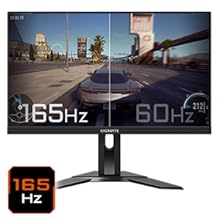
Figure 5.5: Visual comparison of 165Hz vs. 60Hz refresh rate.
- Masa Respons: Enjoy a 1ms MPRT (Moving Picture Response Time) for minimal ghosting.
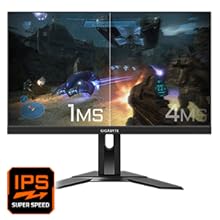
Figure 5.6: Visual comparison of 1ms vs. 4ms response time.
- Gamut Warna: The monitor covers 95% DCI-P3 and 125% sRGB for vibrant and accurate colors.
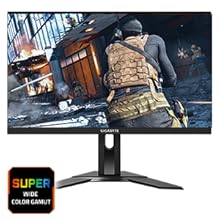
Figure 5.7: Wide color gamut for rich visuals.
- Cahaya Biru Rendah: Reduces blue light emissions to protect your eyes during extended use.
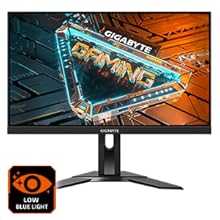
Figure 5.8: Low Blue Light feature for reduced eye strain.
- Tanpa Kelipan: Menghilangkan kelipan skrin untuk keselesaan yang lebih viewpengalaman dalam.

Figure 5.9: Flicker-Free technology for comfortable viewing.
5.5 Product Feature Video
Video 5.1: Tamatview of the GIGABYTE G24F 2 monitor's features and specifications.
6. Penyelenggaraan
Proper maintenance ensures the longevity of your monitor.
- Membersihkan Skrin: Lap skrin perlahan-lahan dengan kain yang lembut, kering dan tidak berbulu. Untuk tanda degil, ringankan dampbilas kain dengan air atau pembersih skrin khusus (sapukan pada kain, bukan terus pada skrin).
- Membersihkan Casing: Gunakan kain lembut dan kering untuk mengelap monitor casing. Elakkan pembersih yang kasar.
- Pengudaraan: Ensure the ventilation openings on the monitor are clear of dust and obstructions.
- Matikan: Turn off and unplug the monitor when not in use for extended periods.
7. Penyelesaian masalah
Jika anda menghadapi masalah dengan monitor anda, rujuk jadual berikut untuk masalah dan penyelesaian biasa.
| Masalah | Kemungkinan Punca | Penyelesaian |
|---|---|---|
| Tiada gambar di skrin | Power cable not connected; Video cable not connected; Incorrect input source selected | Check power and video cable connections; Select correct input source via OSD. |
| Imej kabur atau herot | Incorrect resolution; Loose video cable | Tetapkan resolusi paparan kepada 1920x1080; Pastikan kabel video disambungkan dengan selamat. |
| Tiada bunyi daripada fon kepala/pembesar suara | Audio cable not connected; Volume too low; Incorrect audio output selected on PC | Check audio cable connection; Adjust volume; Select monitor as audio output on PC. |
| Port USB tidak berfungsi | Kabel huluan USB tidak disambungkan | Connect the USB 3.2 Gen 1 Upstream cable from the monitor to your PC. |
| Skrin berkelip-kelip | Refresh rate issue; Faulty cable | Ensure refresh rate is set correctly; Try a different video cable. |
8. Spesifikasi
Detailed technical specifications for the GIGABYTE G24F 2 monitor.

Rajah 8.1: Memantau dimensi.
| Ciri | Perincian |
|---|---|
| Jenama | GIGABYTE |
| Nama Model | G24F 2 |
| Nombor Model | 9DG24F2-00-1ABIN |
| Saiz Skrin | 23.8 Inci |
| Resolusi | 1920 x 1080 Piksel (FHD 1080p) |
| Nisbah Aspek | 16:9 |
| Jenis Paparan | LCD (SS IPS Panel) |
| Kadar Segar Semula | 165 Hz (180Hz OC) |
| Masa Tindak Balas | 1 Milliseconds (MPRT) |
| Kecerahan | 300 candela_per_square_meter (TYP) |
| Nisbah Kontras | 1100:1 |
| Ketepuan Warna | 95% DCI-P3, 125% sRGB |
| Viewsudut | 178 Darjah |
| Ketersambungan | 2 x HDMI 2.0, 1 x DisplayPort 1.2, 2 x USB 3.2 Gen 1 Downstream, 1 x USB 3.2 Gen 1 Upstream, 1 x Earphone Jack |
| Penyegerakan Adaptif | Premium FreeSync |
| Penggunaan Kuasa | 17.5 Watt |
| Berat Barang | 3.2 Kilogram |
| Dimensi Item (D x W x H) | 5.3D x 54.1W x 32.6H Sentimeter |
| Jenis Pemasangan | Lekap di dinding |
| Ciri-ciri Produk | Flicker-Free, Height Adjustment, High Dynamic Range, Tilt Adjustment |
9. Waranti dan Sokongan
The GIGABYTE G24F 2 monitor comes with a Waranti 3 tahun daripada pengilang.
For technical support, warranty claims, or further inquiries, please contact GIGABYTE customer service:
- Pengeluar: GIGABYTE Technology (India) Pvt Ltd
- Alamat: B-808, Naman Midtown, Elphinstone Road, Mumbai – 400013 – INDIA
- telefon: +91-22-40633222
Sila simpan bukti pembelian anda untuk perkhidmatan waranti.