
1. Produk Lebihview
The YEEHUNG 12.3-inch HD Car Radio Screen is designed to upgrade the infotainment system in compatible Mercedes-Benz vehicles. It integrates modern features such as CarPlay and Android Auto while retaining the original vehicle's functions.

Image 1.1: The 12.3-inch HD Car Radio Screen displaying the CarPlay interface.
Ciri-ciri Utama:
- 12.3-inch HD IPS Touch Screen (1920x720 resolution)
- Sistem Operasi Linux
- Kesambungan Bluetooth 5.0
- Supports Wired and Wireless CarPlay
- Supports Wired and Wireless Android Auto
- Kefungsian Pautan Cermin
- Compatible with OEM and aftermarket CVBS/720P AHD cameras
- Main balik Media USB

Image 1.2: Visual representation of the screen's core features.
2. Persediaan dan Pemasangan
2.1 Semakan Keserasian
This unit is specifically designed for Mercedes-Benz C Class W204 models manufactured between 2012 and 2015, equipped with the NTG4.5/4.7 system. Before installation, verify your vehicle's year, model, and existing OEM system to ensure compatibility.

Image 2.1: Confirming vehicle year and model for compatibility.
2.2 Kandungan Pakej
Sahkan bahawa semua komponen terdapat dalam pakej:
- 1 x 12.3 inch HD Car Radio Screen
- 1 x Pendawaian ISO
- 1 x Kabel USB
- 1 x BC AMI Cable
- 1 x W204 Base
- 1 x Manual Pemasangan (dokumen ini)

Imej 2.2: Kandungan pakej produk.
2.3 Langkah Pemasangan
Professional installation is recommended. Refer to vehicle-specific guides for dashboard disassembly. The following points are critical during installation:
- Fiber Optic Cable Adaptation: Properly adapt the 2-pin fiber optic cable to the original ISO plug. This is crucial for sound transmission.
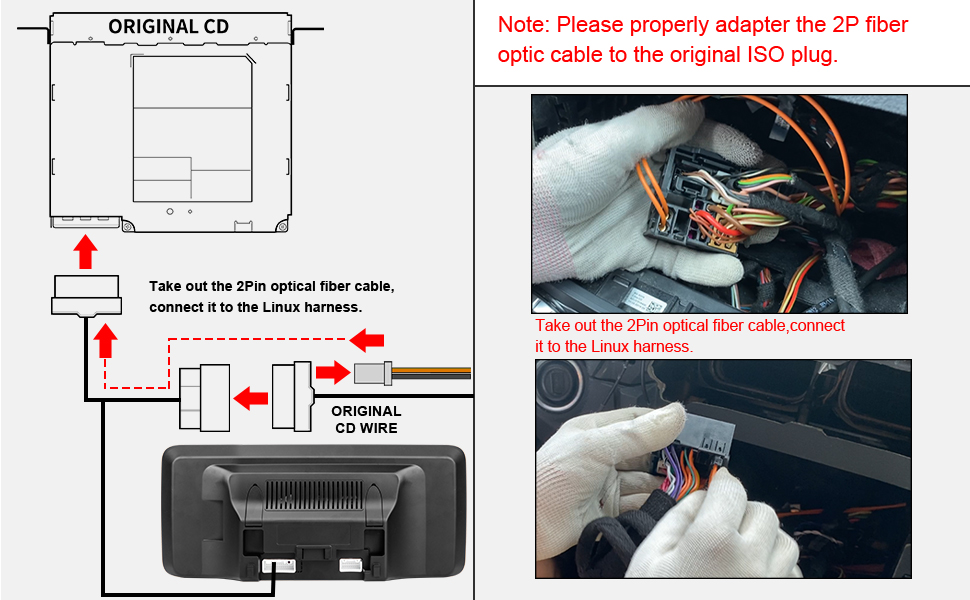
Image 2.3: Fiber optic cable connection diagram.
- Pengurusan Pendawaian: The new harness may create a tight fit. Tape wires together and carefully route them to ensure the original radio unit can be reinstalled without obstruction.
- AUX Audio Connection: If your NTG4.5 system does not have an AUX menu, it must be activated. You will need to connect the audio output from the new screen to your car's AUX jack using either the provided AMI cable or the Audio out on the ISO cable, depending on your car's interface type.

Image 2.4: Connecting 'Audio out' to AMI.

Image 2.5: Connecting 'Audio out' to AUX IN.
- Pengaktifan AUX: Navigate to the system settings to activate the AUX input if it's not already enabled.
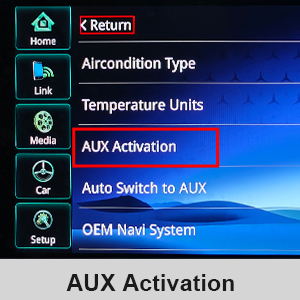
Image 2.6: AUX Activation menu in settings.
- Old Apple 30-pin Cable: If your car has an older 30-pin Apple cable in the glovebox or center console, unplug it from the OEM wiring harness. This cable can impede AUX sound through the new unit.
- USB Connection for Wired CarPlay/Android Auto: For wired CarPlay and Android Auto functionality, ensure you use the USB IN 1 port.
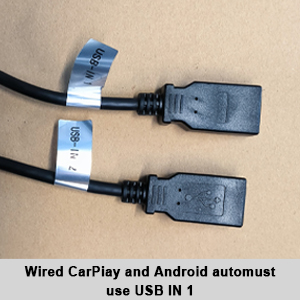
Image 2.7: USB IN 1 for wired CarPlay/Android Auto.
- OEM Resolution Setting: Adjust the OEM resolution setting within the unit's menu to match your vehicle's original display resolution for optimal clarity.

Image 2.8: Setting the OEM Resolution.
- Camera Type Setting: If installing a backup camera, configure the camera type (Original Camera or Aftermarket Camera) in the settings. The unit supports CVBS/720P AHD cameras.
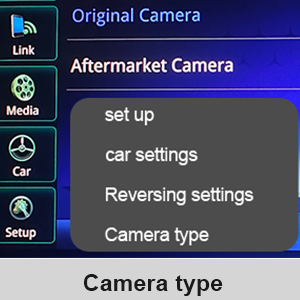
Image 2.9: Camera type selection in settings.

Image 2.10: Before and after installation view.
3. Arahan Operasi
3.1 Bertukar Antara Sistem
The unit supports a dual system, allowing you to switch between the original OEM vehicle information display and the new CarPlay/Android Auto interface. This can typically be done via a dedicated button or a menu option on the screen.

Image 3.1: Switching between OEM and new system interfaces.
3.2 CarPlay dan Android Auto
The screen supports both wired and wireless CarPlay and Android Auto. Connect your smartphone to access navigation, music, calls, and other compatible applications directly on the car's display. Control can be done via the touchscreen or the car's original knob.

Image 3.2: CarPlay and Android Auto in operation.
3.3 Bluetooth Calling and Music
The unit supports OEM Bluetooth calls and music playback. For optimal call quality, ensure your car has both factory Bluetooth and Bluetooth audio. After setup, you may need to switch the call mode on your phone to utilize the OEM Bluetooth sound when using CarPlay or Android Auto.

Image 3.3: OEM Bluetooth support for audio and calls.
3.4 Paparan Kamera Sandaran
The screen integrates with OEM and aftermarket backup cameras (up to 720P AHD format), displaying the camera feed and radar information when reversing.

Image 3.4: Backup camera display with radar information.
3.5 Manual AUX Switching
If you experience unstable sound when using the automatic AUX switching function, you can manually select the AUX input to achieve a more stable audio connection.
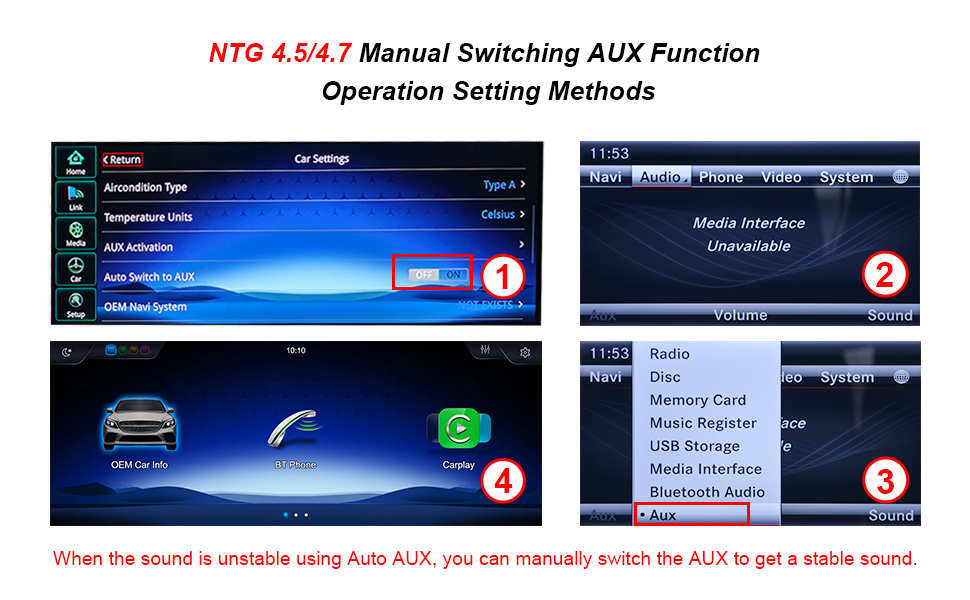
Image 3.5: Manual AUX function operation settings.
4. Penyelenggaraan
To ensure the longevity and optimal performance of your YEEHUNG car radio screen, follow these maintenance guidelines:
- Pembersihan Skrin: Use a soft, lint-free cloth specifically designed for electronics to clean the screen. Dampen the cloth lightly with water or a screen-safe cleaner if necessary. Avoid harsh chemicals, abrasive materials, or excessive moisture.
- Penyingkiran habuk: Regularly wipe down the unit and surrounding areas to prevent dust buildup, which can affect performance and aesthetics.
- Kemas Kini Perisian: Check for any available software updates from the manufacturer to ensure you have the latest features and bug fixes.
- Elakkan Suhu Melampau: Do not expose the unit to extreme heat or cold for extended periods, as this can damage internal components.
5. Penyelesaian masalah
If you encounter issues with your YEEHUNG car radio screen, refer to the following common problems and solutions:
- No Sound or Unstable Audio:
- Ensure the AUX menu is activated in your NTG4.5 system settings.
- Verify the audio output cable is correctly connected to your car's AUX or AMI jack.
- If using Auto AUX, try manually switching to the AUX input.
- If an old 30-pin Apple cable is present in your car, ensure it is unplugged from the OEM wiring harness.
- Kamera Sandaran Tidak Dipaparkan:
- Check the camera type setting in the unit's menu to ensure it matches your installed camera (OEM or Aftermarket).
- Verify all camera connections are secure.
- Ensure the camera format does not exceed 720P AHD, as higher resolutions are not supported.
- Unit is Slow or Takes Long to Start:
- This can sometimes occur. Ensure all background applications are closed if applicable.
- Jika masalah berterusan, hubungi sokongan pelanggan untuk mendapatkan bantuan lanjut.
- Screen Not Lighting Up / No Power:
- Double-check all power connections and the ISO wiring harness.
- Pastikan penyalaan kenderaan dihidupkan.
- If the unit remains unresponsive, it may indicate a hardware issue. Contact customer support.
For issues not covered here, or if troubleshooting steps do not resolve the problem, please refer to the Support section for contact information.
6. Spesifikasi
| Ciri | Spesifikasi |
|---|---|
| Nombor Model | FY-7L12 |
| Saiz Paparan | 12.3 Inci |
| Resolusi Paparan | 1920x720 |
| Sistem Operasi | Linux |
| Teknologi Ketersambungan | Bluetooth, USB, Wi-Fi |
| Versi Bluetooth | 5.0 |
| Ciri Khas | Built-In Bluetooth, Touchscreen, CarPlay, Android Auto, Mirror Link |
| Peranti Serasi | Telefon pintar |
| Mod Keluaran Audio | Stereo |
| Konfigurasi Saluran Bunyi Sekeliling | 5.0 |
| Pengekodan Video | H.264, H.265/HEVC |
| Bilangan Saluran | 5 |
| Berat Barang | 6.23 paun |
| Dimensi Produk | 12.83 x 0.98 x 5.67 inci |
| Ciri Tidak Disokong | Aftermarket cameras exceeding 720P AHD format, 4G network |
7. Maklumat Waranti
YEEHUNG provides the following warranty coverage for this product:
- Within 1 Month of Purchase: Free returns are available according to Amazon's return policy. Contact Amazon Buyer Services before initiating a return.
- 1 to 12 Months After Purchase: Free warranty service is provided for non-human damage. The customer is responsible for the cost of shipping the product back and forth within the U.S.
- After 1 Year of Purchase: Repair service is available. In addition to paying for postage within the U.S., customers will be responsible for additional parts replacement and labor costs.
8. Sokongan
For any questions, concerns, or technical assistance, please contact YEEHUNG customer support. To expedite assistance, clearly describe your issue and provide relevant details such as your vehicle model, year, and OEM system.
- Compatibility Inquiries: If you are unsure about product fitment, send a photo of your car's dashboard and the model year to customer support for verification.
- Masa Respons: Customer support aims to reply within 24 hours.


