
1. Pengenalan
This manual provides essential information for the safe and efficient operation of your suevery SV240ZA 24-inch 165Hz IPS Gaming Monitor. Please read this manual thoroughly before using the product and retain it for future reference. This monitor is designed for gaming, home office, and general computing tasks, offering a Full HD 1080p resolution, a high refresh rate, and fast response time for a smooth visual experience.
2. Maklumat Keselamatan
- Jangan dedahkan monitor kepada hujan atau kelembapan untuk mengelakkan kebakaran atau renjatan elektrik.
- Jangan buka monitor casing. Tiada bahagian yang boleh diservis pengguna di dalamnya. Rujuk semua servis kepada kakitangan yang berkelayakan.
- Letakkan monitor pada permukaan yang stabil dan rata untuk mengelakkannya daripada jatuh.
- Pastikan pengudaraan yang betul di sekeliling monitor. Jangan sekat bukaan pengudaraan.
- Gunakan hanya penyesuai kuasa yang dibekalkan bersama monitor.
- Cabut palam kuasa dari soket jika monitor tidak akan digunakan untuk tempoh yang lama.
3. Kandungan Pakej
Sahkan bahawa semua item terdapat dalam pakej:
- 1 x suevery SV240ZA Monitor
- 1 x Tapak Pendirian
- 1 x Kabel HDMI
- 1 x Kabel DisplayPort
- 1 x Manual Pengguna
- 1 x Penyesuai Kuasa
4. Arahan Persediaan
4.1 Memasang Pendirian
Attach the stand base to the monitor neck, then secure the neck to the back of the monitor. Ensure all screws are tightened securely.
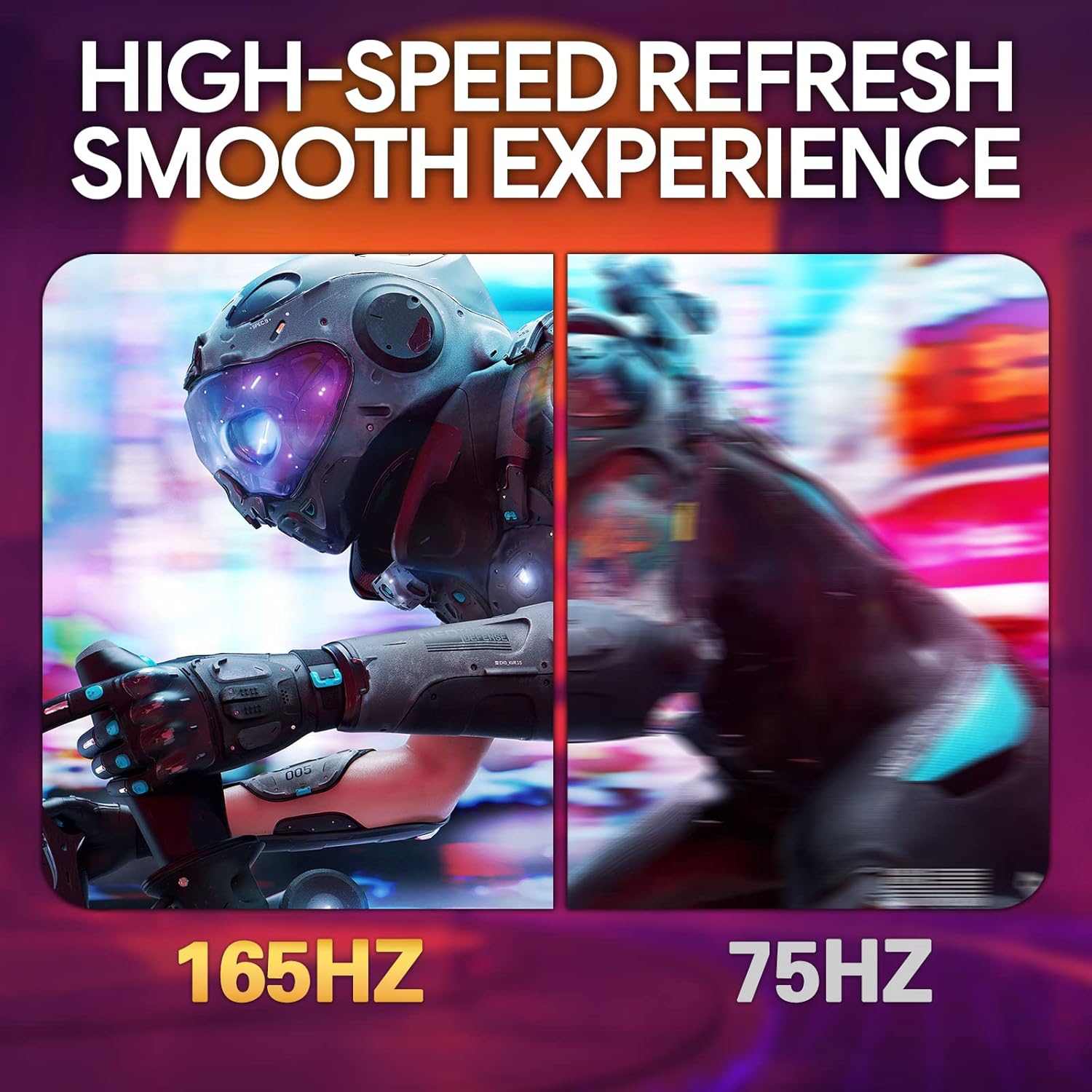
Image: The suevery SV240ZA monitor fully assembled with its desktop stand.
4.2 Pemasangan VESA
The monitor supports VESA mounting with a 75mm x 75mm pattern. Remove the stand if attached, and use appropriate VESA screws to mount the monitor to a compatible wall mount or desk arm.

Image: Rear of the monitor illustrating the 75mm x 75mm VESA mount compatibility.
4.3 Menyambung Kabel
Connect the power adapter to the monitor and a power outlet. Use either the HDMI or DisplayPort cable to connect the monitor to your computer or gaming device. For audio output, connect headphones or external speakers to the 3.5mm audio out port.

Imej: Selesaiview of the monitor's rear ports including USB, HDMI, DisplayPort, and Audio out.
4.4 Kuasa Awal Hidup
Press the power button located on the monitor to turn it on. The monitor will automatically detect the input signal. If no signal is detected, ensure your source device is powered on and connected correctly.
5. Arahan Operasi
5.1 Menu Paparan Pada Skrin (OSD).
The OSD menu allows you to adjust various monitor settings. Typically, buttons on the back or bottom of the monitor are used to navigate and select options within the OSD.
5.2 Melaraskan Tetapan Paparan
- Kadar Segar Semula: The monitor supports up to 165Hz. Ensure your graphics card settings are configured to utilize the maximum refresh rate for a smoother experience.
- Masa Respons: With a 1ms GTG response time, motion blur is significantly reduced. This setting is often managed automatically or through specific OSD options.
- FreeSync: Enable AMD FreeSync in the OSD menu and your graphics card control panel to synchronize the monitor's refresh rate with your GPU's frame rate, eliminating screen tearing and stuttering.
- Tetapan Warna: Adjust brightness, contrast, color temperature, and gamma for optimal visual quality. The IPS panel provides 99% sRGB color gamut and 8-bit color depth for rich and vibrant colors.
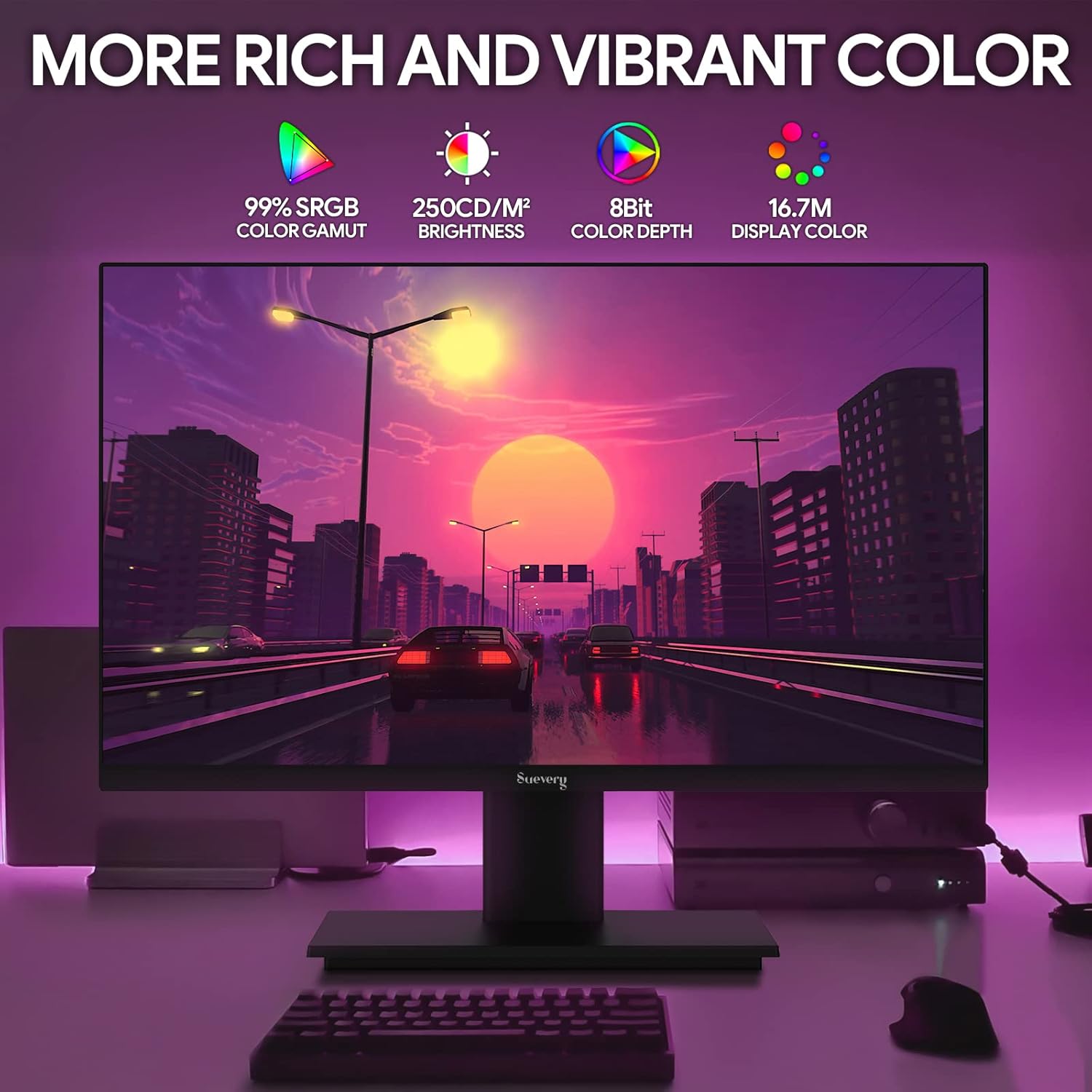
Image: The monitor's display capabilities, highlighting rich and vibrant color reproduction.
5.3 Pelarasan Kecondongan
The monitor allows for tilt adjustment from -3 to 18 degrees. Gently adjust the screen to your preferred viewsudut ing.

Image: Illustration of the monitor's adjustable tilt feature.
5.4 Keluaran Audio
Connect your headphones or external speakers to the 3.5mm audio out port for private listening or enhanced sound.

Image: User connecting headphones to the 3.5mm audio out port on the monitor.
6. Ciri Berakhirview
6.1 Kadar Segar Semula Tinggi dan Masa Respons Pantas
Experience smooth visuals with a 165Hz refresh rate and a 1ms GTG response time, reducing motion blur and ghosting in fast-paced content.

Image: Visual comparison demonstrating the smoothness of a 165Hz refresh rate versus 75Hz.

Image: Visual comparison highlighting the reduction of afterimage and ghosting with 1ms GTG response time.
6.2 Adaptive Sync Technology
AMD FreeSync support synchronizes the monitor's refresh rate with compatible graphics cards, eliminating screen tearing and stuttering for fluid gameplay.
Image: Demonstrates the smooth display experience provided by 165Hz and FreeSync technology.
6.3 IPS Panel and Full HD Resolution
The IPS panel offers wide 178-degree viewing angles and accurate color reproduction. The 1920 x 1080p Full HD resolution provides clear and detailed images.

Image: Illustrates the enhanced detail and realism of 1080p Full HD resolution compared to standard HD.
6.4 HDR Technology
HDR (High Dynamic Range) technology enhances contrast and color accuracy, bringing more lifelike images to your screen.

Image: Visual representation of how HDR technology improves image quality compared to SDR.
6.5 Keserasian Luas
Equipped with HDMI and DisplayPort, the monitor connects to various devices such as PCs, laptops, gaming consoles, and TV boxes.

Image: The monitor connected to multiple devices, demonstrating its broad compatibility.
7. Penyelenggaraan
7.1 Membersihkan Monitor
- Sentiasa cabut plag monitor sebelum membersihkan.
- Gunakan kain lembut yang tidak berbulu dampdisapu dengan air atau pembersih skrin yang lembut dan tidak melelas.
- Jangan sembur pembersih terus ke skrin.
- Avoid using harsh chemicals like alcohol, benzene, or thinners, as they can damage the screen surface.
7.2 Penjagaan Am
- Jauhkan monitor daripada cahaya matahari langsung dan sumber haba.
- Elakkan meletakkan objek berat pada monitor atau kabelnya.
- Jangan dedahkan monitor kepada suhu atau kelembapan yang melampau.
8. Penyelesaian masalah
Jika anda menghadapi masalah dengan monitor anda, rujuk langkah penyelesaian masalah biasa berikut:
| Masalah | Kemungkinan Punca | Penyelesaian |
|---|---|---|
| Tiada gambar di skrin | Kabel kuasa diputuskan; Kabel video diputuskan; Sumber input salah dipilih. | Check power and video cable connections. Ensure the correct input source (HDMI/DP) is selected via the OSD menu. |
| Imej berkelip-kelip atau tidak stabil | Video cable loose or damaged; Graphics card driver issue; Refresh rate mismatch. | Secure video cable. Update graphics card drivers. Adjust refresh rate in your computer's display settings. Enable FreeSync if applicable. |
| Tiada bunyi daripada audio keluar | Headphones/speakers not connected; Volume too low; Incorrect audio output device selected on computer. | Ensure audio device is properly connected. Increase volume on monitor and computer. Select the monitor as the default audio output device in your computer's sound settings. |
| Monitor tidak dihidupkan | Power cable disconnected; Power adapter faulty. | Verify power cable is securely connected to both the monitor and a working power outlet. Test the outlet with another device. |
9. Spesifikasi
| Ciri | Spesifikasi |
|---|---|
| Jenama | pertikaian |
| Model | SV240ZA |
| Saiz Skrin | 24 Inci |
| Resolusi | FHD 1080p (1920 x 1080 Piksel) |
| Nisbah Aspek | 16:9 |
| Jenis Panel | IPS (LCD) |
| Kadar Segar Semula | 165 Hz |
| Masa Tindak Balas | 1 Millisecond (GTG) |
| Nisbah Kontras | 1000:1 |
| Kecerahan | 220 cd/m² |
| Viewsudut | 178 Darjah |
| Ketersambungan | 1 x HDMI, 1 x DisplayPort, 1 x USB (charging only), 1 x 3.5mm Audio Out |
| Penyegerakan Adaptif | AMD FreeSync |
| Gunung VESA | 75mm x 75mm |
| Pelarasan Kecondongan | -3 hingga 18 darjah |
| Dimensi (W x H x D) | 54.6 cm x 32.3 cm x 9.7 cm (approximate, without stand) |

Image: Detailed dimensions of the suevery SV240ZA monitor.
10. Waranti dan Sokongan
10.1 Polisi Waranti
The suevery SV240ZA monitor comes with a one-year free warranty. Returns and replacements are free within 30 days of purchase for quality issues.
10.2 Sokongan Pelanggan
For any quality issues or support inquiries regarding your monitor, please contact suevery customer support. Refer to the contact information provided with your purchase documentation or visit the official suevery webtapak untuk mendapatkan bantuan.