
1. Pengenalan
The Ricoh M 320 is a high-productivity, low-maintenance multifunction device designed for printing, copying, and scanning in workspaces with limited space. This system offers easy monitoring and management of print history, device settings, and network protocols. Featuring a 5 GHz Wi-Fi interface, it ensures a stable wireless connection by reducing bottlenecks. Its compact design makes it suitable for various office environments. Setup and operation are designed to be straightforward. The integrated scan and copy functions facilitate easy digitization and sharing of documents. The all-in-one toner cartridge is high-capacity and simple to replace. Full support is provided for Windows, Mac, and Linux operating systems, with both 2.4 GHz and 5 GHz WLAN capabilities.
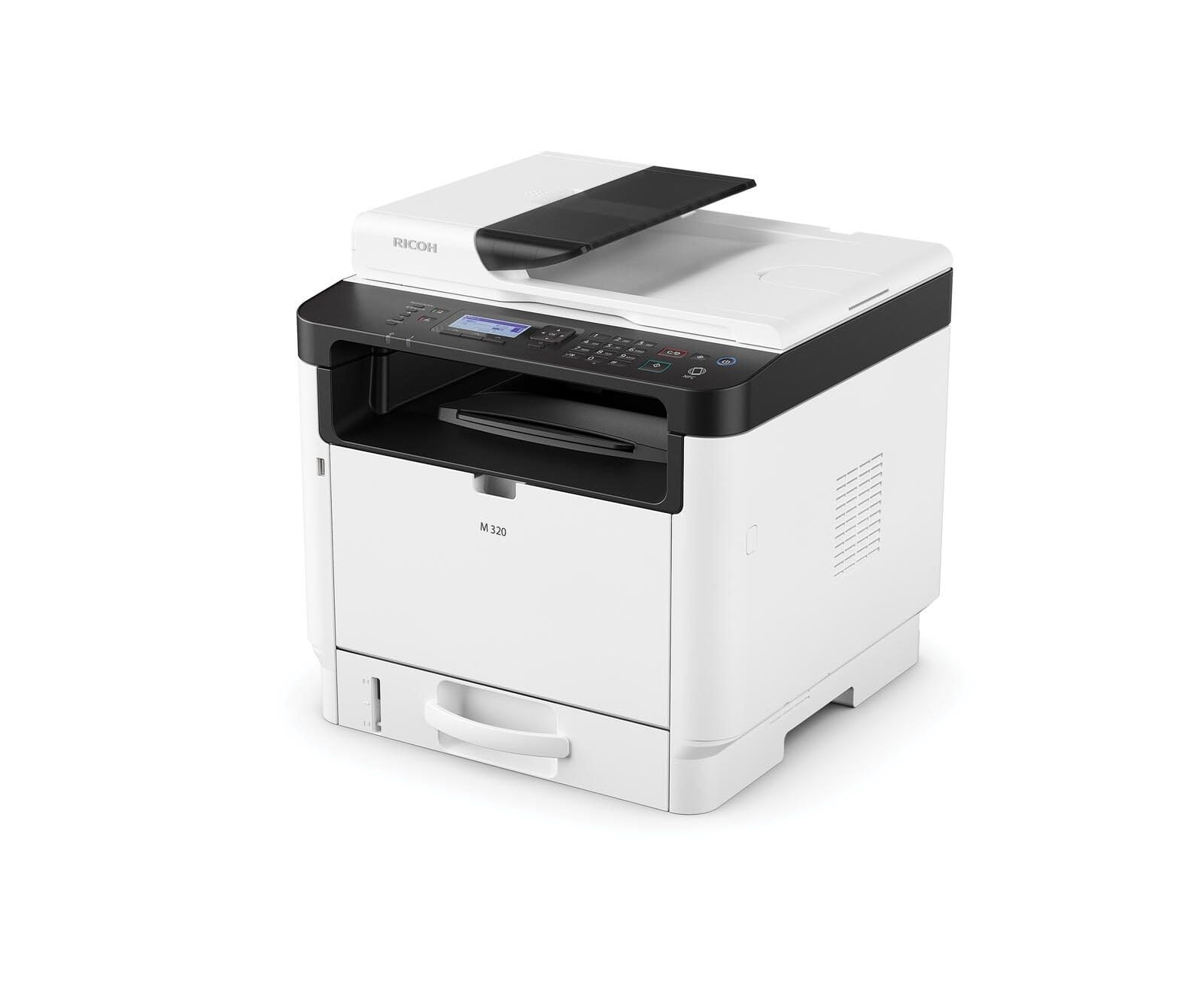
Figure 1: Ricoh M 320 Multifunction System. This image displays the compact design of the Ricoh M 320, highlighting its main components including the paper tray and control panel.
1.1 Apa yang ada di dalam Kotak
Sahkan bahawa semua item terdapat dalam pakej:
- Ricoh M 320 Multifunction System
- Kabel Kuasa
- Kartrij Toner Pemula
- Panduan Persediaan
- Software CD (may vary by region)
2. Persediaan
2.1 Membongkar dan Meletakkan
- Keluarkan pencetak daripada pembungkusannya.
- Keluarkan semua pita pelindung dan bahan pembungkusan dari bahagian luar dan dalam pencetak.
- Place the printer on a stable, level surface with adequate ventilation. Ensure sufficient space around the printer for operation and maintenance.
2.2 Sambungan Kuasa
- Sambungkan kabel kuasa ke input kuasa pencetak.
- Palamkan hujung kabel kuasa yang lain ke dalam salur keluar elektrik yang dibumikan.
- Tekan butang kuasa untuk menghidupkan pencetak.
Pemasangan Kartrij Toner 2.3
- Buka kulit hadapan pencetak.
- Carefully remove the new toner cartridge from its packaging and gently shake it horizontally several times to distribute the toner evenly.
- Insert the toner cartridge into the printer until it clicks into place.
- Tutup penutup hadapan.
2.4 Pemuatan Kertas
- Tarik keluar dulang kertas.
- Adjust the paper guides to match the size of the paper you are loading (up to A4).
- Load the paper stack into the tray, ensuring it is flat and not exceeding the maximum fill line.
- Tolak dulang kertas kembali ke dalam pencetak dengan lembut.
2.5 Sambungan Rangkaian
The Ricoh M 320 supports both Ethernet and Wi-Fi connectivity.
Sambungan Ethernet:
- Connect an Ethernet cable from your network router or switch to the Ethernet port on the back of the printer.
- The printer will automatically attempt to obtain an IP address.
Wi-Fi Connection (2.4 GHz / 5 GHz):
- On the printer's 4-line LCD display, navigate to the Network Settings menu.
- Select "WLAN Setup" or "Wi-Fi Setup".
- Pilih rangkaian Wi-Fi anda daripada senarai rangkaian yang tersedia.
- Enter the Wi-Fi password (WPA/WPA2 key) using the control panel.
- Confirm the settings. The printer will connect to the network.
2.6 Pemasangan Pemacu dan Perisian
To use all functions of the Ricoh M 320, install the necessary drivers and software on your computer.
- Windows/Mac/Linux: Insert the provided software CD into your computer's CD/DVD drive and follow the on-screen instructions. Alternatively, download the latest drivers and utilities from the official Ricoh support webtapak.
- Mobile Devices (iOS/Android): Download the Ricoh Smart Device Connector app from your device's app store to enable mobile printing and scanning. The printer supports AirPrint and Mopria.
3. Mengendalikan Pencetak
3.1 Mencetak Dokumen
- Buka dokumen yang ingin anda cetak pada komputer atau peranti mudah alih anda.
- Pilih "Cetak" daripada menu aplikasi (cth., File > Cetak).
- Choose "Ricoh M 320" as your printer.
- Adjust print settings such as number of copies, paper size, and duplex printing (automatic duplex is supported).
- Klik "Cetak".
The printer offers high-quality black and white printing at 1200 x 1200 dpi. Maximum print speed for black and white is 13 pages per minute, and for color is 4.5 pages per minute.
3.2 Menyalin Dokumen
- Place the document face-down on the scanner glass or face-up in the Automatic Document Feeder (ADF). The ADF supports up to 35 sheets.
- Pada panel kawalan pencetak, pilih "Salin".
- Use the navigation buttons to adjust settings such as number of copies (up to 35 per run), copy quality, and zoom.
- Tekan butang "Mula" untuk mula menyalin.
3.3 Mengimbas Dokumen
Documents can be scanned to a computer or mobile device.
- Letakkan dokumen di atas kaca pengimbas atau di dalam ADF.
- On your computer, open the scanning software (e.g., Ricoh Scan Utility) or use the "Scan" function from the Ricoh Smart Device Connector app on your mobile device.
- Select "Ricoh M 320" as the scanner.
- Choose scan settings such as resolution (up to 1200 x 1200 dpi), color mode, and destination folder.
- Initiate the scan.
3.4 Mobile Printing and Scanning
The Ricoh M 320 supports mobile printing and scanning via AirPrint, Mopria, and the Ricoh Smart Device Connector app.
- AirPrint (iOS): Ensure your iOS device is connected to the same Wi-Fi network as the printer. Open the document or photo, tap the share icon, and select "Print". Choose the Ricoh M 320.
- Mopria (Android): Ensure your Android device has the Mopria Print Service installed and is connected to the same Wi-Fi network. Open the document or photo, tap the menu icon, and select "Print". Choose the Ricoh M 320.
- Ricoh Smart Device Connector App: Use the dedicated app for advanced mobile printing, scanning, and device management features.
4. Penyelenggaraan
4.1 Menggantikan Kartrij Toner
When the toner level is low, a message will appear on the printer's display. Use only genuine Ricoh standard laser toner cartridges.
- Pastikan pencetak dihidupkan.
- Buka kulit hadapan pencetak.
- Carefully pull out the used toner cartridge.
- Unpack the new toner cartridge and gently shake it horizontally several times.
- Insert the new toner cartridge into the printer until it clicks into place.
- Close the front cover. The printer will calibrate the new cartridge.
4.2 Membersihkan Pencetak
Pembersihan berkala membantu mengekalkan kualiti cetakan dan memanjangkan jangka hayat pencetak.
- Luaran: Lap permukaan luar dengan lembut, damp, lint-free cloth. Do not use abrasive cleaners or solvents.
- Kaca Pengimbas: Gently clean the scanner glass with a soft, lint-free cloth moistened with glass cleaner. Ensure no residue remains.
- Dalaman: Periodically open the front cover and gently remove any paper dust or toner residue with a dry, lint-free cloth. Avoid touching the drum unit.
5. Penyelesaian masalah
This section addresses common issues you might encounter with your Ricoh M 320.
5.1 Isu dan Penyelesaian Biasa
- Pencetak Tidak Memberi Respons:
- Check if the printer is powered on and connected to the power outlet.
- Verify network connectivity (Ethernet cable or Wi-Fi signal).
- Mulakan semula pencetak dan komputer/peranti mudah alih anda.
- Ensure the correct printer driver is installed and selected.
- Kesesakan Kertas:
- Matikan pencetak dan cabut plagnya.
- Open all covers and carefully remove any jammed paper, pulling in the direction of the paper path.
- Ensure paper is loaded correctly and not creased or damaged.
- Close all covers and restart the printer.
- Kualiti Cetakan Lemah:
- Check the toner cartridge level and replace if low.
- Ensure you are using genuine Ricoh toner cartridges.
- Clean the interior of the printer, especially around the drum unit (refer to maintenance section).
- Adjust print quality settings in your printer driver.
- Scanner Not Working:
- Ensure the printer is connected to the network and recognized by your computer/mobile device.
- Restart the scanning application and the printer.
- Verify that the scanner glass and ADF are clean.
- Isu Sambungan Wi-Fi:
- Pastikan kata laluan Wi-Fi dimasukkan dengan betul.
- Check if the printer is within range of your Wi-Fi router.
- Restart your Wi-Fi router and the printer.
- Try connecting to the 2.4 GHz band if experiencing issues with 5 GHz, or vice-versa.
For more detailed troubleshooting, refer to the comprehensive user manual available on the Ricoh support webtapak.
6. Spesifikasi
| Ciri | Spesifikasi |
|---|---|
| Nama Model | M 320 (9P01749) |
| Fungsi | Print, Copy, Scan (3-in-1 Multifunction) |
| Teknologi Cetakan | Laser |
| Keluaran Cetak | Color (Note: Primarily a mono laser printer, color output refers to specific elements or capabilities) |
| Resolusi Cetakan Maksimum (Hitam & Putih) | 1200 x 1200 dpi |
| Resolusi Cetakan Maksimum (Warna) | 1200 x 1200 dpi |
| Max Print Speed (B&W) | 13 muka surat seminit |
| Kelajuan Cetakan Maksimum (Warna) | 4.5 muka surat seminit |
| Masa Keluar Halaman Pertama | 4.62 saat |
| Percetakan Dupleks | Automatik |
| Jenis Pengimbas | Penyuap Dokumen Automatik (ADF) |
| Kapasiti ADF | 35 helai |
| Resolusi Pengimbas | 1200 x 1200 dpi |
| Max Copies per Run | 35 |
| Ketersambungan | Ethernet, Wi-Fi (2.4 GHz / 5 GHz) |
| Sokongan Percetakan Mudah Alih | AirPrint, Mopria, Ricoh Smart Device Connector App |
| Sistem Operasi yang Serasi | Windows, Mac, Linux, iOS, Android |
| Saiz Kertas Maks | A4 |
| Kapasiti Helaian Input | 35 helai |
| Kapasiti Lembaran Output | 35 helai |
| Jenis Paparan | LCD 4 baris |
| Kartrij Serasi | Ricoh standard laser toner cartridges |
| Berat Barang | 21 Kilogram |
7. Waranti dan Sokongan
7.1 Waranti Terhad
The Ricoh M 320 Multifunction System comes with a limited warranty. Please refer to the warranty documentation included with your product or visit the official Ricoh website for detailed terms and conditions, including coverage period and service procedures. Keep your proof of purchase for warranty claims.
7.2 Sokongan Pelanggan
For technical assistance, product inquiries, or service requests, please contact Ricoh customer support.
- Sokongan dalam talian: Visit the official Ricoh support website for FAQs, driver downloads, and digital manuals.
- Sokongan Telefon: Contact numbers for your region can be found on the Ricoh webtapak.
When contacting support, please have your product model (M 320) and serial number ready.