
1. Pengenalan
This manual provides essential information for the proper installation, operation, and maintenance of your SUNMI T2s Lite 15.6-inch Android Point of Sale (POS) system. Please read this manual thoroughly before using the device to ensure optimal performance and safety. Keep this manual for future reference.
2. Maklumat Keselamatan
- Jangan dedahkan peranti kepada suhu yang melampau, kelembapan atau cahaya matahari langsung.
- Elakkan daripada menjatuhkan atau meletakkan peranti kepada kesan yang kuat.
- Gunakan hanya penyesuai kuasa yang dibekalkan bersama peranti. Menggunakan penyesuai yang salah boleh menyebabkan kerosakan atau kebakaran.
- Jangan cuba membuka atau membaiki peranti sendiri. Rujuk kepada kakitangan perkhidmatan yang berkelayakan.
- Jauhkan peranti daripada air atau cecair lain.
- Pastikan pengudaraan yang betul di sekeliling peranti semasa operasi.
3. Kandungan Pakej
Sahkan bahawa semua item terdapat dalam pakej:
- SUNMI T2s Lite POS Terminal
- Penyesuai Kuasa
- Kabel Kuasa
- Panduan Mula Pantas (jika berkenaan)
- Kad Waranti (jika berkenaan)
Jika terdapat barang yang hilang atau rosak, sila hubungi penjual anda dengan segera.
4. Produk Lebihview
The SUNMI T2s Lite is an integrated Android-based POS system designed for retail environments. It features a 15.6-inch capacitive touchscreen display and various connectivity options.
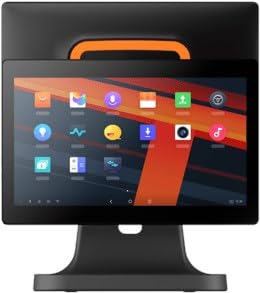
Rajah 4.1: Depan view of the SUNMI T2s Lite POS system. This image displays the main 15.6-inch touchscreen, which is the primary interface for operating the device. The design is compact and suitable for various retail settings.
4.1 Komponen Utama
- Paparan Skrin Sentuh 15.6-inci: High-resolution (1920x1080) capacitive touch interface.
- Butang Kuasa: Located typically on the side or rear for turning the device on/off.
- Port USB: For connecting peripherals such as barcode scanners, external printers, or cash drawers.
- Pelabuhan Ethernet: Untuk sambungan rangkaian berwayar.
- Input Kuasa: Untuk menyambungkan penyesuai kuasa.
- Kamera Depan: For specific applications requiring image capture.
5. Persediaan
5.1 Membongkar dan Meletakkan
- Keluarkan peranti dan semua aksesori dengan berhati-hati daripada pembungkusan.
- Place the POS terminal on a stable, flat surface in a well-ventilated area.
- Ensure there is sufficient space around the device for cable connections and heat dissipation.
5.2 Kuasa Penyambung
- Sambungkan kabel kuasa ke penyesuai kuasa.
- Plug the power adapter into the power input port on the back of the SUNMI T2s Lite.
- Palamkan hujung kabel kuasa yang lain ke dalam salur keluar elektrik yang dibumikan.
5.3 Initial Boot and Network Connection
- Press and hold the power button until the screen lights up. The device will boot into the Android operating system.
- Ikut gesaan pada skrin untuk persediaan awal, termasuk pemilihan bahasa dan zon waktu.
- Sambungan Wi-Fi: Pergi ke Tetapan > Rangkaian & Internet > Wi-Fi, select your network, and enter the password.
- Sambungan Ethernet: Connect an Ethernet cable from your router/switch to the Ethernet port on the device. The device should automatically connect to the wired network.
5.4 Menyambung Peranti
- Peranti USB: Plug USB peripherals (e.g., barcode scanner, external printer, cash drawer) into the available USB ports. The system will typically recognize them automatically.
- Peranti Bluetooth: Pergi ke Tetapan > Peranti yang disambungkan > Bluetooth, enable Bluetooth, and pair with your desired device.
6. Arahan Operasi
6.1 Menghidupkan/Mematikan
- Untuk Menghidupkan: Tekan dan tahan butang kuasa sehingga layar menyala.
- Untuk Mematikan: Press and hold the power button until a power menu appears. Select "Power off" and confirm. Alternatively, a short press of the power button will put the device to sleep.
6.2 Penggunaan Skrin Sentuh
- Ketik: Untuk memilih item atau mengaktifkan butang.
- Ketik dan Tahan: To open context menus or drag items.
- Leret: Untuk menatal senarai atau menavigasi antara skrin.
- Cubit-untuk-Zum: Untuk mengezum masuk atau keluar pada imej atau web muka surat.
6.3 Navigasi Sistem Operasi Android
- Skrin Utama: The central hub for your applications and widgets.
- Laci Apl: Akses semua aplikasi yang dipasang.
- Panel Pemberitahuan: Leret ke bawah dari bahagian atas skrin ke view pemberitahuan dan tetapan pantas.
- tetapan: Configure Wi-Fi, Bluetooth, display, sound, and other system options.
6.4 Basic POS Functions
The specific POS functions will depend on the software application installed on your device. Refer to the documentation provided with your POS software for detailed instructions. Generally, you will:
- Launch your POS application from the home screen or app drawer.
- Log masuk dengan kelayakan pengguna anda.
- Process transactions using the touchscreen and connected peripherals (e.g., scanning items, accepting payments).
- Print receipts if an external or integrated printer is configured.
7. Penyelenggaraan
7.1 Membersihkan Peranti
- Sentiasa matikan kuasa dan cabut plag peranti sebelum membersihkannya.
- Gunakan kain lembut dan tidak berbulu sedikit dampened with water or a mild, non-abrasive cleaner to wipe the screen and exterior surfaces.
- Jangan sembur cecair terus ke peranti.
- Elakkan daripada menggunakan bahan kimia, pelarut atau bahan yang kasar.
7.2 Kemas Kini Perisian
Regularly check for and install system and application updates to ensure optimal performance, security, and access to new features. You can usually find system updates in Tetapan > Sistem > Kemas kini sistem.
7.3 Penyimpanan
When not in use for extended periods, store the device in a cool, dry place, away from direct sunlight and extreme temperatures. If storing for a long time, ensure the battery is charged to about 50% to prolong its lifespan.
8. Penyelesaian masalah
Bahagian ini menangani isu biasa yang mungkin anda hadapi. Untuk masalah yang lebih kompleks, hubungi sokongan pelanggan.
- Peranti tidak akan dihidupkan:
- Pastikan penyesuai kuasa disambungkan dengan selamat ke peranti dan salur keluar kuasa yang berfungsi.
- Sahkan alur keluar kuasa berfungsi.
- Try holding the power button for 10-15 seconds to force a restart.
- Touchscreen is unresponsive:
- Mulakan semula peranti.
- Pastikan skrin bersih dan bebas daripada serpihan atau cecair.
- Network connection issues (Wi-Fi/Ethernet):
- Check if the Wi-Fi is enabled and you are connected to the correct network with the right password.
- For Ethernet, ensure the cable is properly connected and your router/switch is working.
- Mulakan semula penghala/modem anda.
- Peripherals (e.g., printer, scanner) not working:
- Ensure the peripheral is properly connected to the correct port.
- Check if the peripheral has its own power supply and is turned on.
- Verify that the necessary drivers or software for the peripheral are installed and configured within your POS application.
9. Spesifikasi
The following are key technical specifications for the SUNMI T2s Lite:
| Ciri | Spesifikasi |
|---|---|
| Jenama | SUNMI |
| Pengeluar | Sunmi |
| Resolusi Paparan Asli | 1920x1080 piksel |
| Teknologi Ketersambungan | Bluetooth, Ethernet, USB, WLAN |
| Penerangan Kamera | Depan |
| ASIN | B0B53FLFT8 |
10. Waranti dan Sokongan
The SUNMI T2s Lite POS system comes with a standard manufacturer's warranty. Please refer to the warranty card included in your package for specific terms and conditions, including warranty period and coverage details.
For technical support, service, or warranty claims, please contact your authorized SUNMI dealer or the customer support channel specified in your purchase documentation. Ensure you have your product model number (T2s Lite) and ASIN (B0B53FLFT8) ready when contacting support.