
1. Pengenalan
The SofaBaton U2 is a universal remote control designed to consolidate control of multiple home entertainment devices. It supports both Infrared (IR) and Bluetooth devices, allowing management of up to 15 different components such as Smart TVs, DVD/Blu-ray players, set-top boxes (STB), projectors, and streaming players. The remote features an OLED screen, a scroll wheel for device selection, and programmable macro functions.
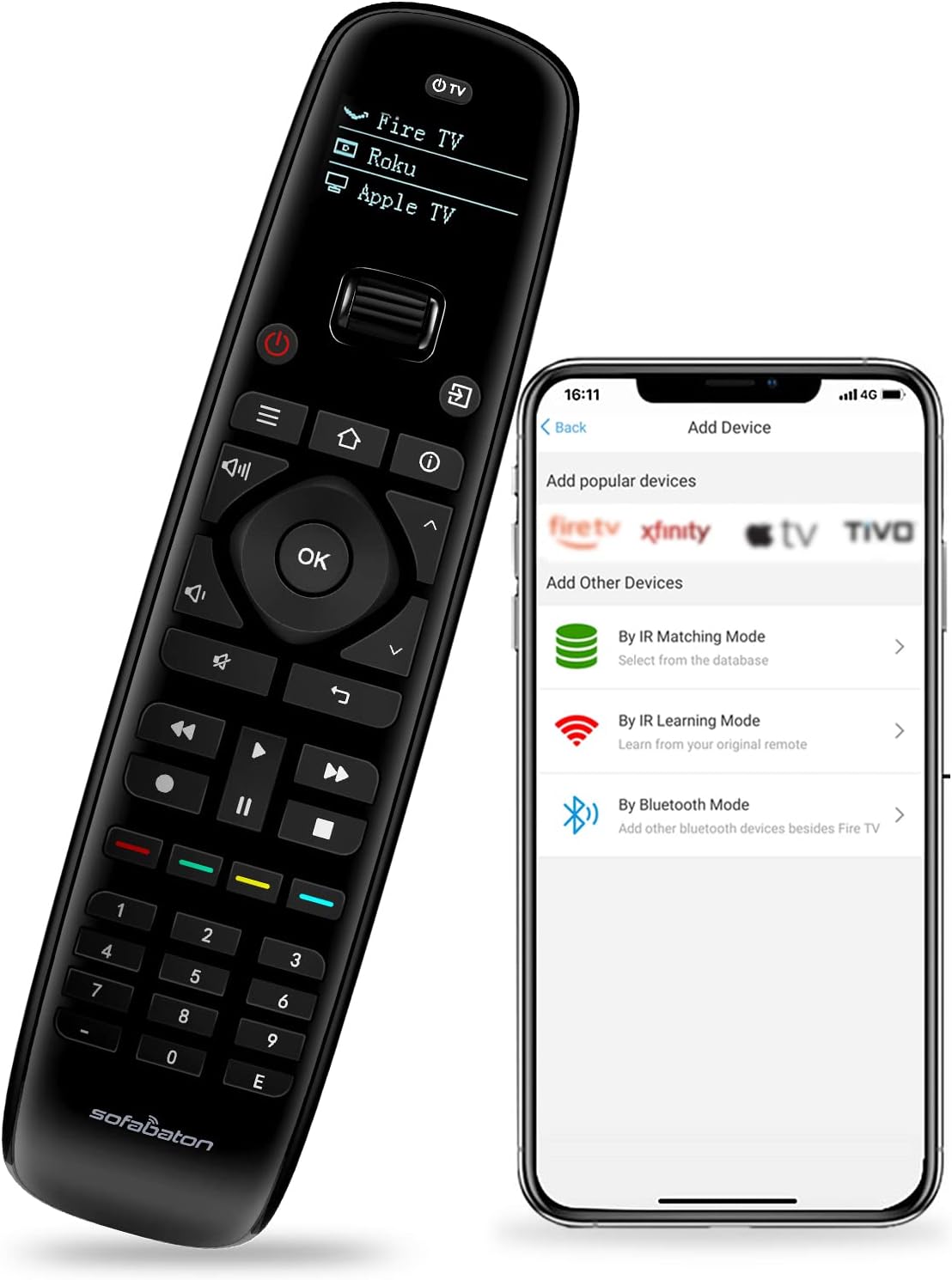
Image 1.1: The SofaBaton U2 remote control shown alongside its companion smartphone application interface, illustrating the device setup process.
2. Persediaan
2.1 Pemasangan Bateri
The SofaBaton U2 remote requires two AA batteries for operation. To install the batteries:
- Cari penutup petak bateri di bahagian belakang alat kawalan jauh.
- Press and hold the black tab located above the battery compartment.
- While holding the tab, slide down the battery compartment cover to remove it.
- Masukkan dua bateri AA, pastikan kekutuban (+/-) betul.
- Gantikan penutup petak bateri dengan menggelongsorkannya semula ke tempatnya sehingga ia berbunyi dengan selamat.

Image 2.1: Illustration of the battery compartment on the SofaBaton U2 remote, showing the process of inserting AA batteries.
2.2 Smartphone App Download and Device Pairing
The SofaBaton U2 is configured using a smartphone application. This app allows you to add devices from a cloud database, learn IR signals, and pair Bluetooth devices.
- Download the SofaBaton app from your device's app store (available for Apple iOS and Android).
- Buka apl dan ikut arahan pada skrin untuk membuat akaun atau log masuk.
- Select the option to add a new device. You will be presented with several pairing modes:
- Mod Padanan IR: Cari untuk your device by brand and model number within the app's extensive code library. This database supports over 500,000 devices from 6,000+ brands.
- Mod Pembelajaran IR: If your device is not found in the database, you can use the original remote control to teach the U2 remote specific functions. Point the original remote at the U2's IR receiver and press the desired button.
- Mod Bluetooth: For compatible Bluetooth devices (e.g., Fire TV), select this option to pair the U2 remote directly.
- Once a device is successfully added, it will appear on the U2 remote's OLED screen.

Image 2.2: The SofaBaton app interface demonstrating access to a cloud database for device code matching.
3. Arahan Operasi
3.1 Pemilihan Peranti
The SofaBaton U2 features an ergonomic scroll wheel for quick switching between configured devices. Rotate the scroll wheel to cycle through the devices listed on the OLED screen. Press the scroll wheel to select the desired device.
3.2 Fungsi Kawalan Asas
After selecting a device, the remote's buttons will control that specific device. The U2 remote includes standard buttons for power, volume, channel, navigation, playback controls (play, pause, fast forward, rewind, stop), and a numeric keypad.

Imej 3.1: Depan view of the SofaBaton U2 remote control, highlighting its button layout and OLED screen.
3.3 Programmable Macros
Macros allow you to execute a sequence of up to 10 commands with a single button press. These commands can be from the same device or different devices. Macros are configured via the SofaBaton smartphone app.
- Open the SofaBaton app and navigate to the settings for your U2 remote.
- Select the 'Macro' or 'Customize Key' option.
- Choose a button on the U2 remote to assign the macro to.
- Add the desired sequence of commands, specifying the device for each command.
- Save the macro. When the assigned button is pressed on the U2 remote, the sequence will execute.

Image 3.2: Visual representation of macro programming, showing how multiple commands can be assigned to a single button on the SofaBaton U2 remote.
3.4 Infrared (IR) Signal Range
The U2 remote offers an upgraded infrared signal range of up to 35 feet, providing reliable control over your devices from a greater distance.

Image 3.3: Diagram illustrating the extended 35-foot infrared signal range of the SofaBaton U2 remote control.
3.5 Raise to Wake Feature
The OLED screen on the U2 remote automatically illuminates when the remote is picked up, enhancing visibility in various lighting conditions. The screen will automatically turn off after a period of inactivity to conserve battery power.
4. Penyelenggaraan
4.1 Pembersihan
To clean the remote, use a soft, dry cloth. Avoid using abrasive cleaners, solvents, or harsh chemicals, as these can damage the remote's surface or internal components.
4.2 Penggantian Bateri
Replace the AA batteries when the remote's performance diminishes or the OLED screen indicates low power. Refer to Section 2.1 for battery installation instructions.
5. Penyelesaian masalah
- Remote is unresponsive:
- Periksa tahap bateri dan ganti jika perlu.
- Ensure the remote is pointed directly at the device's IR receiver.
- Verify that the correct device is selected on the U2 remote's OLED screen.
- Peranti tidak bertindak balas terhadap arahan:
- Confirm that the device is properly configured in the SofaBaton app. Try re-pairing the device or using the IR learning function.
- Pastikan tiada halangan antara alat kawalan jauh dan peranti.
- For Bluetooth devices, ensure the device's Bluetooth is enabled and the remote is within range.
- Scroll wheel is not functioning correctly:
- Gently clean around the scroll wheel to remove any debris.
- Restart the remote by removing and reinserting the batteries.
- OLED screen is blank:
- The screen may be off due to inactivity; pick up the remote to activate the 'Raise to Wake' feature.
- Semak tahap bateri.
6. Spesifikasi
| Ciri | Perincian |
|---|---|
| Dimensi Produk | 6 x 3 x 0.01 inci |
| Berat Barang | 10.2 auns |
| Nombor Model Item | U2 |
| Bateri | 2 bateri AA diperlukan |
| Pengeluar | SofaBaton |
| Ciri Khas | Digital Display, Ergonomic, Lightweight, Pre Programmed, Universal |
| warna | Hitam |
| Bilangan Maks Peranti yang Disokong | 15 |
| Peranti Serasi | DVD/Blu-ray Player, Home Theater, Set Top Box, Stereo System, Television |
7. Waranti dan Sokongan
7.1 Maklumat Waranti
Please refer to the warranty card included with your product or visit the official SofaBaton website for detailed warranty terms and conditions. Warranty coverage typically includes manufacturing defects for a specified period from the date of purchase.
7.2 Sokongan Pelanggan
For technical assistance, troubleshooting, or inquiries regarding your SofaBaton U2 Universal Remote Control, please contact SofaBaton customer support. Contact information can usually be found on the manufacturer's webtapak atau dalam pembungkusan produk.
8. Catatan Penting
- The SofaBaton U2 remote control does not support Wireless (Wi-Fi) devices. It is compatible with Infrared (IR) and Bluetooth devices only.
- Ensure your smartphone has an active internet connection when using the SofaBaton app for device setup and database access.