
1. Pengenalan
Thank you for choosing the GEEZER 2.4GHz Wireless Keyboard and Mouse Combo. This product is designed to provide a comfortable and efficient typing and navigation experience with its retro-inspired design and wireless convenience. This manual will guide you through the setup, operation, and maintenance of your new device.
2. Produk Lebihview
The GEEZER Wireless Keyboard and Mouse Combo features a unique design with detachable keycaps and a quiet mouse, offering broad compatibility with various operating systems.
2.1 Komponen
- Papan Kekunci Tanpa Wayar
- Tetikus Tanpa Wayar
- 2-in-1 Nano USB Receiver
- AA & AAA Batteries (pre-installed or included)
- Berus Pembersih
2.2 Ciri-ciri Utama
- Teknologi Wayarles 2.4GHz: Provides a stable connection with a working range of up to 35 feet.
- Retro Round & Detachable Keycaps: Easy to clean and offers a unique typing feel.
- Operasi senyap: Bottom sealing film technology for the keyboard and silent mouse clicks.
- Reka bentuk ergonomik: Inclination angle for comfortable typing and reduced wrist pressure.
- Hayat Bateri yang Panjang: Mod tidur automatik memanjangkan hayat bateri sehingga 12 bulan.
- Keserasian Luas: Compatible with Windows 10/8/7/XP/Vista, PC, Mac, Desktop, Laptop, Notebook, Chrome-Book, Smart TVs, and more.

Image 2.1: The GEEZER 2.4GHz Wireless Keyboard and Mouse Combo in Pink, showcasing its design and included USB receiver.

Imej 2.2: Terperinci view of the keyboard and mouse highlighting the cat-themed design, including paw prints, cat ears, and whiskers.
3. Arahan Persediaan
Follow these steps to set up your GEEZER Wireless Keyboard and Mouse Combo:
- Pasang Bateri:
- Cari petak bateri di bahagian bawah papan kekunci dan tetikus.
- Insert the provided AA battery into the keyboard and AAA batteries into the mouse, ensuring correct polarity.
- Cari Penerima USB: The 2-in-1 Nano USB receiver is typically stored in a compartment on the underside of the mouse for safekeeping. Gently remove it.
- Sambungkan Penerima: Plug the Nano USB receiver into an available USB 2.0 port on your computer, PC, laptop, or compatible device.
- Hidupkan Peranti: Turn on the keyboard and mouse using their respective ON/OFF switches, usually located on the underside.
- Sambungan Automatik: The keyboard and mouse should automatically connect to your device. No additional software or drivers are typically required for basic functionality.

Image 3.1: Illustration of the 2-in-1 Nano USB receiver being plugged into a laptop, enabling wireless connection for both keyboard and mouse.
4. Arahan Operasi
4.1 Penggunaan Papan Kekunci
- Menaip: The keyboard features a standard QWERTY layout with 84 keys. The retro round keycaps provide a distinct tactile experience.
- Kekunci Panas Multimedia: Use the function (Fn) key in combination with the F1-F12 keys for multimedia controls such as volume, playback, and web browser shortcuts. Refer to the keycap legends for specific functions.

Image 4.1: The keyboard layout, indicating the location and function of the 13 multimedia hotkeys (F1-F12 and Esc).
4.2 Penggunaan Tetikus
- Navigasi: The mouse provides precise and quiet cursor control.
- Butang: Standard left-click, right-click, and scroll wheel functionality.
4.3 Mod Penjimatan Kuasa
Both the keyboard and mouse are equipped with an automatic sleep function. If idle for approximately 5 minutes, they will enter sleep mode to conserve battery. To wake them up, simply click any button on either device.
5. Penyelenggaraan dan Penjagaan
Proper maintenance ensures the longevity and optimal performance of your wireless combo.
- Membersihkan Kap Kunci: The individual keycaps are detachable. You can carefully remove them for thorough cleaning. They can be washed with water. Use the provided brush to remove dust and debris from between the keys. Ensure keycaps are completely dry before reattaching.
- Pembersihan Am: Wipe the surfaces of the keyboard and mouse with a soft, damp kain. Elakkan menggunakan bahan kimia yang keras atau bahan yang melelas.
- Penggantian Bateri: When performance degrades, replace the batteries. The keyboard uses one AA battery, and the mouse uses two AAA batteries.
- Storan: When not in use for extended periods, turn off both devices using their ON/OFF switches to further conserve battery life. Store the USB receiver in the mouse's compartment.

Image 5.1: Illustration demonstrating the detachable nature of the keycaps, allowing for easy cleaning and maintenance.
6. Penyelesaian masalah
If you encounter issues with your GEEZER Wireless Keyboard and Mouse Combo, refer to the following common solutions:
| Masalah | Penyelesaian yang Mungkin |
|---|---|
| Papan kekunci/Tetikus tidak bertindak balas |
|
| Mouse disconnects intermittently |
|
| Kekunci melekit atau tidak responsif |
|
7. Spesifikasi
| Ciri | Perincian |
|---|---|
| Nombor Model | Kucing001 |
| Ketersambungan | Wayarles 2.4GHz (Penerima USB) |
| Dimensi Papan Kekunci | 13.54 x 5.91 x 1.06 inci |
| Berat Barang | 1.1 pounds (Keyboard & Mouse combined) |
| Bateri Papan Kekunci | 1 x bateri AA (termasuk) |
| Bateri tetikus | 2 x bateri AAA (termasuk) |
| Peranti Serasi | Windows 10/8/7/XP/Vista, Android, Linux, iMac, PC, Desktop, Laptop, Notebook, Chrome-Book, Smart TVs |
| Ciri Khas | Ergonomic Design, Detachable Keycaps |
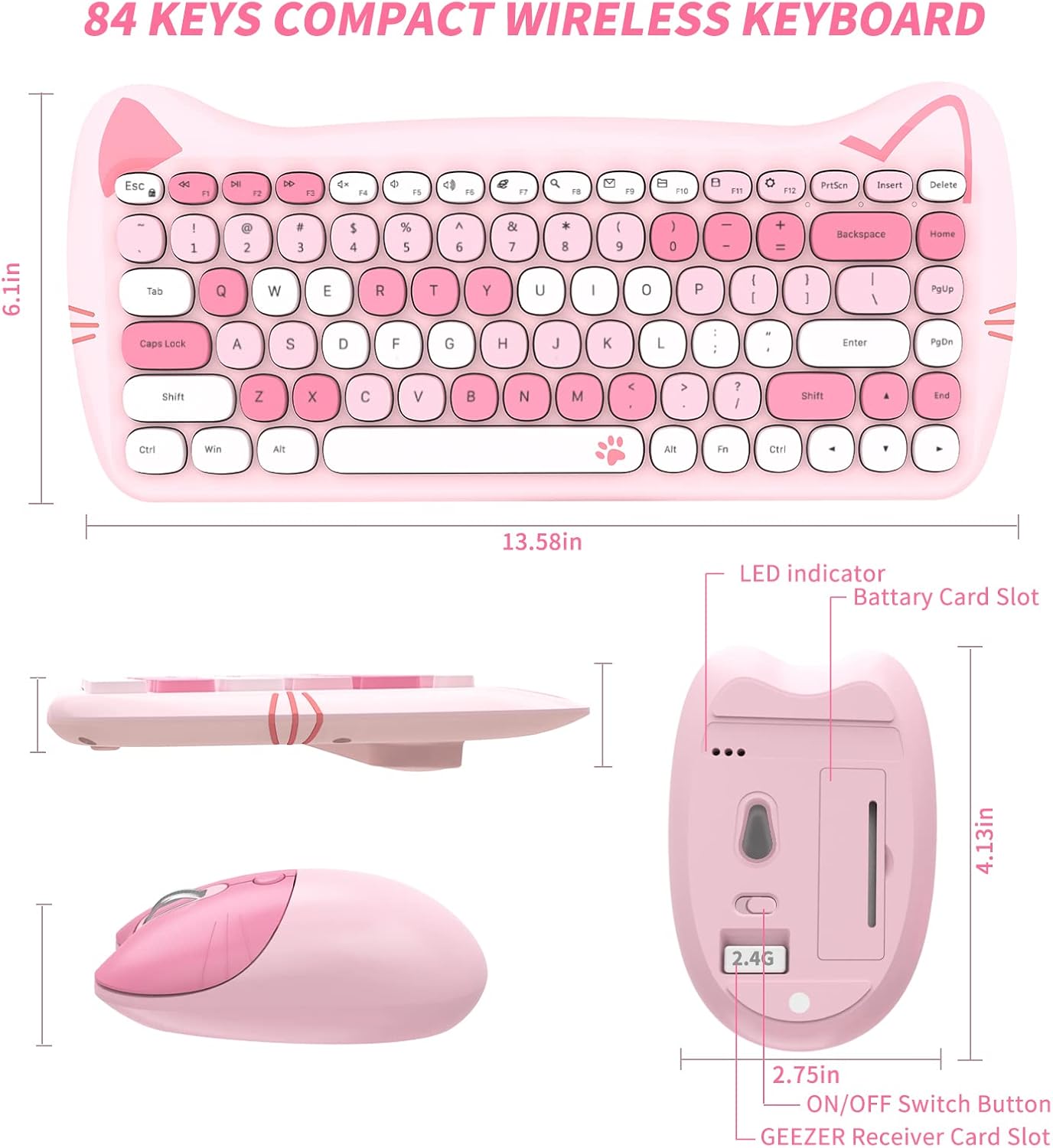
Image 7.1: Technical diagram illustrating the dimensions of the GEEZER wireless keyboard and mouse.
8. Waranti dan Sokongan
This product comes with a standard manufacturer's warranty. For specific warranty details, please refer to the product packaging or contact GEEZER customer support. If you require further assistance or have questions not covered in this manual, please reach out to the seller or manufacturer's support channels.