
1. Pengenalan
Welcome to the HyperX Armada 25 Gaming Monitor user manual. This document provides essential information for setting up, operating, maintaining, and troubleshooting your new monitor. The HyperX Armada 25 is designed for competitive gaming, featuring a 24.5-inch Full HD (1920x1080) IPS panel, a 240Hz refresh rate, and a 1ms response time, ensuring smooth and responsive visuals. It also includes NVIDIA G-SYNC compatibility to eliminate screen tearing and minimize input latency. A desk mount is included for convenient setup and to maximize desk space.
Ciri-ciri Utama:
- Pakej All-in-One: Includes an ergonomic arm and desk mount for easy setup and space-saving.
- Kadar Segar Semula Tinggi & Masa Tindak Balas: 240Hz refresh rate and 1ms response time for ultra-smooth gaming.
- Vibrant IPS Panel: 24.5-inch Full HD (1920x1080) IPS panel delivers stunning visuals with accurate colors and wide viewsudut-sudut.
- NVIDIA G-SYNC Serasi: Eliminates screen tearing and reduces stuttering for a fluid gaming experience.

Video Produk Rasmi:
2. Persediaan
This section guides you through the initial setup of your HyperX Armada 25 Gaming Monitor, including assembly and connection to your computer.
2.1. Assembling the Desk Mount
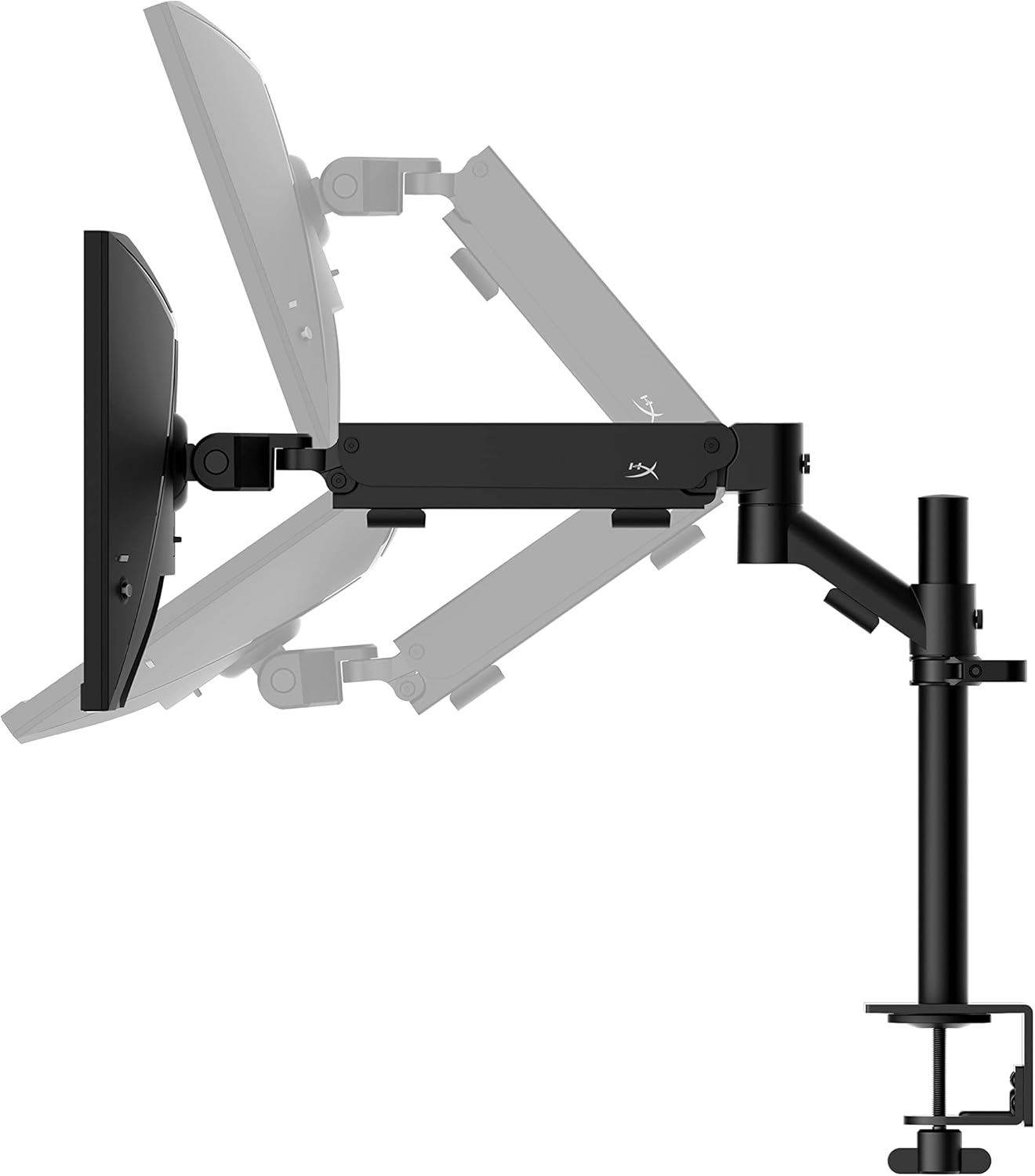
The HyperX Armada 25 comes with an integrated ergonomic desk mount. Follow the instructions provided in the separate quick start guide for detailed assembly steps. The monitor head easily snaps into the arm, allowing for quick and secure installation.

2.2. Menyambung Monitor
Connect the monitor to your computer using the appropriate cables. The HyperX Armada 25 supports both HDMI and DisplayPort connections.
- Sambungkan satu hujung kabel HDMI atau DisplayPort ke port yang sepadan pada kad grafik komputer anda.
- Connect the other end of the cable to an available HDMI 2.0 or DisplayPort 1.4 port on the back of your monitor.
- Sambungkan kord kuasa ke monitor dan kemudian ke soket kuasa.
- Tekan butang kuasa pada monitor untuk menghidupkannya.

3. Mengendalikan Monitor
This section covers basic operation and navigation of the monitor's On-Screen Display (OSD) menu.
3.1. Navigasi Paparan Pada Skrin (OSD).
The OSD menu is controlled using a joystick located on the back of the monitor. This joystick allows you to power on/off the monitor and navigate through various settings.
- Tekan kayu bedik: Untuk membuka menu OSD atau mengesahkan pilihan.
- Move the joystick Up/Down/Left/Right: To navigate through menu options and adjust settings.
- Hold the joystick: To power off the monitor.

3.2. Melaraskan Kedudukan Monitor
The ergonomic desk mount allows for flexible positioning of your monitor. You can adjust the height, tilt, swivel, and pivot to find your optimal viewsudut ing.

4. Penyelenggaraan
Proper maintenance ensures the longevity and optimal performance of your HyperX Armada 25 Gaming Monitor.
- Membersihkan Skrin: Gunakan kain lembut yang tidak berbulu dampened with water or a specialized screen cleaner. Avoid using harsh chemicals, abrasive materials, or direct spraying onto the screen.
- Membersihkan Casing: Lap monitor casing dengan kain lembut dan kering.
- Pengudaraan: Pastikan bukaan pengudaraan monitor tidak disekat untuk mengelakkan terlalu panas.
- Matikan Apabila Tidak Digunakan: Matikan monitor apabila tidak digunakan untuk tempoh yang lama untuk menjimatkan tenaga dan memanjangkan jangka hayatnya.
5. Penyelesaian masalah
If you encounter issues with your monitor, refer to the following common troubleshooting steps.
- Tiada Kuasa:
- Periksa sama ada kabel kuasa disambungkan dengan selamat ke kedua-dua monitor dan alur keluar kuasa.
- Pastikan salur keluar kuasa berfungsi dengan betul.
- Tekan butang kuasa pada monitor.
- Tiada isyarat:
- Verify that the HDMI or DisplayPort cable is securely connected to both the monitor and your computer.
- Pastikan komputer anda dihidupkan dan bukan dalam mod tidur.
- Pilih sumber input yang betul menggunakan menu OSD.
- Flickering Screen or Image Issues:
- Check the display cable for damage or loose connections.
- Pastikan pemacu kad grafik anda dikemas kini.
- Laraskan kadar muat semula dalam tetapan paparan komputer anda.
- If G-SYNC is enabled, try disabling it temporarily to see if the issue persists.
- Buttons Not Responding (OSD Joystick):
- Pastikan monitor dihidupkan.
- Try restarting the monitor by unplugging and replugging the power cable.
- Clean around the joystick to ensure no debris is obstructing its movement.
6. Spesifikasi
Detailed technical specifications for the HyperX Armada 25 Gaming Monitor.
| Ciri | Perincian |
|---|---|
| Dimensi Produk | 21.94 x 25.79 x 31.12 inci; 16.98 paun |
| Nombor Model Item | HyperX Armada 25 |
| Tarikh Mula-mula Tersedia | 24 Ogos 2022 |
| Pengeluar | HP Inc. |
| ASIN | B0B2C1G356 |
| Saiz Paparan | Diagonal 24.5 inci |
| Resolusi | FHD (1920x1080) |
| Kadar Segar Semula | 240Hz |
| Jenis Panel | Panel IPS |
| Masa Tindak Balas | 1ms |
| Teknologi Penyegerakan | NVIDIA® G-SYNC® Serasi |
| Included Mount | Desk Mount Included |
| Ketersambungan | HDMI and Display Port |
7. Waranti dan Sokongan
For warranty information, technical support, or to access additional resources, please visit the official HyperX webtapak atau hubungi perkhidmatan pelanggan mereka.
- Official HyperX Webtapak: www.hyperx.com
- Halaman Sokongan Produk: Refer to the support section on the HyperX webtapak untuk model khusus anda.