
pengenalan
This manual provides detailed instructions for the BEITONG BAT 2 Wired USB Gaming Controller. It covers setup, operation, maintenance, and troubleshooting to ensure optimal performance and longevity of your device. The BEITONG BAT 2 is designed for a responsive and immersive gaming experience on compatible platforms.
Ciri-ciri Produk
- 8th Generation Upgraded Chip: Features ultra-low latency (≤ 0.008 s) for smooth and responsive gameplay.
- Sambungan USB Berwayar: Ensures stable and reliable connectivity.
- Keserasian berbilang platform: Supports PC (Windows 7/8/10/11), Laptops, Android TV, and Tesla Model 3/Y (before 11/2021). Note: Does not support Xbox, PS4/5, or Switch.
- High Precision Joysticks: Designed for 360° flexible positioning and fine-tuning, enhancing control in various game genres.
- Dual Vibrating Motors: Built-in asymmetrical motors provide varied vibration feedback based on in-game events, increasing immersion. (Vibration effect is active only when supported by the game.)
- Fungsi Turbo: A dedicated turbo button simplifies complex combo inputs, offering an advantage in fast-paced games.
Kandungan Pakej
- BEITONG BAT 2 Wired USB Gaming Controller
- Manual Pengguna (dokumen ini)
Arahan Persediaan
- Sambungkan Pengawal: Insert the USB connector of the BEITONG BAT 2 controller into an available USB port on your PC, Laptop, Android TV, or compatible Tesla vehicle.

Image: The BEITONG BAT 2 controller connected via USB to a laptop, desktop PC, Steam Deck (with OTG adapter), Android TV, and Tesla car screen. This illustrates the multi-platform compatibility.
- Pemasangan Pemandu: For Windows operating systems (7/8/10/11), the necessary drivers should install automatically upon first connection. Allow a few moments for the system to recognize the device.
- Sahkan Sambungan: Once connected, the controller's indicator light should illuminate, signifying a successful connection. You can test the controller's functionality through your operating system's game controller settings.
- Tesla Compatibility Note: For Tesla Model 3 and Model Y, ensure your vehicle was manufactured before November 2021 for compatibility. An OTG adapter may be required for some devices, such as the Steam Deck.
Arahan Operasi
Susun Atur dan Fungsi Pengawal
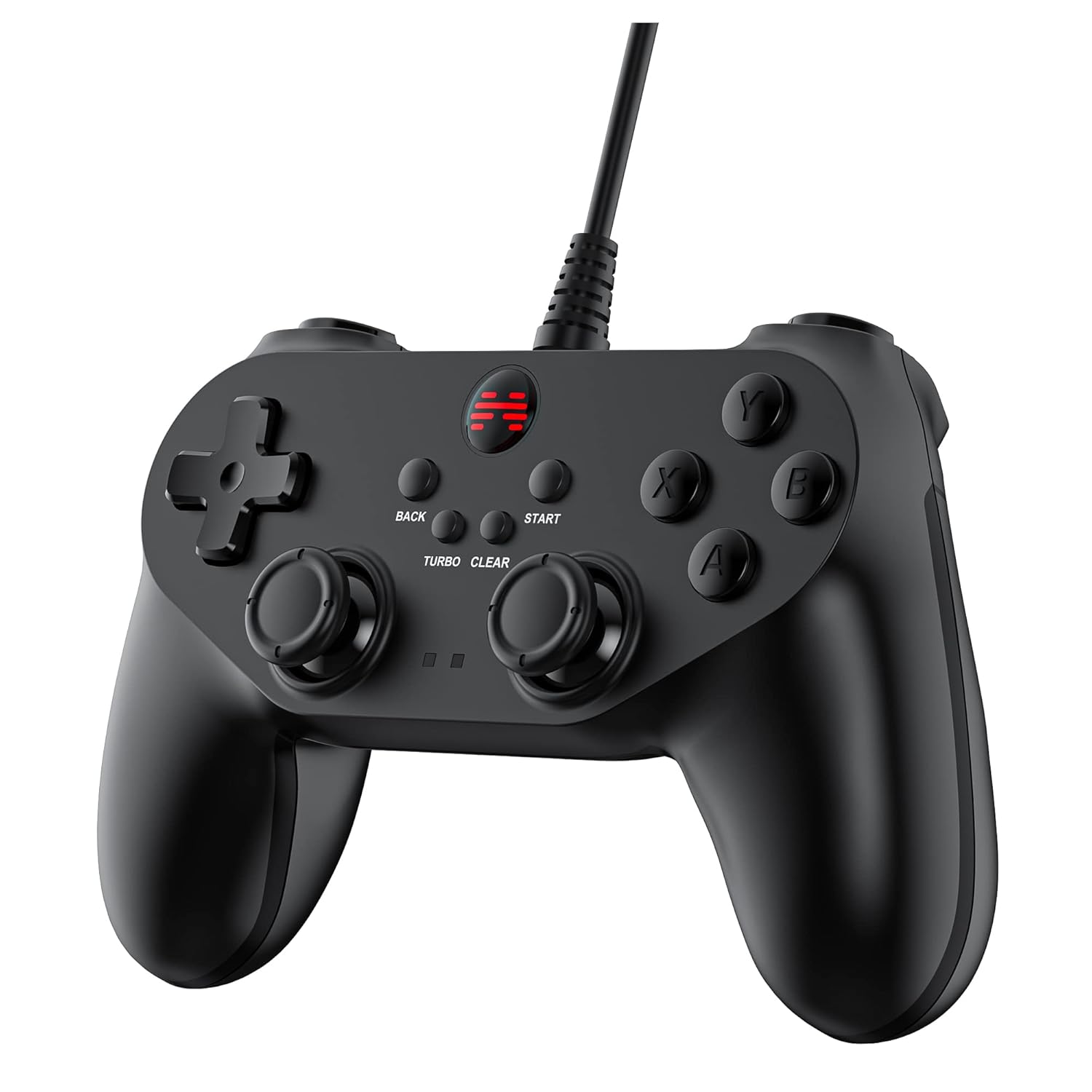
Imej: Bahagian hadapan terperinci view of the BEITONG BAT 2 controller, highlighting the ergonomic design, dual analog sticks, D-pad, action buttons (A, B, X, Y), and central function buttons (Back, Start, Turbo, Clear).
- Kayu Ria Analog: Use for precise 360° movement and camera control in games. The joysticks are designed for high precision and flexible positioning.
- D-Pad: Used for directional input, often for menu navigation or specific game actions.
- Butang Tindakan (A, B, X, Y): Primary input buttons for in-game actions.
- Shoulder Buttons (L1, R1) and Triggers (L2, R2): Located on the top of the controller for additional actions. Note that L2 and R2 are digital buttons, not analog triggers.
- BACK and START Buttons: Standard function buttons for pausing games, accessing menus, or other in-game commands.
- Butang TURBO: Activates the turbo function.
- Butang CLEAR: Deactivates the turbo function.
Menggunakan Fungsi Turbo
- Aktifkan Turbo: Tekan dan tahan butang TURBO button, then press the action button (e.g., A, B, X, Y, L1, R1, L2, R2) you wish to apply turbo to. The selected button will now repeatedly register input as long as it is held down.
- Nyahaktifkan Turbo: Tekan dan tahan butang JELAS button, then press the action button that has turbo enabled. The turbo function for that specific button will be deactivated.
- Global Turbo Clear: To clear all active turbo settings, press and hold the JELAS butang selama lebih kurang 3 saat.

Imej: Dari dekat view of the central part of the controller, highlighting the "TURBO" and "CLEAR" buttons, indicating their function for rapid input.
Maklum balas Getaran
The controller features dual asymmetrical vibrating motors that provide haptic feedback during gameplay. The intensity and pattern of vibration vary based on in-game events, such as impacts, explosions, or specific actions. This feature is active only when supported by the game being played.
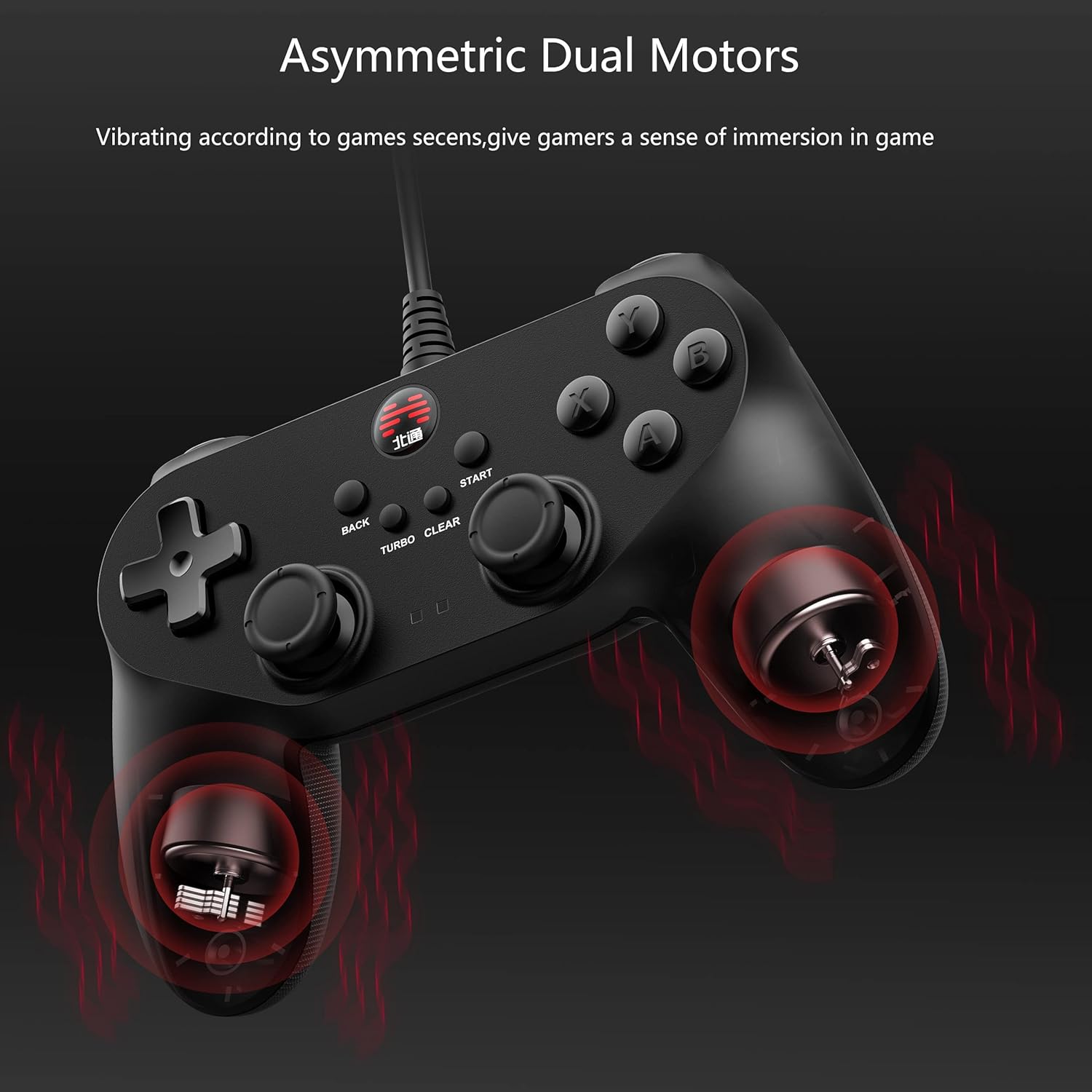
Image: An X-ray style diagram of the BEITONG BAT 2 controller, illustrating the placement of the two asymmetrical vibrating motors within the grips, with red waves indicating vibration.
Penyelenggaraan dan Penjagaan
- Pembersihan: Gunakan kain lembut dan kering untuk membersihkan pengawal. Untuk kotoran degil, gunakan sedikit kainamp kain boleh digunakan, tetapi pastikan tiada kelembapan memasuki peranti. Elakkan bahan kimia yang keras atau pembersih yang kasar.
- Storan: Simpan alat kawalan di tempat yang sejuk dan kering, jauh daripada cahaya matahari langsung dan suhu yang melampau. Elakkan meletakkan objek berat di atas alat kawalan.
- Penjagaan Kabel: Do not sharply bend or pull the USB cable. Always grasp the plug when disconnecting, not the cable itself, to prevent damage.
- Elakkan Titisan: Protect the controller from drops and impacts, as these can damage internal components.
Menyelesaikan masalah
- Controller not recognized by PC/device:
- Ensure the USB cable is securely plugged into both the controller and the device.
- Try a different USB port on your computer or device.
- Mulakan semula komputer atau peranti anda.
- Check your operating system's device manager or game controller settings to see if the controller is listed. If there's an error, try updating or reinstalling drivers.
- Verify compatibility: The controller does not support Xbox, PS4/5, or Switch consoles.
- Getaran tidak berfungsi:
- Sahkan bahawa permainan yang anda mainkan menyokong maklum balas getaran.
- Semak tetapan dalam permainan untuk memastikan getaran didayakan.
- Some games may require specific drivers or software updates for full functionality.
- Buttons or joysticks unresponsive/inaccurate:
- Ensure the controller is properly connected and recognized.
- Calibrate the controller through your operating system's game controller settings.
- Clean around the buttons and joysticks to remove any debris that might be causing sticking.
- If the issue persists, contact BEITONG customer support.
- Turbo function not working:
- Follow the operating instructions carefully to activate and deactivate turbo for specific buttons.
- Ensure you are pressing the correct combination of TURBO/CLEAR and action buttons.
Spesifikasi
| Ciri | Perincian |
|---|---|
| Nombor Model | BTP-BD2E |
| Ketersambungan | USB berwayar |
| Keserasian | PC (Windows 7/8/10/11), Laptop, Android TV, Tesla Model 3/Y (before 11/2021) |
| Latensi | ≤ 0.008 saat |
| Getaran | Dual Asymmetrical Motors |
| Dimensi | 5.91 x 4.33 x 1.97 inci |
| Berat badan | 9.6 auns |
| Pengeluar | BEITONG |
Waranti dan Sokongan
BEITONG is committed to providing quality products and customer satisfaction. While specific warranty details are not provided in this manual, the BEITONG technology team is available to provide support for any issues encountered with your controller.
For technical assistance, troubleshooting, or inquiries regarding your BEITONG BAT 2 controller, please refer to the official BEITONG website or contact their customer service channels. Contact information can typically be found on the product packaging or the manufacturer's official webtapak.